How to Manage Your Account Settings
Overview
The Account page is where you manage how you sign in and keep your account secure — separate from your public profile content. It is for every Cohart account holder — artist, gallery, buyer, or admin — who needs to change a password or understand the delete and deactivate options. The page lives under the sidebar More menu as Account, and it covers only sign-in methods, password, and account removal; profile details like name, bio, and photo are edited from your public profile via Edit Profile. Changing a password takes effect on your next sign-in everywhere, while deactivating temporarily hides your profile and content until you log back in, and deleting permanently removes them. When you finish, you will have reviewed your sign-in methods and made the password or account change you came for.
Before you start
- A Cohart account of any type, signed in — open the page from the sidebar via More > Account (the menu also holds Shared With Me, Purchases, and Logout).
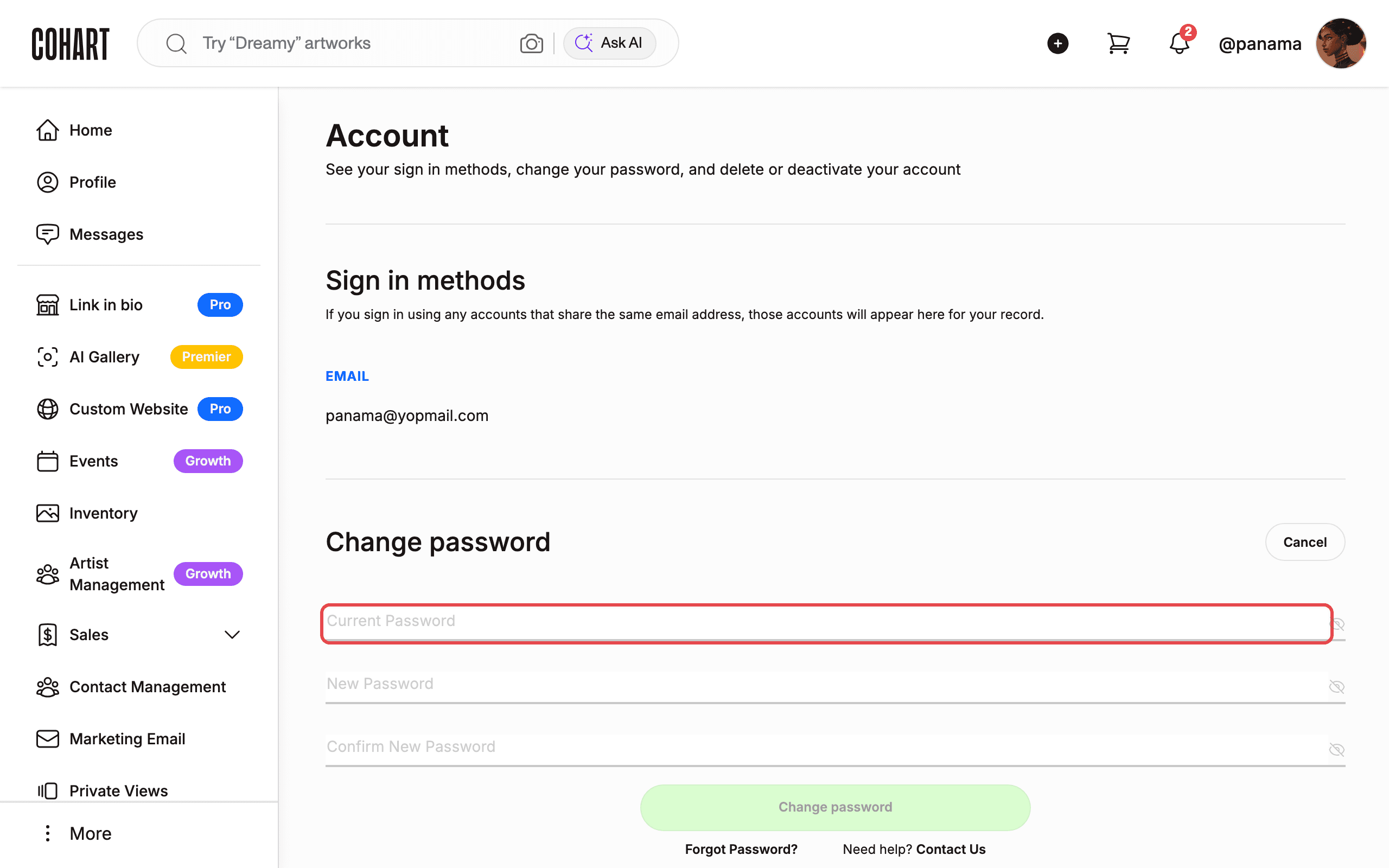
- Your current password, if you want to set a new one: the Current Password, New Password, and Confirm New Password fields must all be filled before the Change password button enables.
- If you never set a website password (for example you joined in the mobile app or sign in with Google or Apple), use Forgot Password? from a signed-out session to create one first (see How to Log In to Cohart for the reset flow).
- Expect sharply different effects: deactivating is temporary and reversible by logging back in, while deleting is permanent and removes your profile, photos, videos, comments, likes, and followers. Accounts with active subscriptions must cancel them first before the delete flow proceeds.
Steps
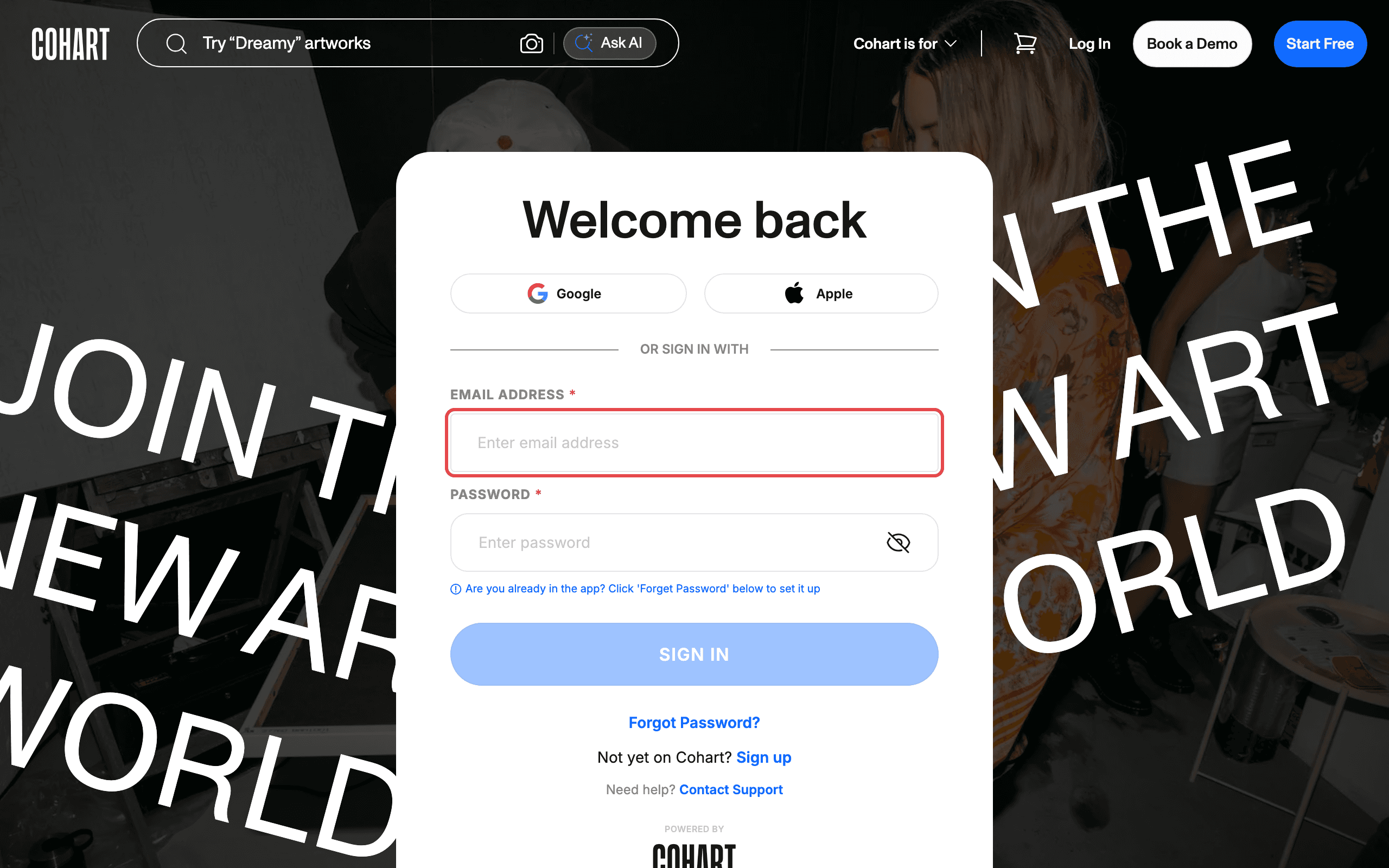
1. Sign in to Cohart
Sign in with your email address and password, or use Google or Apple.
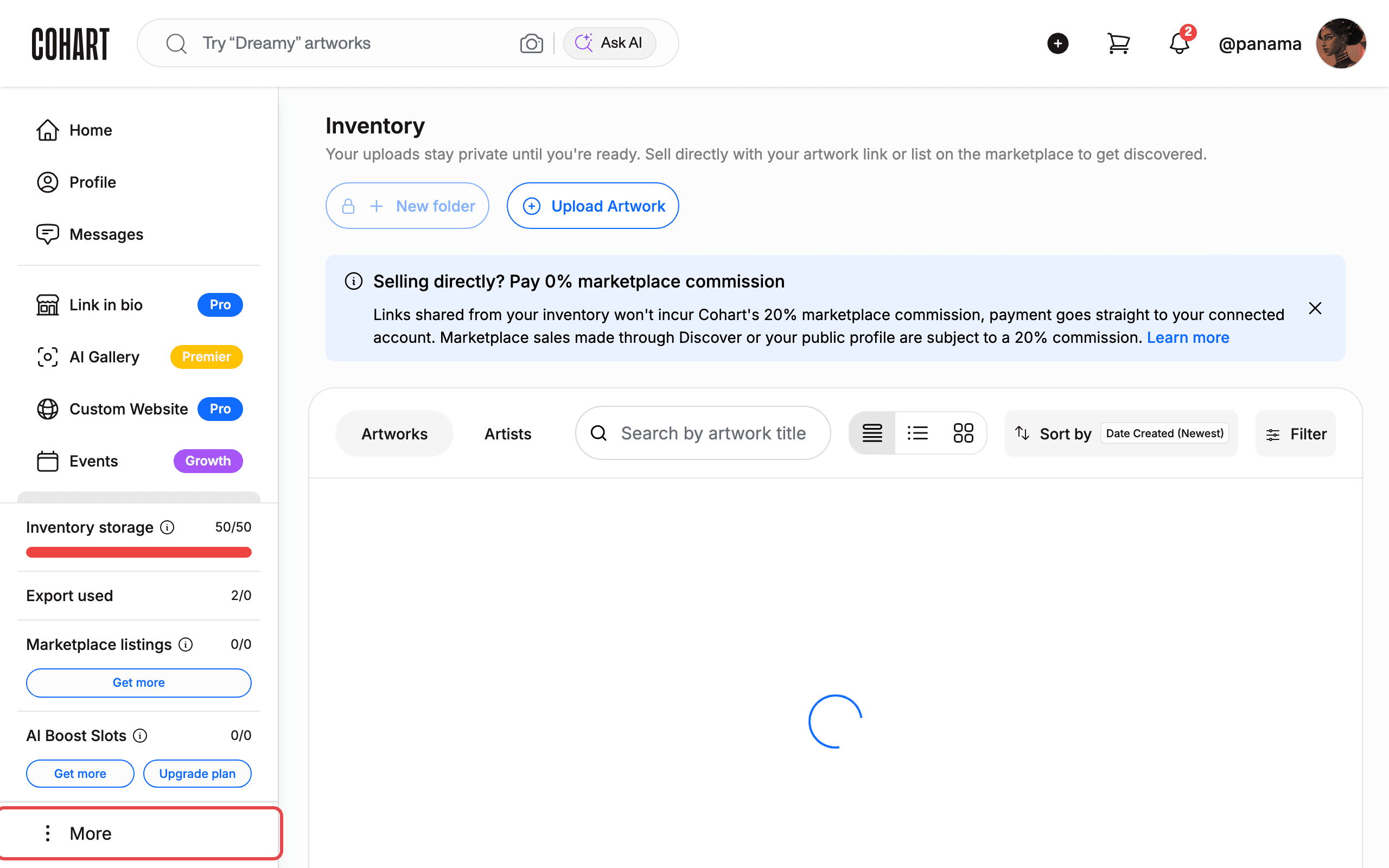
2. Open the More menu
After signing in, scroll to the bottom of the left sidebar and click More.
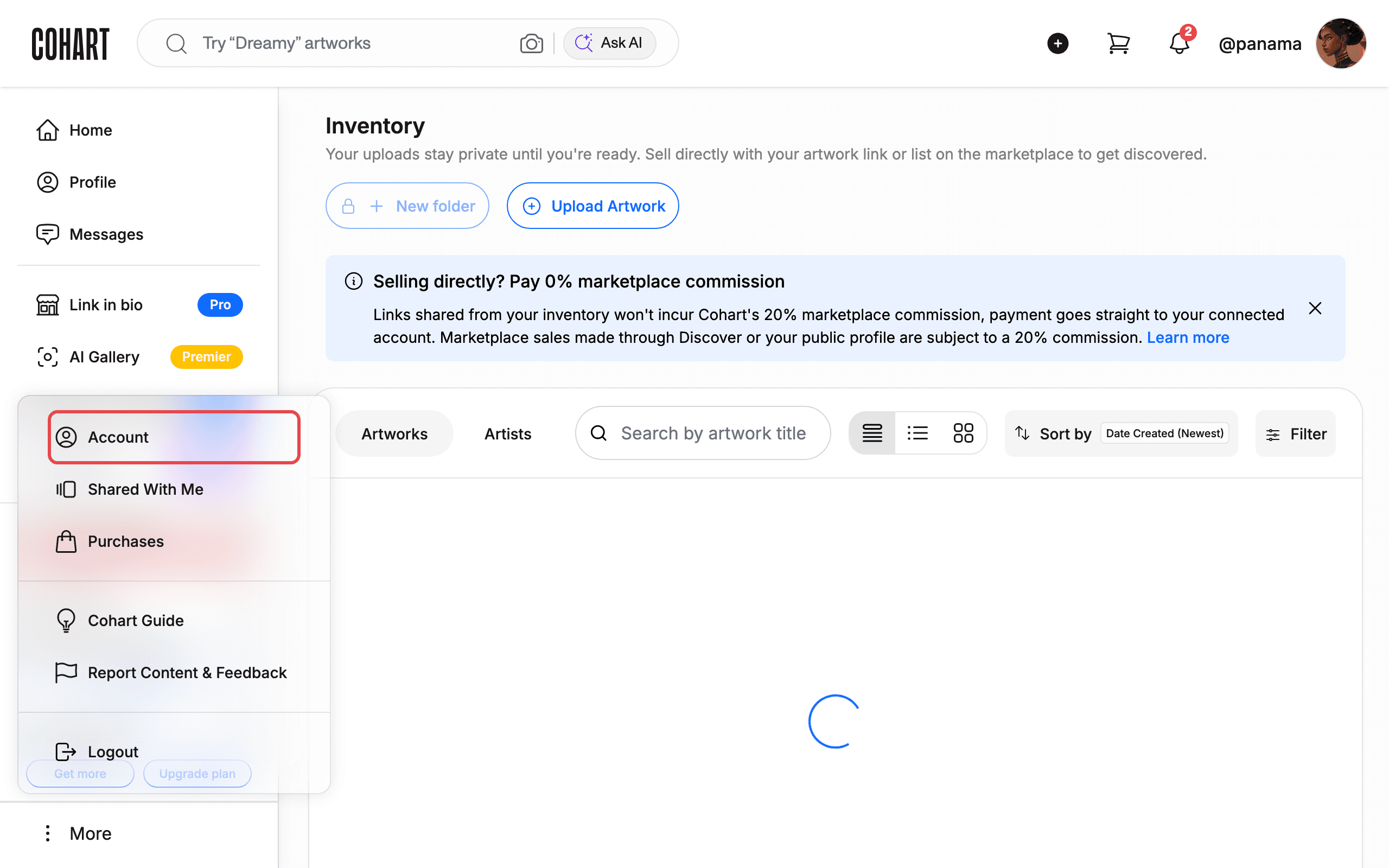
3. Click Account
In the menu that opens, click Account.
The menu also offers Shared With Me, Purchases, Cohart Guide, Report Content & Feedback, and Logout. The menu closes after you navigate.
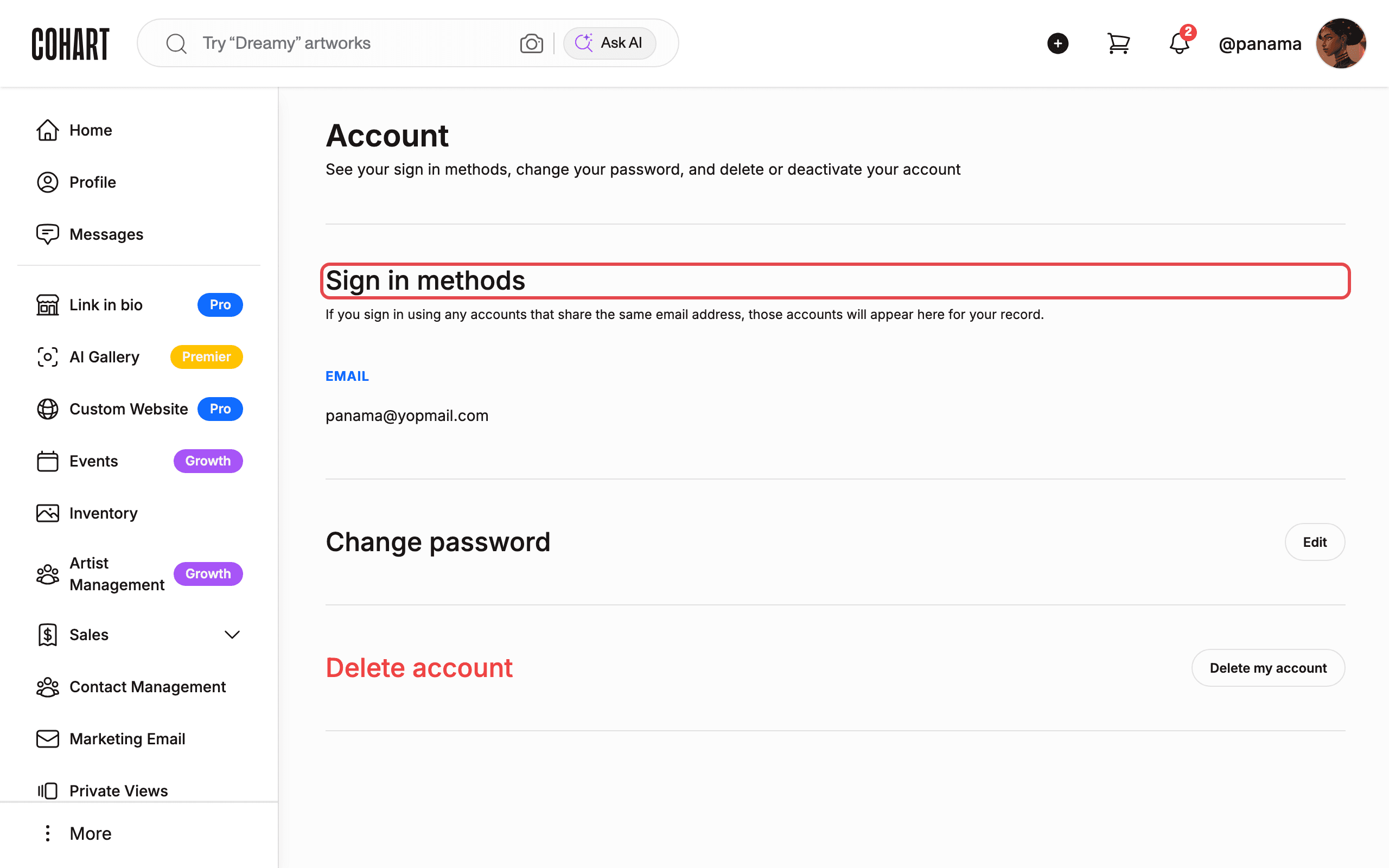
4. Review the Account page
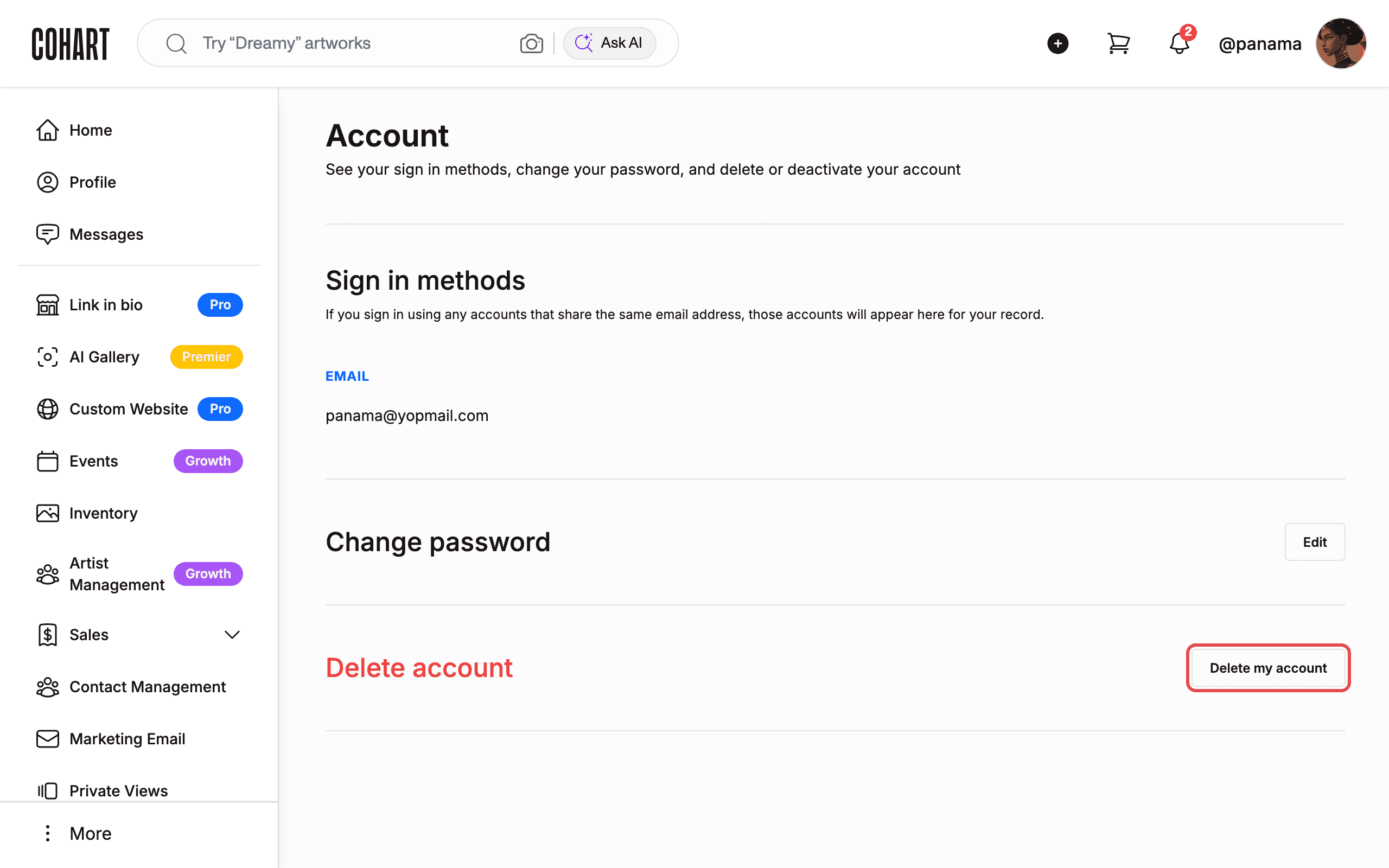
The page reads: “See your sign in methods, change your password, and delete or deactivate your account”. Under Sign in methods, the page notes: “If you sign in using any accounts that share the same email address, those accounts will appear here for your record.” Your address appears under EMAIL.
5. Open the password form
Next to Change password, click Edit. Fill in Current Password, New Password, and Confirm New Password.
The Change password button stays disabled until all three fields are filled. If you forgot your current password, click Forgot Password?. For help, click Contact Us under Need help?.
6. Apply or discard the password change
Click Change password to save your new password, or Cancel to close the form without changing it. Use your new password the next time you sign in.
7. Read the delete options
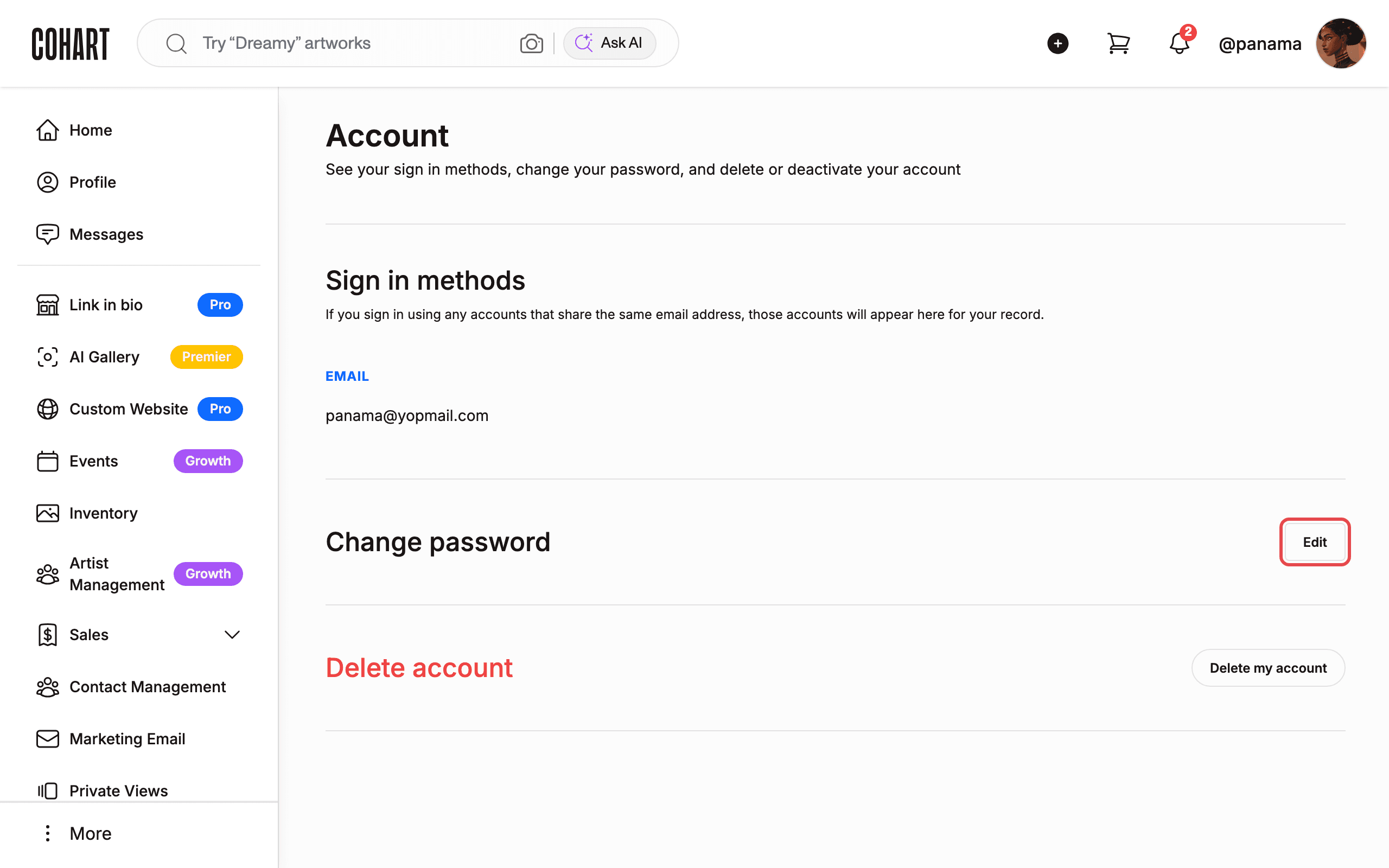
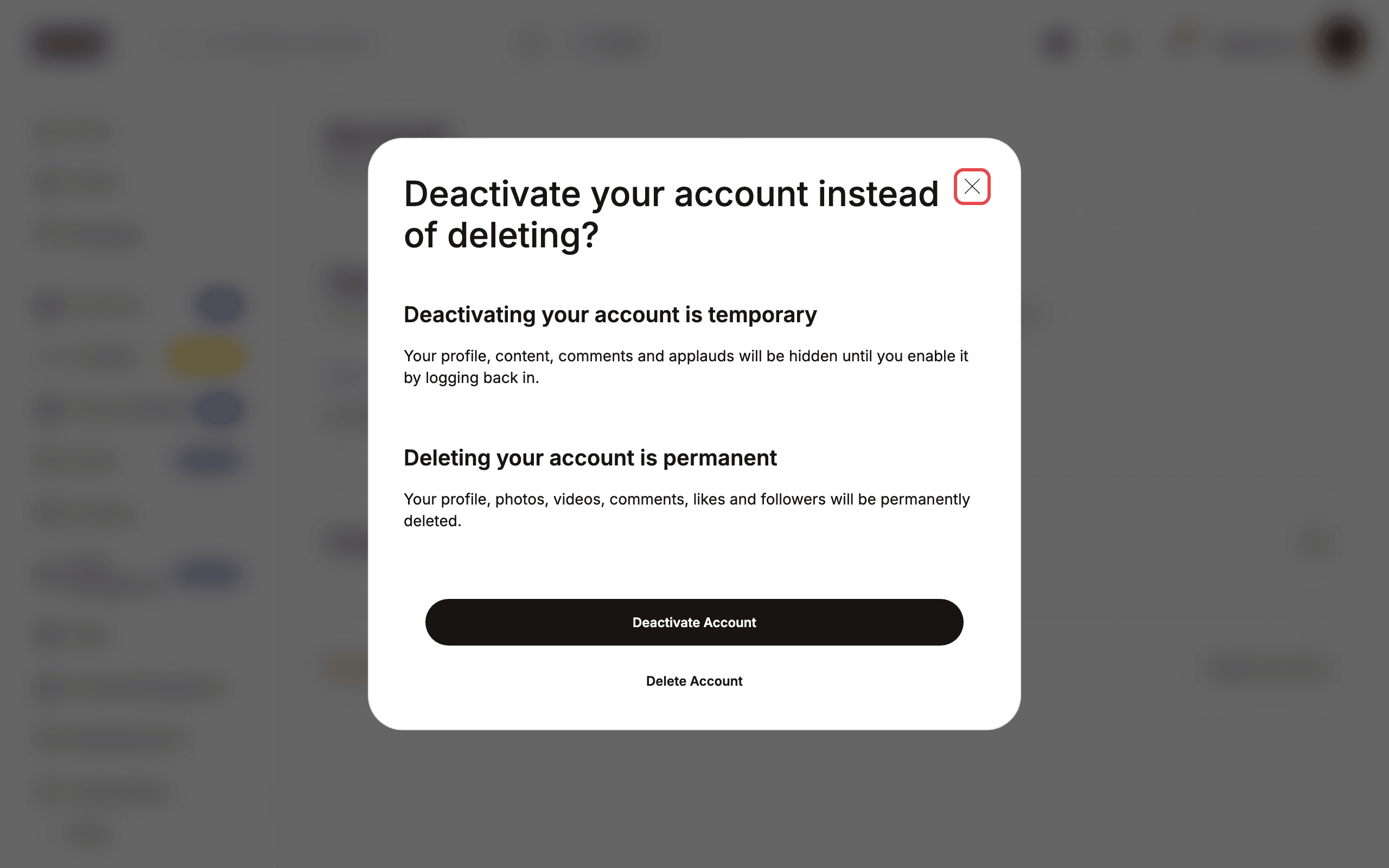
Next to Delete account, click Delete my account. A dialog titled Deactivate your account instead of deleting? opens. Read the difference between the two options before choosing.
The dialog explains the difference: Deactivating your account is temporary (“Your profile, content, comments and applauds will be hidden until you enable it by logging back in”), while Deleting your account is permanent (“Your profile, photos, videos, comments, likes and followers will be permanently deleted”).
8. Close the dialog
Click the X in the top-right corner (or press Escape). The dialog closes and nothing changes unless you click Deactivate Account or Delete Account.
9. Find profile editing
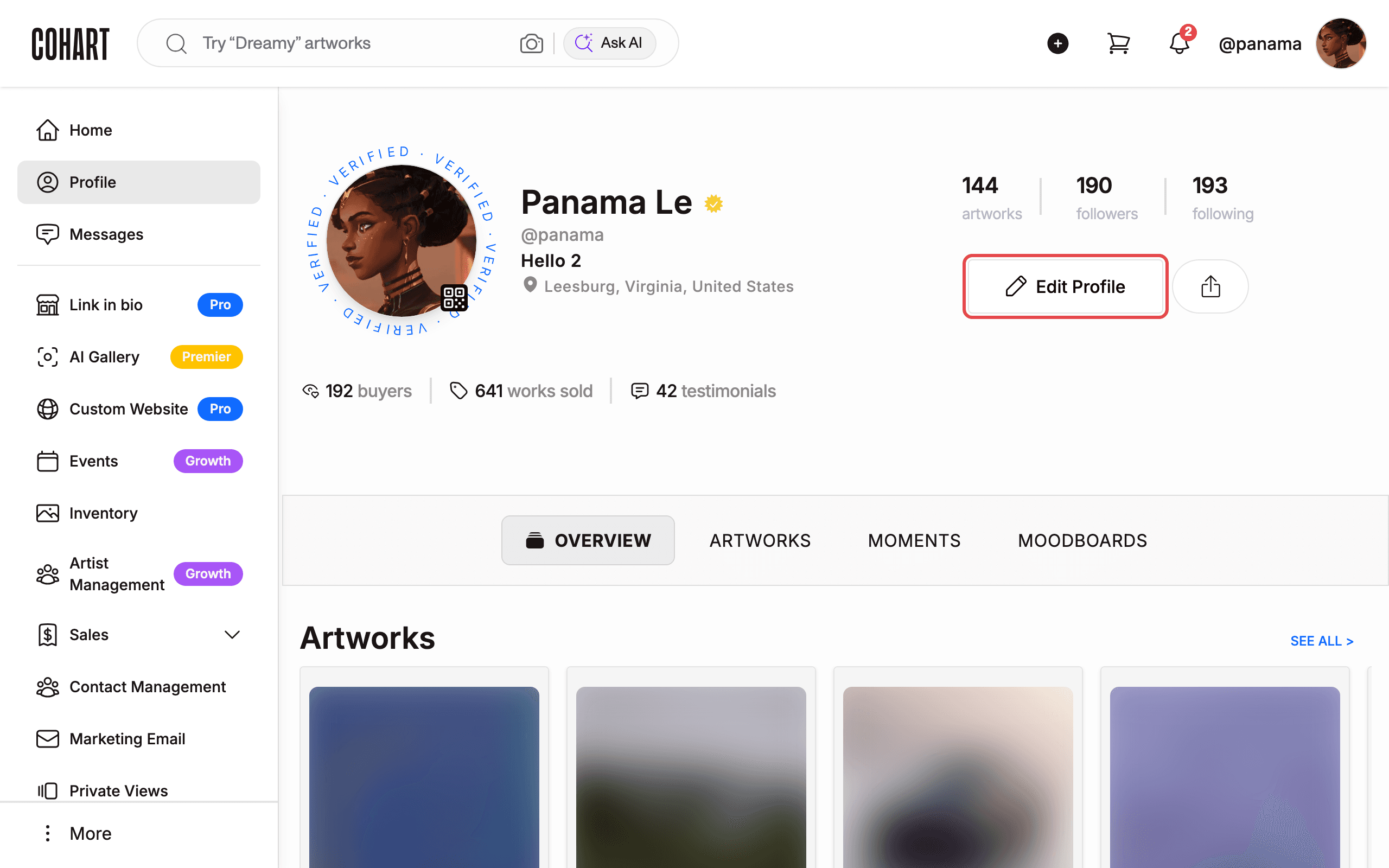
Profile info (name, bio, photo) is edited from your public profile, not the Account page. In the left sidebar, click Profile, then click Edit Profile next to your name.
[UNVERIFIED — check manually] The edit form behind Edit Profile did not open when checked, so the editing fields could not be documented; confirm before relying on this step.
Tips
- Deactivate is reversible, delete is not. Deactivating hides your profile and content until you log back in. Deleting permanently removes your profile, photos, videos, comments, likes, and followers.
- Signed in with Google or Apple? Any sign-in method sharing your email address is listed under Sign in methods for your records.
- Never set a website password? The login page notes: “Are you already in the app? Click ‘Forget Password’ below to set it up”. Use Forgot Password? from a signed-out session to create one, then return here.
- A cookie consent banner may appear when you first open the site. Click Reject all or Accept all to dismiss it before signing in.
Troubleshooting
- The Change password button looks pale green and disabled → Current Password, New Password, and Confirm New Password are not all filled yet → fill in all three fields; the button enables only when the form is complete.
- Other settings pages show a “404: This page could not be found.” page → only the Account page was available to check → open the page via More > Account instead.
- The delete dialog reads Cancel your subscriptions first instead of the deactivate choice → the account has active subscriptions (listed under PRICING PLAN and OTHER SUBSCRIPTIONS) → cancel your subscriptions from the plan page first with Cancel my subscriptions, then return; never confirm deletion on an account you want to keep.