How to Manage Financial Accounts
Overview
Financial Accounts is where sellers connect the bank accounts that receive their sales earnings. It is for artists and galleries who sell on Cohart — connecting an account is what lets buyer payments reach you. Because buyers pay in different currencies, your connections are grouped by currency, and each connected account shows its available balance, transactions, and payout controls. Sales settle into the matching currency balance when you have one; otherwise they fall back to your Global default currency, which you can review and change. The page also lets you check which countries support bank connections, verify accounts that need attention, and track every sale in each account’s Transactions list. Withdrawing means moving an available balance to your connected bank through a payout action. By the end of this guide you will have connected your bank accounts, reviewed your balances and transactions, and started a payout of your earnings.
Before you start
- You need a seller account: Financial Accounts lives in your dashboard sidebar, below Manage Plan, and is only useful once you sell (or plan to sell) on Cohart.
- Check Supported countries first: you can only connect a bank in a supported country, and countries marked to be supported cannot be connected yet.
- Connecting a bank redirects you to a secure authorization flow: have your bank account details ready, and do not enter real banking details unless you mean to connect the account.
- Know how payouts are routed: within one currency group, payouts go to the account marked Default, and sales in a currency with no connected account settle into your Global default currency (USD unless you change it in Currency Settings).
- Disconnecting an account removes that bank connection, so use Edit account for settings changes and Disconnect only when you intend to remove it.
Steps
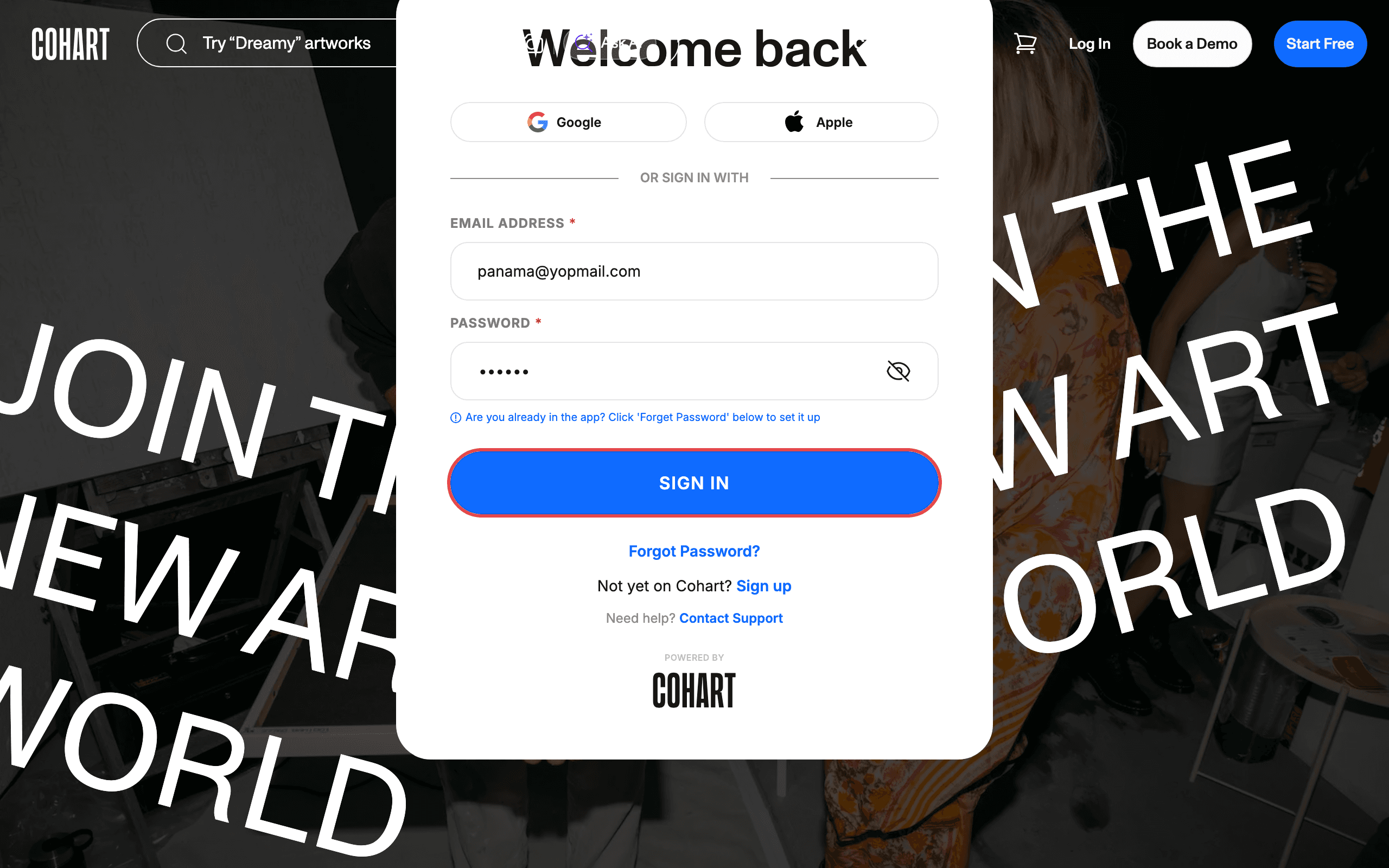
1. Sign in to Cohart
Sign in with your email address and password, or use Google or Apple.
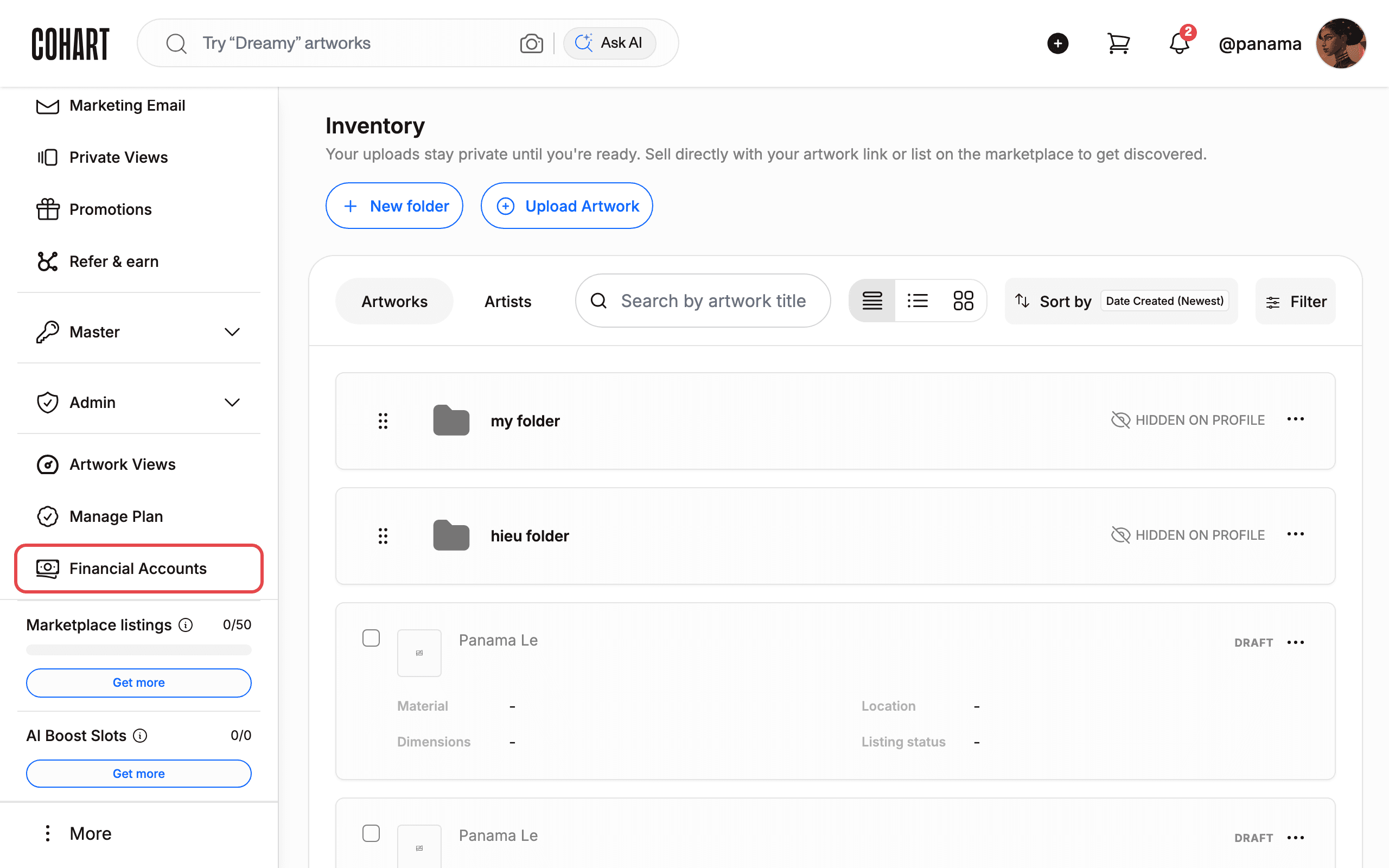
2. Open Financial Accounts from the sidebar
After signing in, scroll down the left sidebar past Manage Plan. Click Financial Accounts.
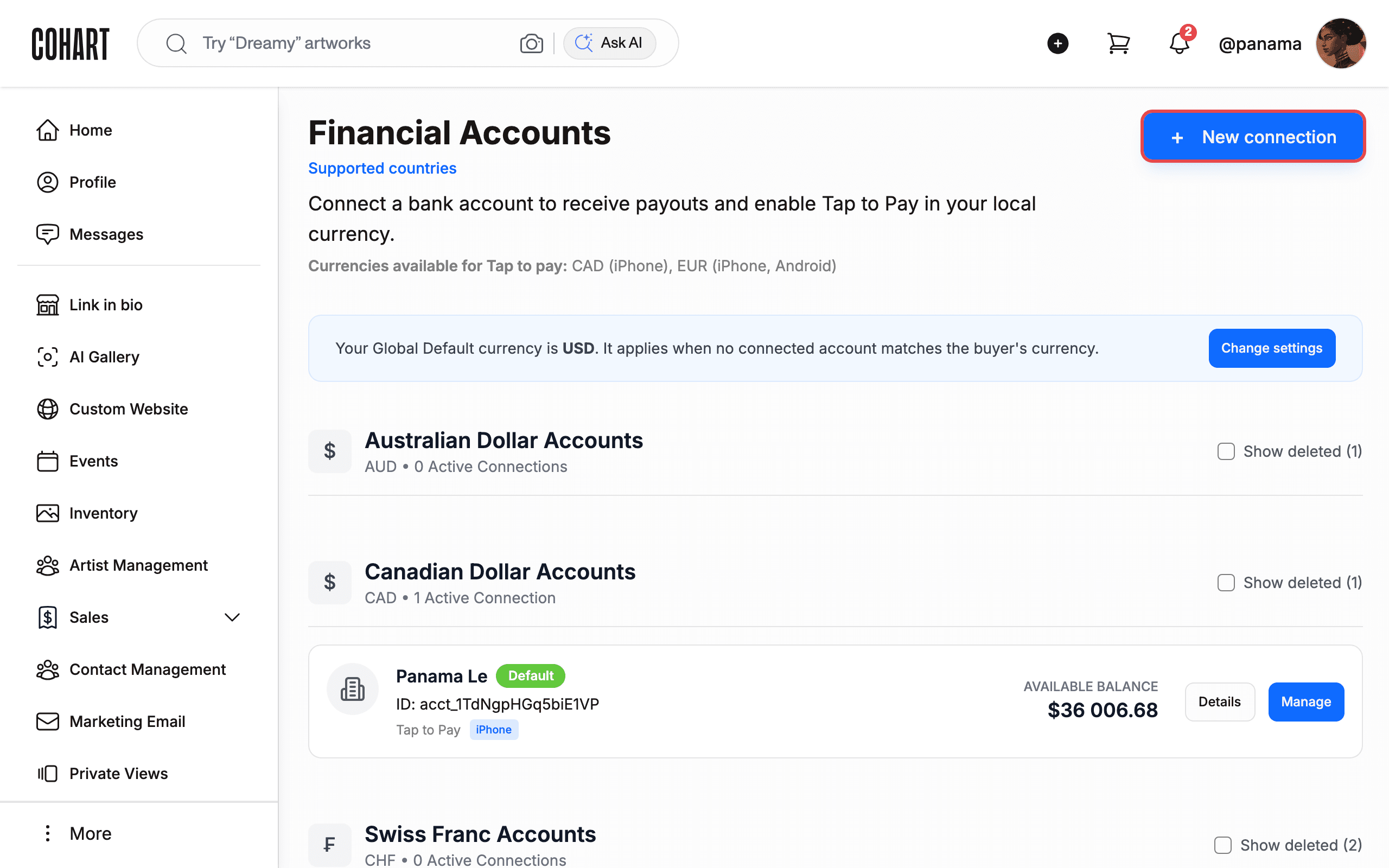
3. Review your Financial Accounts page
The Financial Accounts page groups your connections by currency (for example Australian Dollar Accounts, Canadian Dollar Accounts, Euro Accounts, US Dollar Accounts). Each group shows how many Active Connections it has, for example CAD • 1 Active Connection. Each connected account card shows the account name, its Default or Multi-Currency badges, the account ID, the AVAILABLE BALANCE, and Details and Manage buttons. Some accounts also show a Tap to Pay badge (for example iPhone, or iPhone & Android). Check Show deleted (1) in any group to reveal removed connections. Read the About Multi-Currency Grouping note at the bottom: if you have multiple accounts in the same currency, payouts go to the account marked Default.
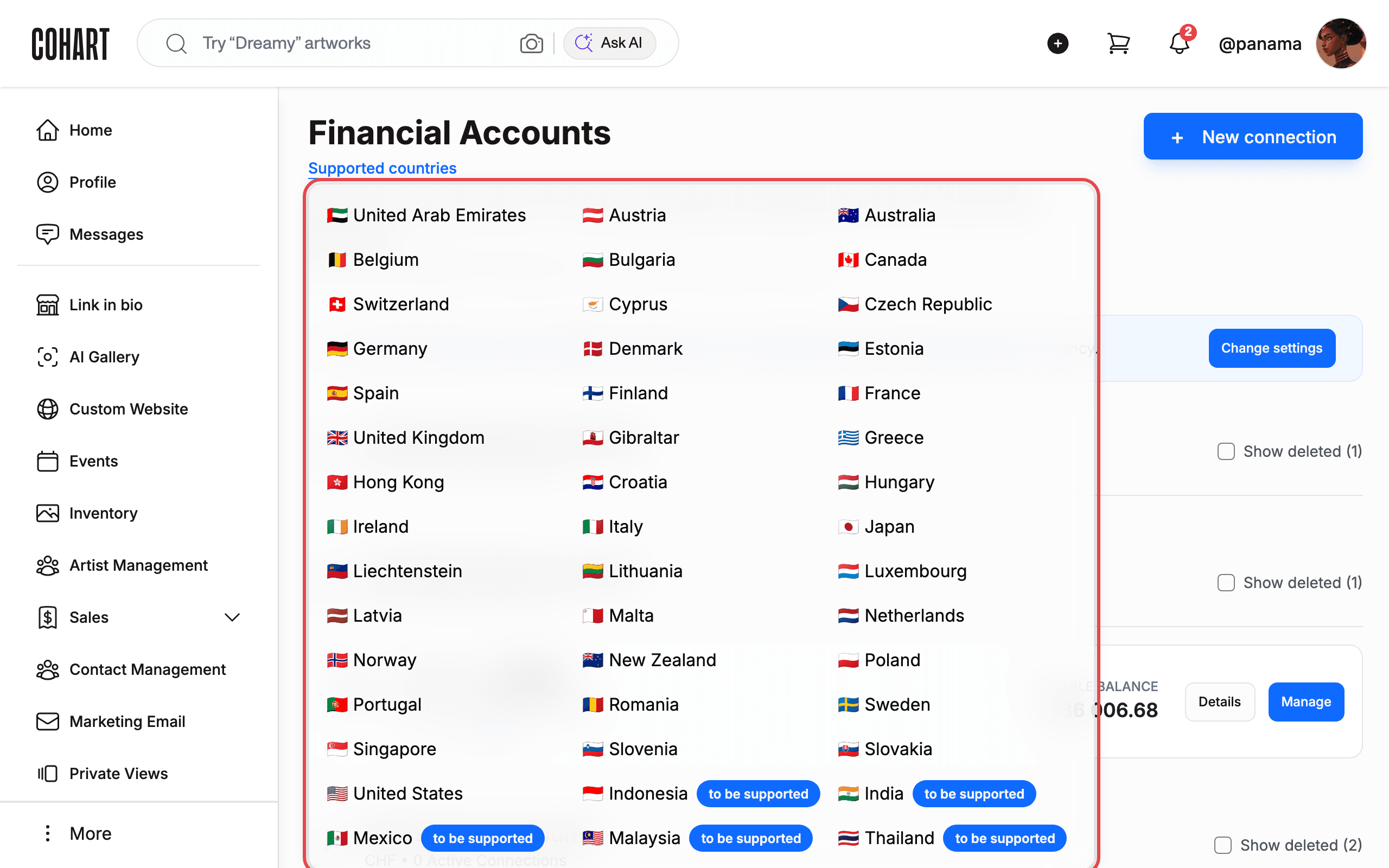
4. Check Supported countries
Click Supported countries at the top of the page. A panel opens listing every country where you can connect a bank, for example United States, Canada, United Kingdom, Germany, Australia, and Hong Kong. Countries marked with a to be supported pill (for example Indonesia, India, Mexico, Malaysia, Thailand) cannot be connected yet. Press Escape or click outside the panel to close it.
5. Add a new bank connection
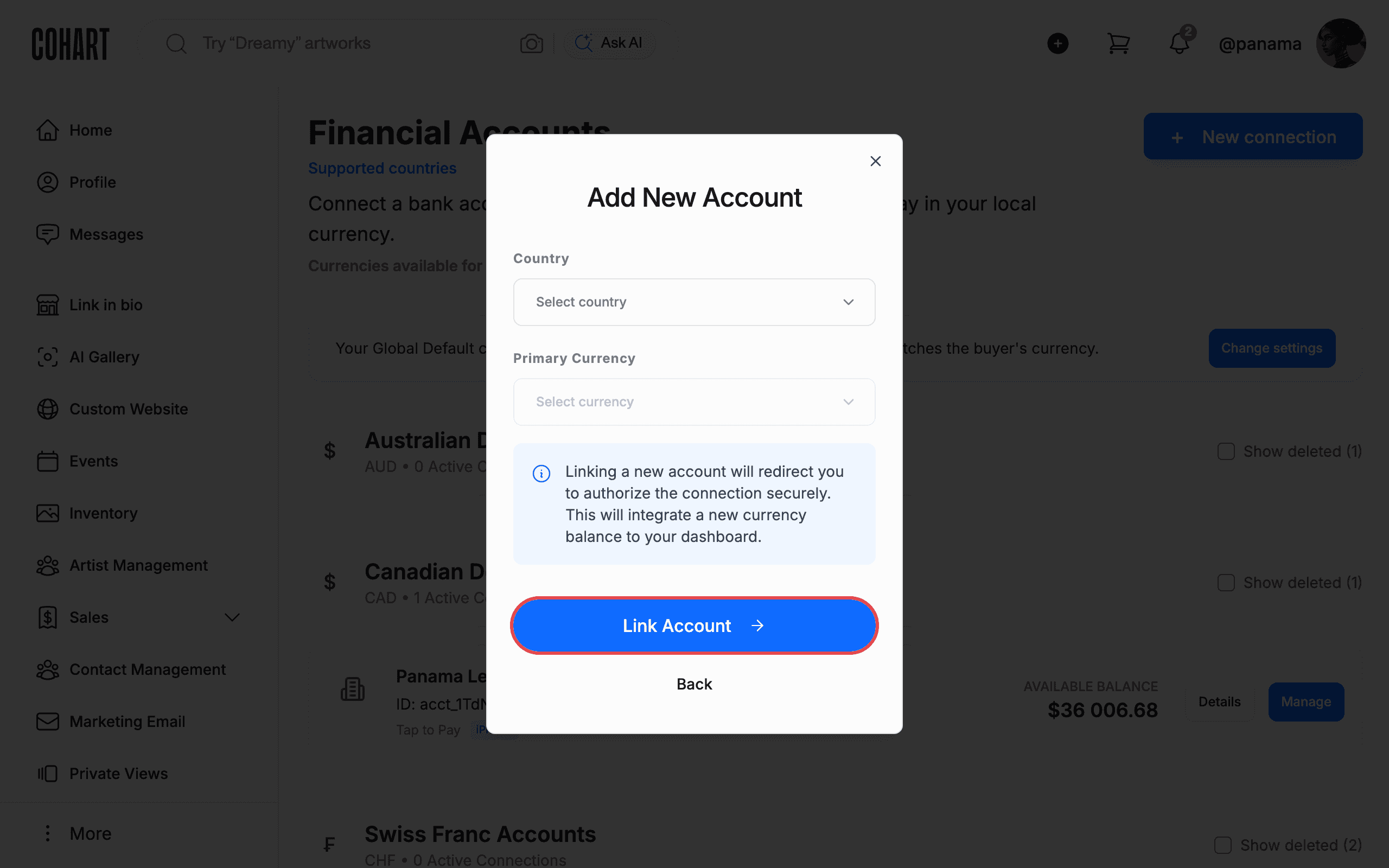
Click + New connection. The Add New Account dialog opens. Choose Select country under Country, then choose Select currency under Primary Currency. The dialog explains: “Linking a new account will redirect you to authorize the connection securely. This will integrate a new currency balance to your dashboard.” Click Link Account only when you are ready to continue to the secure authorization. Do not enter real banking details unless you mean to connect the account. Click Back or the Close (X) button to leave without connecting anything.
6. Check your Global default currency
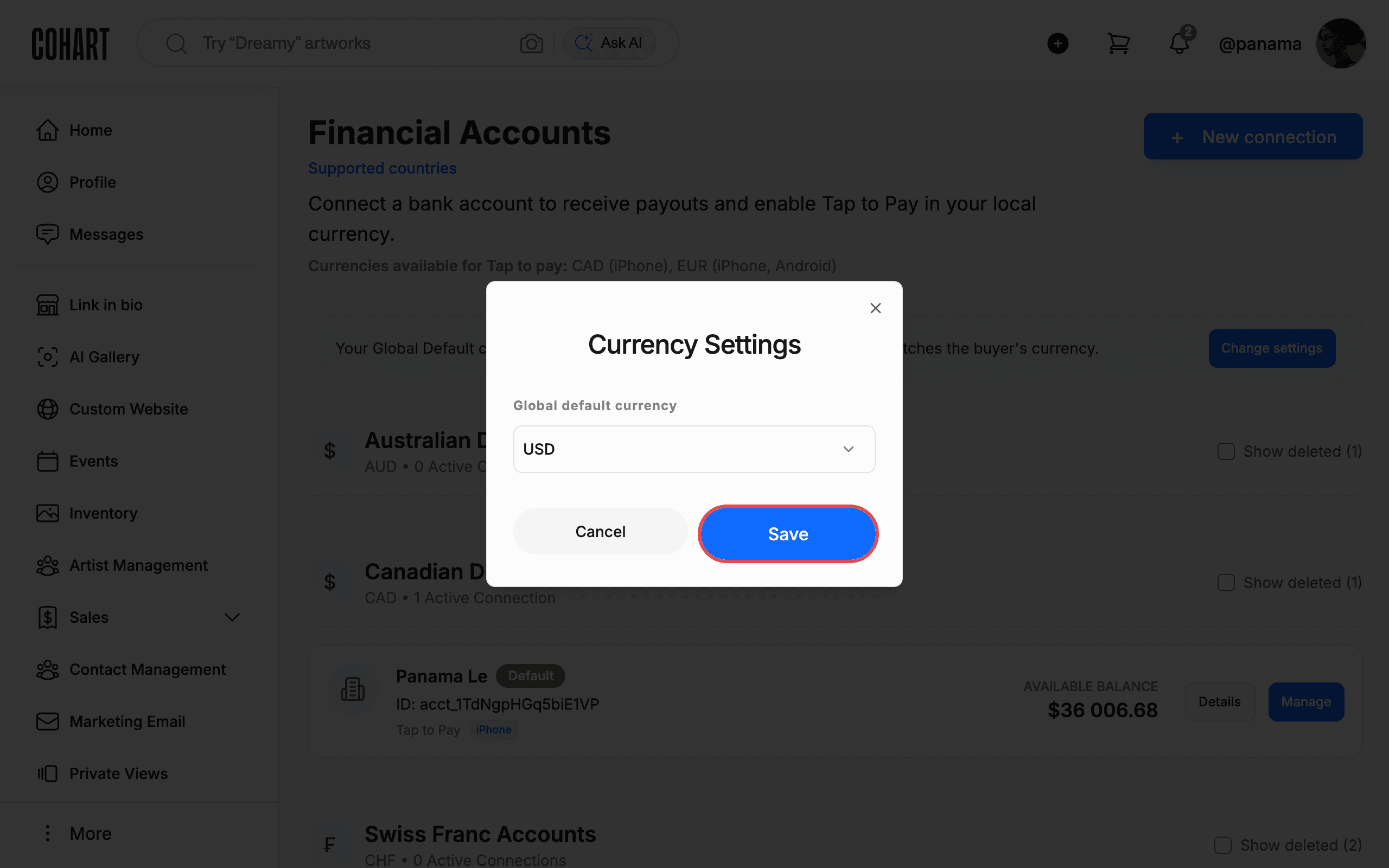
The page shows the banner “Your Global Default currency is USD. It applies when no connected account matches the buyer’s currency.” Click Change settings to review it. The Currency Settings dialog shows the Global default currency dropdown (set to USD). Click Save only if you changed the currency. Click Cancel or the Close (X) button to leave it unchanged.
7. Edit or disconnect an account
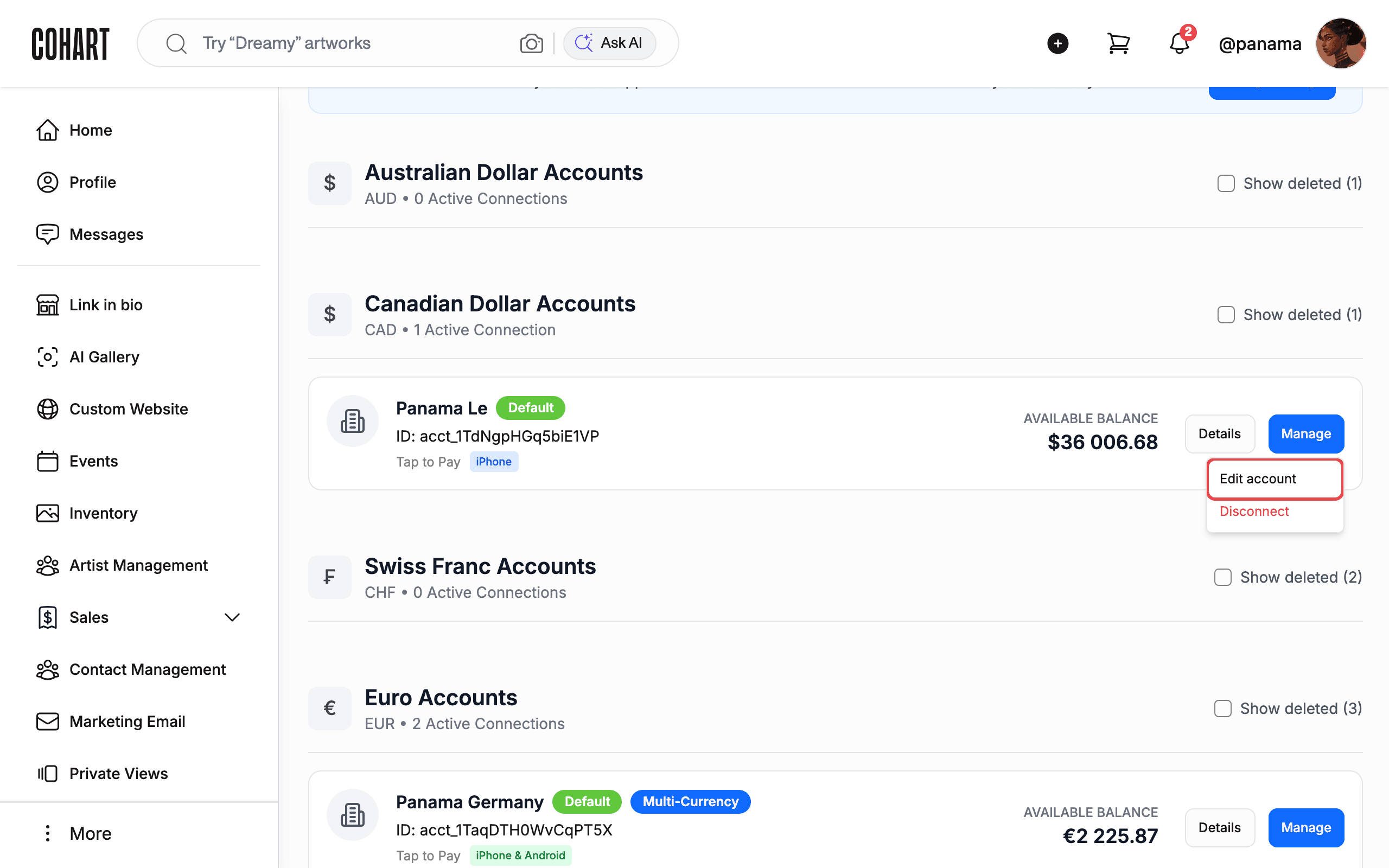
On any account card, click Manage. A menu opens with Edit account and Disconnect. Choose Edit account to update the connection’s settings. Choose Disconnect only if you want to remove that bank connection. If an account needs attention, you will see Verify (action required) or Remove buttons on its card instead.
8. Open an account to check balances and transactions
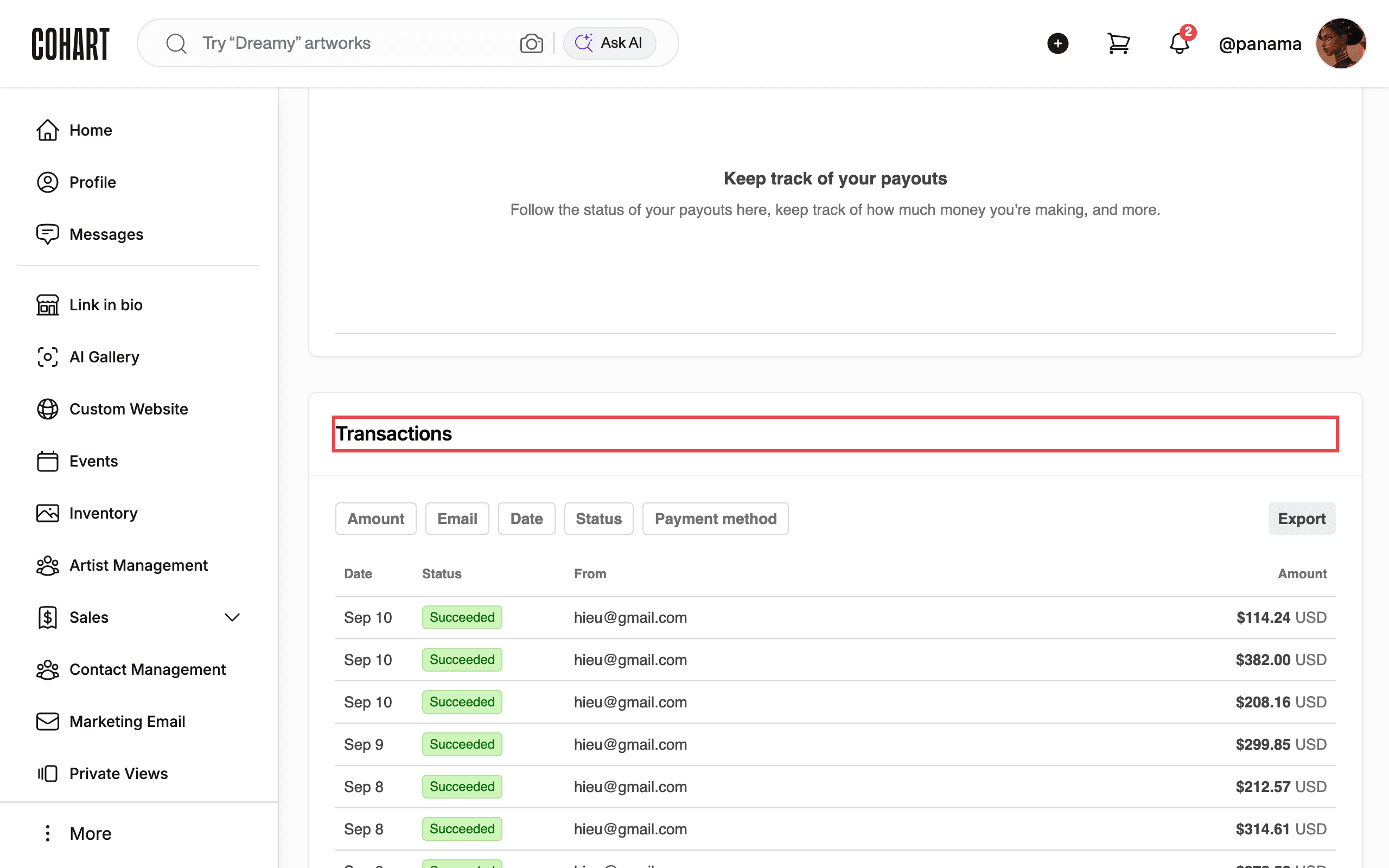
Click Details on any account card. The detail page (titled Financial Account) shows each currency balance on that connection (for example USD 49 801.19 with USD 1 187.51 processing), plus a Keep track of your payouts summary at the top. Scroll to Transactions. Filter the list with Amount, Email, Date, Status, and Payment method. Each row shows Date, Status (for example Succeeded), From (the buyer’s email), and Amount. Click Export to download the list. Click Back to List (top left) to return to all accounts.
9. Add a payout currency or withdraw earnings
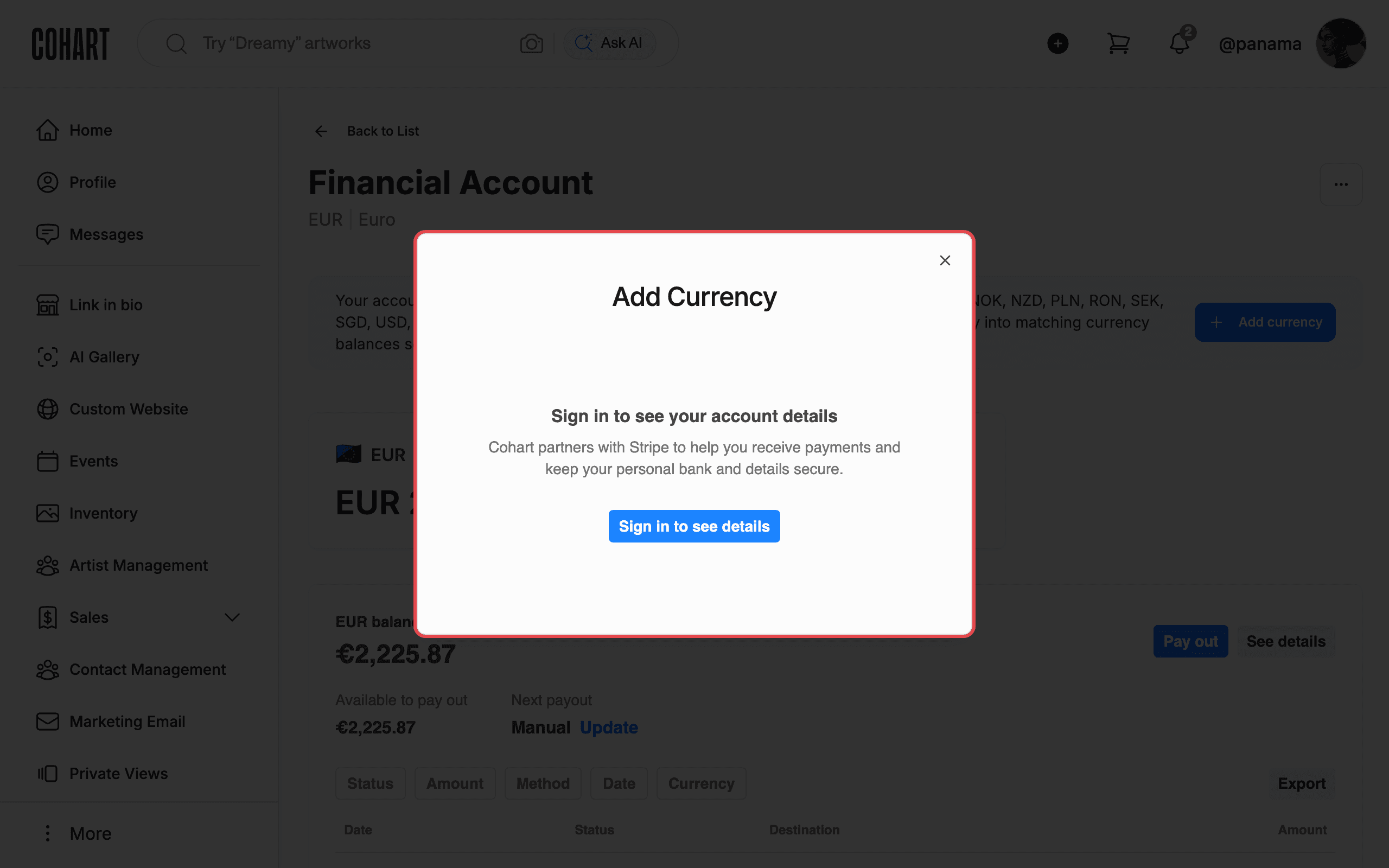
On an account detail page you may see an Add currency button (for example on a Euro account: “Your account supports 16 more currencies … — add payout bank accounts in those currencies”). Click Add currency to open the Add Currency dialog, which is hosted by Stripe. The dialog may ask you to Sign in to see details to verify the connection before continuing. Do not complete this step unless you mean to add the currency. To withdraw earnings, find the balance section on the detail page (for example Available to pay out €2,225.87 with Next payout Manual). Click Pay out to start a payout to your connected bank. Click See details for the payout breakdown, or Update next to Next payout to change the payout schedule. [UNVERIFIED — check manually: the payout submission screens were not completed, so confirm the exact confirmation steps in the live payment flow.]
Tips
- Financial Accounts is below the fold. On smaller screens, scroll the left sidebar down past Manage Plan to find it.
- Wrong payout currency? Sales settle into the matching currency balance when you have one, so you avoid conversion fees. Otherwise they use your Global Default currency (see the step on checking it).
- Tap to Pay availability depends on currency and device: the page states CAD (iPhone) and EUR (iPhone, Android).
- Add Currency asks you to sign in again. That prompt comes from Stripe, not Cohart. Complete it only when you are ready.
Troubleshooting
- Transactions table is empty → you have no sales on that account yet → use the Status filter to check for pending items.
- “Action Required” on a card → the connection is pending Stripe verification → click Verify on that account and complete the Stripe verification steps.