How to Use the Homepage Dashboard
Overview
Home is your signed-in dashboard and starting point after Inventory. It exists to surface what is new and nearby in one place: open calls and opportunities, editorial, upcoming events, and people near you. It is for every signed-in user, whether you sell art or collect it. What you see here depends partly on your own setup: the Who’s Near You section matches artists and galleries against your profile location, and the Upcoming Events section shows only near-term highlights while the full catalog lives under EVENTS. The page ends with a newsletter signup and footer links to company, community, and policy pages. By the end of this guide you will have opened Home, read each section in order, opened an opportunity card, and found the newsletter signup and footer links.
Before you start
- A Cohart account. Sign in with your email and password.
- A current profile location if you want relevant Who’s Near You results. That section matches nearby artists and galleries against your location and comes back empty when no location is set.
- Nothing to buy or submit here. Opportunity cards link out to their article or application pages, and the newsletter form only adds your email address to the mailing list.
- Effects to know: Home is read-only for your account — browsing here changes nothing — and its sections refresh as new calls, editorials, and events are published.
Steps
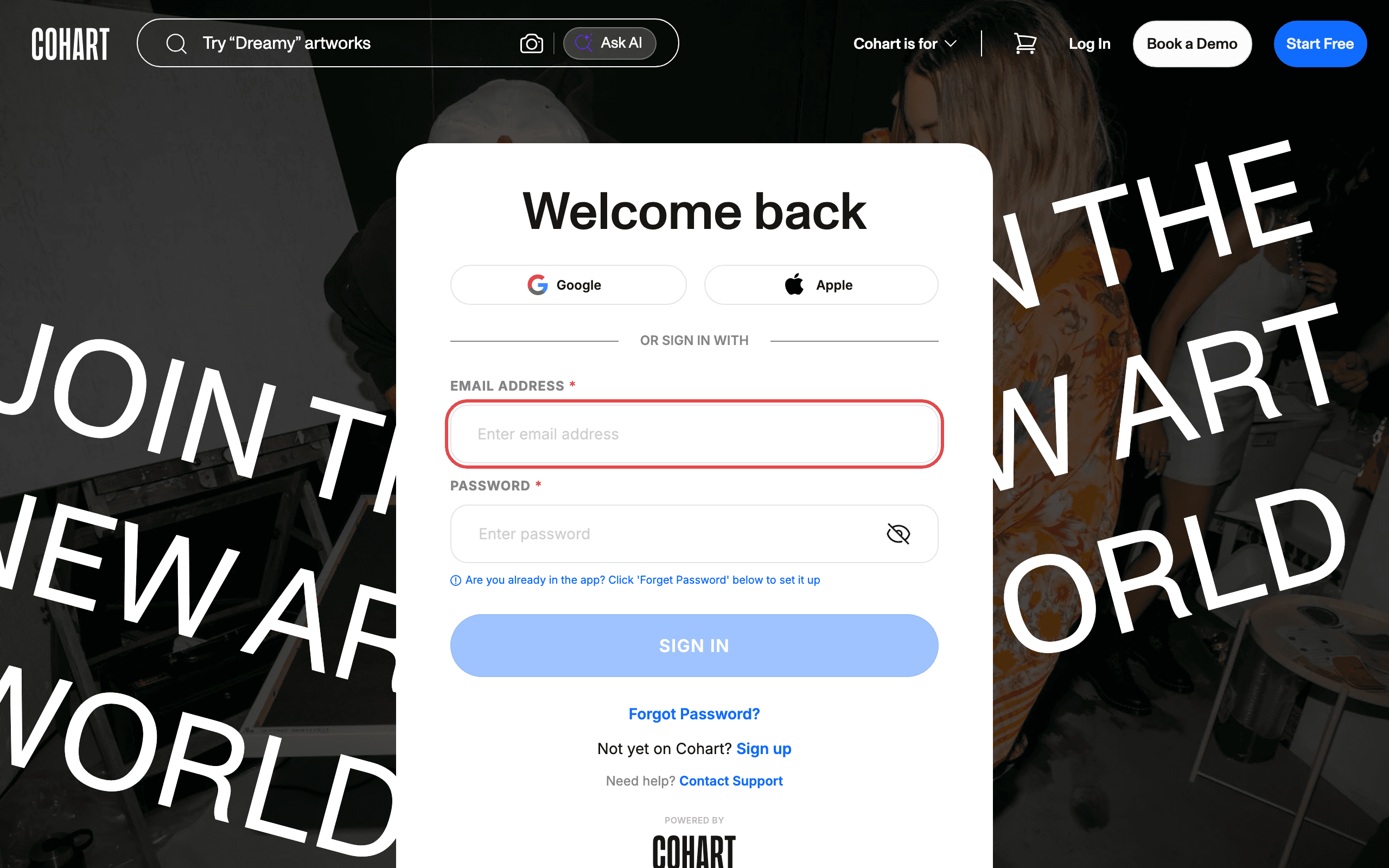
1. Sign in to Cohart
Sign in with your email address and password, or use Google or Apple.
2. Open Home from the sidebar
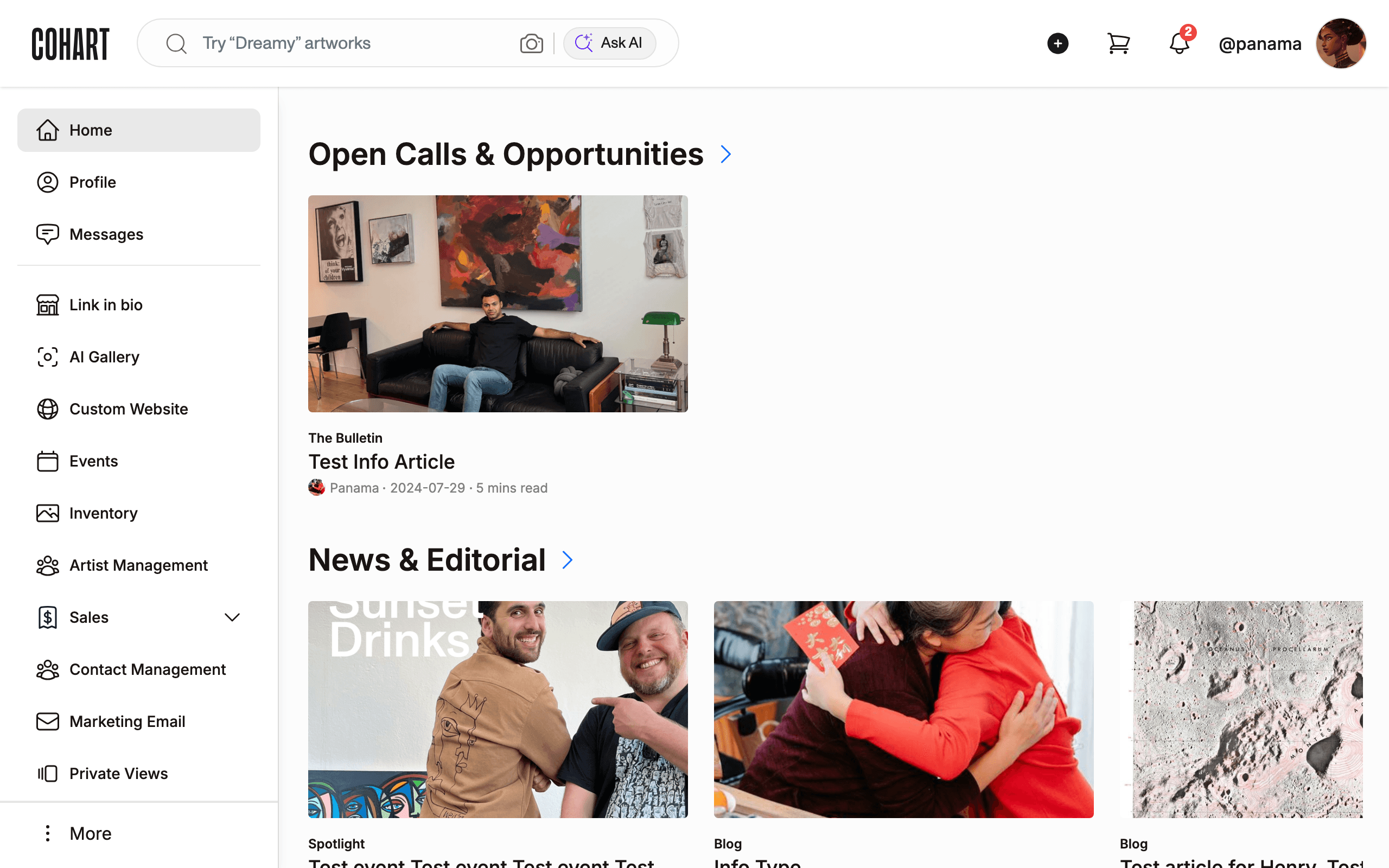
After sign-in you land on Inventory. In the left sidebar, click Home.
3. Read the Open Calls and Opportunities section
The first section is Open Calls & Opportunities. Cards name the call and its organizer — for example an open call from a gallery or fair. These are opportunities you can apply to or read about.
4. Open an opportunity card
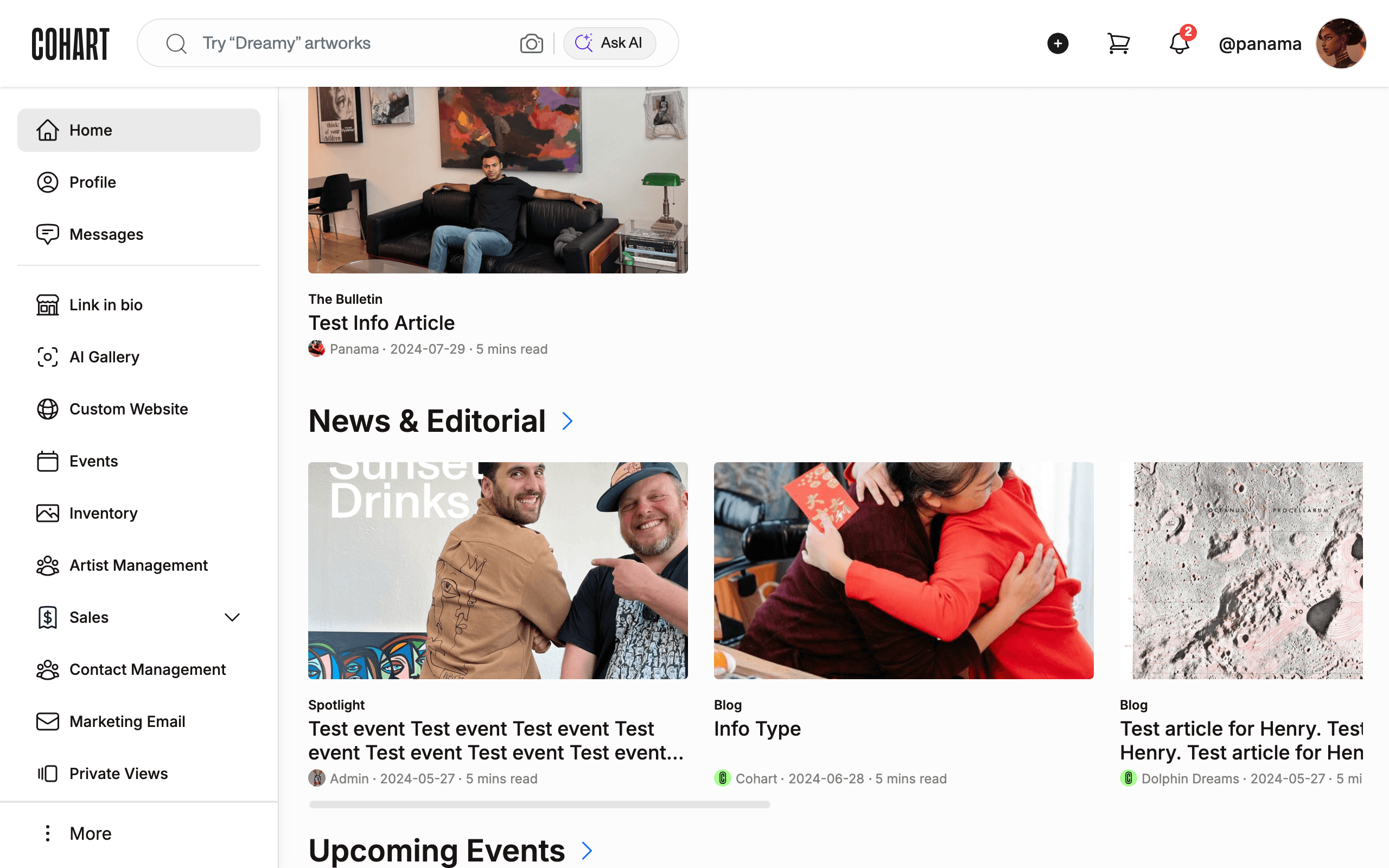
Click a card to open its article or application page. If nothing happens, move your pointer over the card to reveal its link, then click it. Use the browser back button to return to Home.
5. See the full page layout
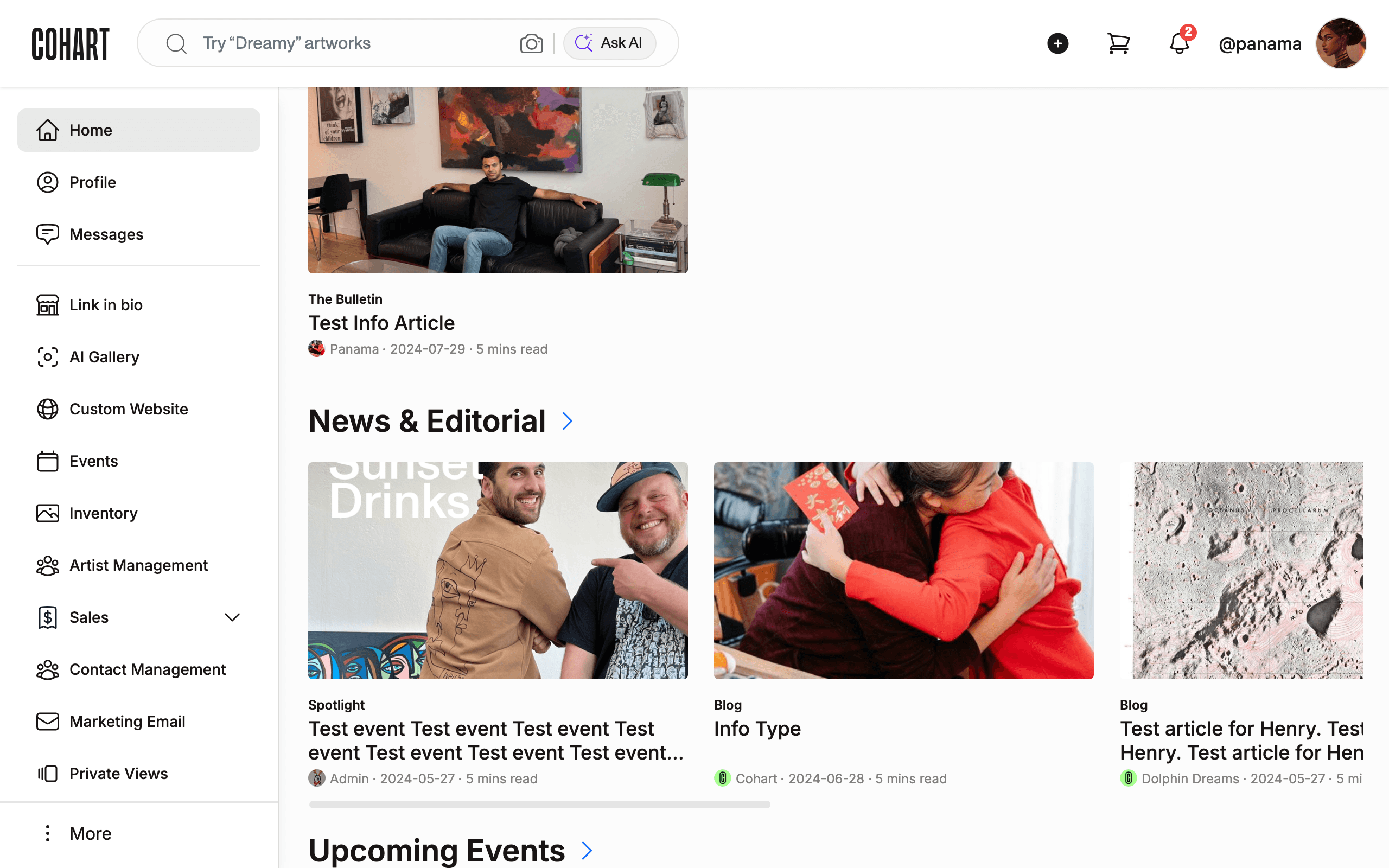
Scroll back to the top and look at the whole page: Open Calls & Opportunities first, then News & Editorial, Upcoming Events, and Who’s Near You.
6. Read the News and Editorial section
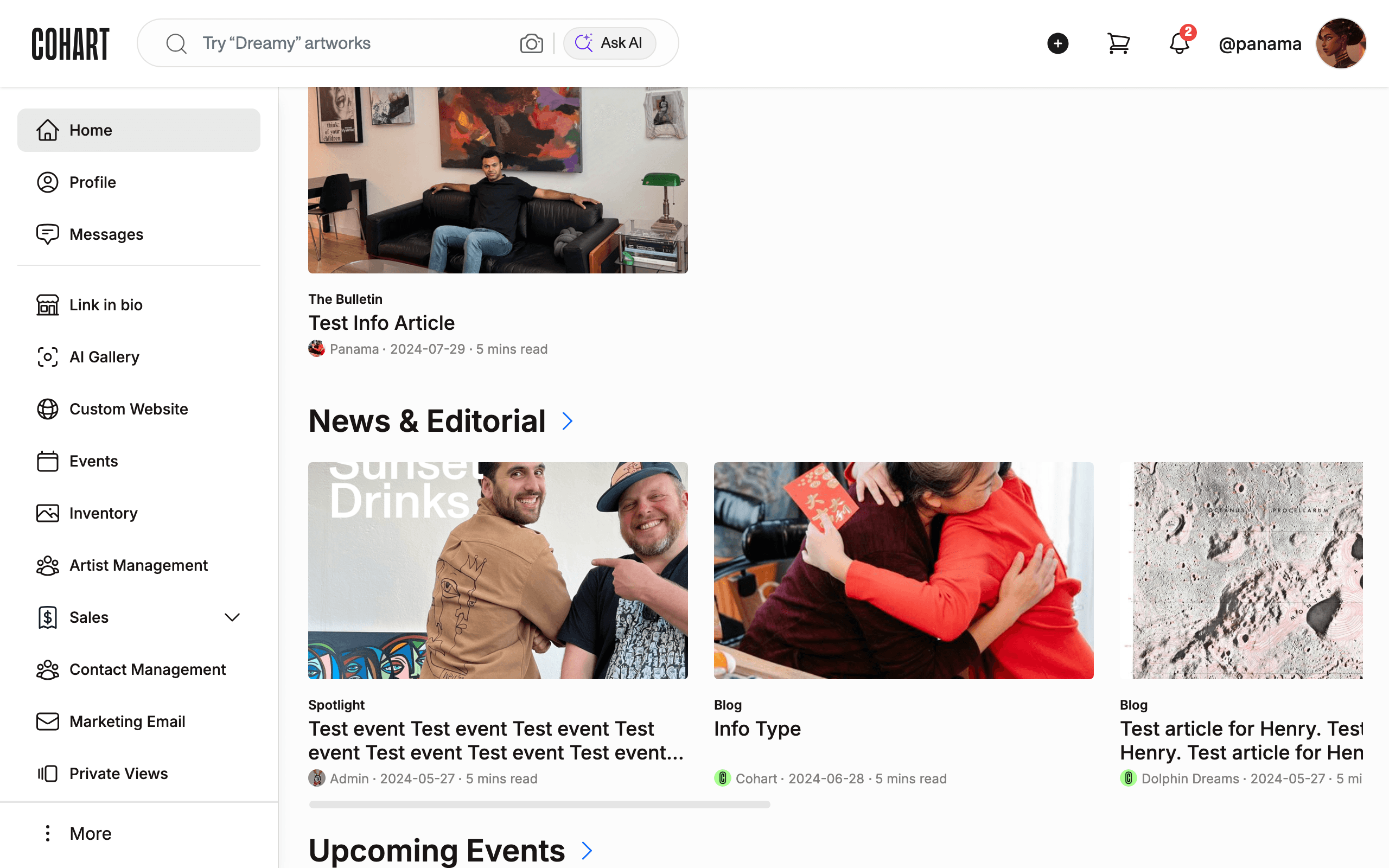
The News & Editorial section shows cards with a section tag (for example Spotlight or Blog), the title, the author, the date, and the read time. Click any card to read the full piece. Editorial cards also appear under EDITORIAL.
7. Check Upcoming Events
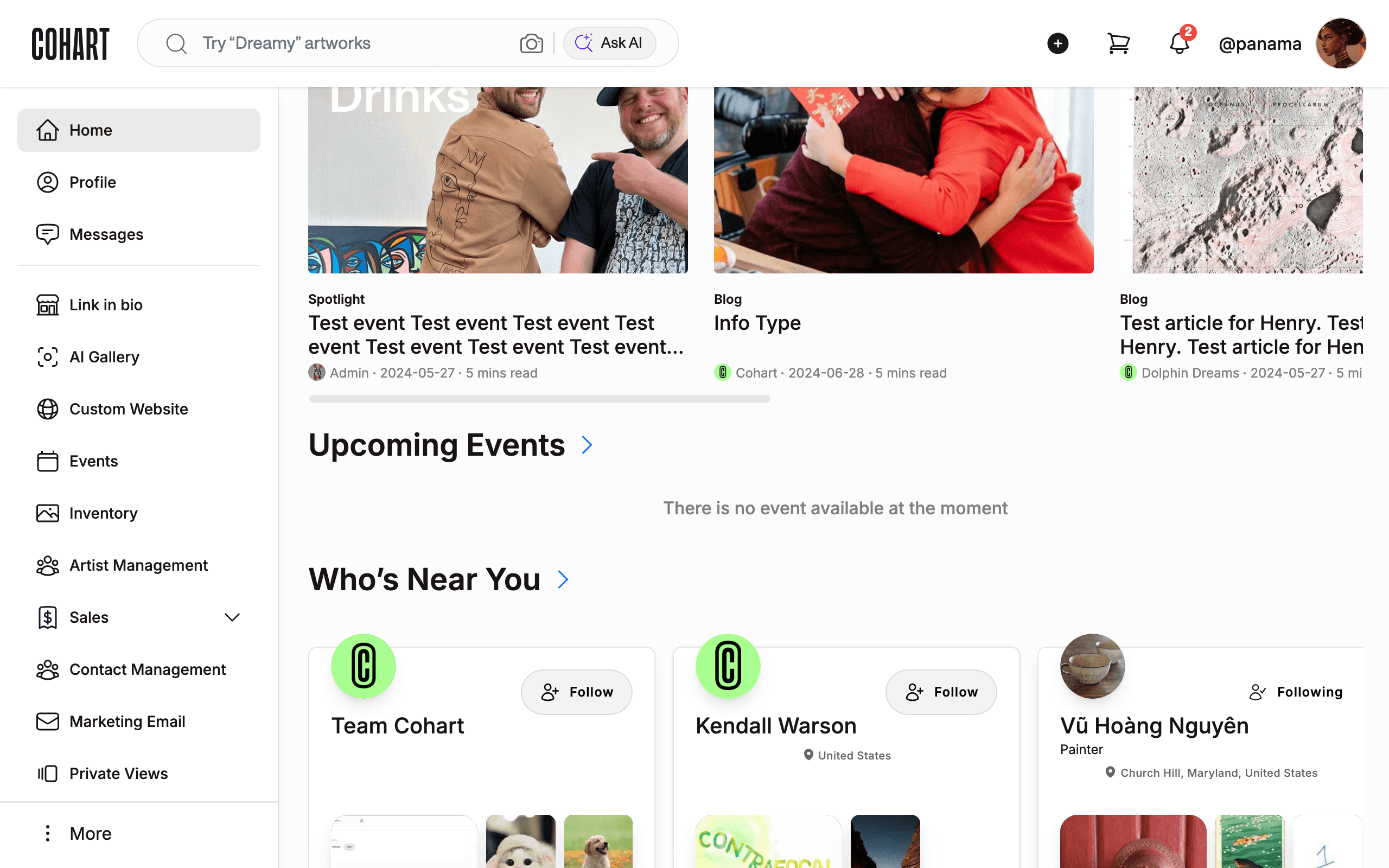
The Upcoming Events section lists near-term events. When none exist it states: There is no event available at the moment. For the full catalog with filters, open EVENTS instead.
8. Check Who’s Near You
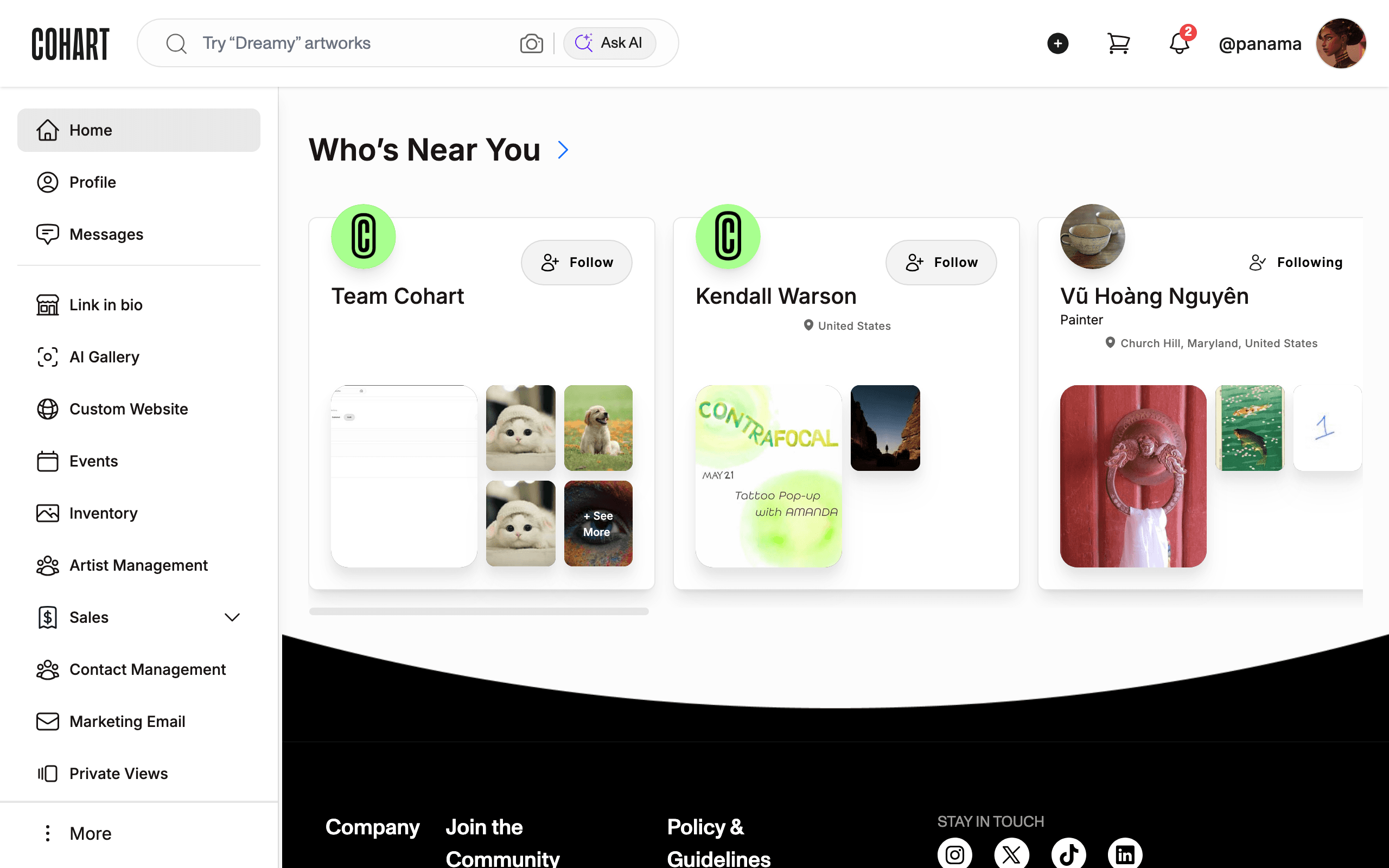
The Who’s Near You section surfaces nearby artists and galleries based on your profile location. Keep your profile location current (city, state, and country) for relevant results.
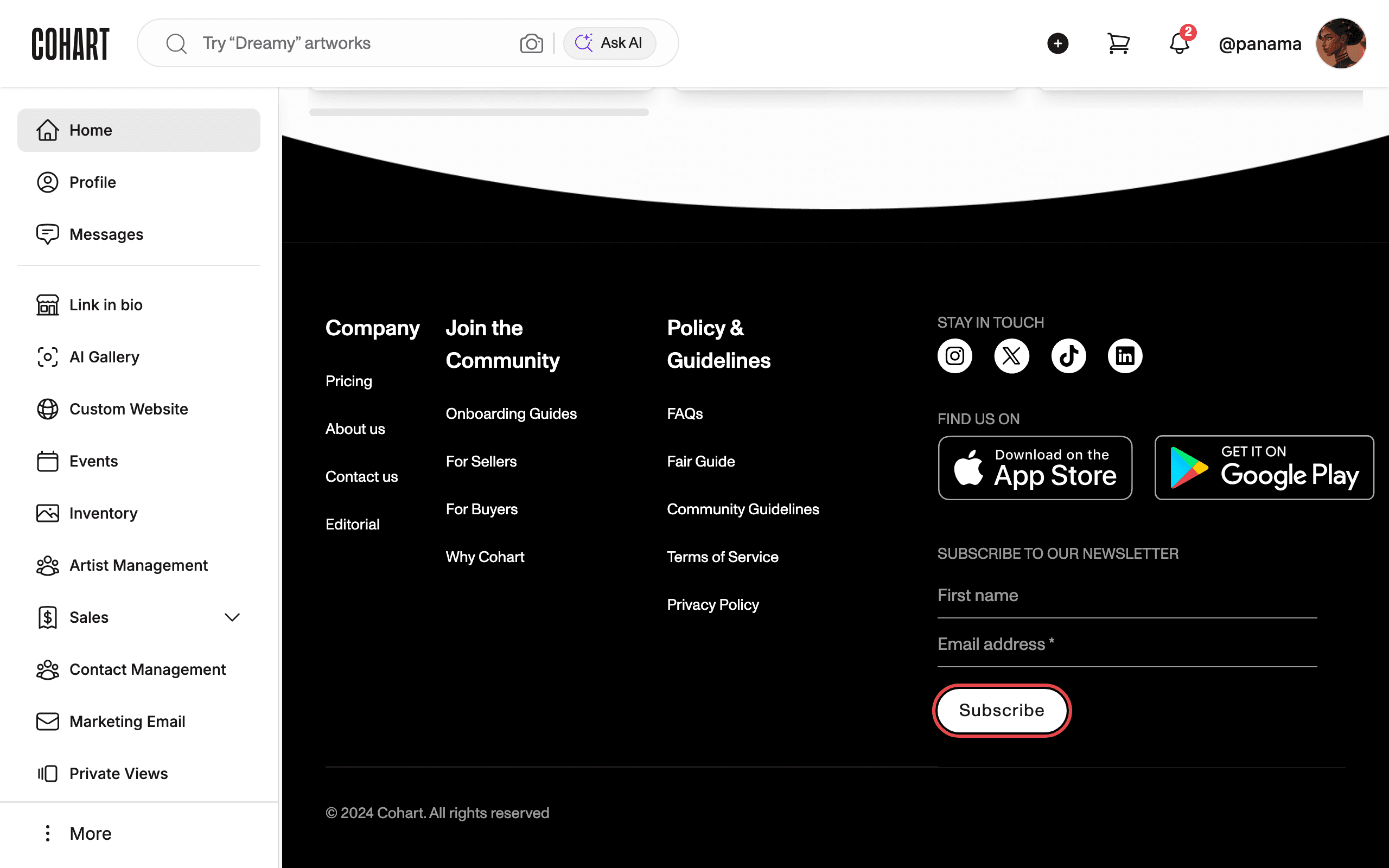
9. Find the newsletter signup and footer links
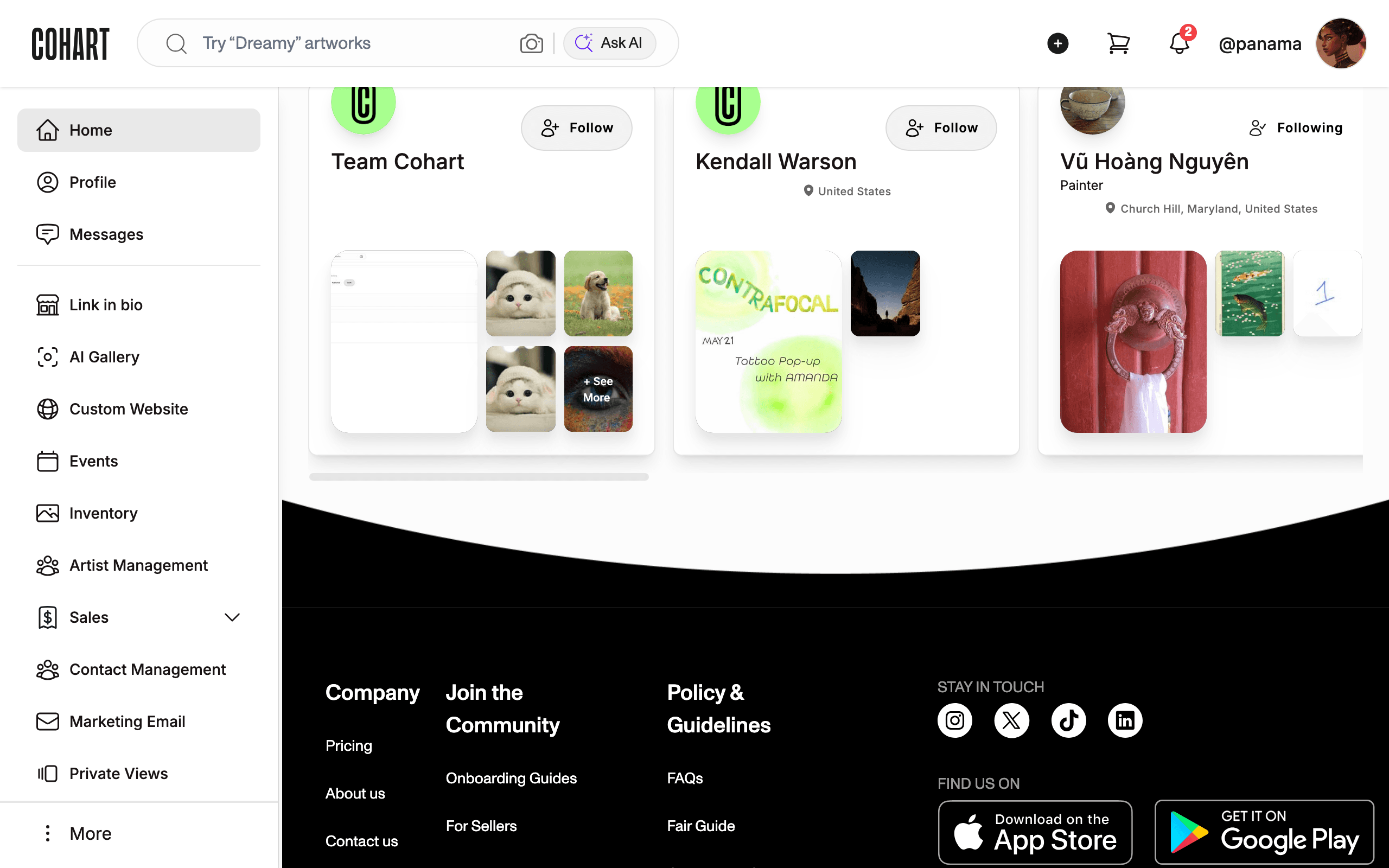
In the footer, find SUBSCRIBE TO OUR NEWSLETTER with the Subscribe button, plus link groups: Company (Pricing, About us, Contact us, Editorial), Join the Community (Onboarding Guides, For Sellers, For Buyers, Why Cohart), Policy & Guidelines (FAQs, Fair Guide, Community Guidelines, Terms of Service, Privacy Policy), STAY IN TOUCH, and FIND US ON.
Tips
- The page ends with the footer. The newsletter signup and the © 2024 Cohart. All rights reserved line mark the bottom of the page — if sections seem to be missing, keep scrolling past the events block.
Troubleshooting
- Homepage shows an empty Upcoming Events section → it shows only near-term highlights → open the EVENTS catalog for everything.
- Who’s Near You is empty → your profile has no location to match against → set your profile location first.