How to Refer a Friend and Earn Award Credits
Overview
Refer & earn is the referral program that rewards you when friends subscribe through your personal link. It exists to thank you for bringing new subscribers while giving each referred friend a free first month. It is for every Cohart user with an account, since the referral link is unique to your account and never changes. Your sharing affects real accounts: your friend sees a Referral Reward banner with your name on the Sign up page, and your Earnings Overview chart, stat cards, Referrals table, and Activities table update as clicks become signups and paid subscriptions. Only paid subscriptions earn commission, and payouts move your available balance into Cohart credits for subscriptions or email credits. By the end of this guide you will have copied your link, shared it, tracked clicks and commissions, and requested a payout to your credits.
Before you start
- A Cohart account with the Refer & earn page in the sidebar. After sign-in you land on Inventory, then you open Refer & earn from there.
- A channel for sharing your personal link. The link is unique to your account and never changes, so you can reuse it across email, chat, and social media.
- Realistic expectations about earnings. Clicks alone earn nothing; commission applies when a referred friend takes a paid subscription, and results may take time to appear in the tables.
- Copy carefully. The copy action gives no confirmation, and the friend’s reward banner only appears when the complete link including its referral code is shared.
- A payout plan. Requesting a payout moves available commission into Cohart credits for subscriptions or email credits, so confirm the amount against the available balance before submitting.
Steps
1. Sign in to Cohart
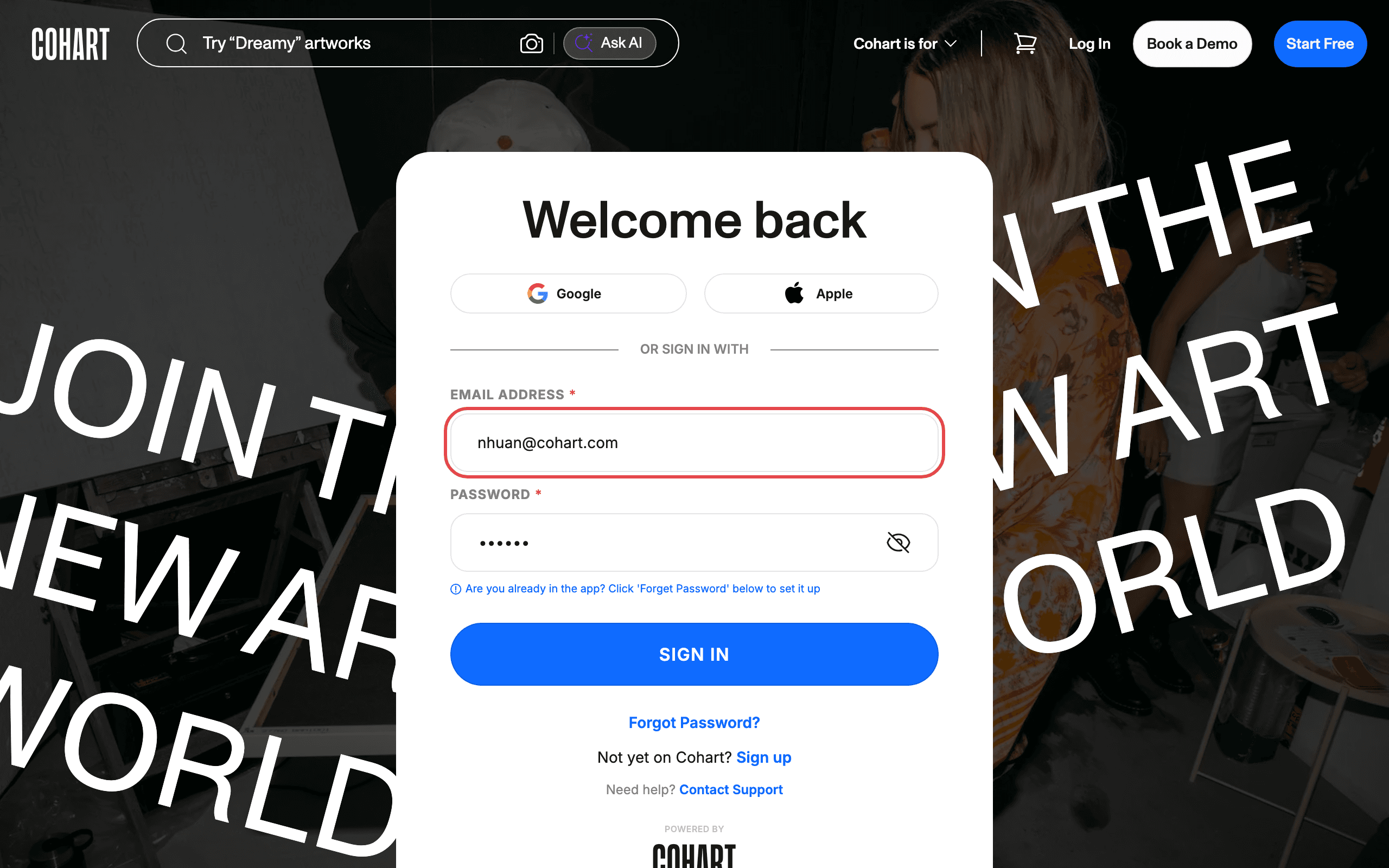
Sign in with your email address and password, or use Google or Apple.
2. Open the Refer & earn page from the sidebar
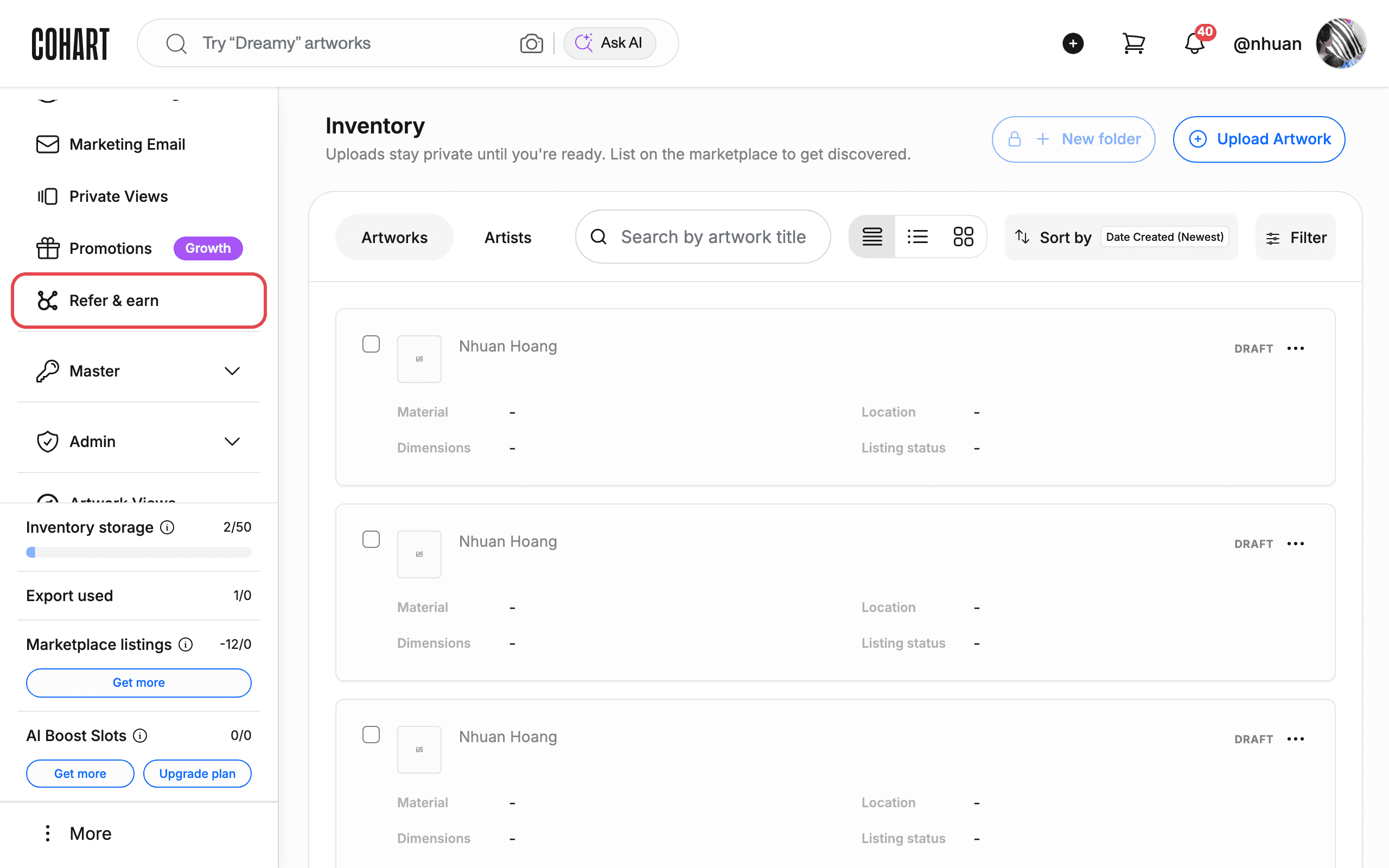
After signing in you land on your Inventory. In the left sidebar, click Refer & earn.
The sidebar also contains Home, Profile, Inventory, Sales, Promotions, and more.
3. Find your personal referral link
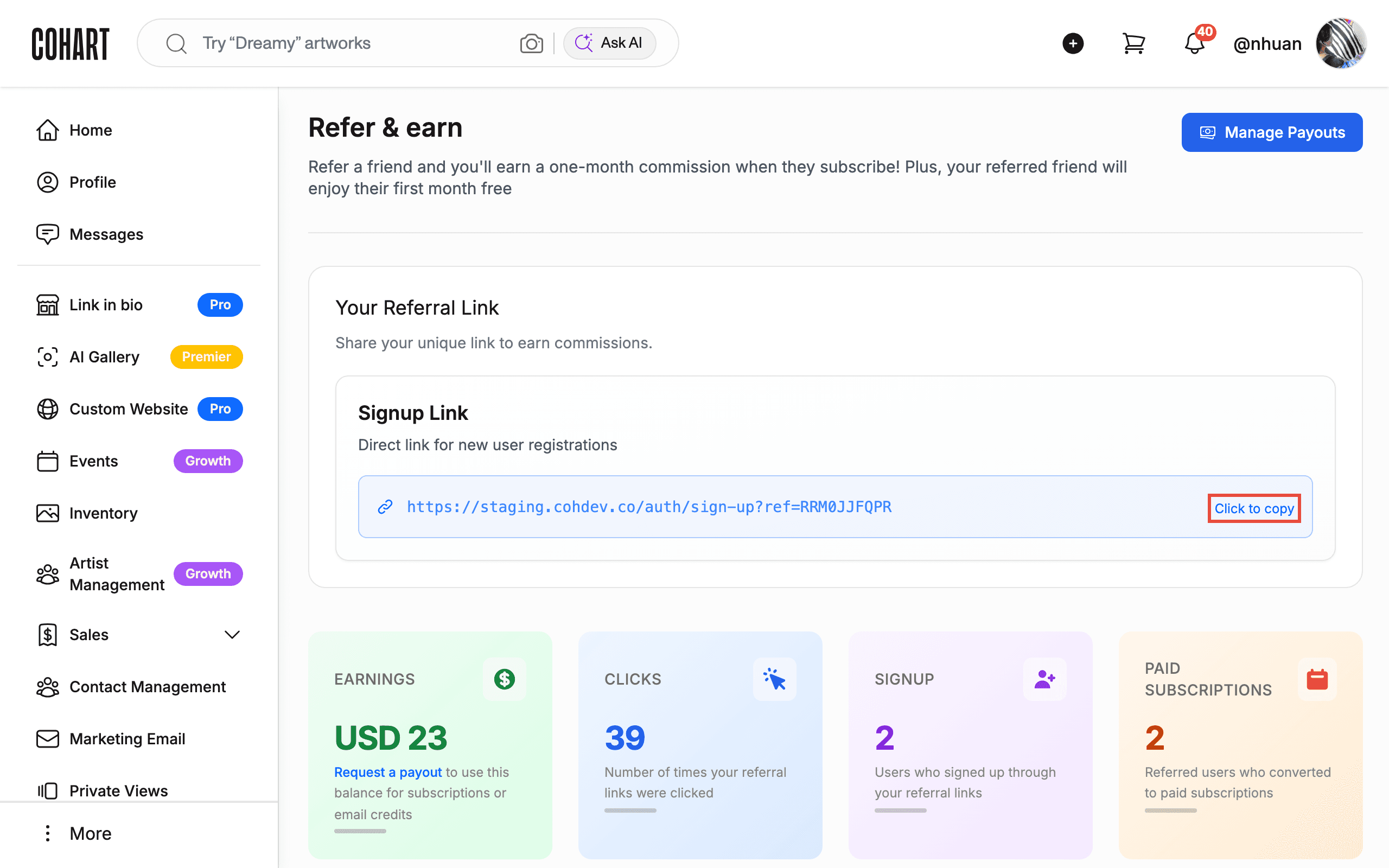
The Refer & earn page explains: “Refer a friend and you’ll earn a one-month commission when they subscribe! Plus, your referred friend will enjoy their first month free.” In the Your Referral Link section, the Signup Link — “Direct link for new user registrations” — shows your unique link.
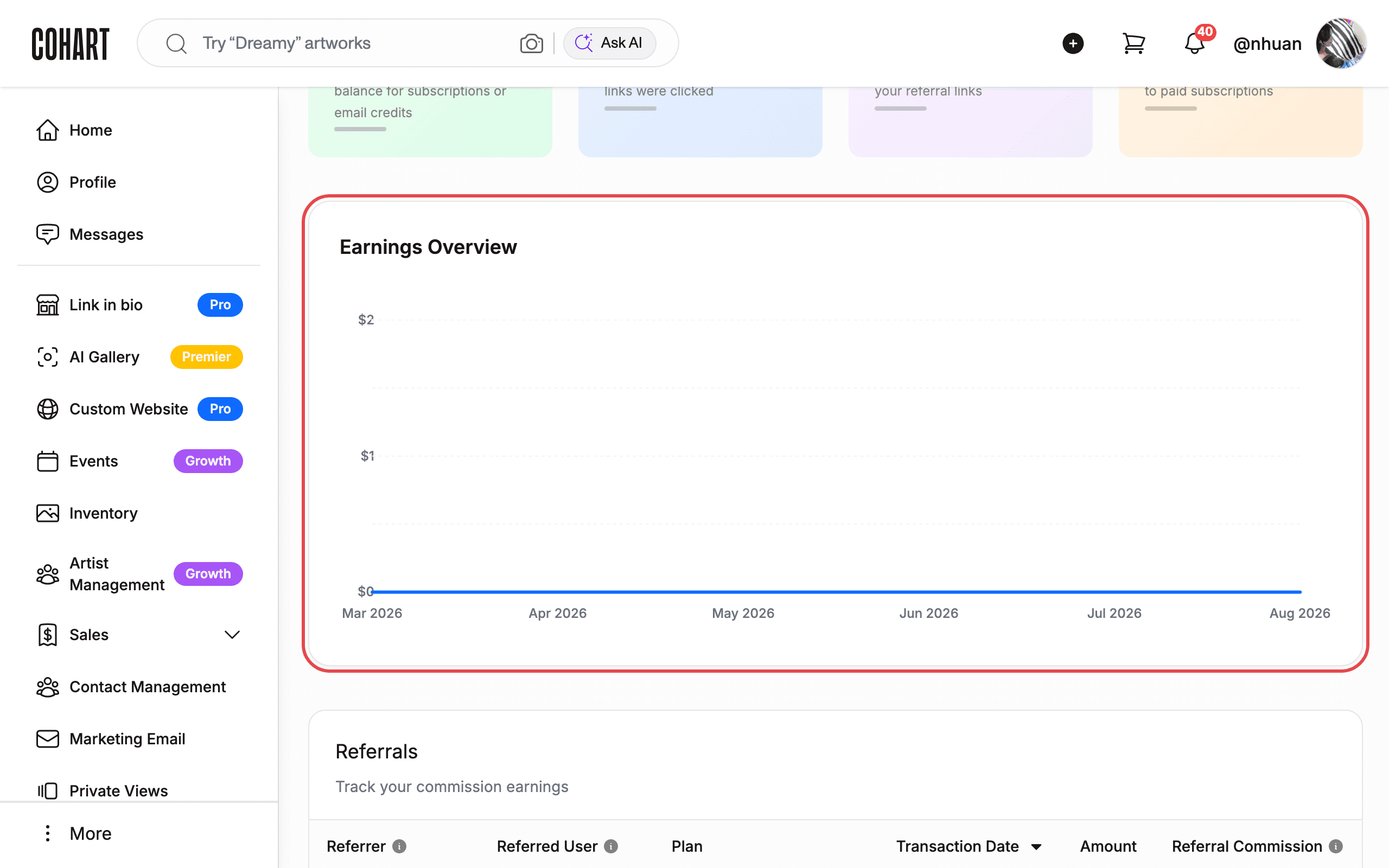
Your stats are shown as EARNINGS (with the note “Request a payout to use this balance for subscriptions or email credits”), CLICKS, SIGNUP, and PAID SUBSCRIPTIONS. The Earnings Overview chart below shows your commission over the last six months.
4. Copy your referral link
Click Click to copy under the link.
There is no confirmation message — the link is copied silently. Paste it into a message to verify.
5. Share the link — this is what your friend sees
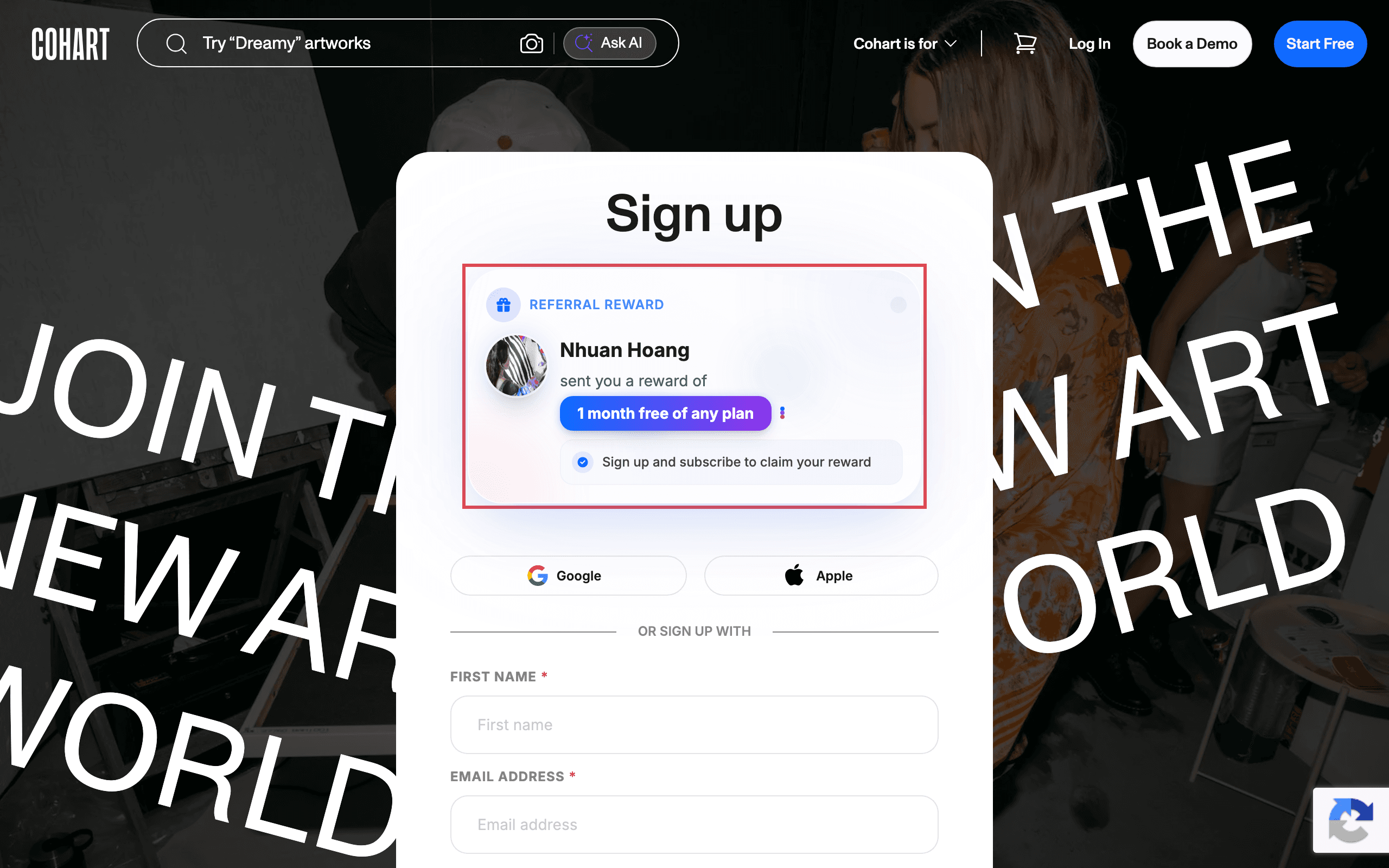
Send the link to your friend by any channel (email, chat, social media). When they open it, the Sign up page shows a Referral Reward banner with your name and the offer: “sent you a reward of 1 month free of any plan — Sign up and subscribe to claim your reward.”
Your friend signs up with First name*, Email address*, Password*, checks “I agree to the Terms of Service and Privacy Policy”, and clicks SIGN UP. They can also sign up with Google or Apple.
6. Track your earnings
Back on the Refer & earn page, the Earnings Overview chart shows your commission month by month, and the stat cards update as your referrals convert.
7. See who subscribed through your link
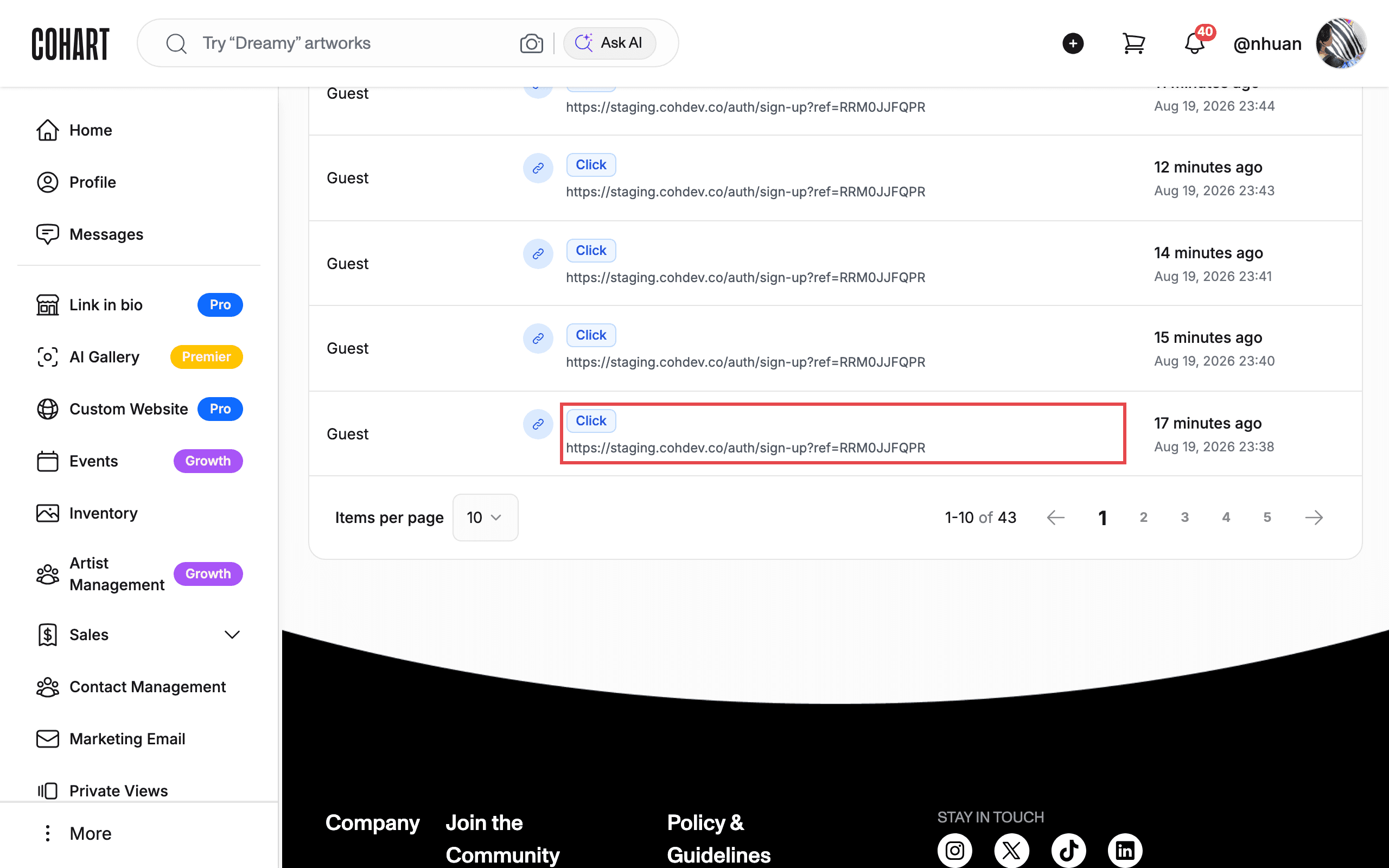
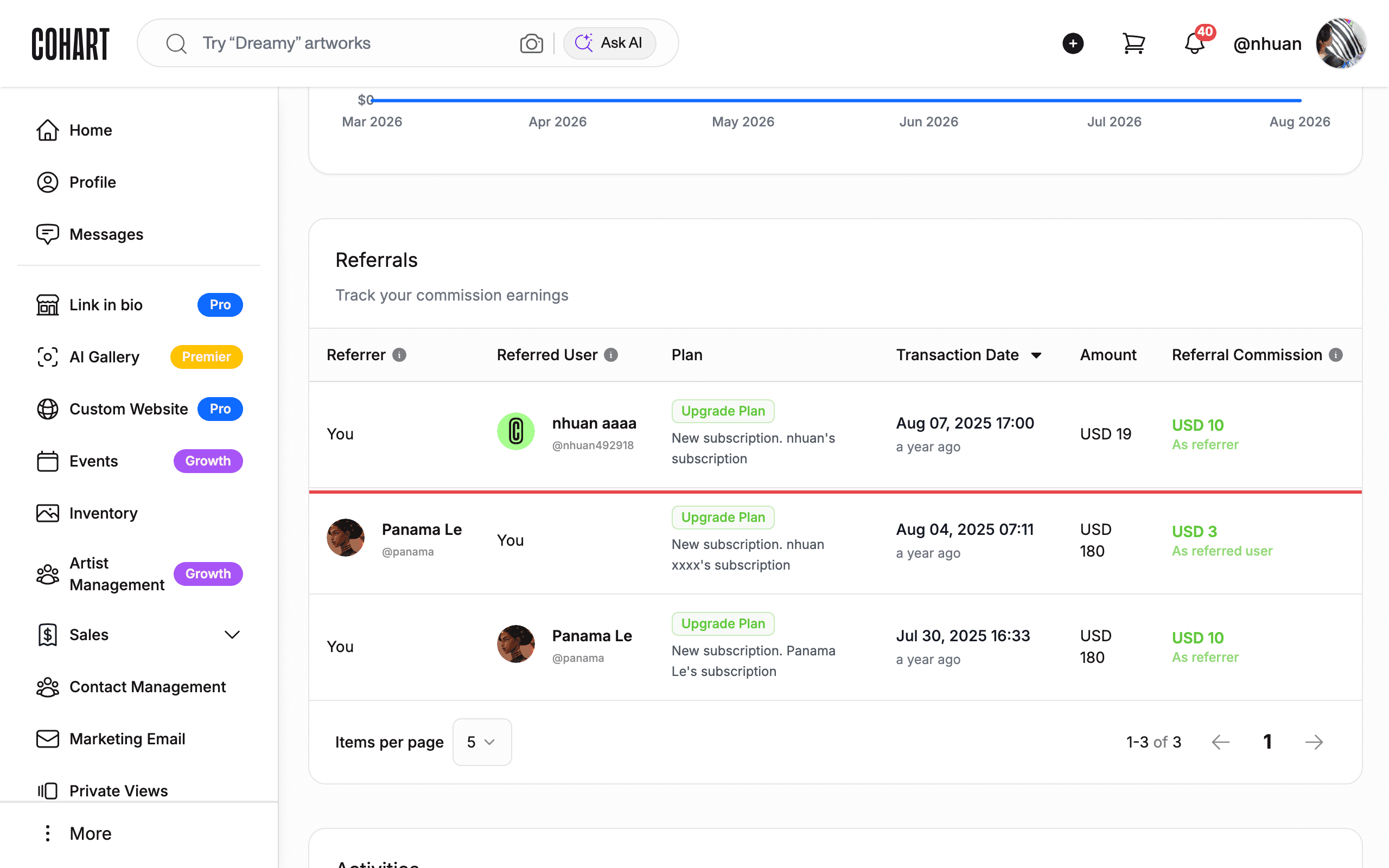
The Referrals table (“Track your commission earnings”) lists each referred friend with Referrer, Referred User, Plan, Transaction Date, Amount, and Referral Commission. The Activities table (“Track your referral activities and performance metrics”) shows Referred User, User Activity, and Date.
8. Request a payout to get your credits
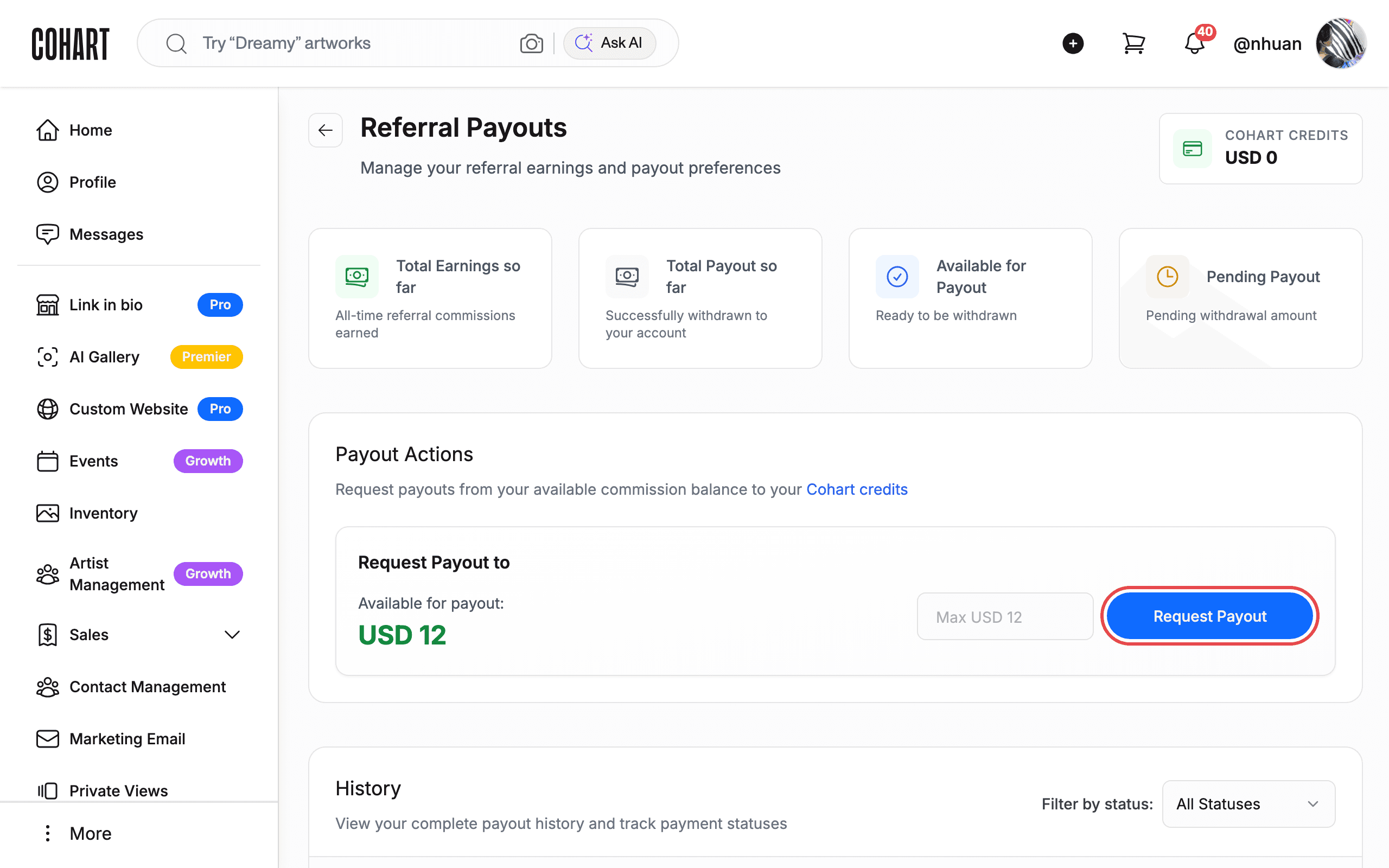
On the Refer & earn page, click Manage Payouts. On the Referral Payouts page, find the Payout Actions section — “Request payouts from your available commission balance to your Cohart credits”. Enter the amount (the field shows Max USD <available>), then click Request Payout.
The page shows your COHART CREDITS, Total Earnings so far, Total Payout so far, Available for Payout, and Pending Payout, plus a History table of previous payouts with Payout ID, Amount, Status, and Payout Date.
Tips
- The referral link is unique to your account and never changes, so you can reuse it everywhere.
- EARNINGS notes that you can “Request a payout to use this balance for subscriptions or email credits” — you do not need a bank account to use your balance on Cohart.
- PAID SUBSCRIPTIONS counts friends who actually subscribed — clicks alone do not earn commission.
- The Activities table tracks every click and sign-up, which helps you see which channel brought your referrals.
Troubleshooting
- Click to copy shows no confirmation → the copy is silent → paste the link somewhere to check it worked. If nothing is copied, your browser may be blocking copying — select the link and copy it by hand instead.
- The friend’s page shows no Referral Reward banner → the full link was not shared → make sure the whole referral link, including the code at the end, was shared.
- Your friend signed up but you see no commission → commission applies to paid subscriptions, which may take time to appear → check the Referrals and Activities tables.