How to View Unsubscribes
Overview
The Unsubscribes report shows you who opted out of your marketing emails and why, so you can judge whether a campaign drove people away. It is for sellers with an artist or gallery account who have sent campaigns from Contact Management. The report summarizes the period with TOTAL UNSUBSCRIBES, % UNSUBSCRIBE RATE with its vs-average delta, and MAIN REASONS, then lists every opted-out address with its unsubscribe date, reason, and last campaign received. Nothing here changes your data: filtering by campaign, reason, date, or email only narrows the view, and opting out suppresses the address from future sends automatically. By the end, you will know your opt-out totals, which campaign triggered them, and how to look up any single address.
Before you start
- A Cohart seller account with sent marketing campaigns — without sends there are no opt-outs to report. If you have not sent one yet, see How to Create a Marketing Email Campaign.
- The campaign name, reason, date window, or full email address you want to investigate (for example the subject of the send you suspect caused the opt-outs).
- No setup is needed beyond that: unsubscribed addresses are suppressed from future sends automatically, and searching or filtering this report changes nothing.
Steps
1. Sign in to Cohart
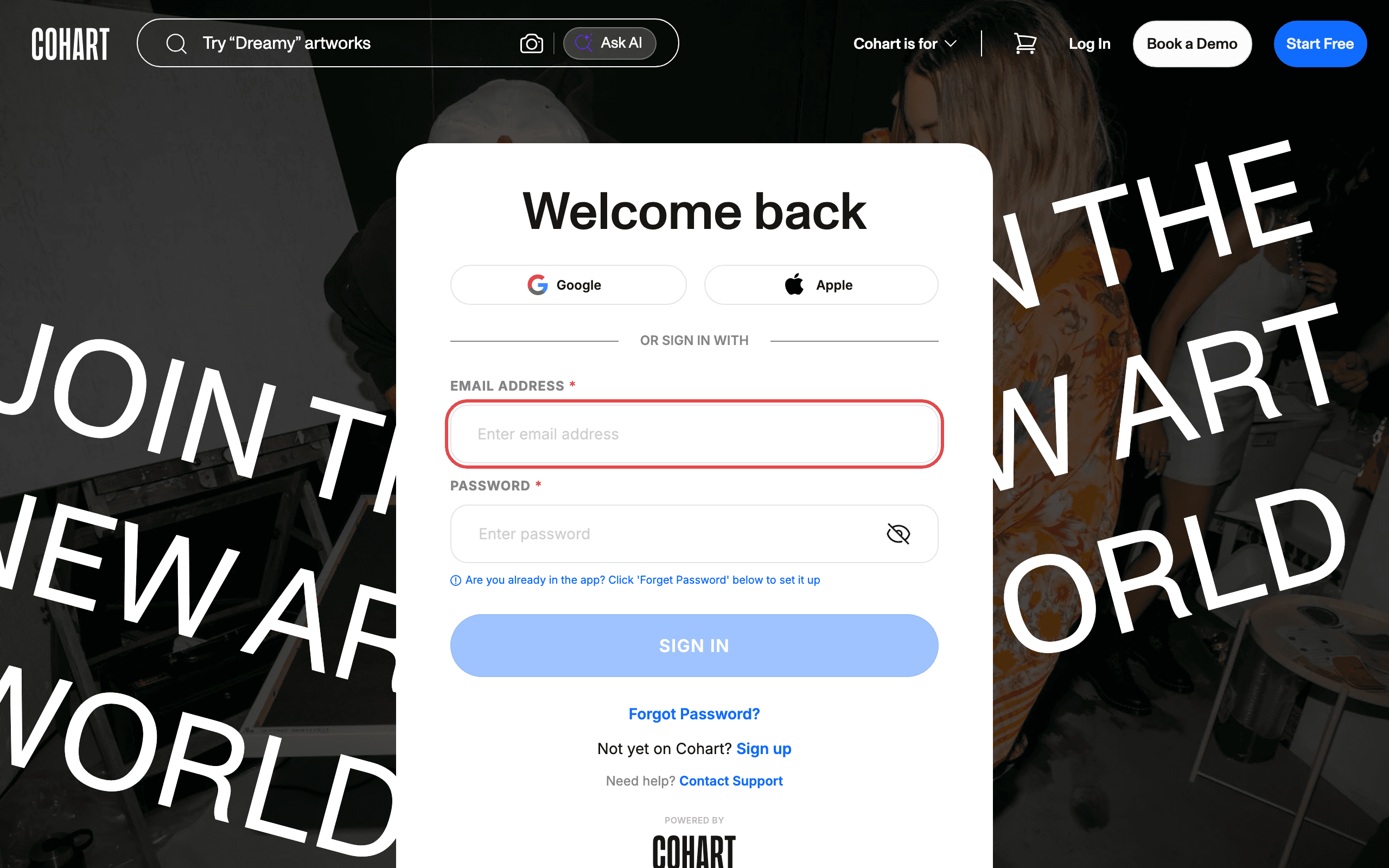
Sign in with your email address and password, or use Google or Apple.
2. Open Contact Management
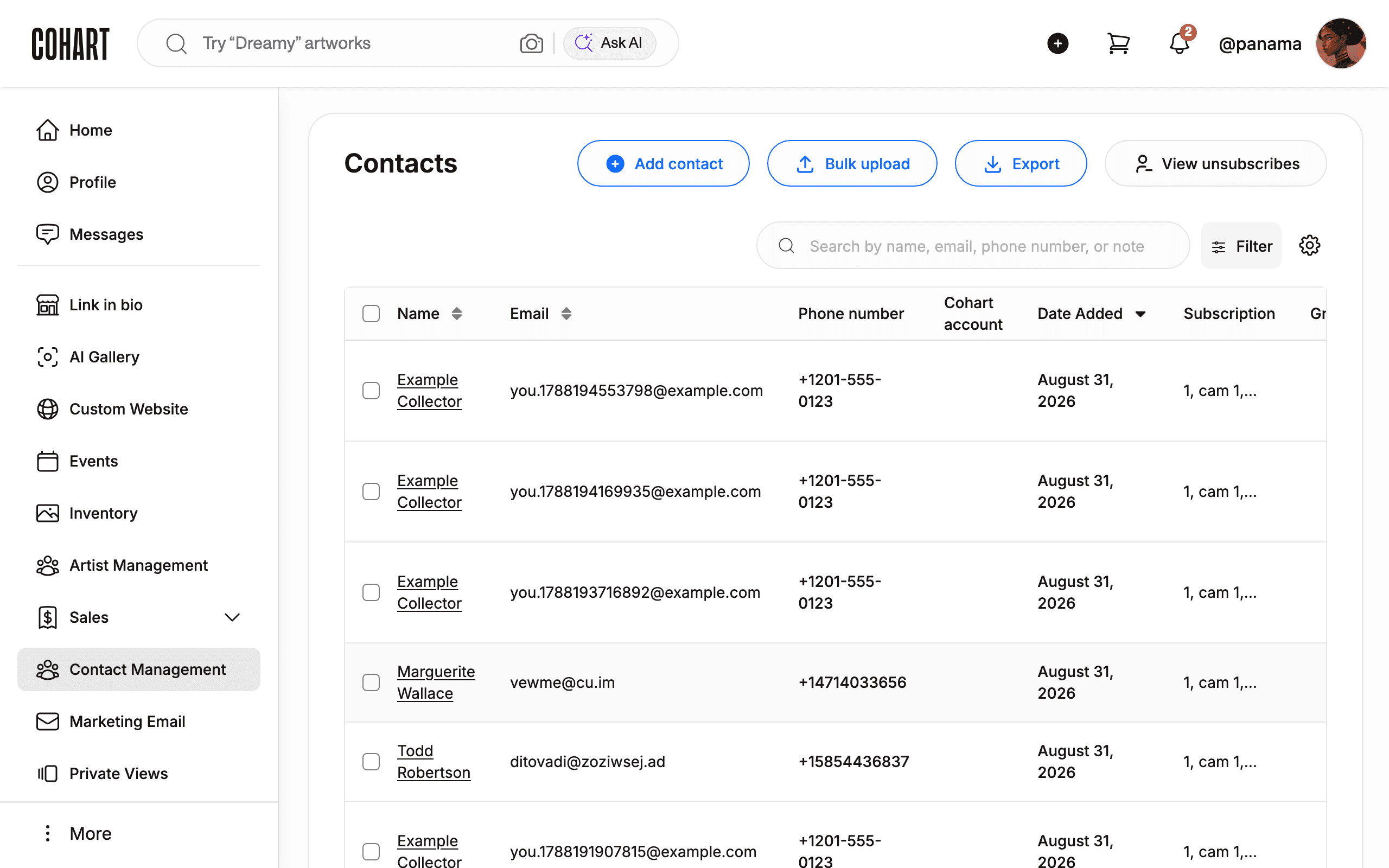
After sign-in you land on Inventory. In the sidebar, click Contact Management to open Contacts.
3. Click View unsubscribes
On the Contacts page, above the table on the right, click View unsubscribes.
4. Read the Unsubscribe Report
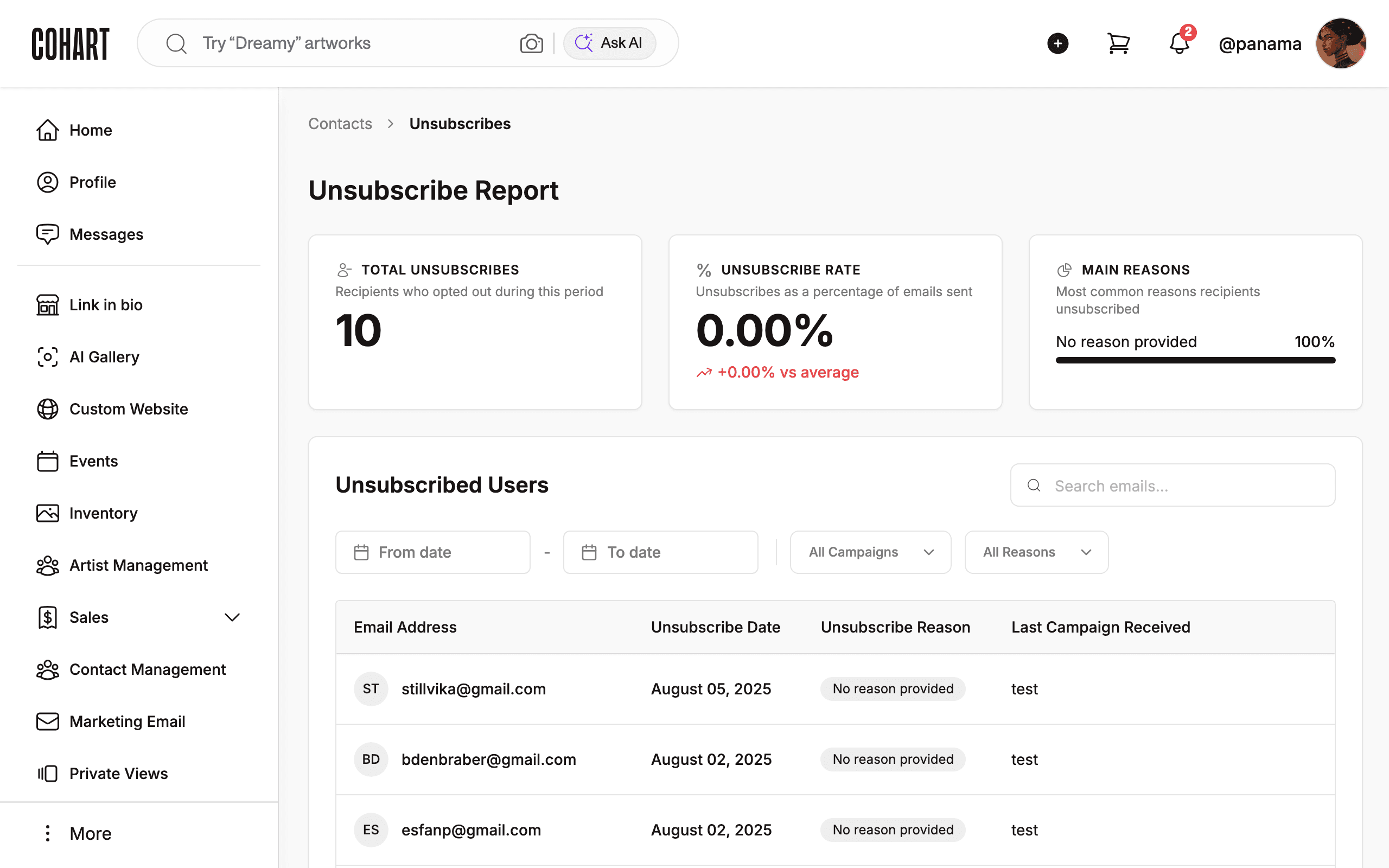
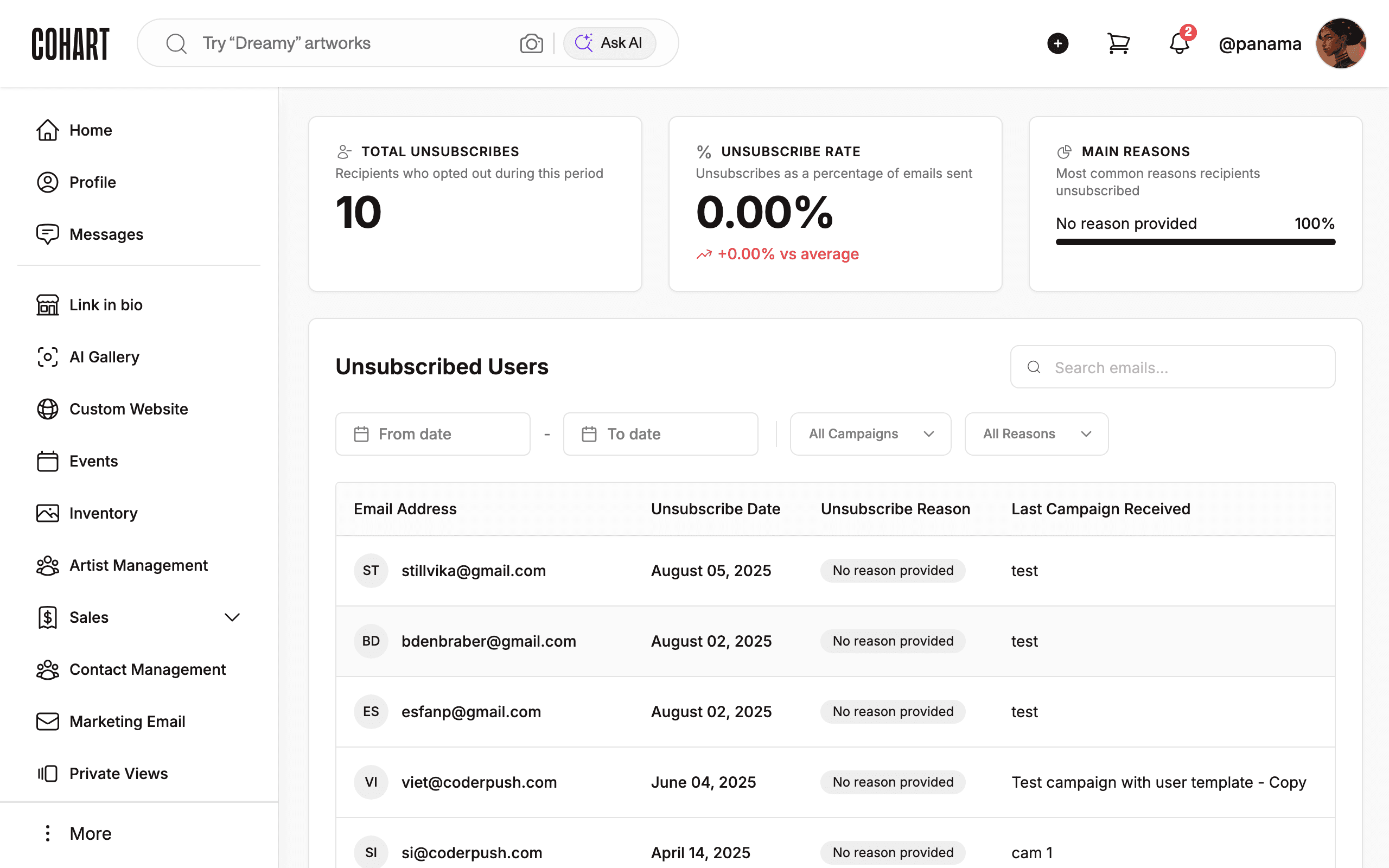
The Unsubscribes page shows two tabs (Contacts, Unsubscribes) and the Unsubscribe Report: TOTAL UNSUBSCRIBES with Recipients who opted out during this period (for example 10), % UNSUBSCRIBE RATE with Unsubscribes as a percentage of emails sent plus the vs-average delta (for example 0.00%, +0.00% vs average), and MAIN REASONS with Most common reasons recipients unsubscribed (for example No reason provided 100%).
5. Filter by campaign
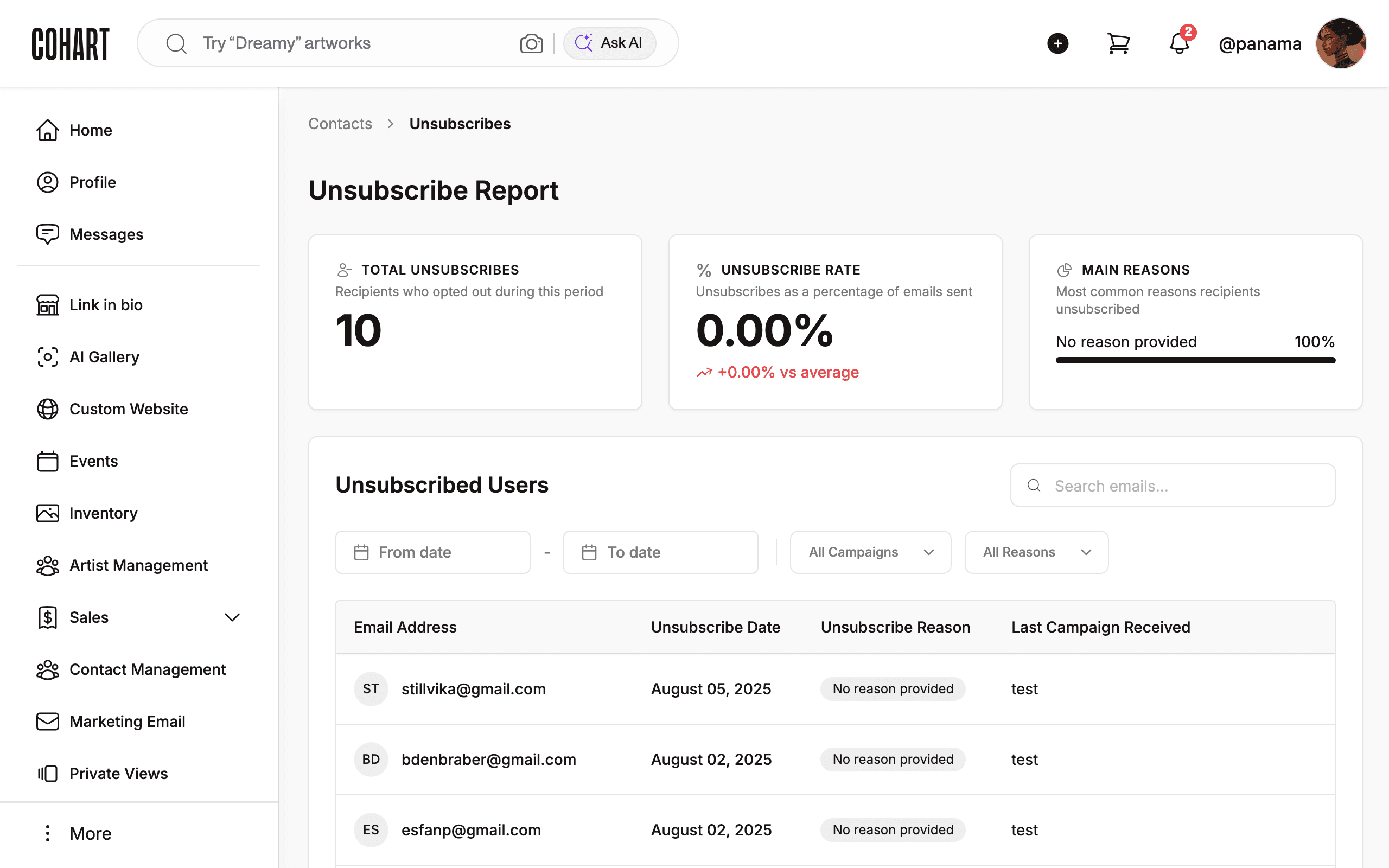
Open the All Campaigns filter to limit the report to one campaign’s opt-outs. Press Escape to close the filter without applying it.
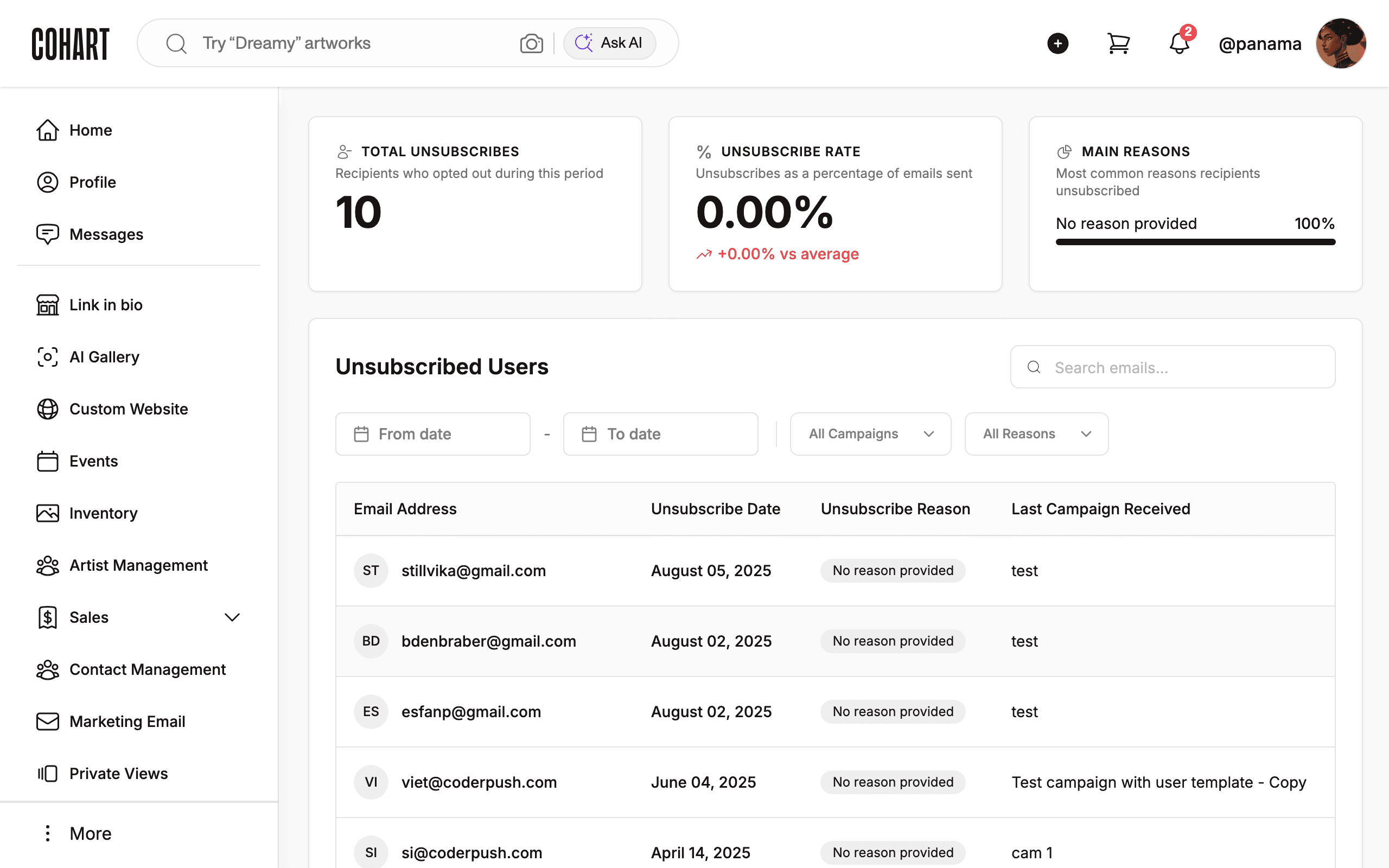
6. Filter by reason and date
Open the All Reasons filter to limit by opt-out reason. Combine it with From date - To date for windowed analysis.
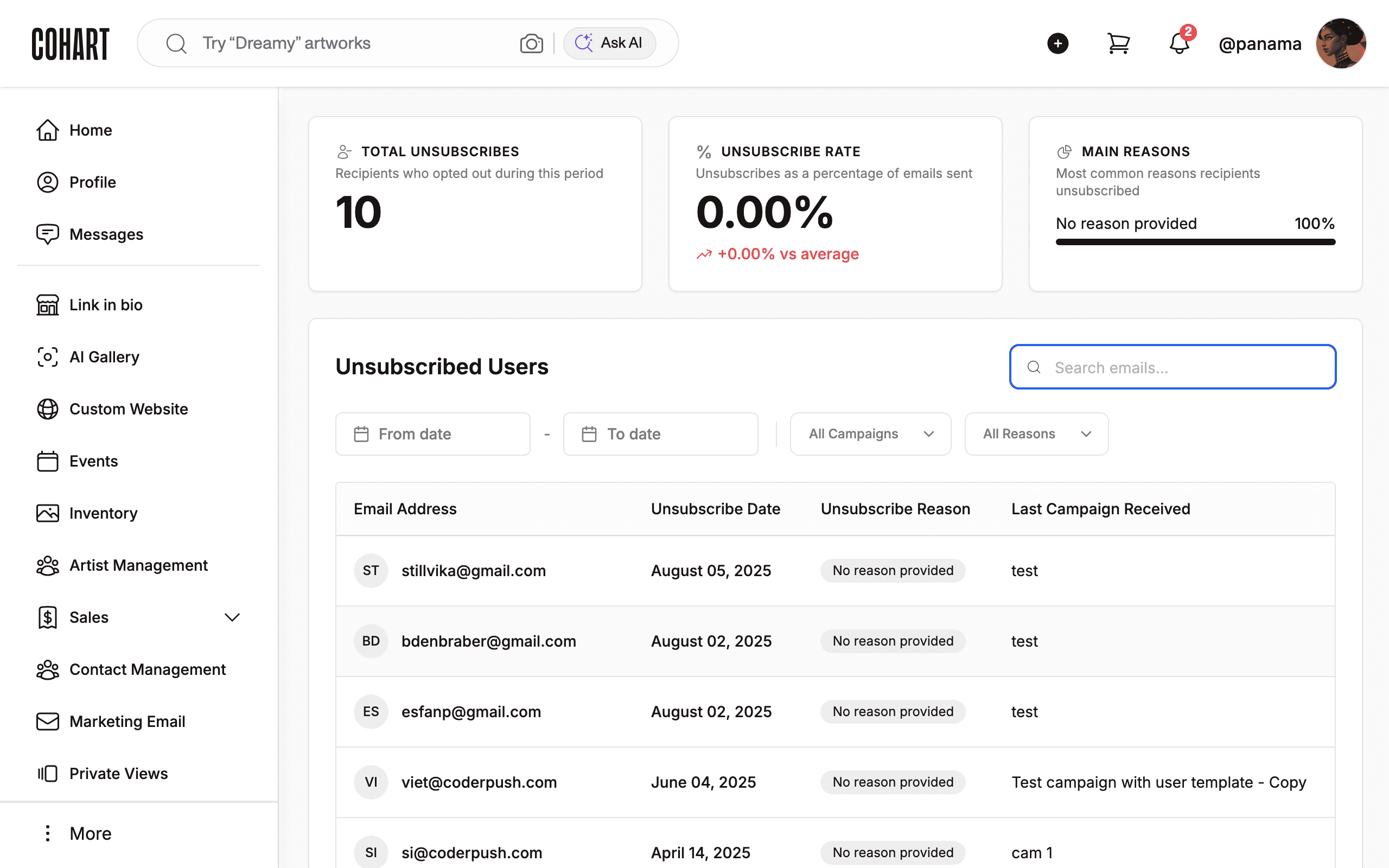
7. Search by email address
Type an address into the Email Address search box (for example you@example.com) to check one recipient, then clear the box to restore the full list. Searching only filters this report; it changes nothing.
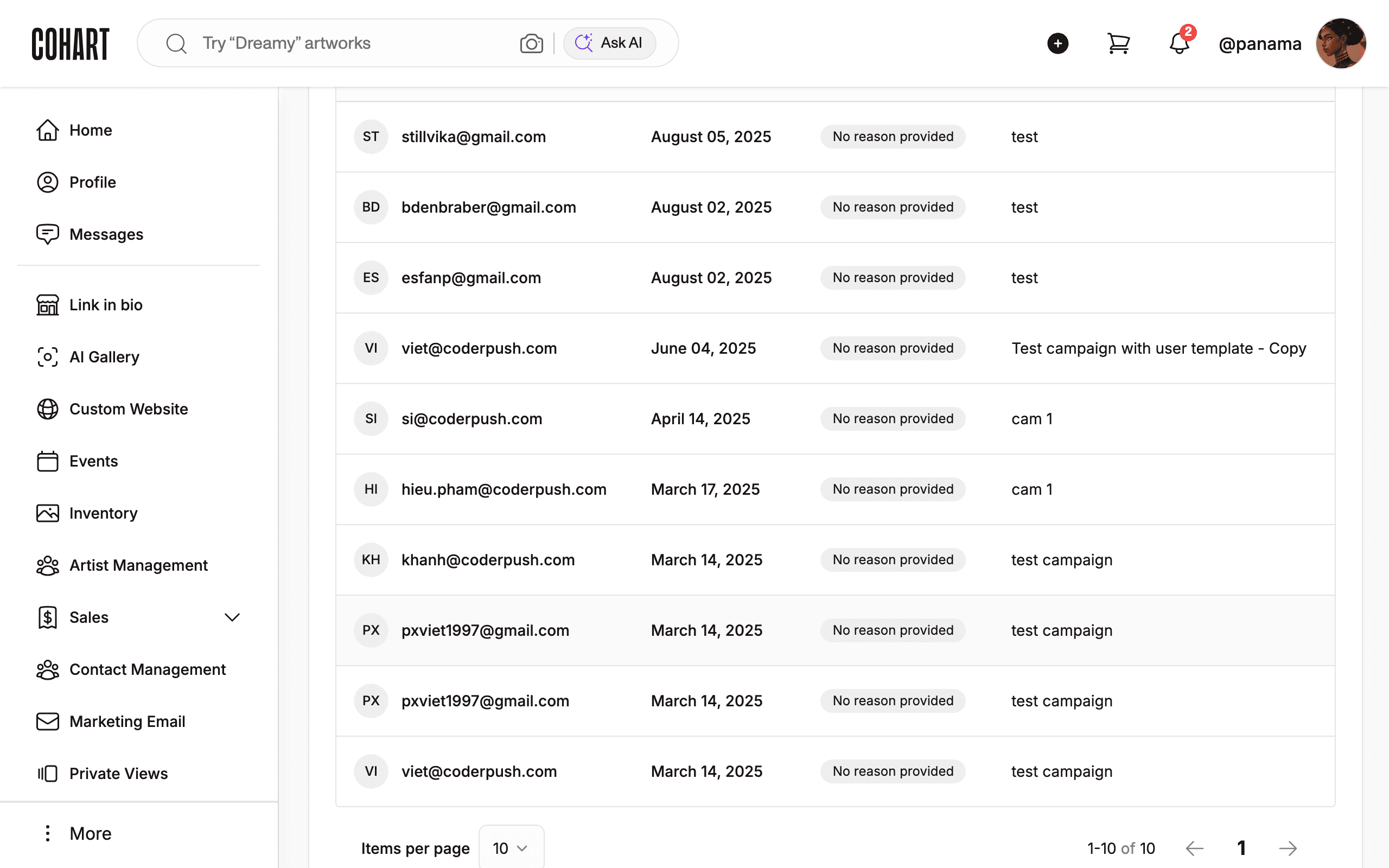
8. Read the table and page through results
Read the Unsubscribed Users table columns: Email Address, Unsubscribe Date, Unsubscribe Reason, and Last Campaign Received (for example test, Test campaign with user template - Copy). Use 10 per page and the numbered pages to browse.
Tips
- Tabs matter. Contacts lists everyone; Unsubscribes lists only opt-outs. Unsubscribed users stay here even if deleted from Contacts.
- No reason provided dominates. Recipients rarely pick a reason. Use Last Campaign Received to identify the offending send instead.
- Platform-wide opt-outs (Cohart’s own drips) live in a separate operator report — operators reach it with View unsubscribes on the Master > Marketing Email page.
Troubleshooting
- 0.00% rate with +0.00% vs average → this means no change in the window, not a loading error → widen From date - To date first.
- Search shows nothing → confirm the exact spelling; the box matches the full address, not fragments → retype the full address, then clear the box to restore the full list.
- Recipient still emailed after opting out → unsubscribed users are suppressed automatically, so a newer subscription row may have re-added them → check whether a newer subscription row re-added them.