How to Browse Discover
Overview
Discover is the AI Curator catalog where you browse and evaluate art before you contact any seller. It exists so buyers and collectors can move from curated suggestions to a confident inquiry without leaving the marketplace. It is for buyers, collectors, and anyone exploring art, whether signed in or just looking. Your actions here shape what follows: following an artist or gallery fills your Moments feed and powers follow-based email digests, and choosing Inquire to Purchase on a buyable card starts a chat with the seller rather than taking payment. The catalog spans TOP PICKS, ARTWORKS with filters, ARTISTS and GALLERIES with Follow buttons, EVENTS with type filters plus Going and Invite actions, VR ROOM spaces that open into AI galleries, and EDITORIAL stories. By the end of this guide you will have opened every discovery tab, read cards and filters, followed artists and galleries, and opened rooms and stories.
Before you start
- A Cohart account for the full experience. Signed-out visitors see the same catalog with Log In, Book a Demo, and Start Free in the header.
- No purchase is needed to browse. Choosing Inquire to Purchase starts a real chat with the seller, and Follow only follows without reserving any artwork, so use them deliberately.
- If you plan to follow artists or galleries, note that following fills your Moments feed and powers follow-based email digests.
Steps
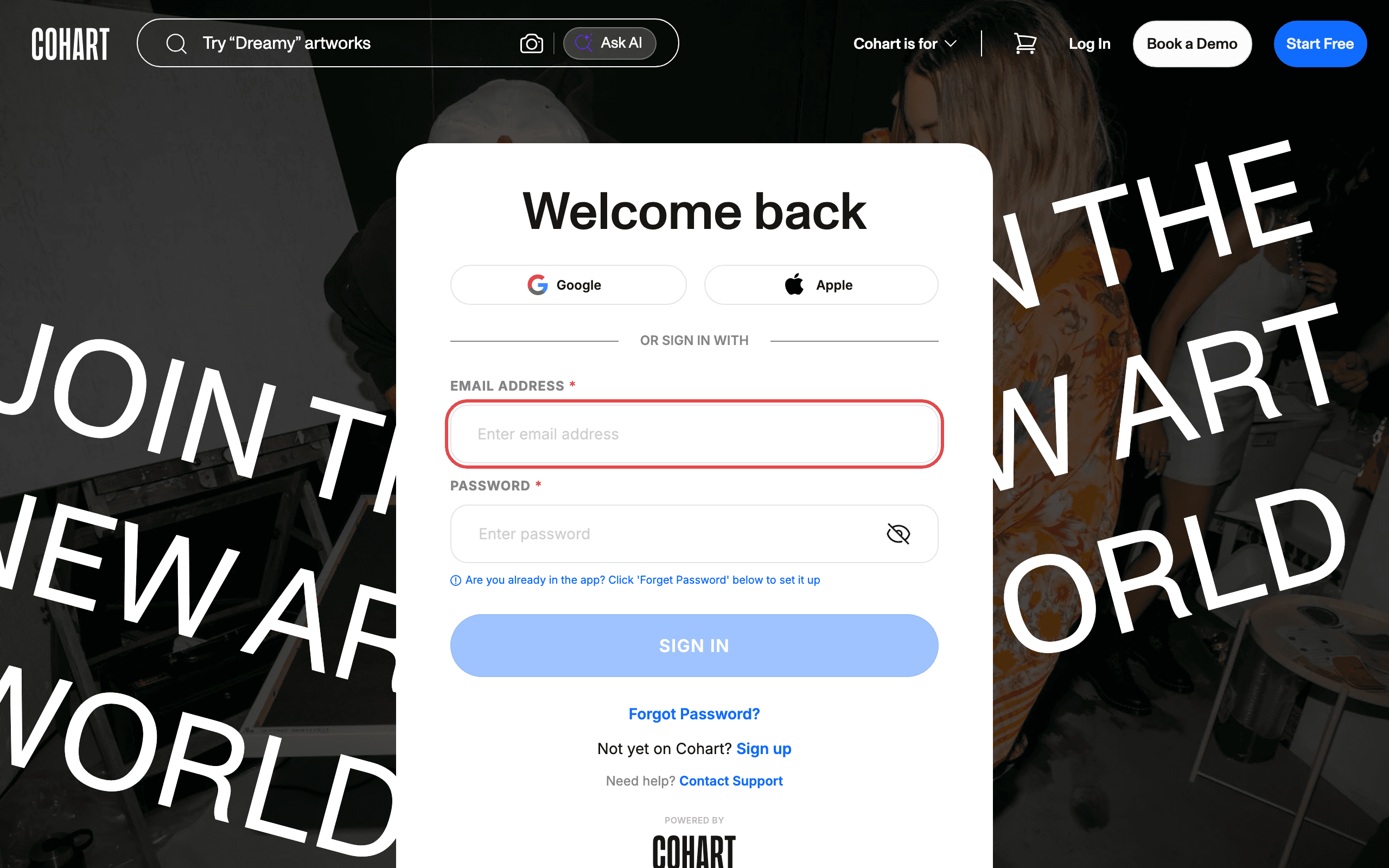
1. Sign in to Cohart
Sign in with your email address and password, or use Google or Apple.
2. Browse Top Picks
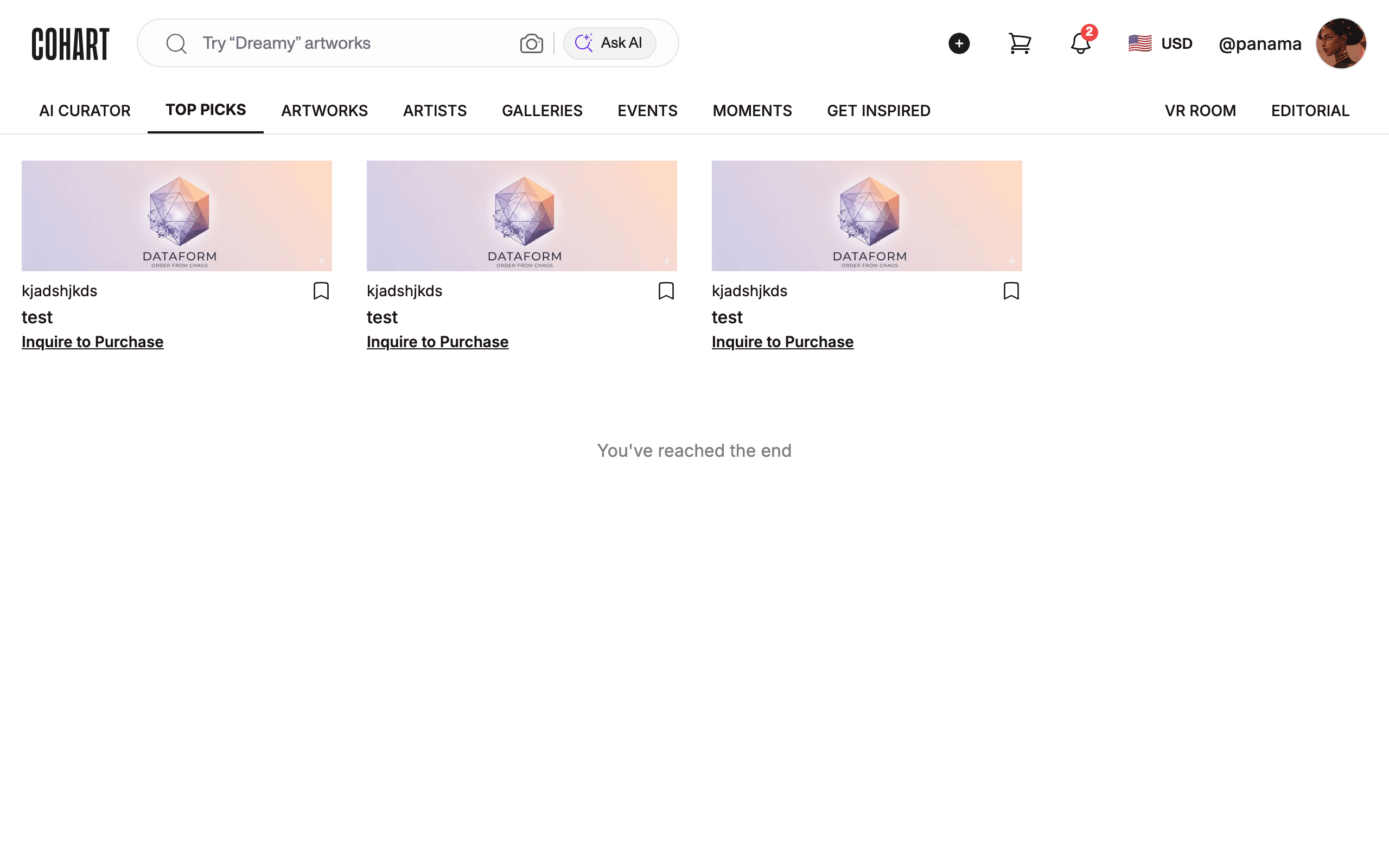
After sign-in, open the AI Curator home and click TOP PICKS. Cards show artist, title, and Inquire to Purchase. Scroll down — the list ends with a You’ve reached the end message.
3. Browse Artworks
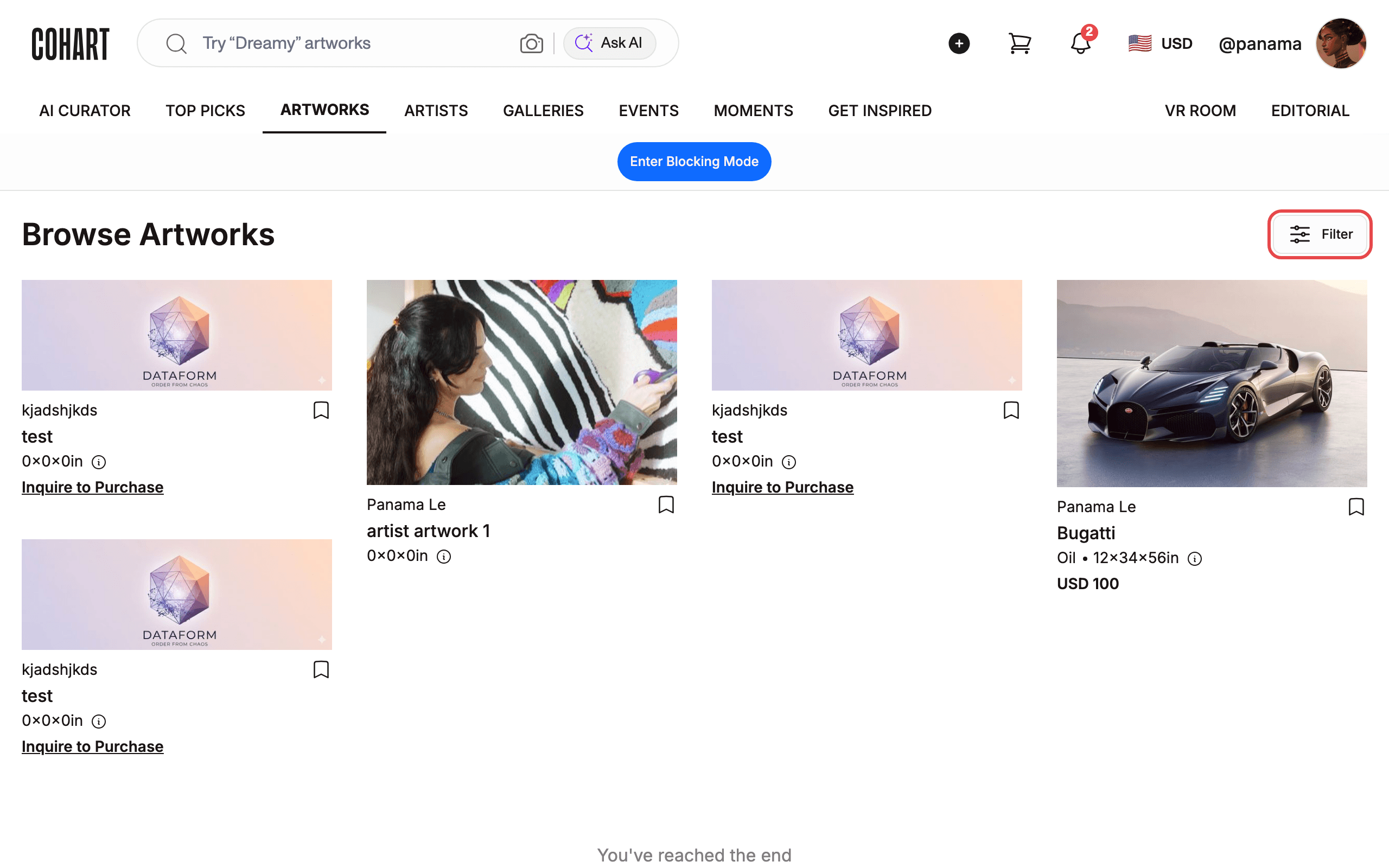
Click ARTWORKS to Browse Artworks. Use Filter to narrow by style, price, or size, and Enter Blocking Mode to hide unwanted authors. Cards show artist, title, dimensions (for example Oil 12×34×56in), and price (for example USD 100).
4. Find Inquire to Purchase
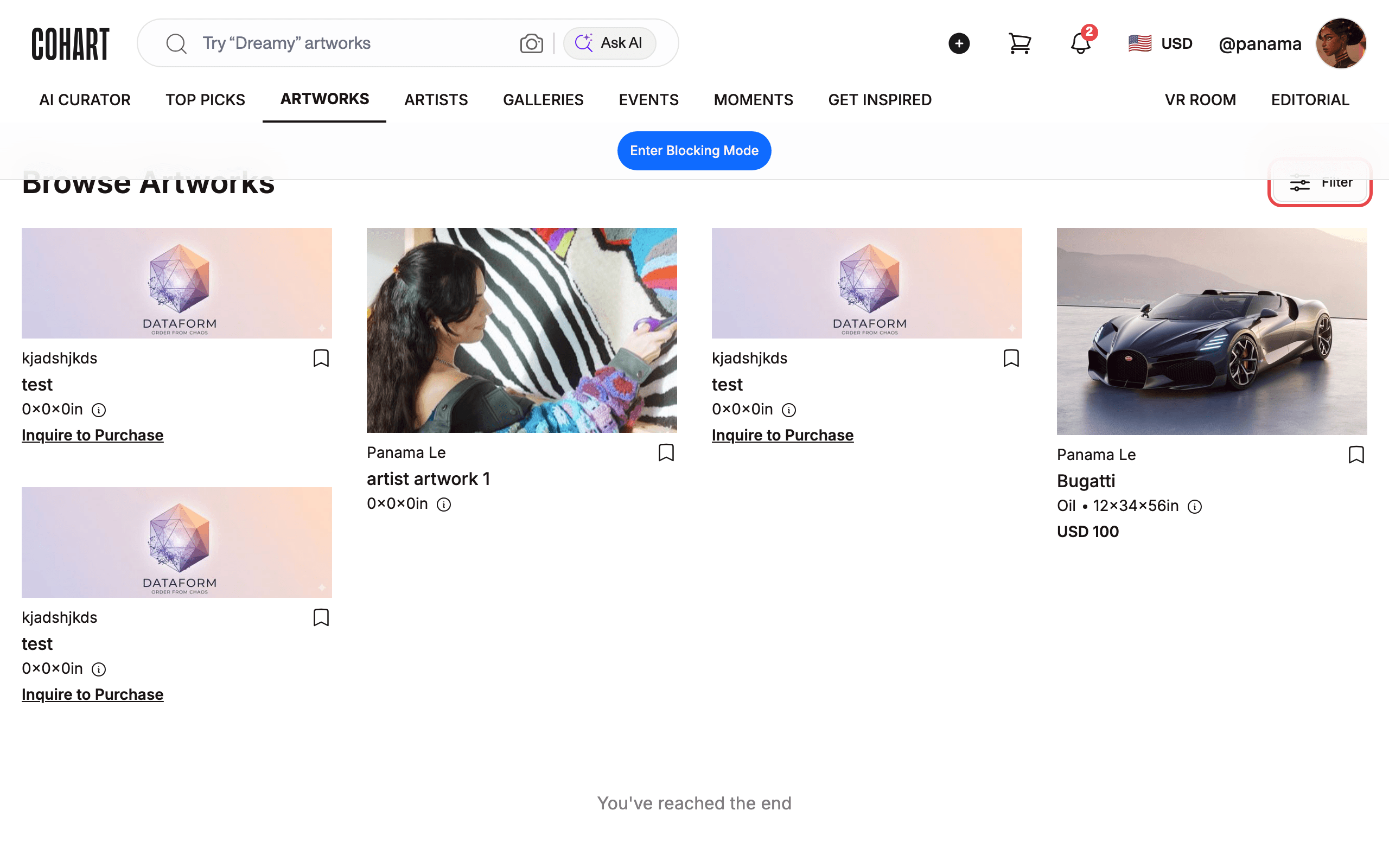
On a buyable card, find Inquire to Purchase. Clicking it starts a chat with the seller; priced works may also show Buy now or Quick Sell on the artwork page.
5. Browse Artists
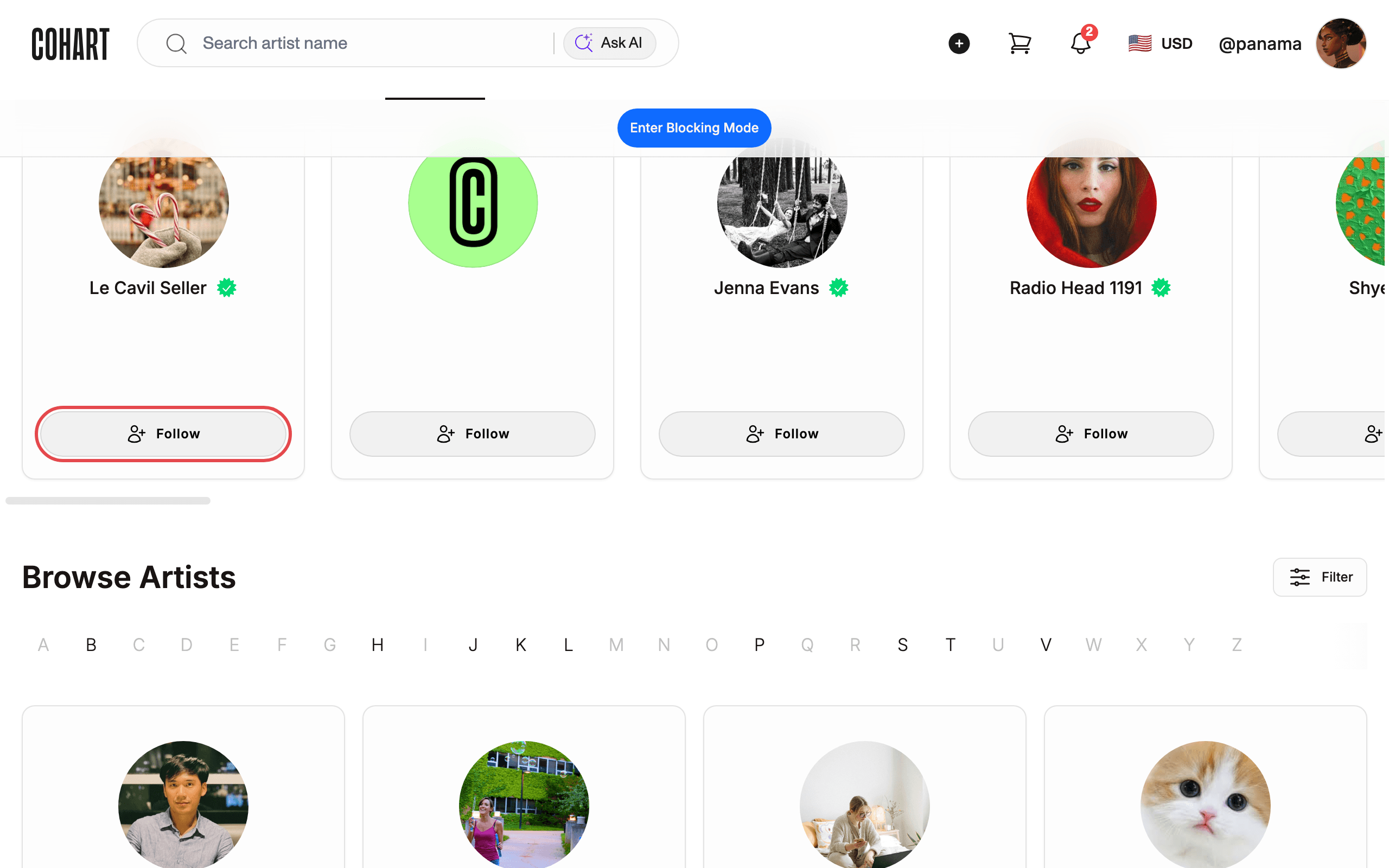
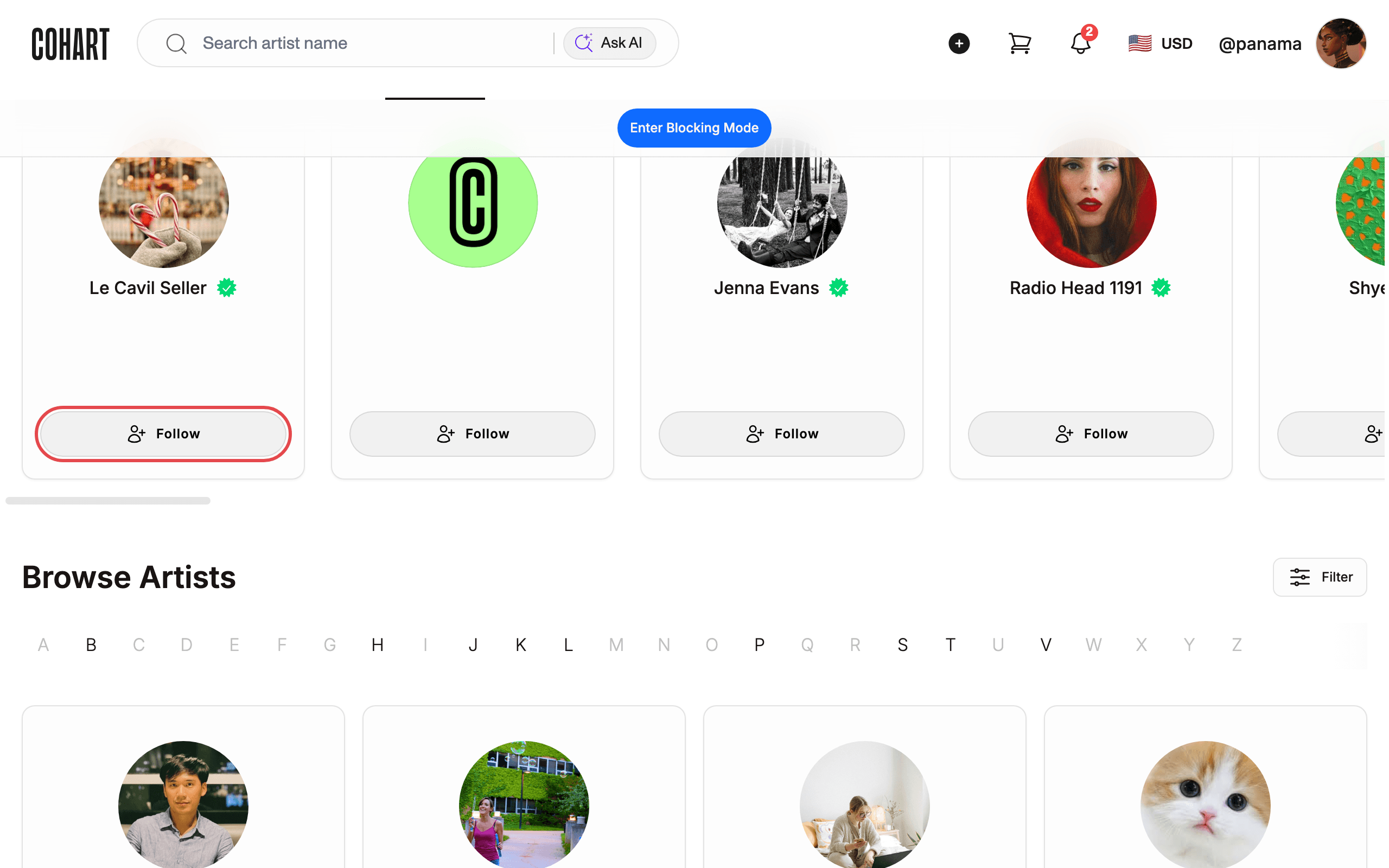
Click ARTISTS for Featured Artists plus the A-Z Browse Artists index (A B C … Z). Each card carries a Follow button.
6. Follow an artist
Click Follow on any artist card to follow them. Following fills your Moments feed and powers follow-based email digests.
7. Browse Galleries
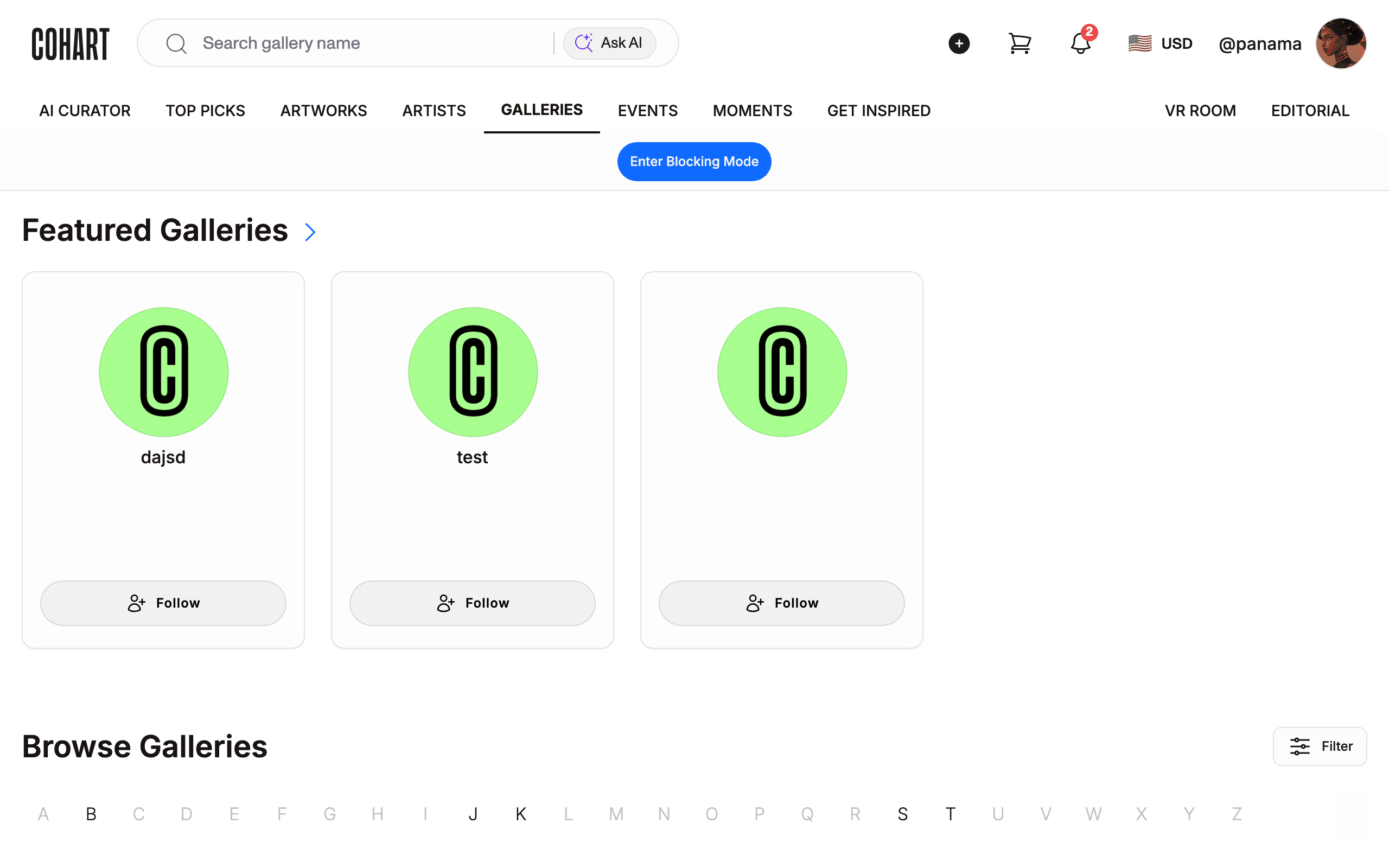
Click GALLERIES for Featured Galleries plus the A-Z Browse Galleries list, with per-gallery Follow buttons.
8. Browse Events
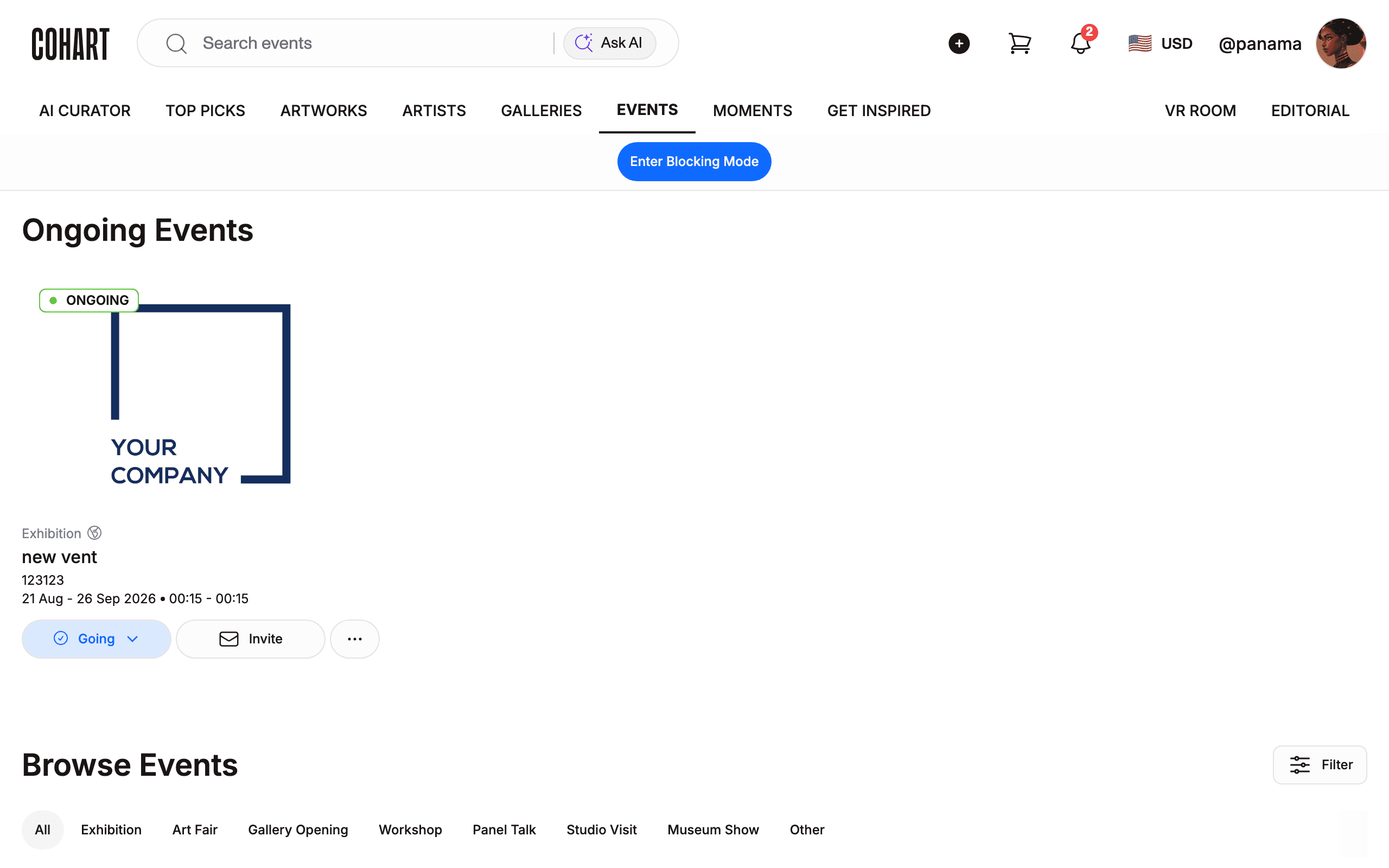
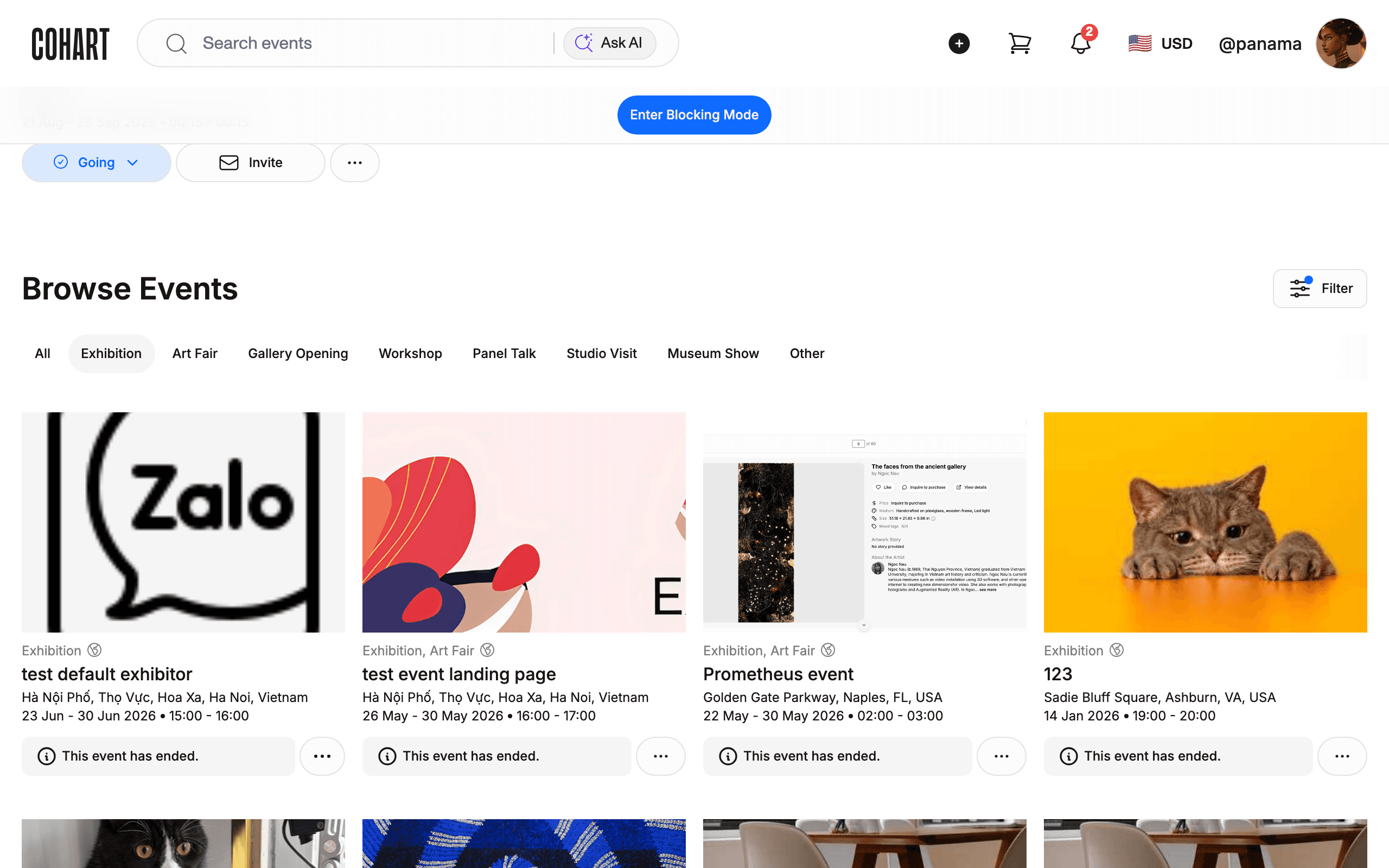
Click EVENTS for Ongoing Events (status ONGOING with dates and venue) plus Browse Events with type filters: All, Exhibition, Art Fair, Gallery Opening, Workshop, Panel Talk, Studio Visit, Museum Show, Other. Event cards offer Going and Invite; ended events state This event has ended. Sellers manage their own events on the Events page, not here.
9. Filter events by type
Click the Exhibition filter. The list narrows to exhibitions only. Combine with the other type pills the same way.
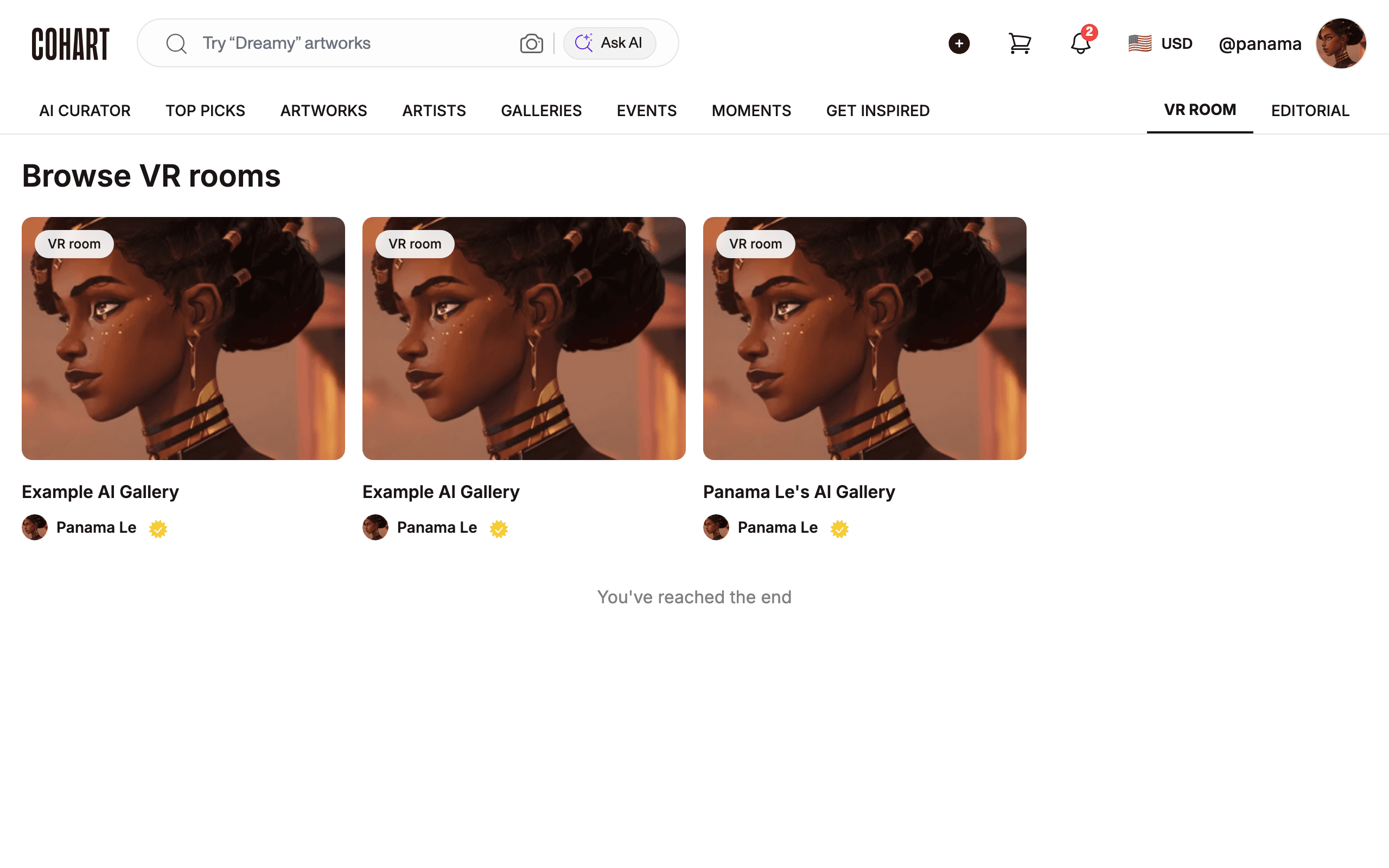
10. Browse VR rooms
Click VR ROOM to Browse VR rooms. Each card names the room and its owner. When no public rooms exist yet, the page states No content available and There are no items to display.
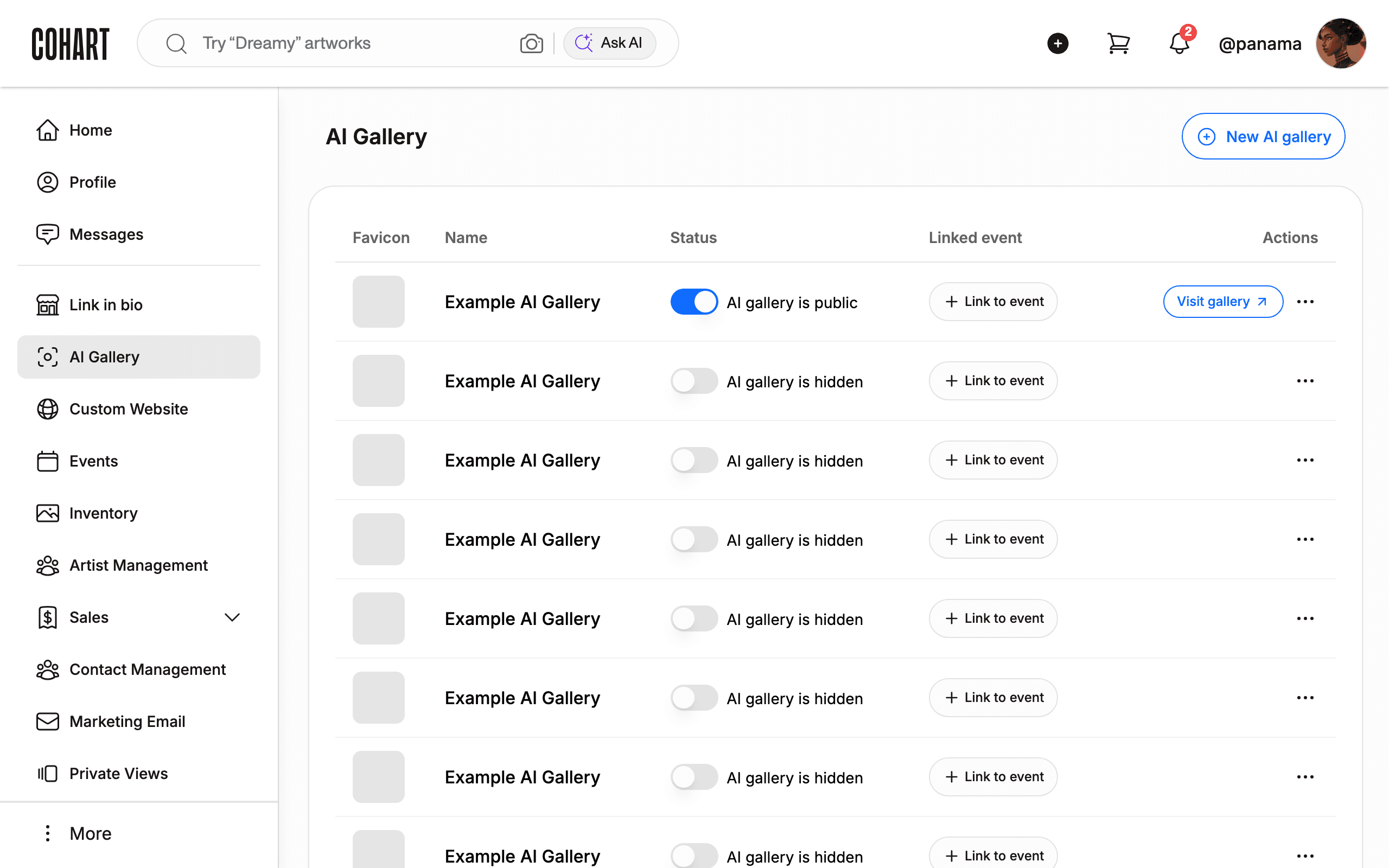
11. Open a VR room
Click a VR room card to follow its link. Room links open the underlying AI gallery with its table (Favicon, Name, Status such as AI gallery is public/hidden, Linked event, Actions including Visit gallery and New AI gallery).
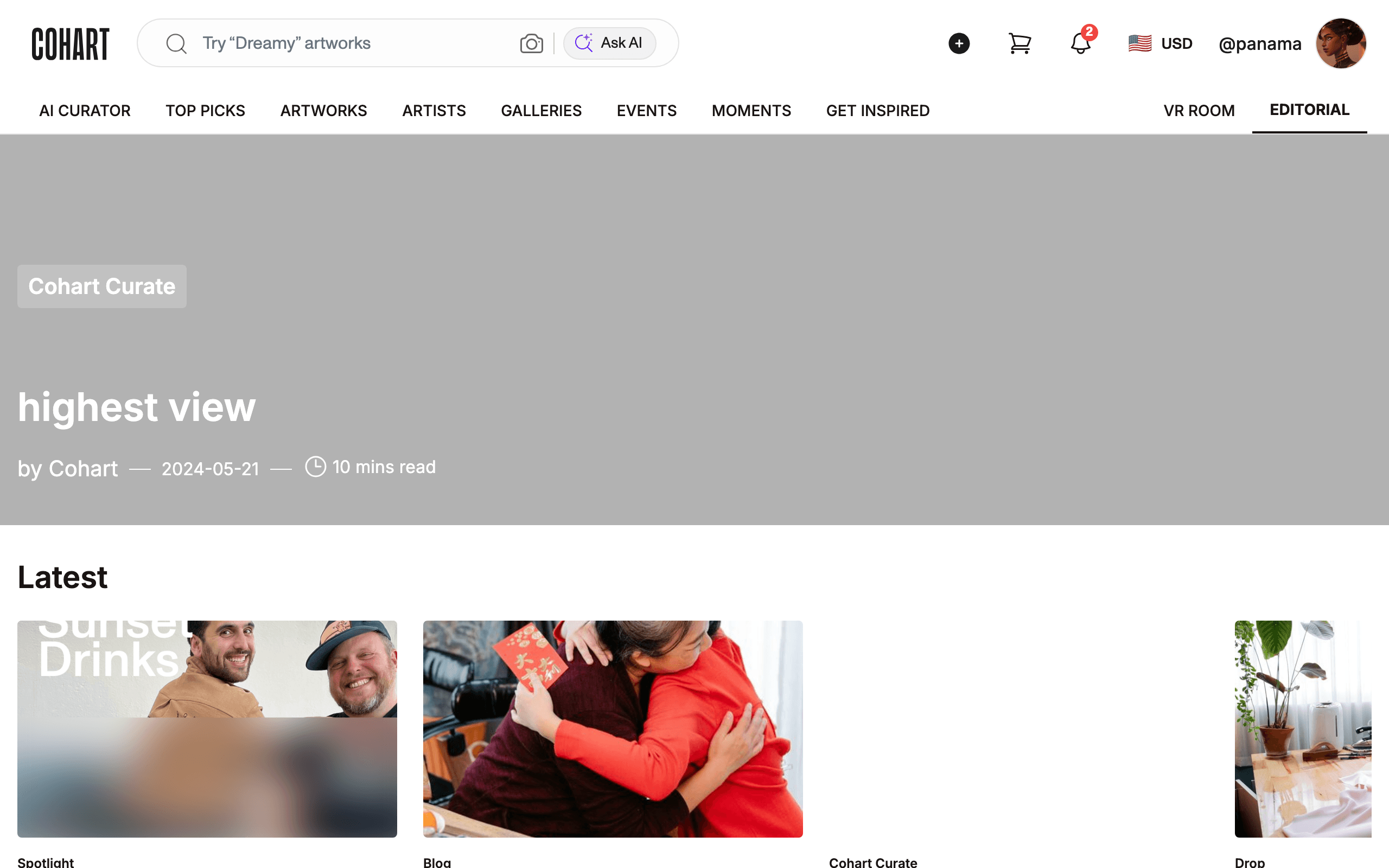
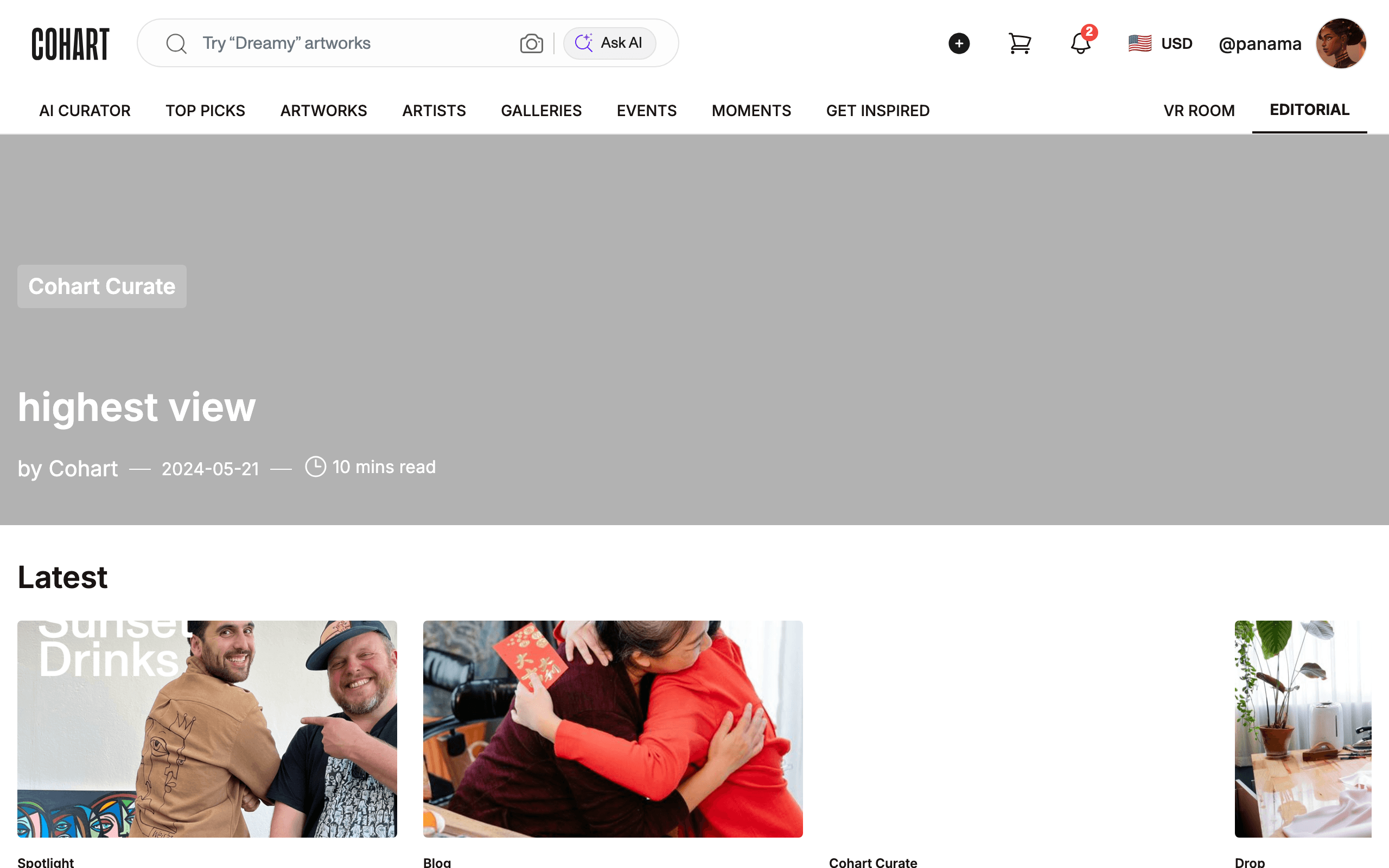
12. Browse Editorial
Click EDITORIAL for art news, spotlights, and collecting guides. Cards show the section (for example Cohart Curate, Spotlight, Blog, or Drop), the title, the author, the date, and the read time.
13. Open an editorial story
Click an editorial card to open the full story. [UNVERIFIED — check manually] the article body layout: card links did not navigate when checked, so the reading view could not be documented.
Tips
- Inquire to Purchase starts a seller chat; no payment is taken from the Discover list itself.
- Follow only follows; it never reserves an artwork.
- Moments and Get Inspired live in the same top nav and are covered separately.
Troubleshooting
- Filter did nothing → the list may still be loading → click the pill again after the list settles.
- VR room link opens a gallery table → that is expected: rooms are AI galleries → use Visit gallery for the 3D view behind the table.
- Ended event shows no ticket or RSVP actions → ended events state This event has ended → browse Ongoing Events instead.