How to View a Marketing Email Campaign’s Details
Overview
After a campaign goes out, its Campaign Details page tells you how it performed. It exists so you can judge whether a send worked — who received it, who opened it, and who clicked — before you plan the next one. This is for sellers with an artist or gallery account who have sent at least one campaign from Marketing Email. The top card records the facts — CAMPAIGN NAME, EMAIL SUBJECT, STATUS with the sent date and time, FREQUENCY, RECIPIENTS count, USED CREDITS, and NEXT SCHEDULED DATE — while the Reports section breaks results into delivery, open, click-through, bounce, and unsubscribe rates with the raw counts behind each. Below that, the Sends table logs every send run with its status, timing, and credit totals, and the RECIPIENTS link opens the full list of who received it. Everything here is read-only review: opening details, reports, and recipients changes nothing about the send. By the end, you will be able to read any sent campaign’s delivery statistics and trace exactly who got it.
Before you start
- A Cohart artist or gallery account with access to Marketing Email.
- At least one sent campaign — only campaigns with Status Sent have statistics, while drafts and Inactive campaigns show No scheduler running and empty reports. Know the campaign name so you can find it with Search by campaign name (see How to Create a Marketing Email Campaign if you have not built one yet).
- This guide is read-only: opening details, reports, and recipients changes nothing. Do not click Send again unless you intend to email everyone a second time.
Steps
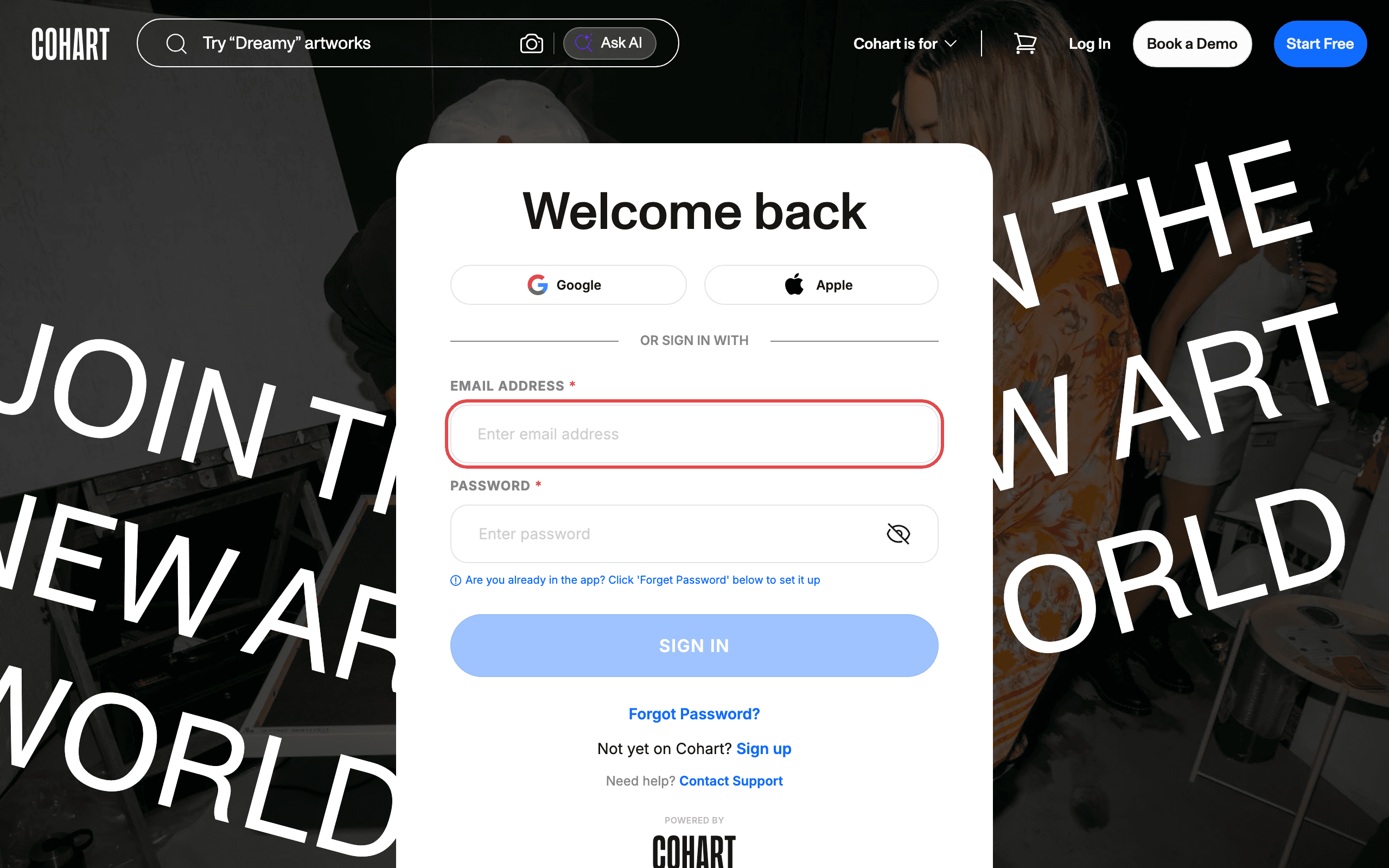
1. Sign in to Cohart
Sign in with your email address and password, or use Google or Apple.
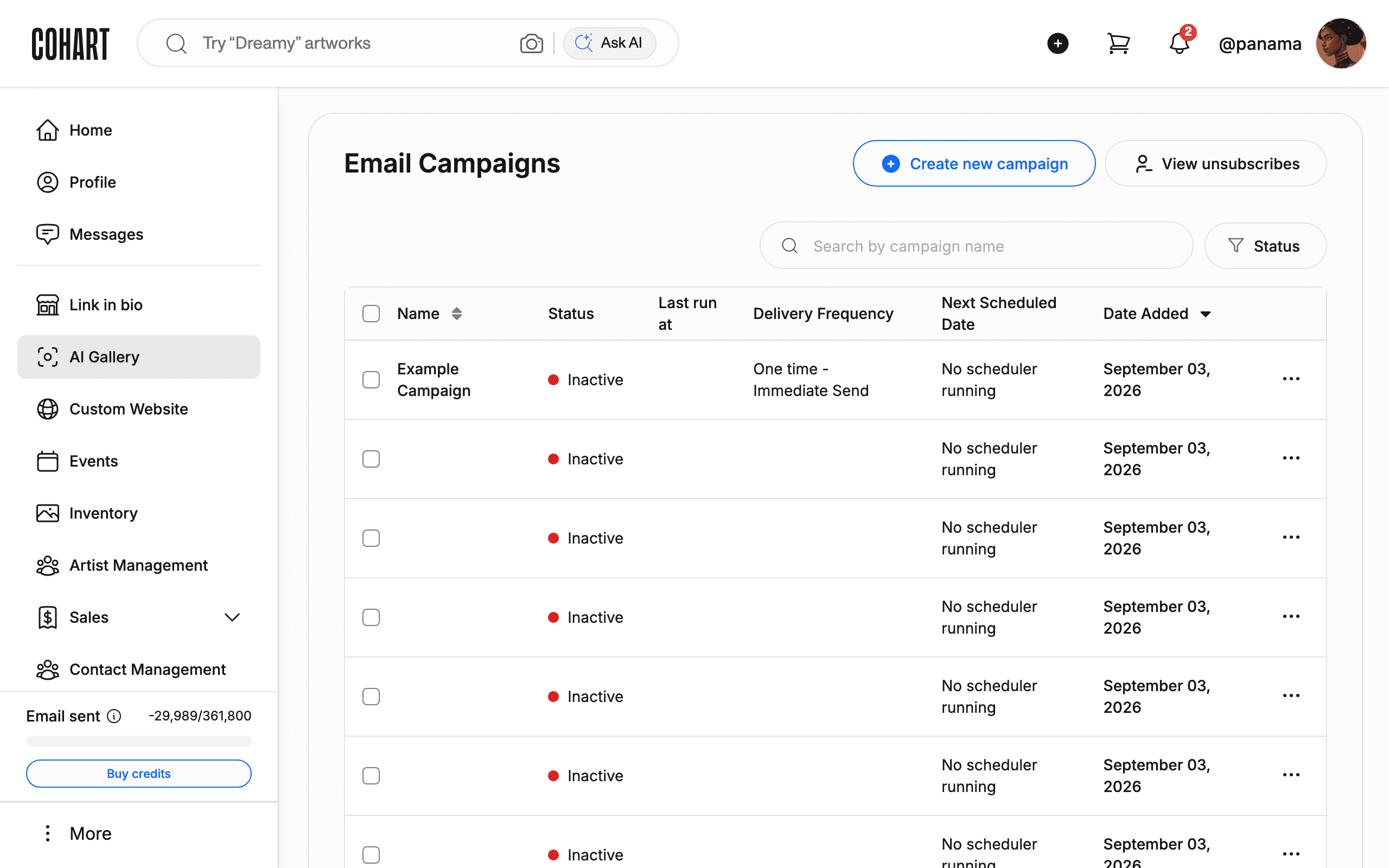
2. Click Marketing Email in the sidebar
Find Marketing Email in the left sidebar and click it. The Email Campaigns list opens. It shows every campaign with columns for Name, Status, Last run at, Delivery Frequency, Next Scheduled Date, and Date Added.
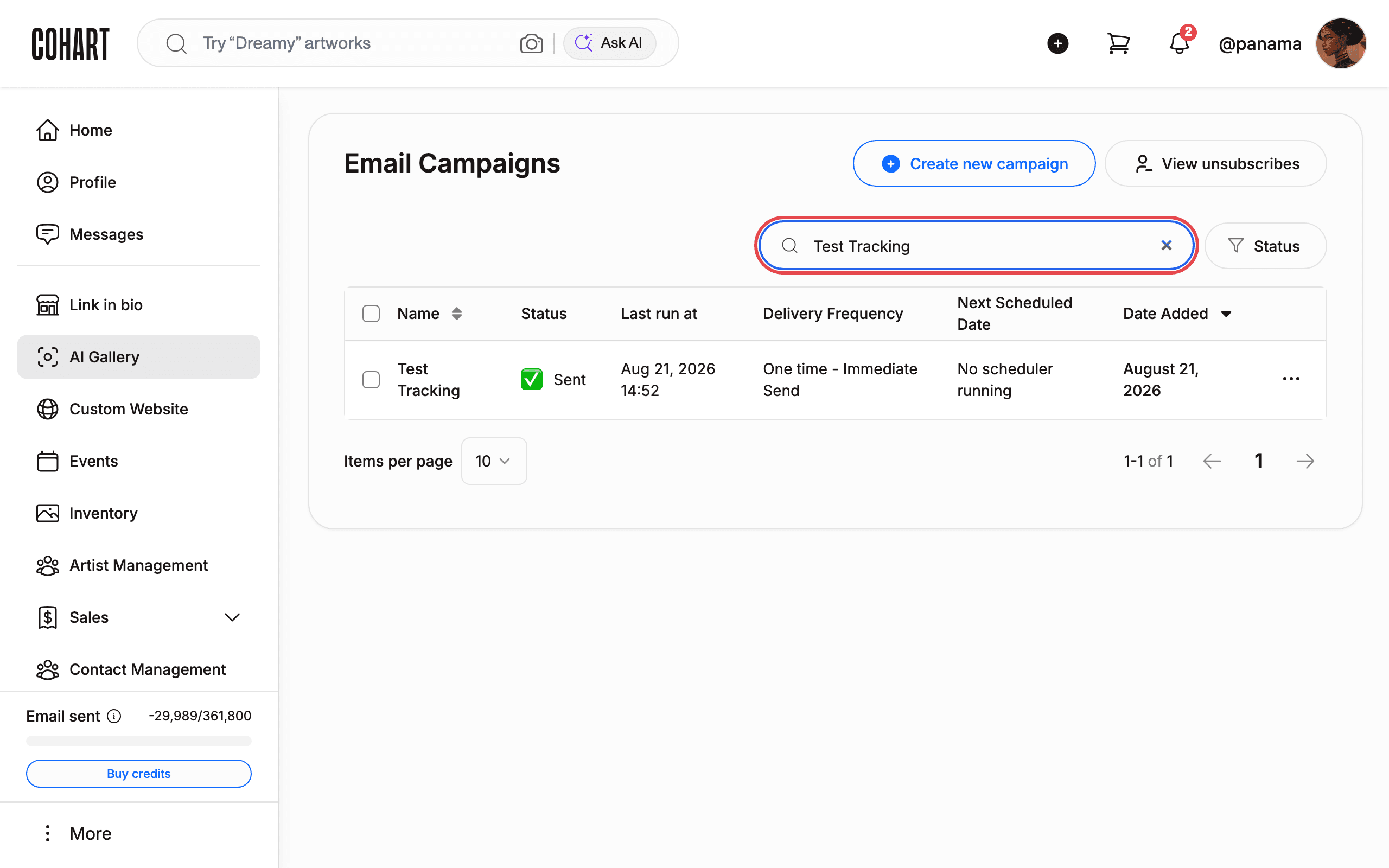
3. Type the campaign name into Search by campaign name
Use the search box at the top of the list to filter to the campaign you want. Pick a campaign whose Status is Sent. Only sent campaigns have statistics. You can also narrow the list with the Status filter button.
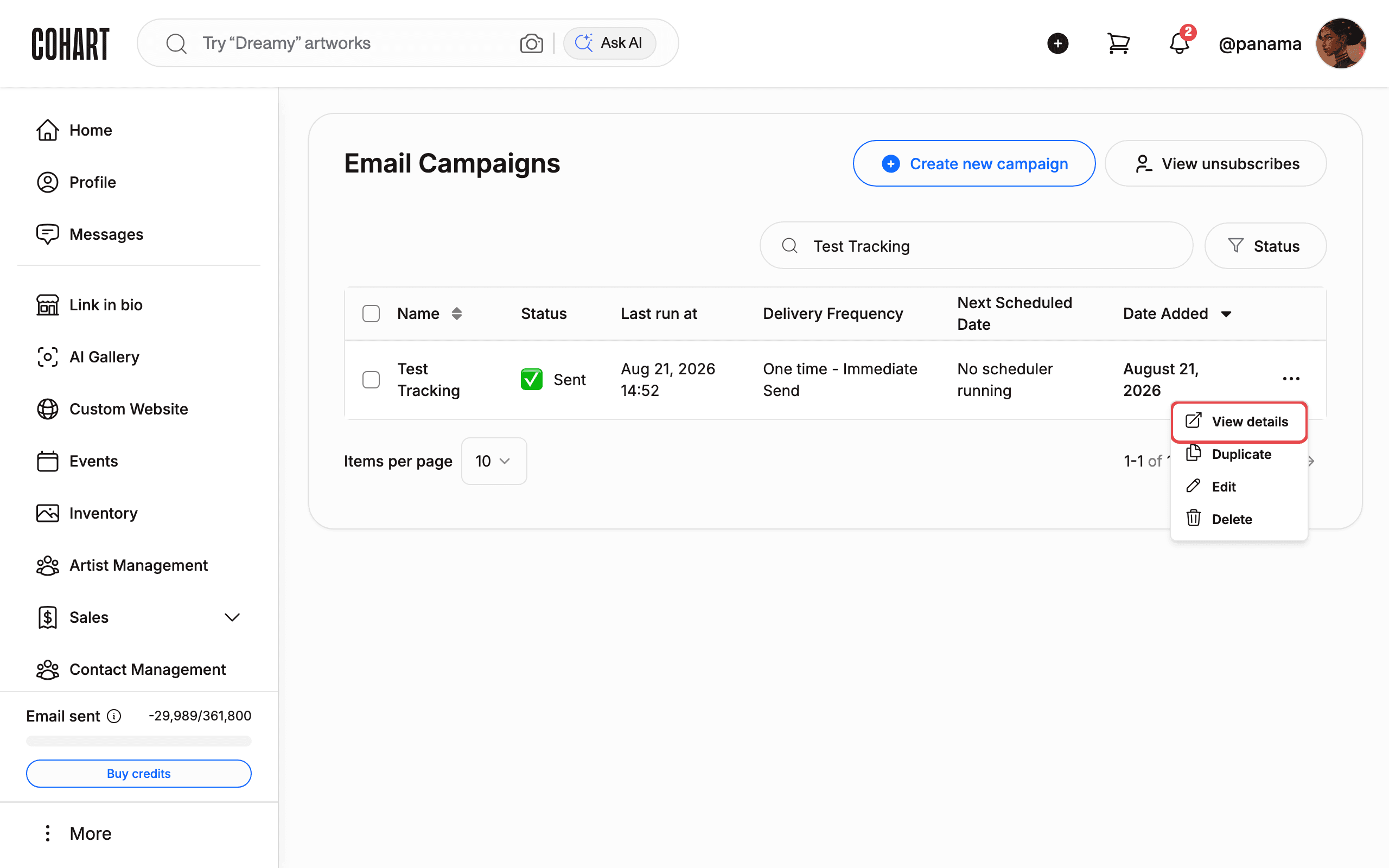
4. Click the row menu at the end of the campaign row
Each row ends with a three-dot menu button. Click it to open the row menu. The menu offers View details, Duplicate, Edit, and Delete.
5. Click the campaign row to open its details page
Click anywhere on the campaign’s row. The Campaign Details page opens. The trail at the top reads Email Campaigns › campaign name.
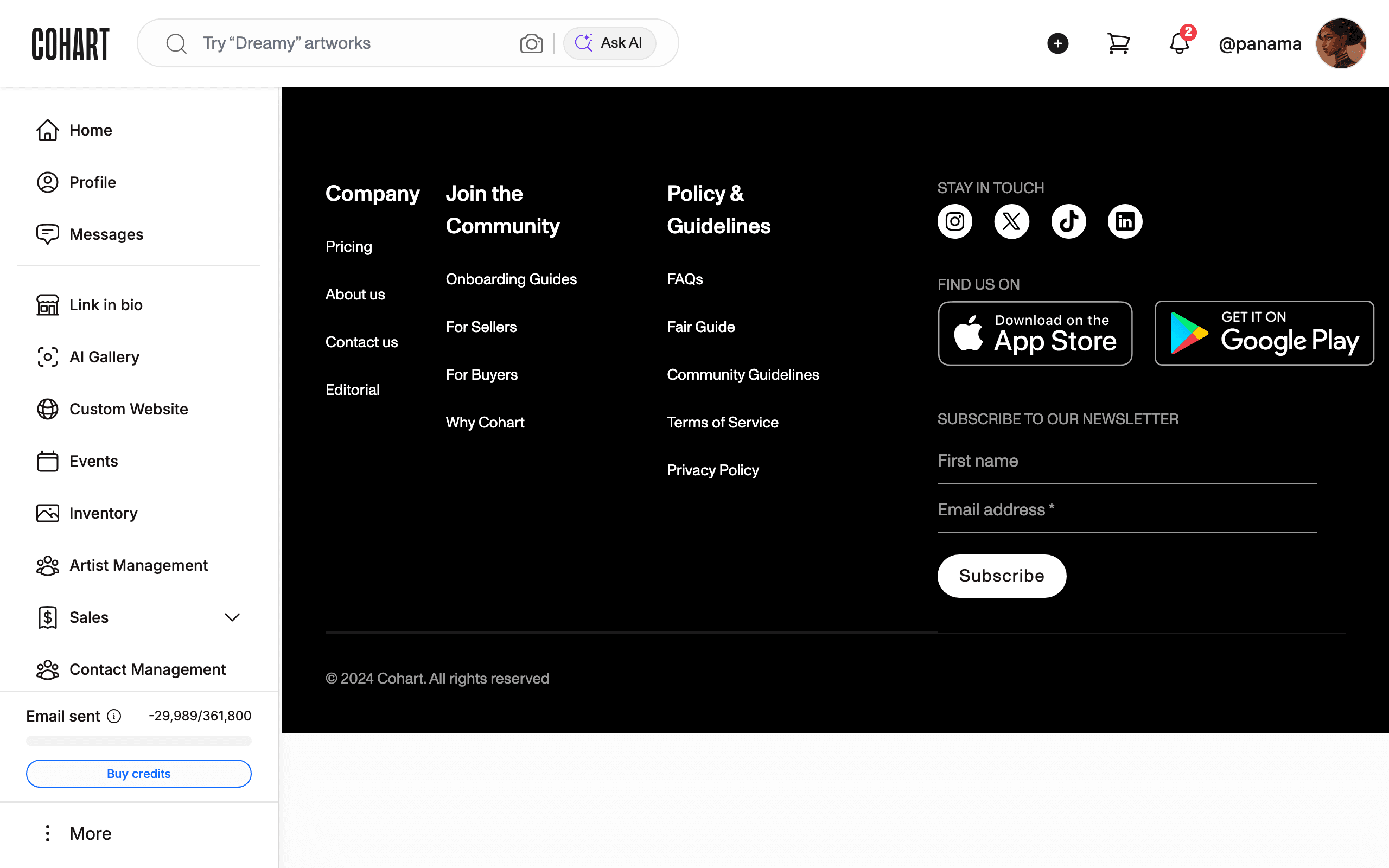
6. Read the campaign summary at the top
The top card shows the campaign facts. Check each field:
- CAMPAIGN NAME: the internal name of the campaign.
- EMAIL SUBJECT: the subject line recipients saw.
- STATUS: for a sent campaign it reads Sent on plus the date and time.
- Send again: resends the campaign. Do not click it unless you want to email everyone again.
- FREQUENCY: how the campaign sends (for example One time - Immediate Send).
- RECIPIENTS: how many contacts received it (for example 1 contact).
- USED CREDITS: how many email credits the campaign consumed.
- NEXT SCHEDULED DATE: reads No scheduler running for one-time sends.
- Edit Email and Edit Campaign open the editors for the content and the settings.
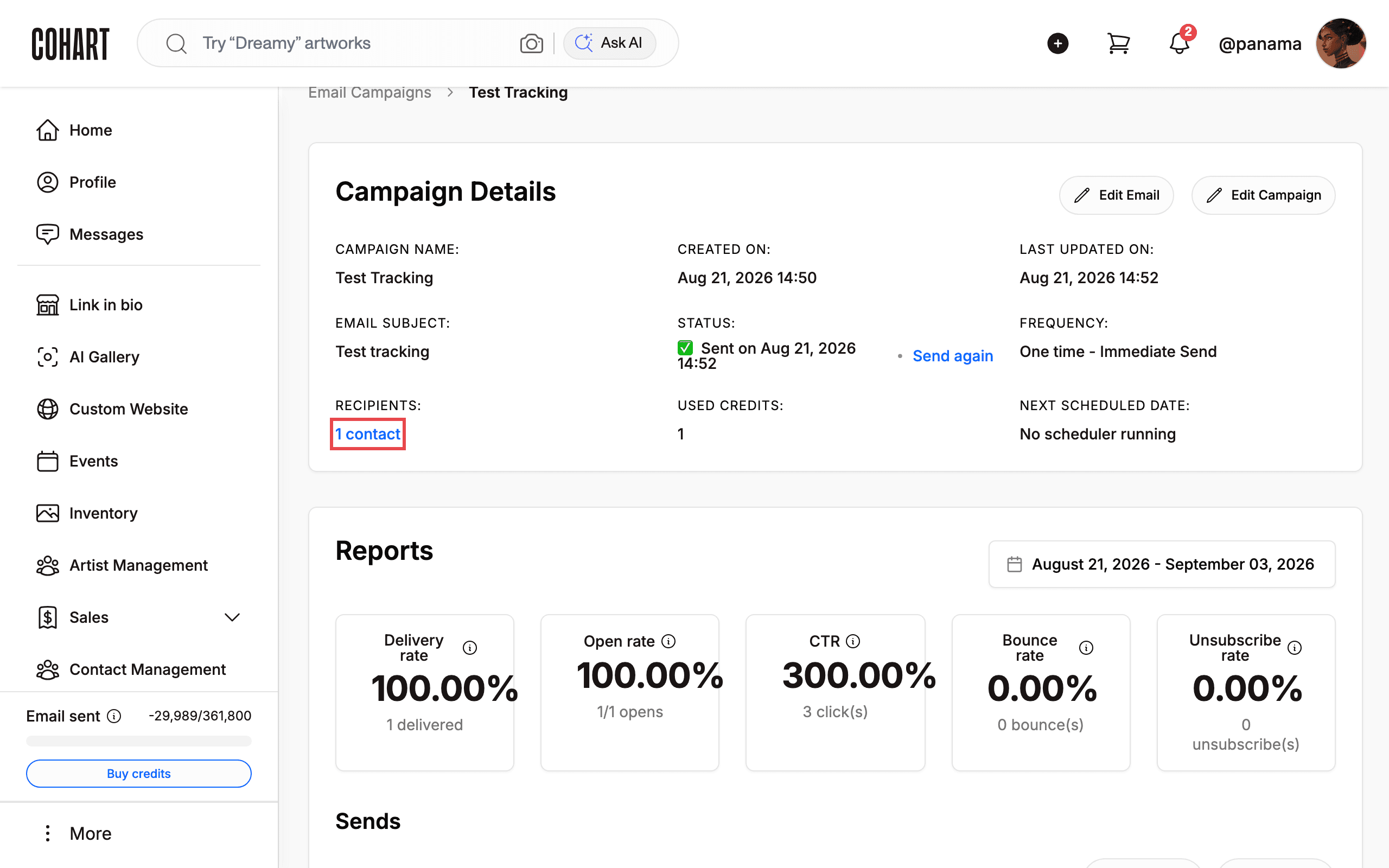
7. Read the Reports statistics
Scroll to the Reports section. The date range above the cards shows the reporting window. Each card shows a rate and the raw count behind it:
- Delivery rate: share of emails that reached inboxes (for example 100.00%, 1 delivered).
- Open rate: share of delivered emails that were opened (for example 100.00%, 1/1 opens).
- CTR (click-through rate): clicks divided by opens (for example 300.00%, 3 click(s)). It can exceed 100% when one reader clicks several links.
- Bounce rate: share that could not be delivered (for example 0.00%, 0 bounce(s)).
- Unsubscribe rate: share of recipients who opted out (for example 0.00%, 0 unsubscribe(s)).
Each card has a small ⓘ icon next to its title.
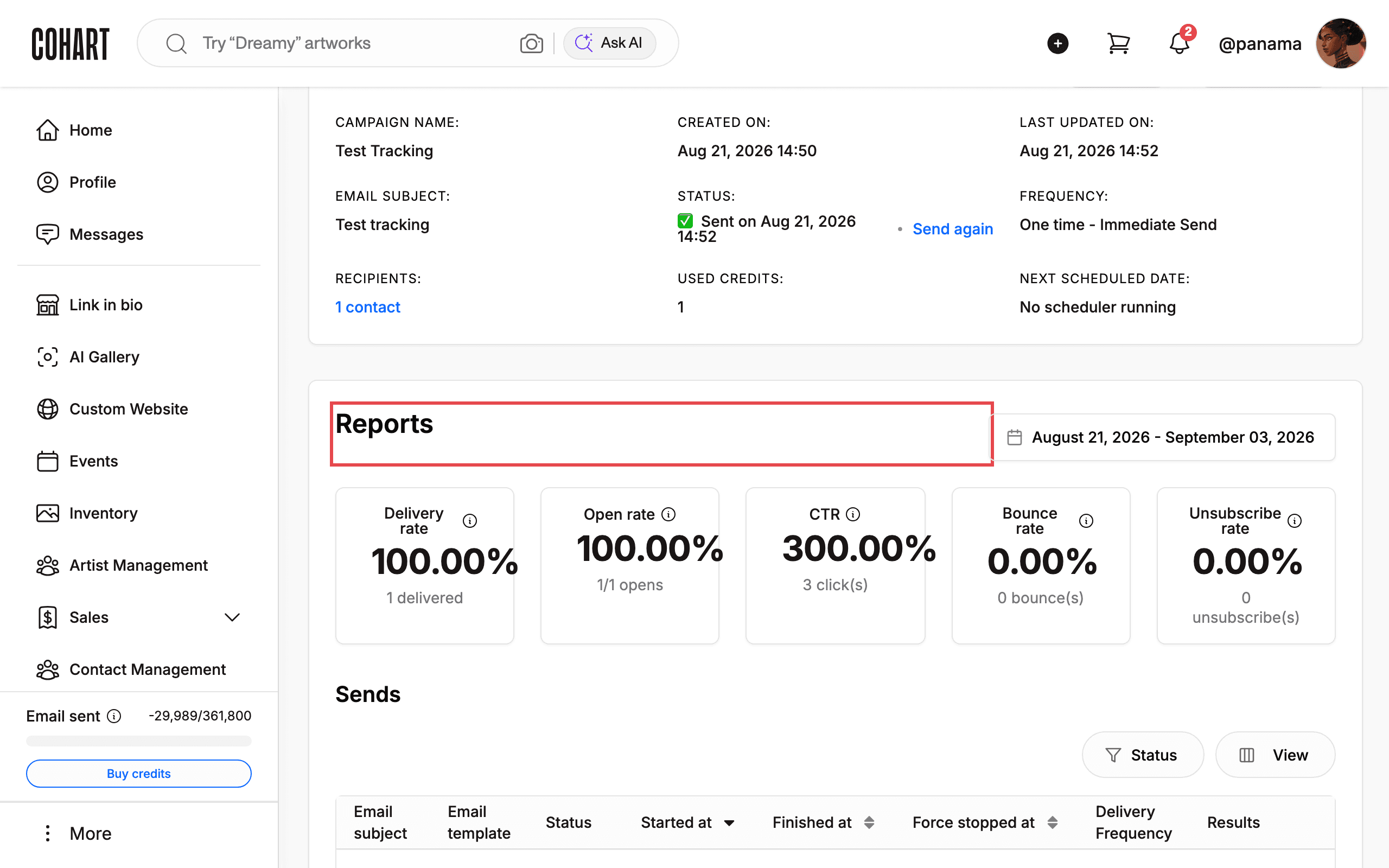
8. Review the Sends table
Scroll to the Sends section. Each row is one send run of the campaign. The columns are Email subject, Email template, Status, Started at, Finished at, Force stopped at, Delivery Frequency, and Results. Use the Status button to filter rows. The Results cell totals the run: Total, Running, Failed, Finished, and Credits used. The footer shows Items per page and the page count (for example 1-1 of 1).
9. Click the recipients link to see who received the campaign
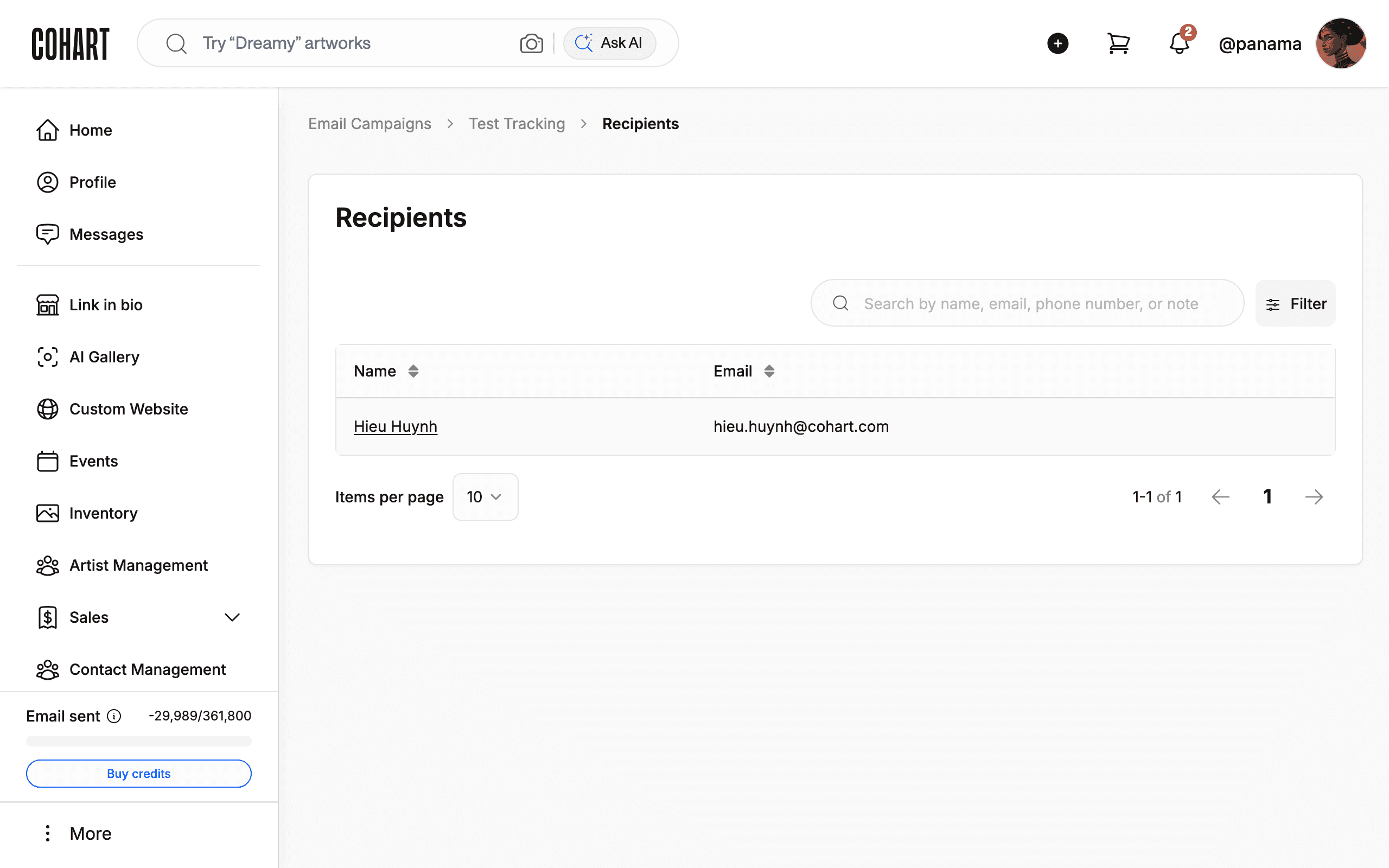
Click the RECIPIENTS link (for example 1 contact) on the details page. The Recipients page lists every contact with Name and Email columns. Search with Search by name, email, phone number, or note, or narrow the list with Filter. Use the trail at the top (Email Campaigns › campaign name › Recipients) to go back.
Tips
- Statistics only exist for campaigns with Status Sent. Draft or Inactive campaigns show No scheduler running and empty reports.
- Never click Delete on a campaign you want to keep.
- Send again emails your recipients a second time. Only use it when a resend is intended.
- If the sidebar shows Email sent with a low or odd-looking balance, click Buy credits before sending new campaigns.
- Campaigns with a blank Name are unfinished drafts. Use Edit from the row menu to continue working on them.
Troubleshooting
- View details menu item does not respond → the row menu action may fail → click the campaign row itself, since it opens the same Campaign Details page.
- View button in the Sends section does not respond → the button may not open anything → read the Results cell instead.
- Recipient list shows no rows → the list can take a few seconds to load → wait for the rows to appear before searching.