How to Manage Artists
Overview
Artist Management is the roster where you add artists you represent and keep their profiles current. It exists so galleries and advisors can present represented artists — including artists who have no Cohart account of their own — with prices, artwork counts, and buyer counts in one managed list. It is for gallery and advisor accounts on plans that include this section. Your entries affect how artists appear to others: each roster card carries a Not on Cohart badge until the artist joins, and some cards may show HIDDEN IN PROFILE when the artist is not publicly visible. Creating and updating profiles writes directly to your roster, with new artists appearing at the top of the list. By the end of this guide you will have added a new artist, updated an existing profile, and found artists again with search and page numbers.
Before you start
- A Cohart account on the Growth plan or higher (the Artist Management menu item is labeled Growth in the sidebar). See How to Subscribe to a Pro, Growth, or Premier Plan to upgrade.
- Your artists do not need a Cohart account: every card in the roster is labeled Not on Cohart until the artist joins.
- Artist details ready: full name (required) plus optional bio, average price, collector and social counts, and website and social links. The profile picture (PNG or JPG, max 2MB) is required, with an optional banner and an artist CV (PDF, max 20MB) as attachments.
- Upload patience: wait for the image preview before clicking Create, since an unfinished upload can close the dialog without saving.
Steps
1. Sign in to Cohart
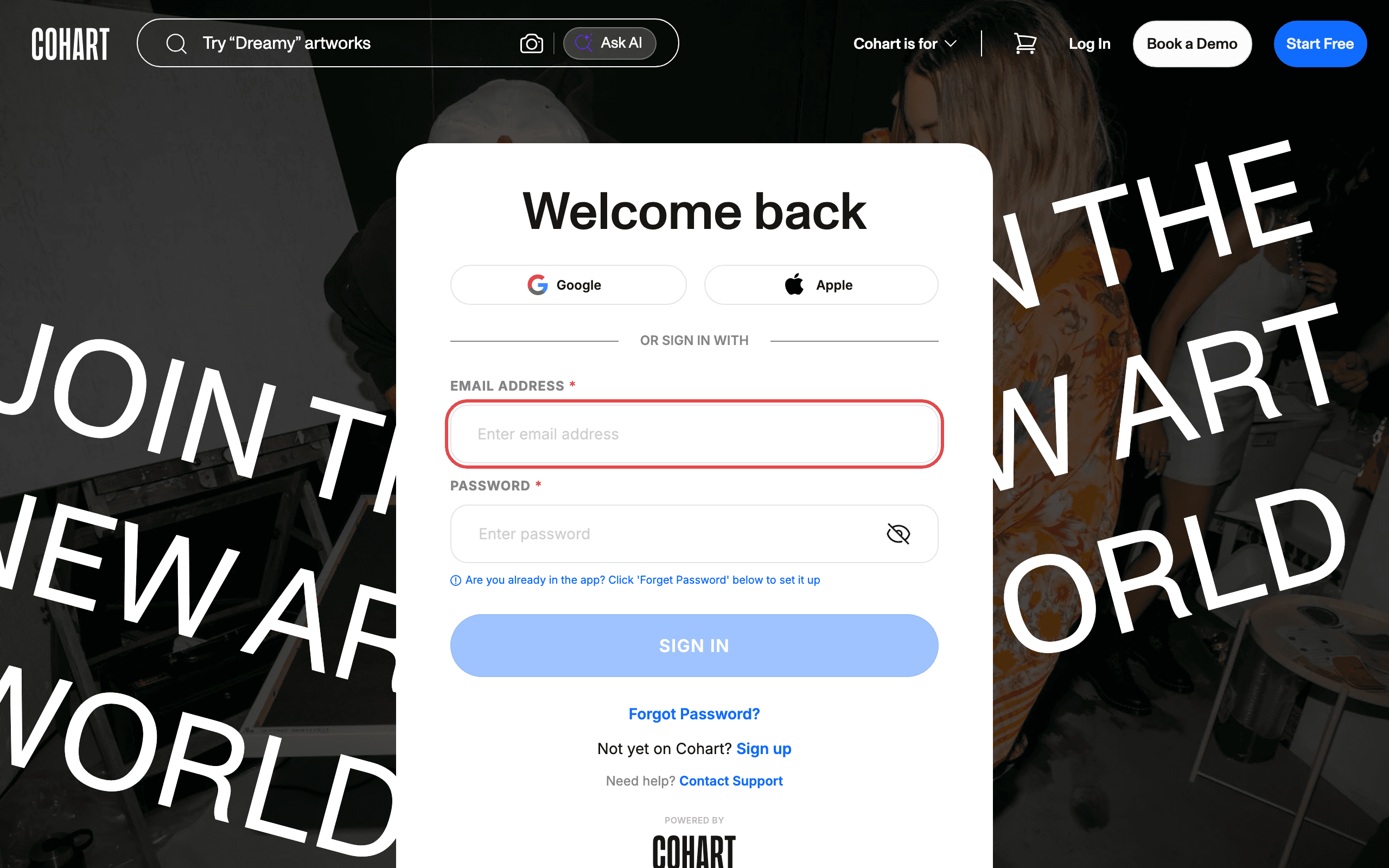
Sign in with your email address and password, or use Google or Apple.
2. Open Artist Management
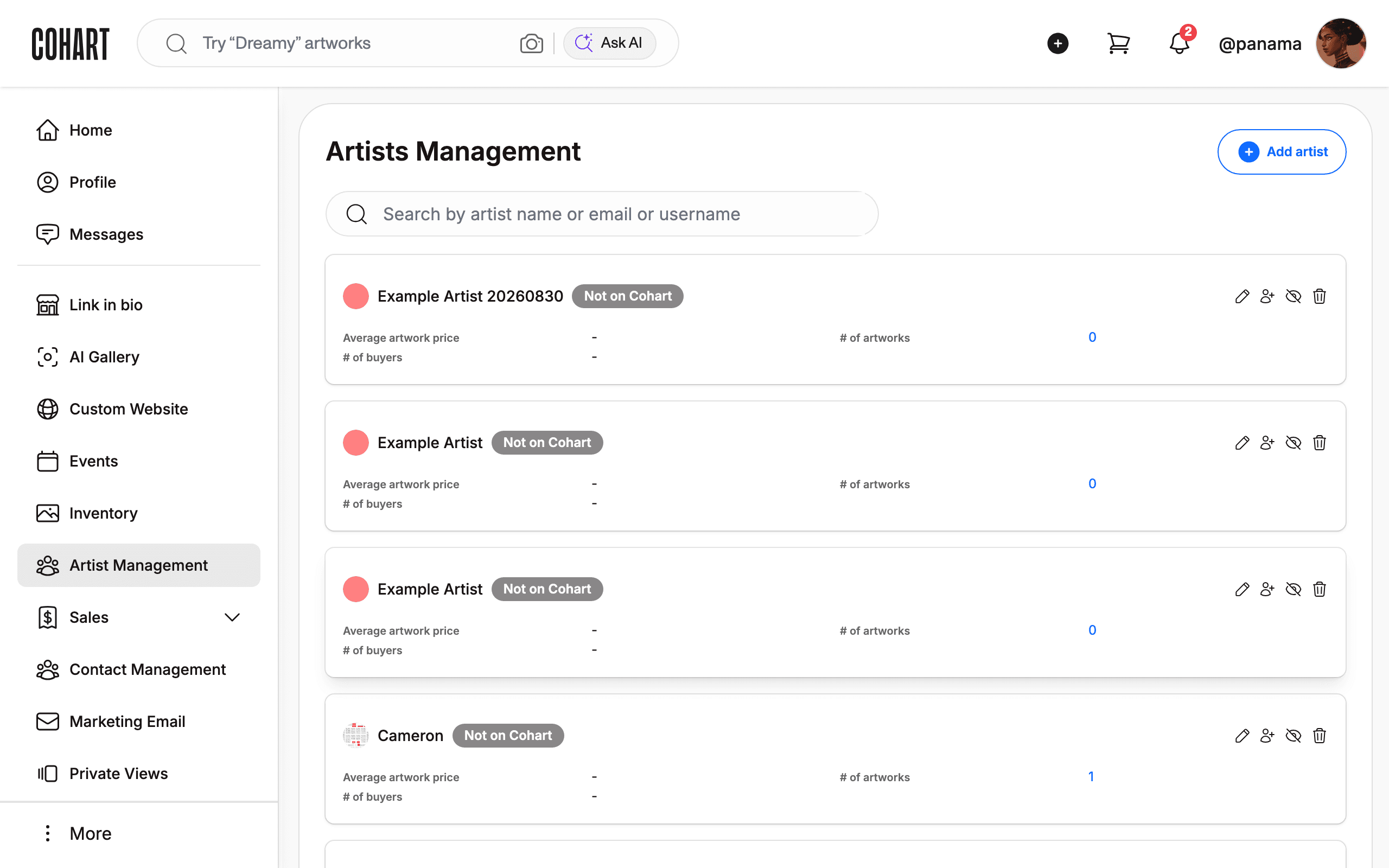
In the left sidebar, click Artist Management.
3. Review your artist roster
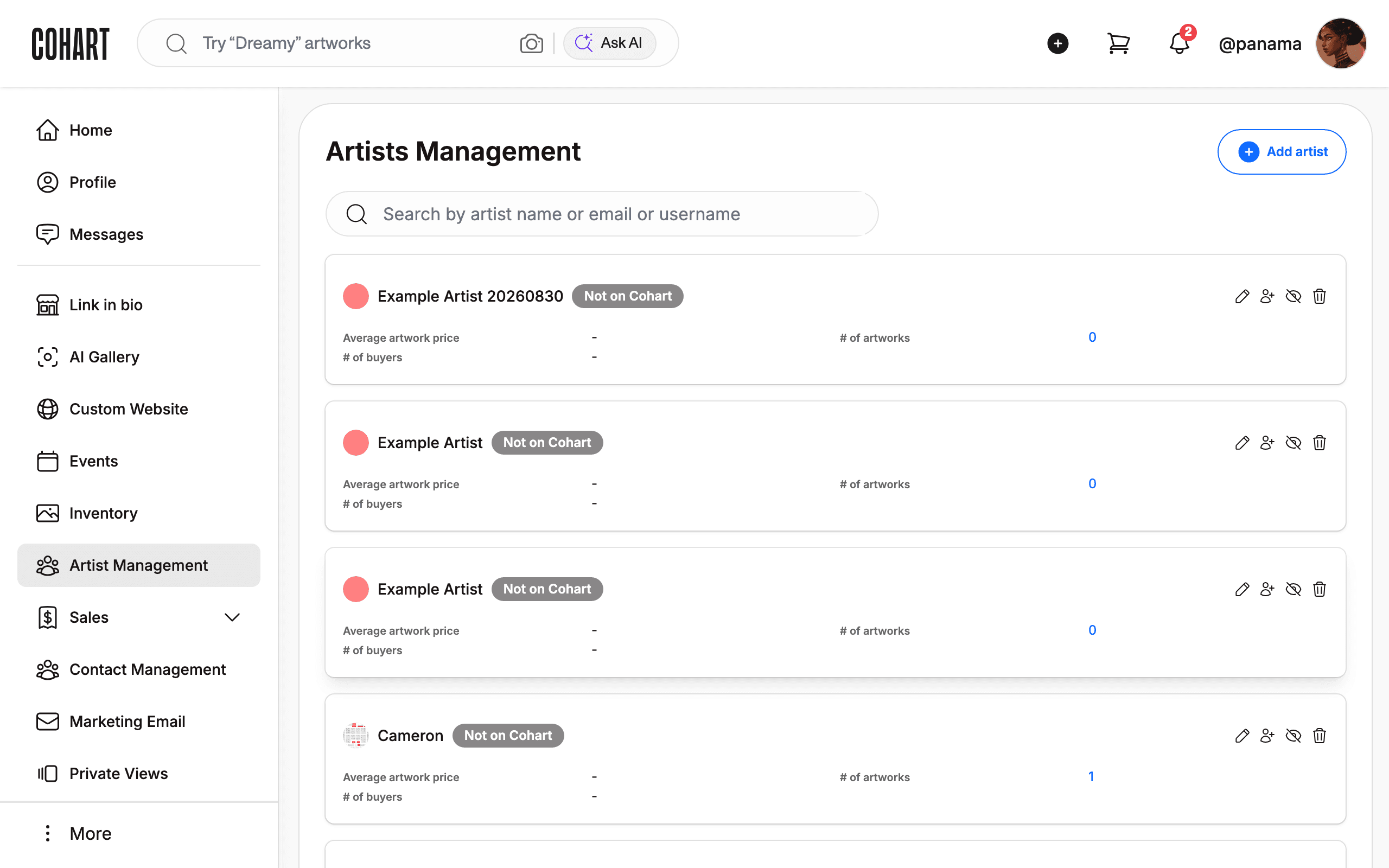
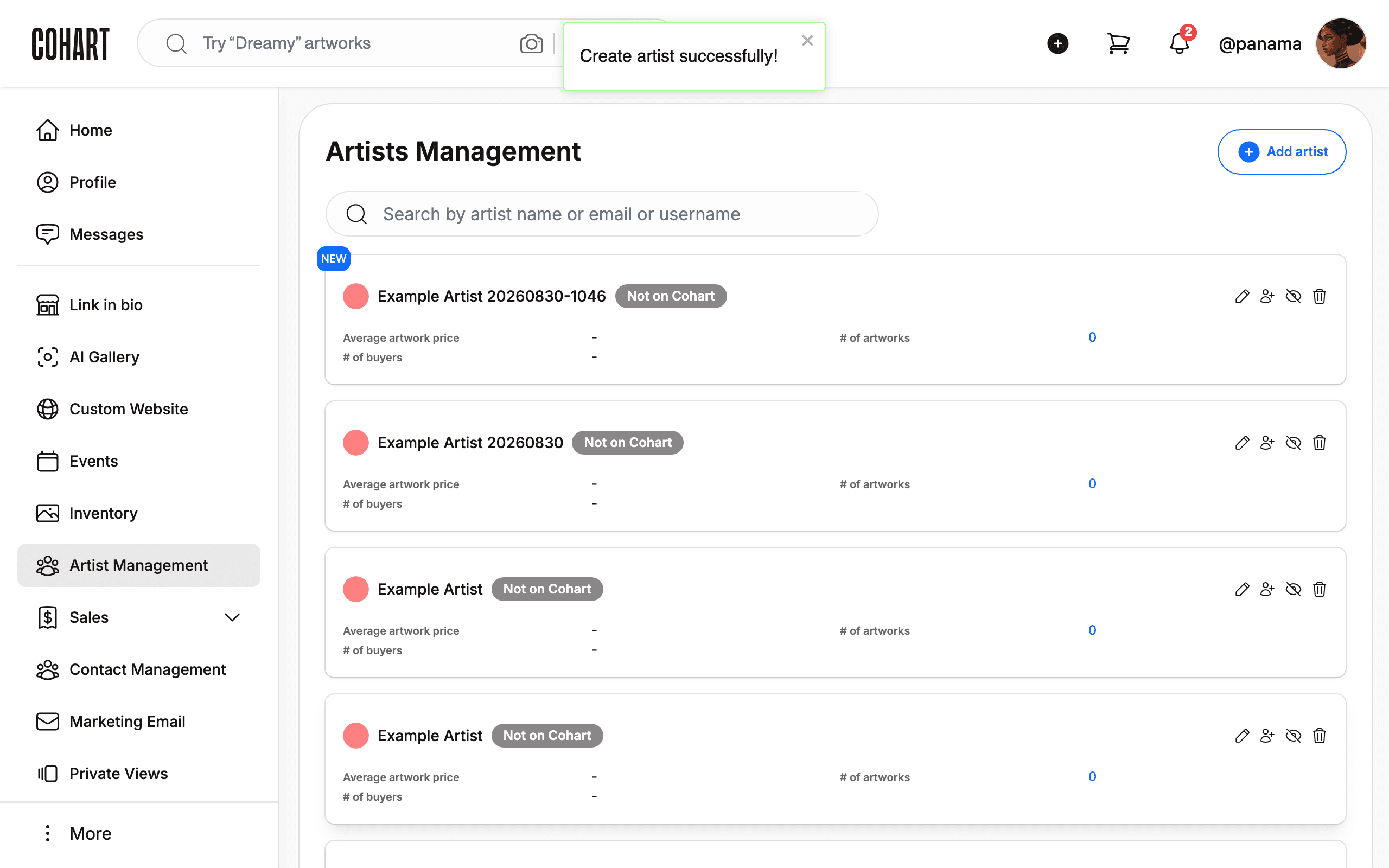
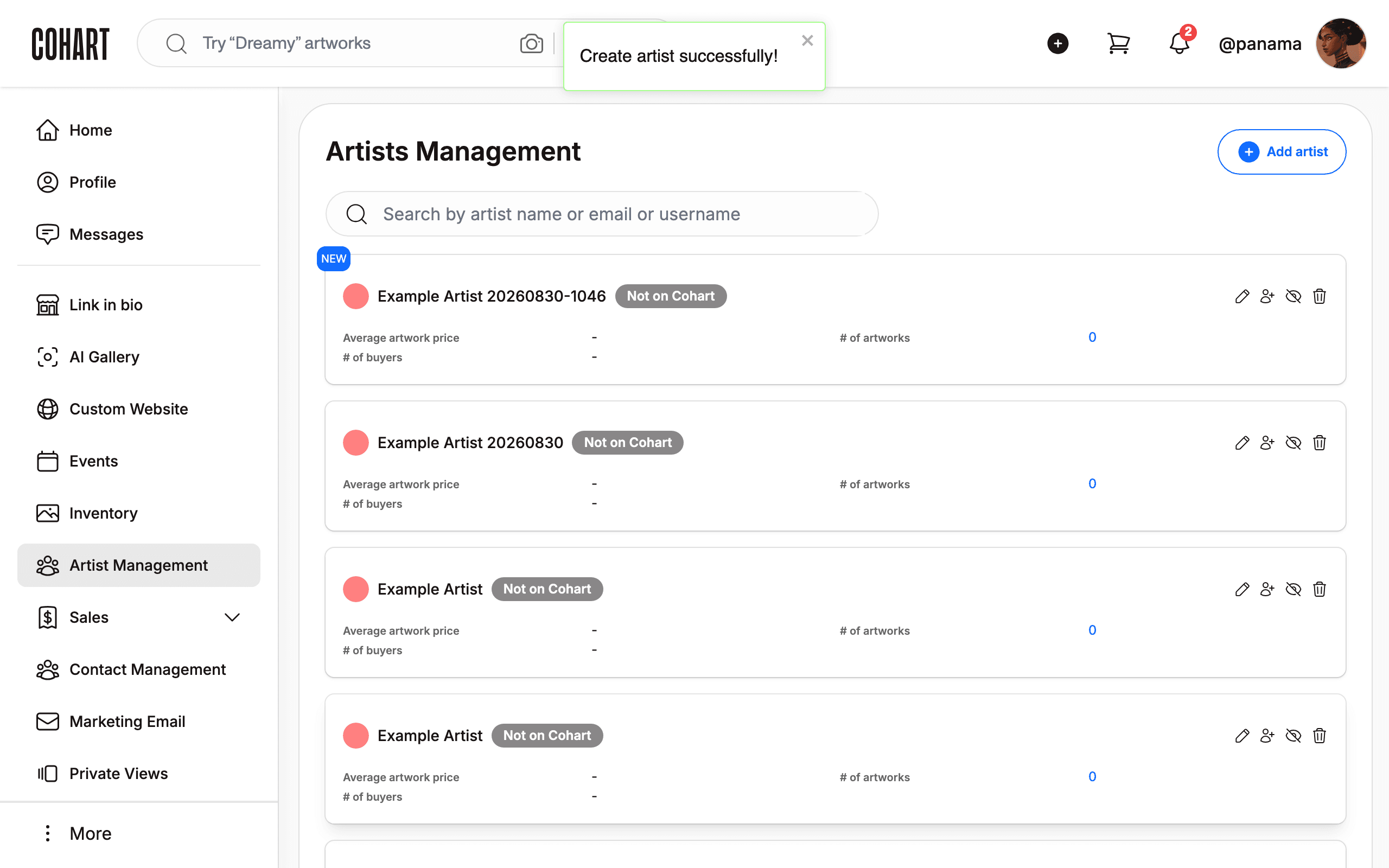
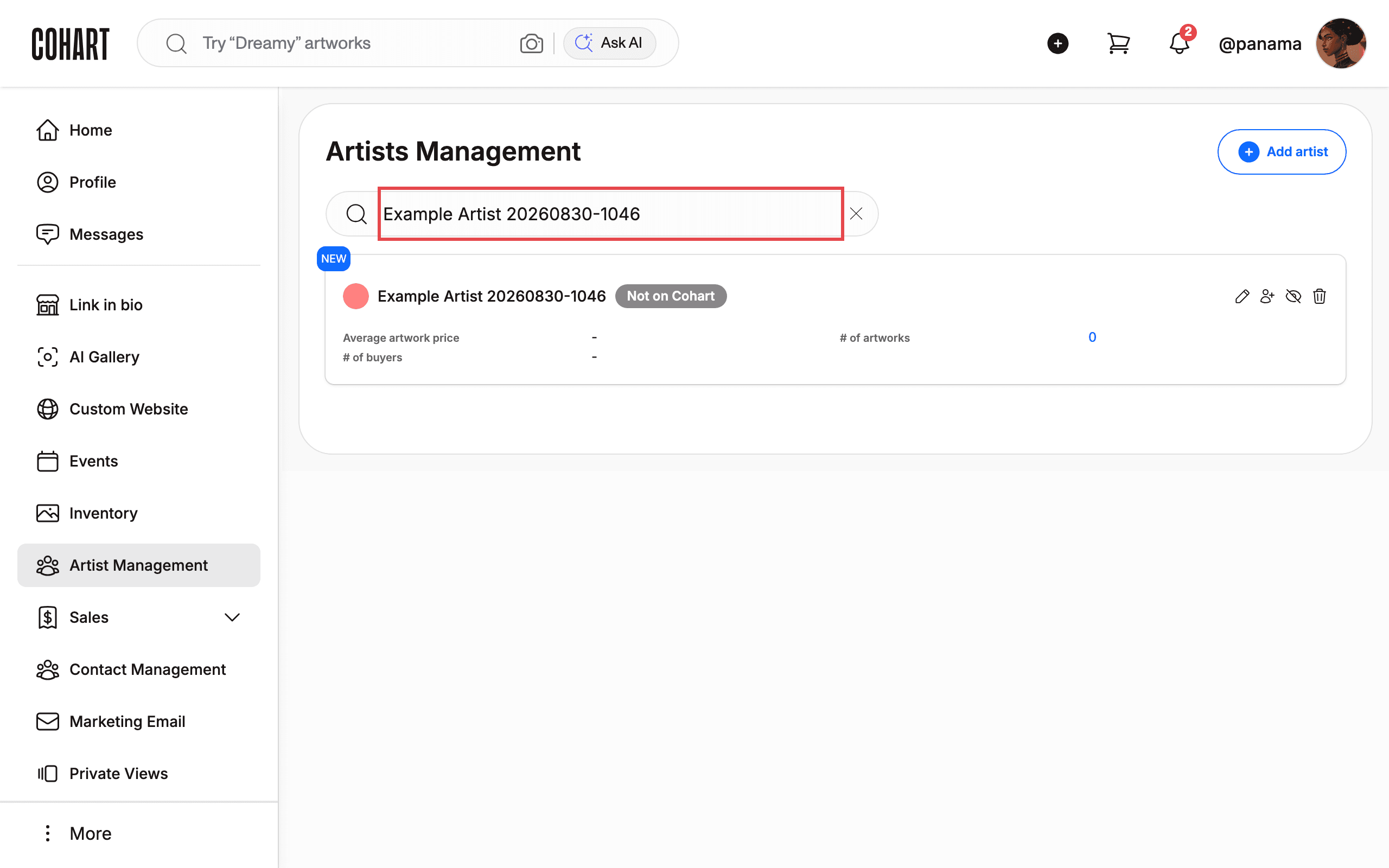
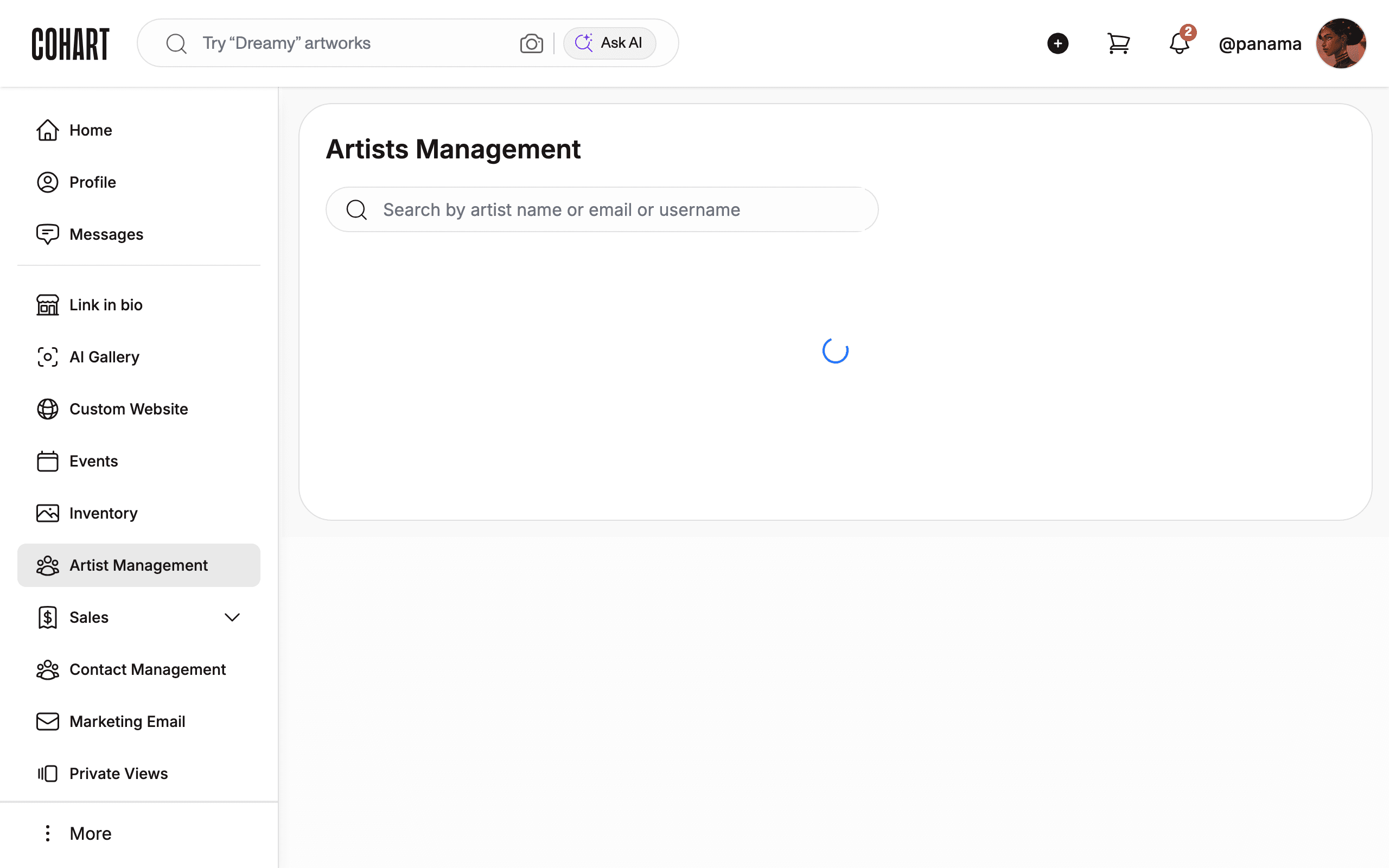
The Artists Management page lists your roster as cards. Each card shows the artist name, the Not on Cohart badge, Average artwork price, # of artworks, and # of buyers. Use the search box (“Search by artist name or email or username”) and the page numbers at the bottom to find artists.
4. Open the Create artist profile dialog
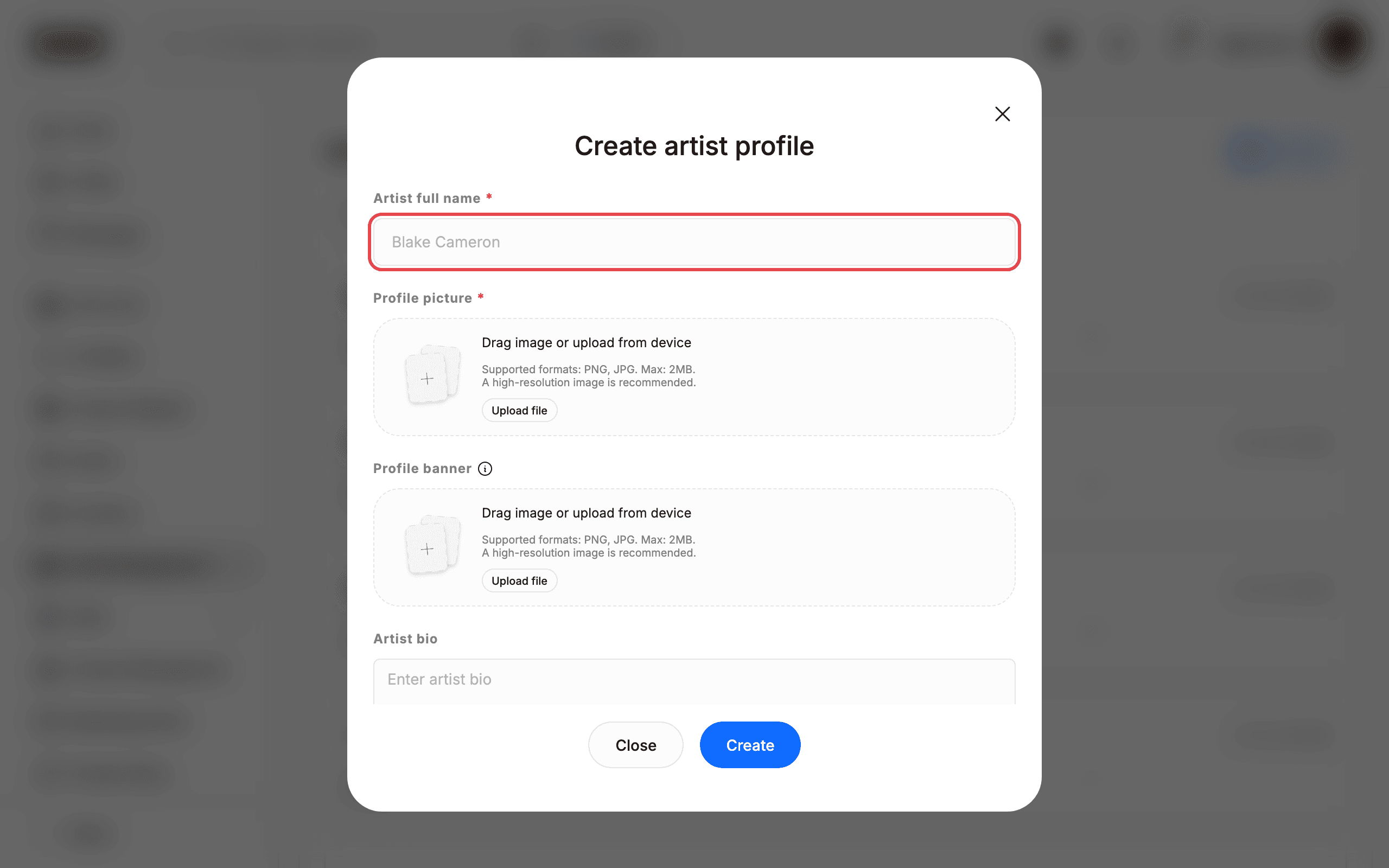
Click Add artist. The Create artist profile dialog opens.
5. Fill in the artist profile
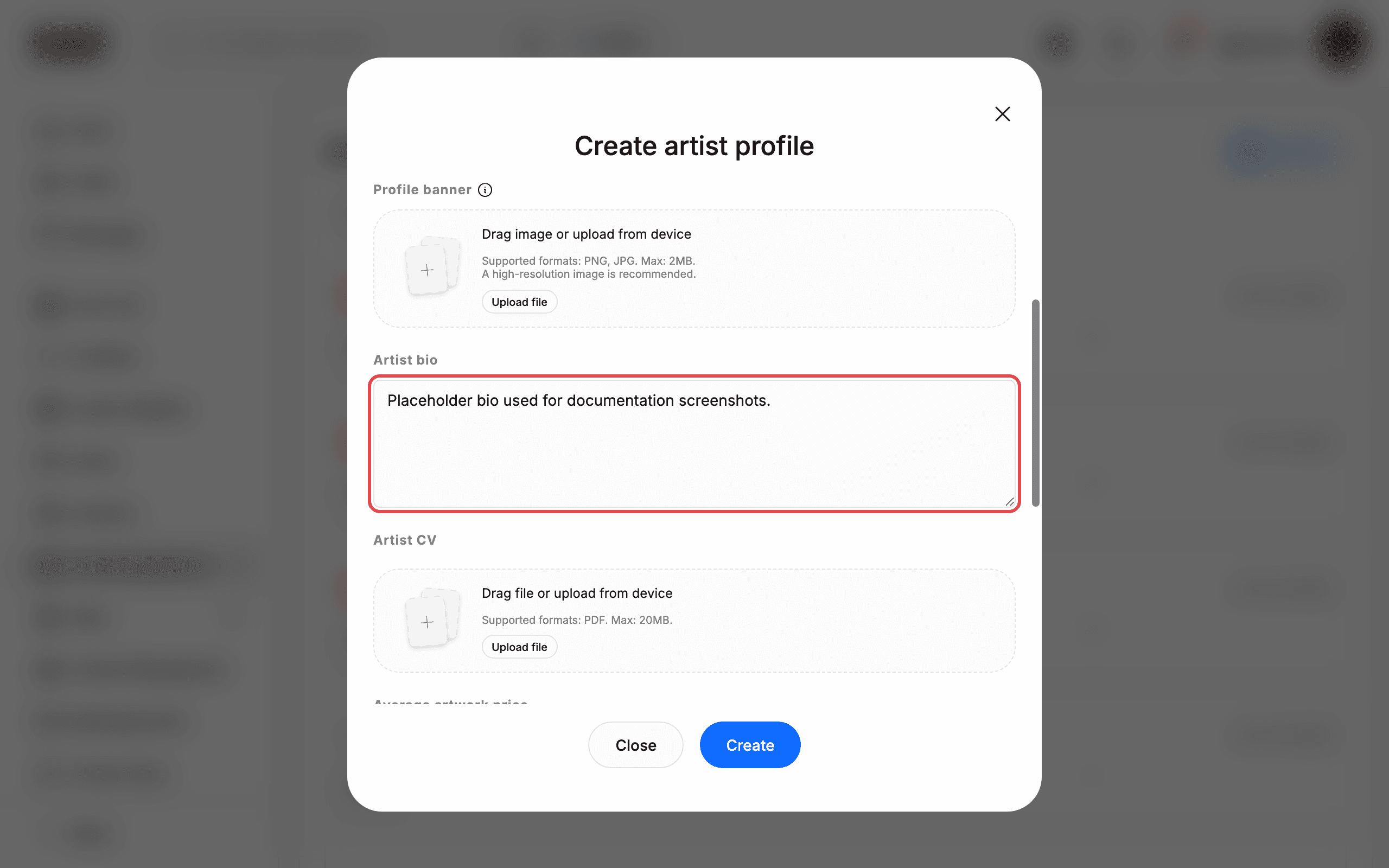
Fill in the profile. Artist full name is required (marked with *). Optional fields: Artist bio, Average artwork price, # of collectors, # of Instagram followers, # of Twitter followers, # of TikTok followers, Website URL, Instagram, Twitter, and TikTok.
6. Upload the profile picture
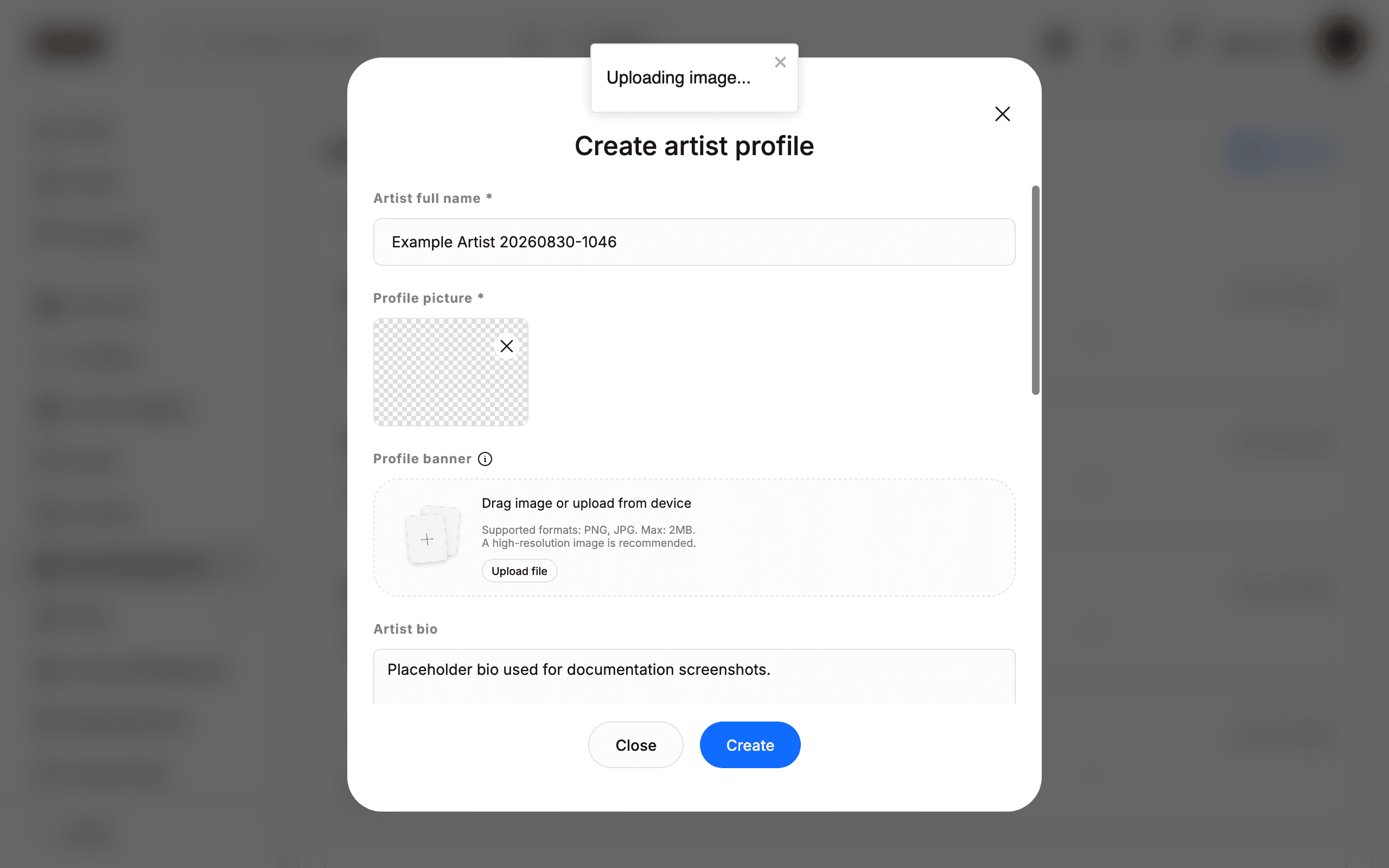
Upload a Profile picture (required) and an optional Profile banner by clicking Upload file or dragging an image onto the drop area. Supported formats: PNG, JPG. Max: 2MB. A high-resolution image is recommended. You can also attach an Artist CV as a PDF (max 20MB). Wait until the uploaded image preview appears before continuing.
7. Save the new artist profile
Click Create to save the new artist profile.
8. Verify the new artist in the list
The dialog closes and the new artist appears at the top of the list with a NEW badge.
9. Search for an artist
To find an artist later, type their name, email, or username in the search box. The list filters as you type.
10. Open the Update artist dialog
To edit an artist, click their card. The Update artist dialog opens with the same fields, pre-filled with the current values.
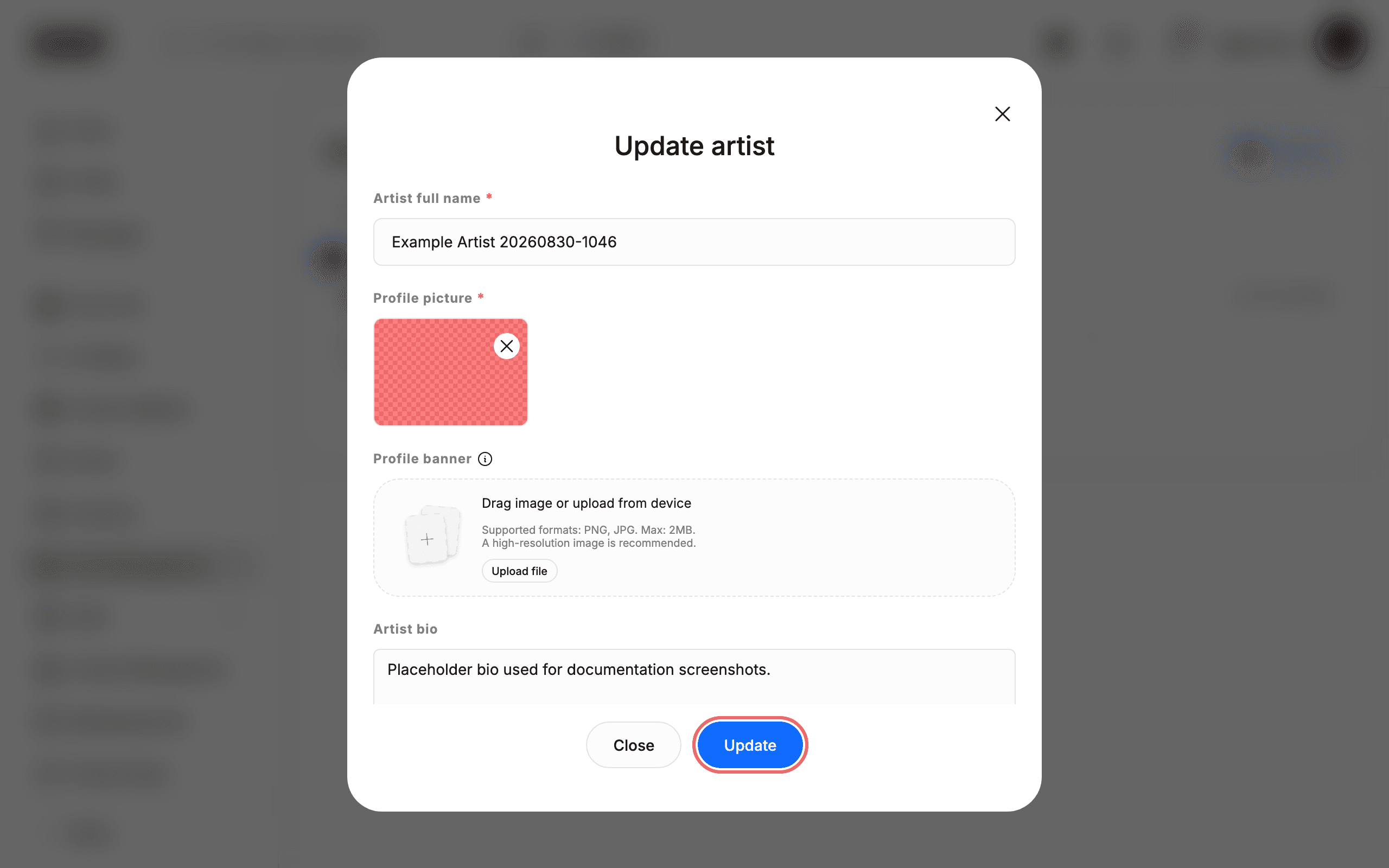
11. Save or discard your changes
Click Update to save changes, or Close to leave the artist unchanged.
Tips
- The artist card shows “HIDDEN IN PROFILE”. Some roster artists carry this badge; it means the artist’s profile is not publicly visible. How to toggle this setting: no control for it was found on the Artists Management page or in the Update artist dialog. [UNVERIFIED — check manually]
- Required fields. Only Artist full name and Profile picture are marked required (
*); everything else can be left blank and added later via the Update artist dialog. - Page controls. The roster shows 20 artists per page. A newly added artist appears on page 1; if you do not see it, check the page controls at the bottom.
Troubleshooting
- A new artist does not show up in the list after clicking Create → the Profile picture upload had not finished, and the dialog closes silently with no message or error → reopen Add artist and try again, waiting for the image preview first.
- The page shows “No artist available” and a Request to manage an artist link instead of the roster → you may not be signed in → confirm you are signed in (your account handle appears at the bottom of the sidebar).