How to Create a Custom Shipping Label
Overview
A custom shipping label is postage you buy for a package that is not linked to any sale or invoice. It exists for anything you need to post outside an order, where there is no buyer checkout or invoice to generate the label for you. This feature is for artists and galleries, and it is fully independent of your sales and invoice flows. The form collects the item name, the package dimensions and weight, and the sender and recipient addresses, then shows delivery options so you can compare carriers, prices, and delivery times before you purchase. Labels you buy appear under the Custom shipping labels tab as Shipping label cards with a View button, plus a Track order link once tracking is available. Your sender details arrive pre-filled from your profile, while the recipient details must be entered by hand. By the end of this guide you will have compared delivery options and purchased a label for your package.
Before you start
- You need an artist or gallery seller account; Shipping lives under Sales in the seller dashboard.
- Have the shipment details ready: the item name, the package Height, Width, Depth with units (in or cm), the Weight with units (lbs or kg), and full sender and recipient addresses including the recipient name and email. The form validates the package live against supported carriers such as USPS, UPS, FedEx, and DHL Express.
- Address lookup needs a selectable suggestion: type into Type to search address… and pick a match, or use Use current location (which asks for browser location permission) for the sender. Use Clear address to restart a lookup that went wrong.
- No sale, invoice, or prior setup is required — custom labels never touch your sales records.
- Effect to know: See delivery options only works once every required field is complete; if it complains about the sender address, reselect the suggestion and try again.
Steps
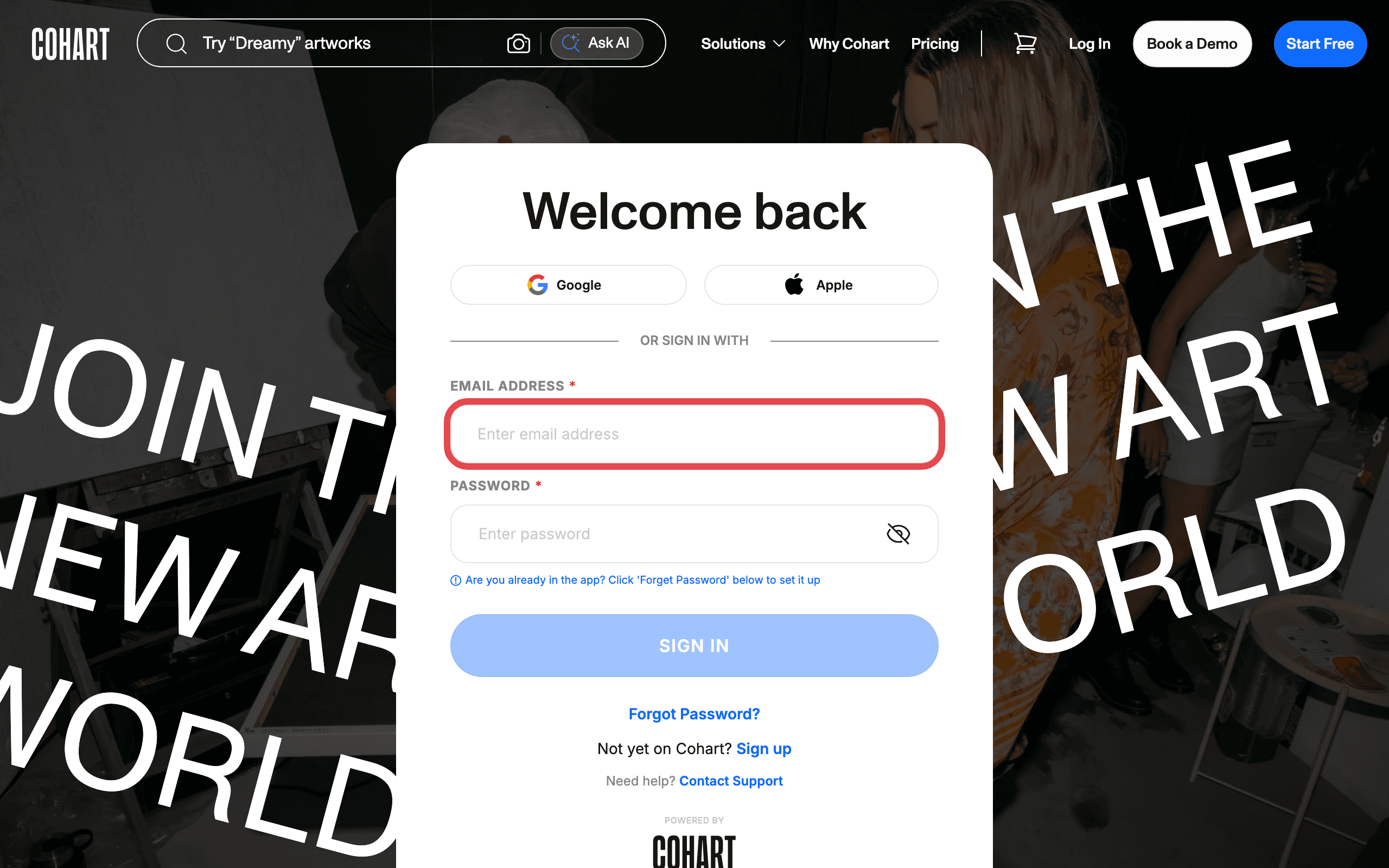
1. Sign in to Cohart
Sign in with your email address and password, or use Google or Apple.
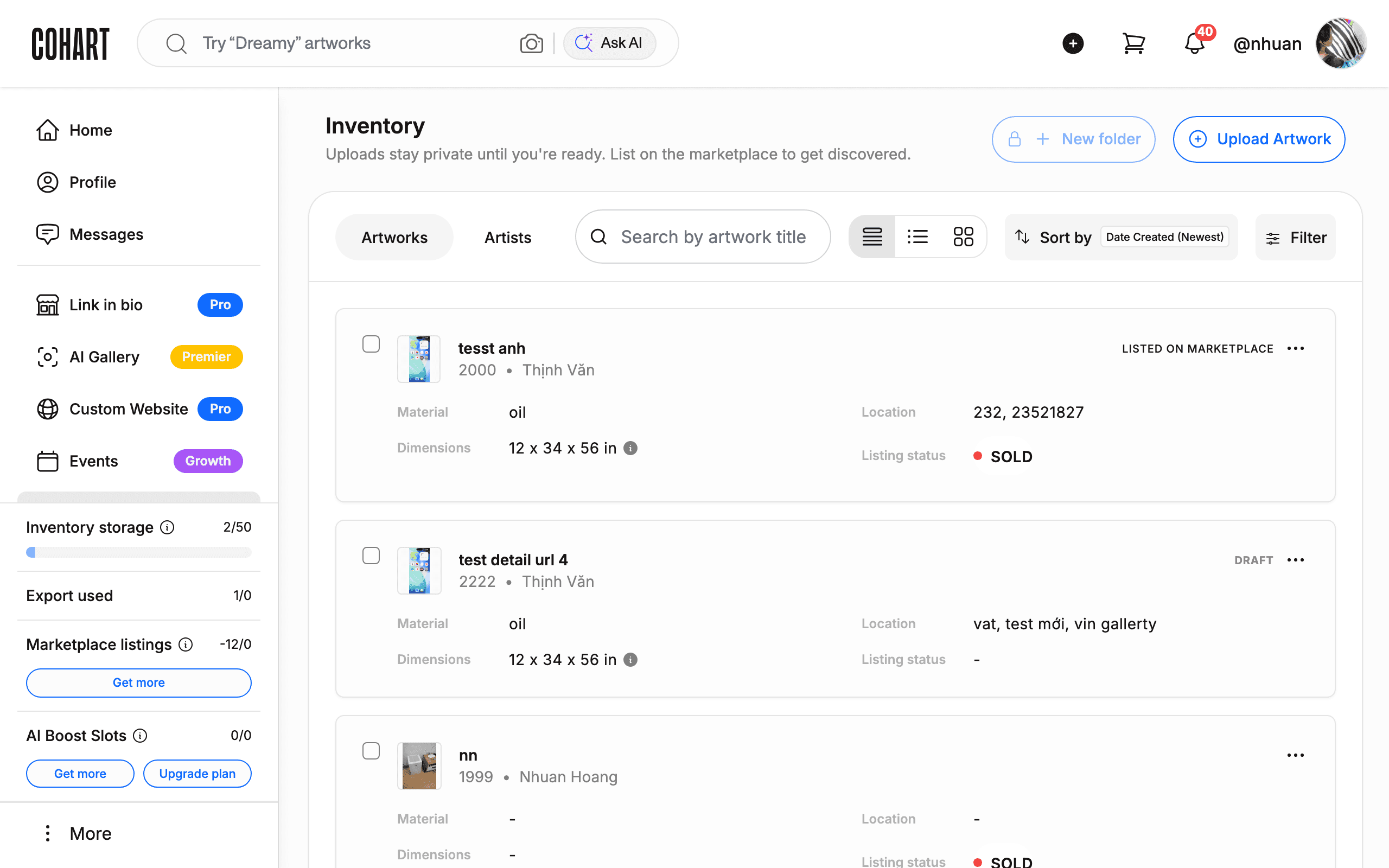
2. Open the Sales menu
After signing in you land on your dashboard. In the left-hand navigation, click Sales.
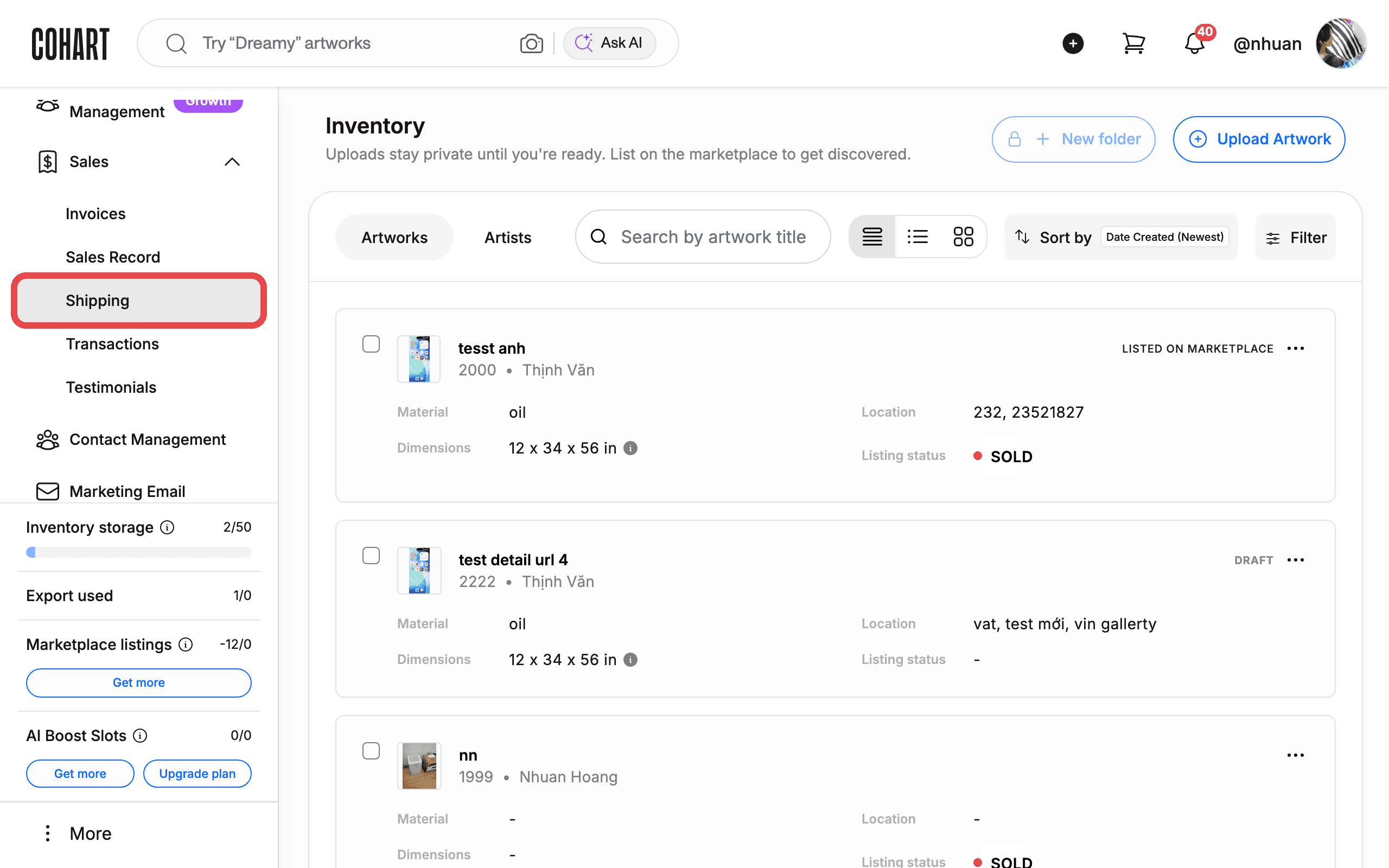
3. Open Shipping
In the Sales menu you will see Invoices, Sales Record, Shipping, Transactions, and Testimonials. Click Shipping.
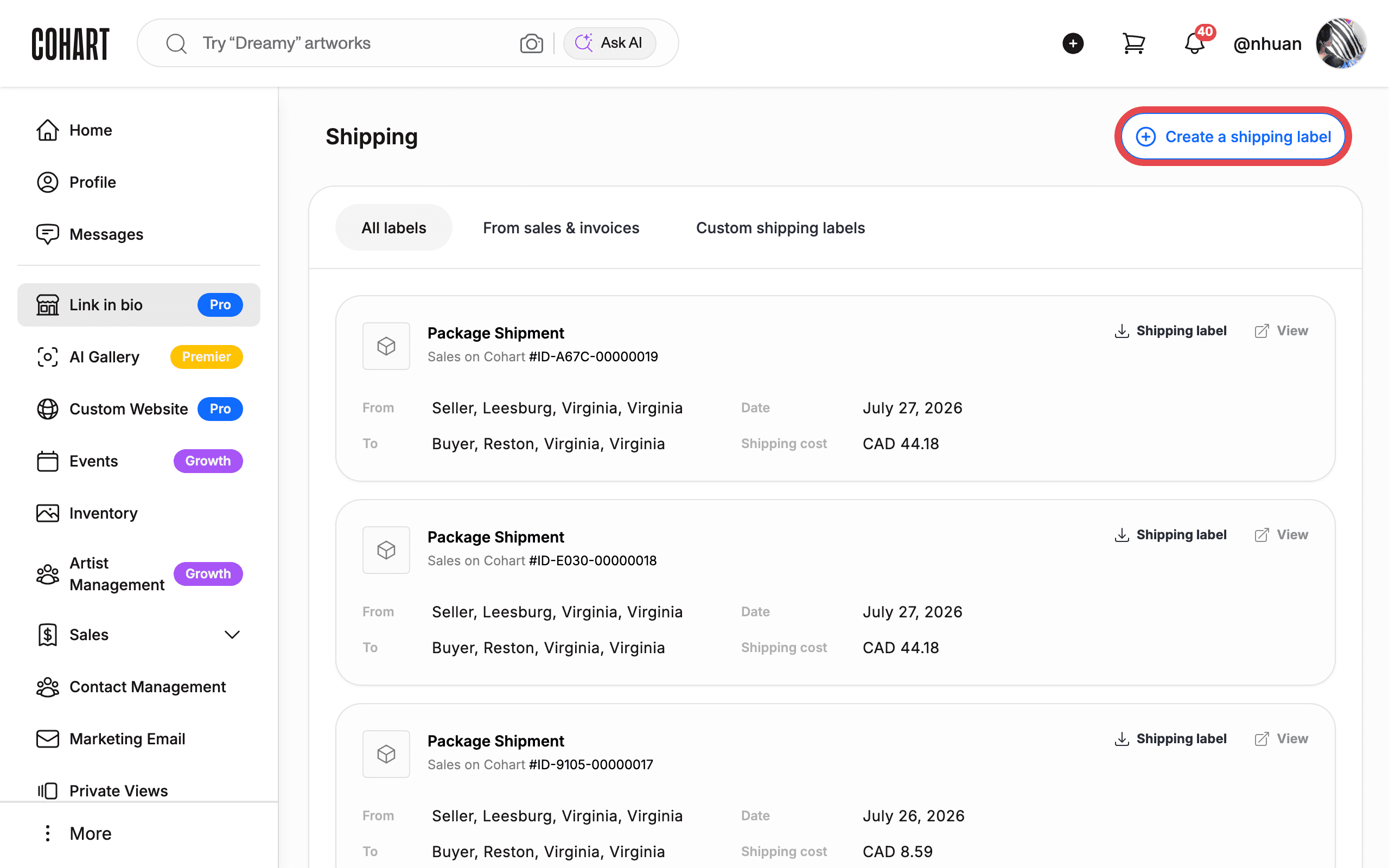
4. Open the Shipping page
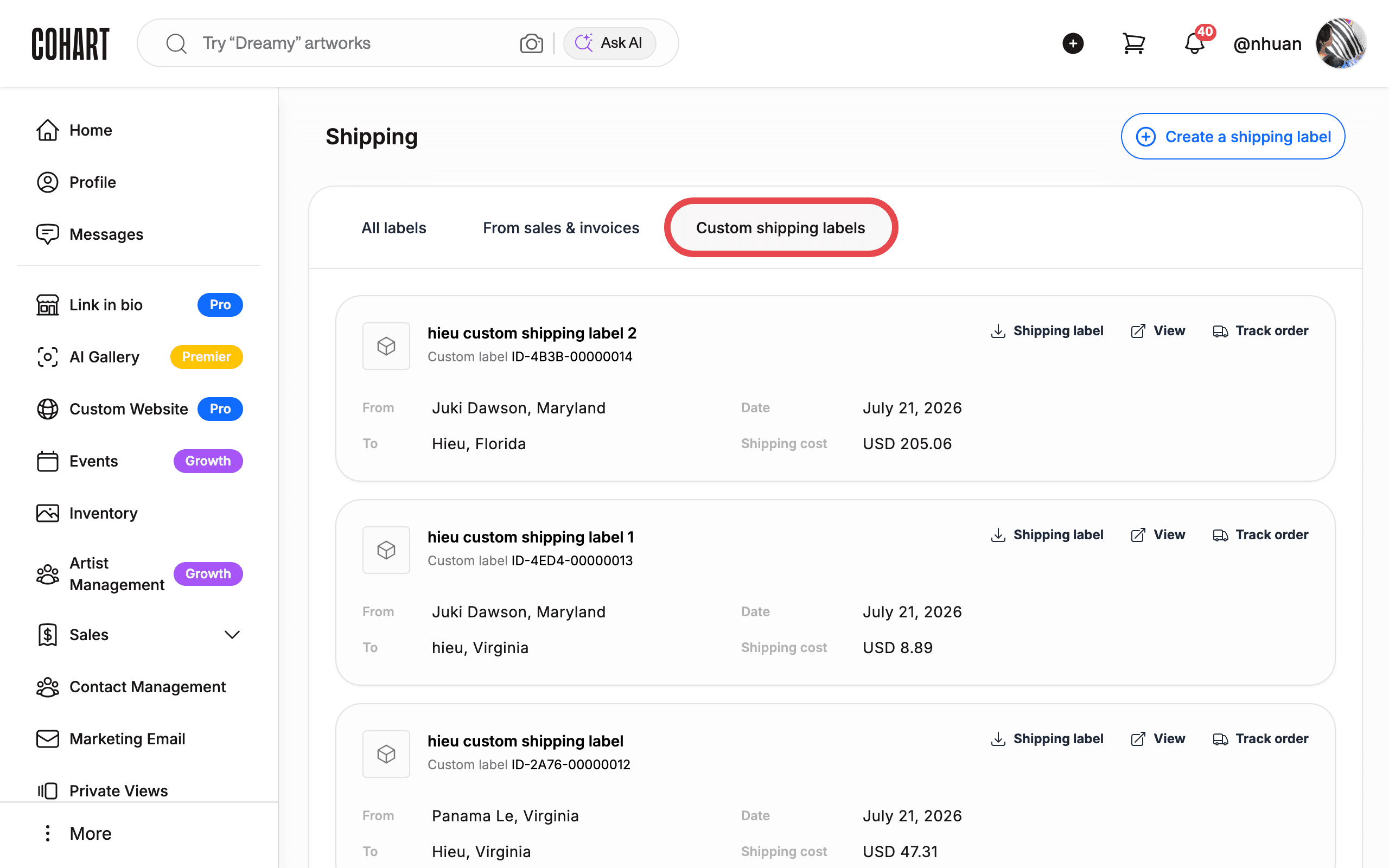
The Shipping page has three tabs: All labels, From sales & invoices, and Custom shipping labels. Existing labels appear as Shipping label cards with a View button. Click Create a shipping label to start a new label.
5. Check the Custom shipping labels tab
Labels you create here are independent of sales. They appear under the Custom shipping labels tab, where each card also offers a Track order link once a label is created.
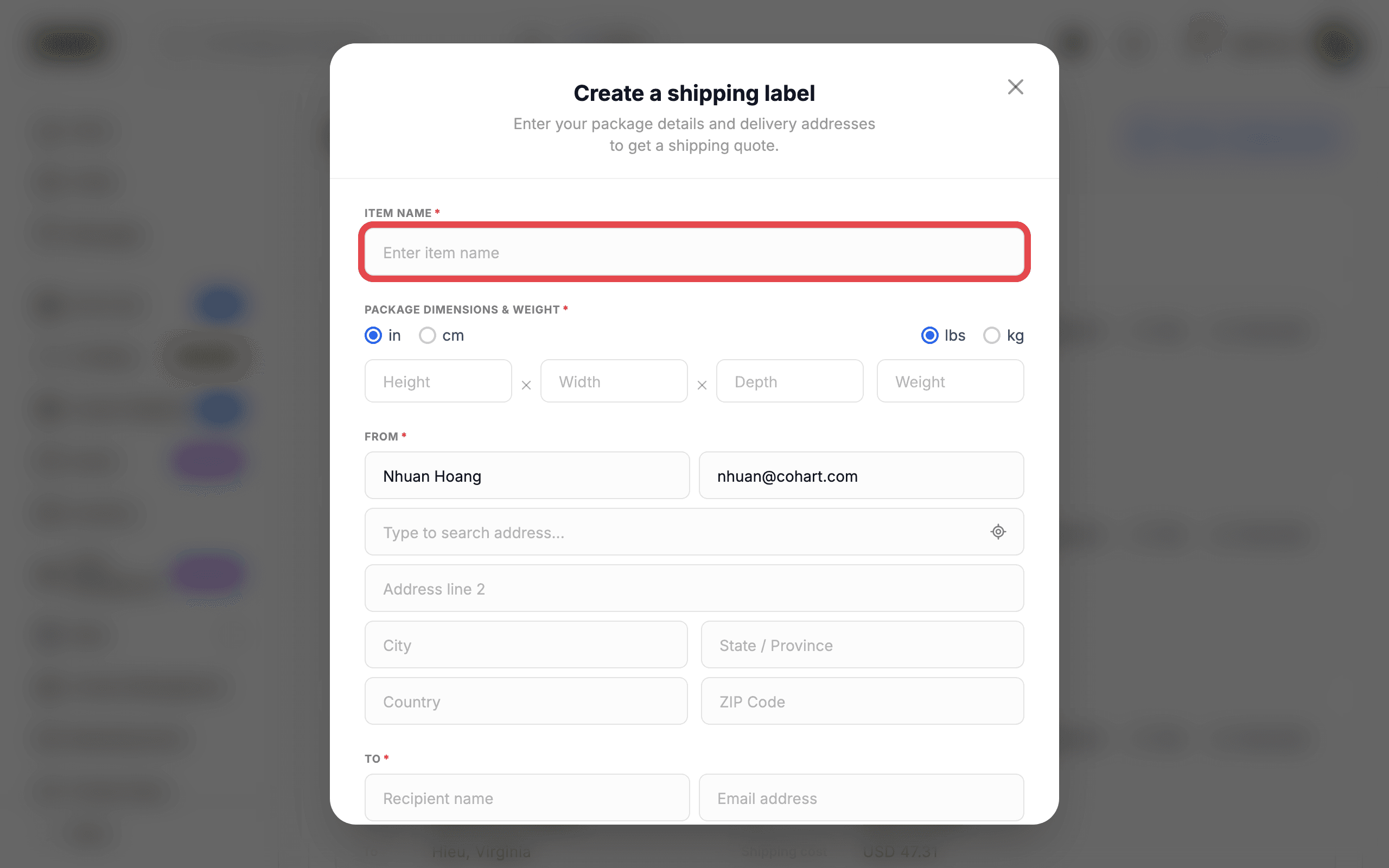
6. Enter the item name
The Create a shipping label form opens with four sections: ITEM NAME*, PACKAGE DIMENSIONS & WEIGHT*, FROM*, and TO*. Type the artwork’s name in Enter item name.
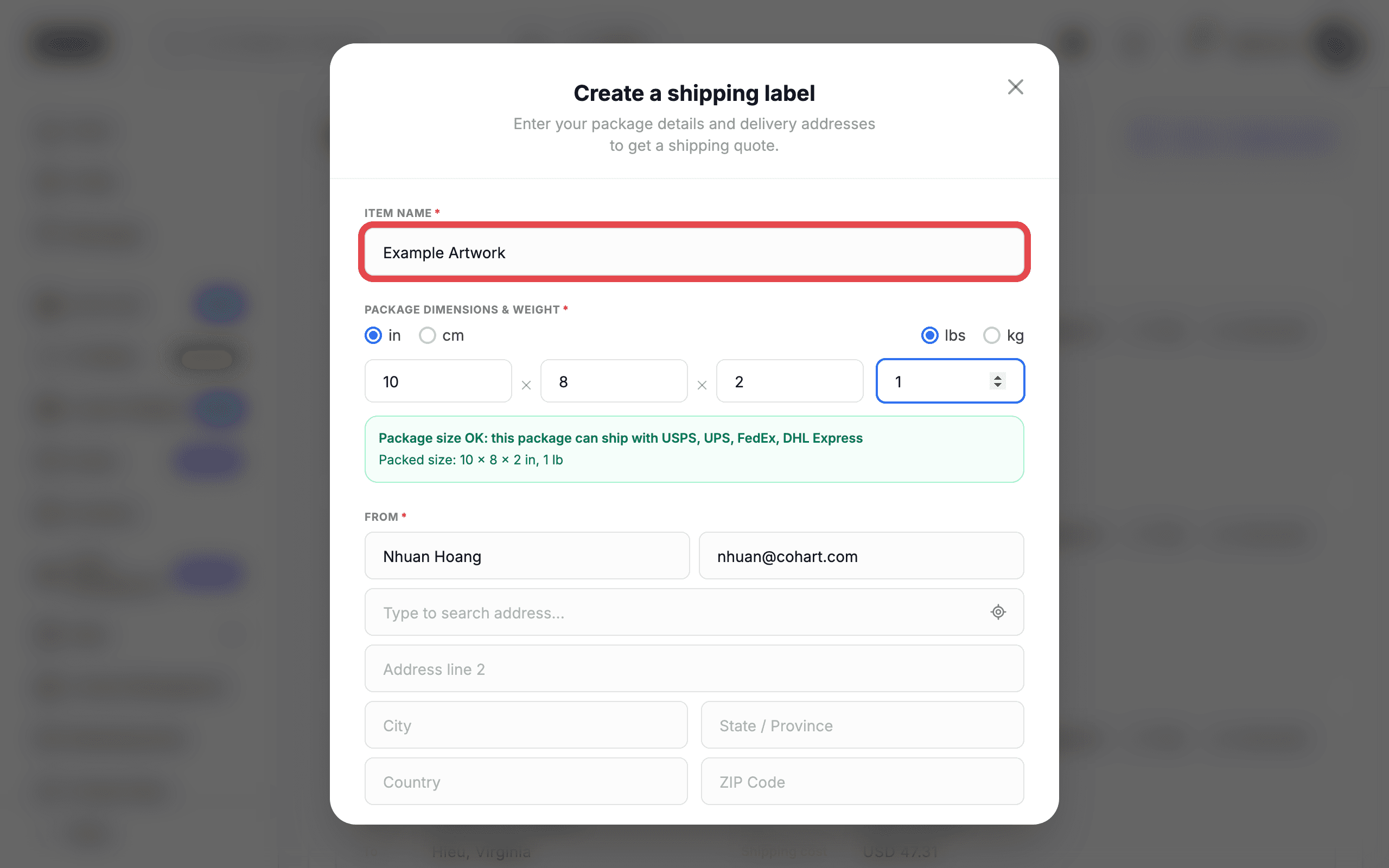
7. Enter the package size
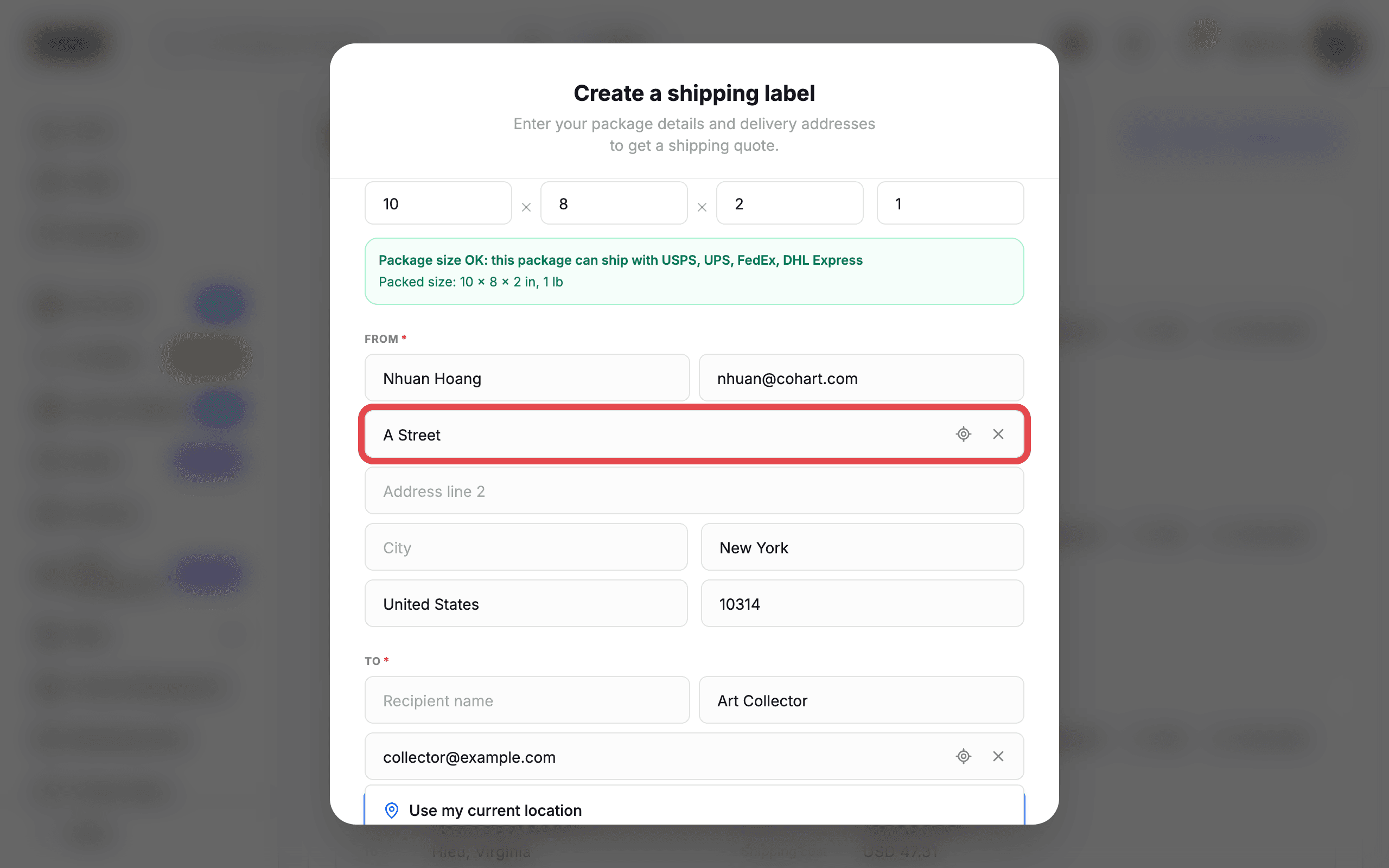
Enter the dimensions in Height, Width, Depth, and the weight in Weight. Switch the units with in / cm for dimensions and lbs / kg for weight. As you type, the form confirms the package in real time: “Package size OK: this package can ship with USPS, UPS, FedEx, DHL Express” and “Packed size: 10 × 8 × 2 in, 1 lb”.
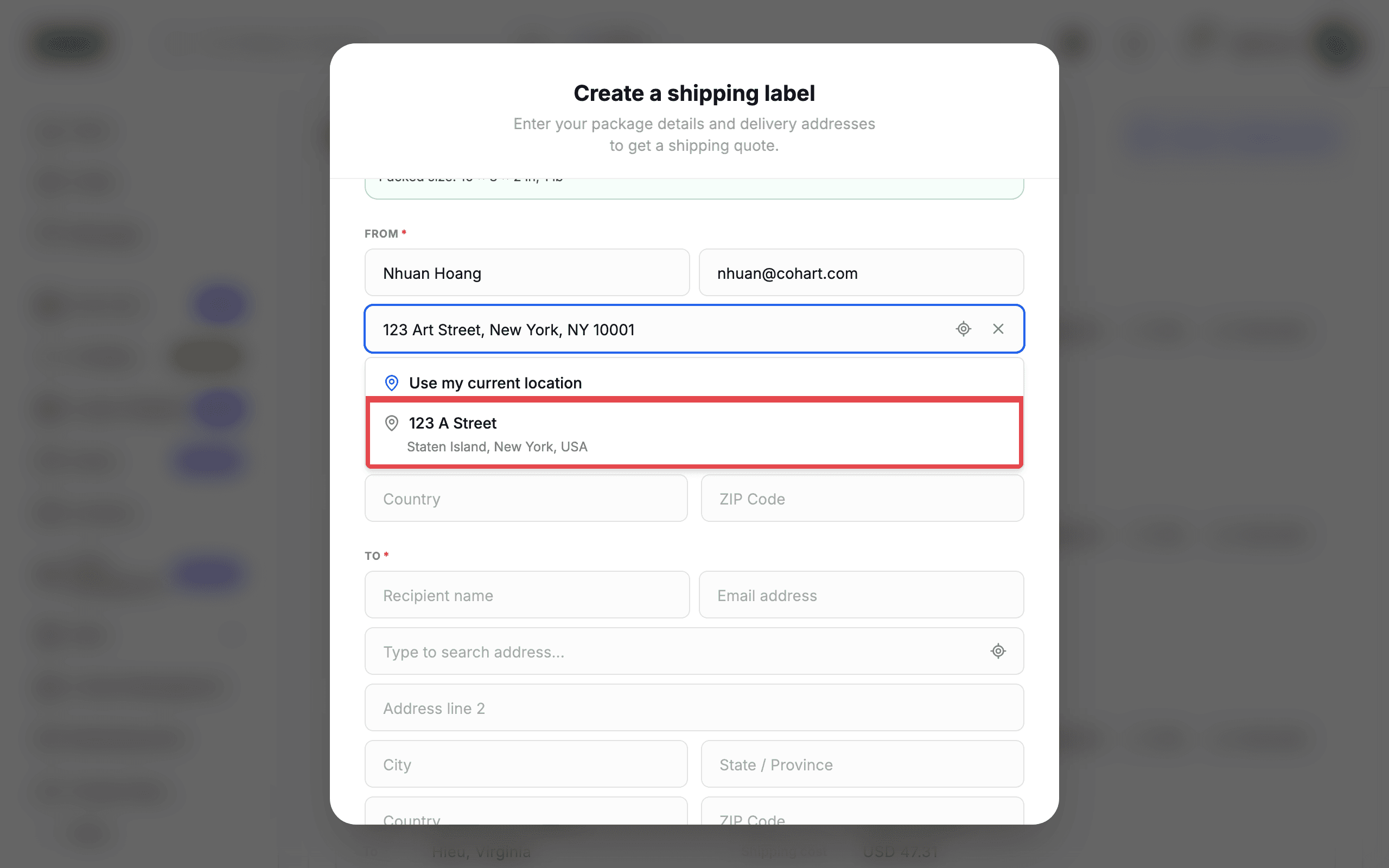
8. Set the ship-from address
The FROM section is already filled with your profile name and email. Type into Type to search address… to see address suggestions (for example “123 A Street Staten Island, New York, USA”), then click the suggestion you want. You can also click Use current location to fill the address from your browser’s location.
9. Add the recipient details
In the TO section, fill in Recipient name, Email address, and Type to search address… for the recipient, then pick a suggestion.
10. See delivery options
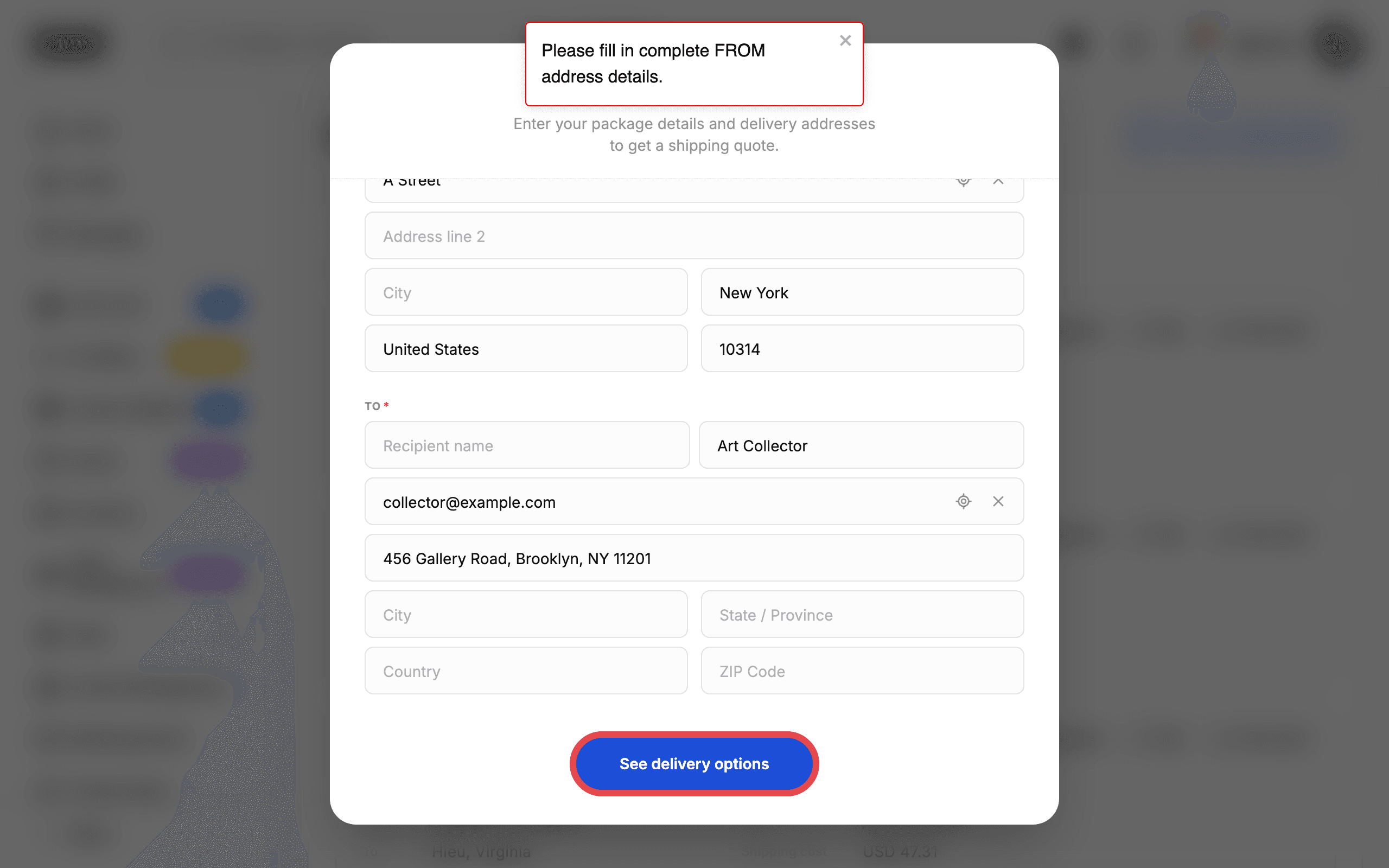
Click See delivery options at the bottom of the form to compare carriers, prices, and delivery times, then purchase the label.
Tips
- The FROM section is pre-filled from your profile. Change it if you ship from a different address.
- Use Clear address to remove a selected address and start the search again.
- If you have not set a password yet, click Forgot Password? on the login page to set one.
Troubleshooting
- Recipient address search returns no suggestions, or typed recipient values appear in the wrong fields → the address lookup can fail to match what you typed → clear the address fields, enter the recipient address again, and contact support with a screenshot if it keeps happening.
- Clicking See delivery options does nothing or shows Please fill in complete FROM address details even when the FROM address was selected → the form is incomplete or the lookup failed → reselect the FROM address and complete all required fields, then try again.
- Sales menu is missing → you may be signed in to a buyer account → use an artist or gallery account instead.