How to Manage Your Public Profile
Overview
Your public profile is the buyer-facing page that presents you to collectors. It exists so buyers can judge you at a glance from your header stats, artworks, moments, and moodboards before they contact you. It is for sellers such as artists and galleries who sell through Cohart. Everything on this page is public: signed-out visitors open the same page with sign-in and marketing actions in the header instead of your sidebar, and your bio stays in sync with your Link in bio Biography. Buyers act directly on what they see, using Quick Sell or Inquire to Purchase on buyable works and See details on sold works. By the end of this guide you will have opened your profile, read the header stats, used Edit Profile, and worked each tab (OVERVIEW, ARTWORKS, MOMENTS, MOODBOARDS) so your public presence reads the way you intend.
Before you start
- A Cohart seller account. Sign in with your email and password.
- Your username, which is part of your profile link.
- Artworks already listed in Inventory if you want the ARTWORKS tab to show work. The profile only displays artworks; you create and edit them in Inventory.
- Profile content ready to show publicly: display name, bio line, location, photo, and links. Anything you change with Edit Profile goes live on the public page as soon as you save it, and the bio also feeds your Link in bio page (see How to Set Up Your Storefront Profile).
Steps
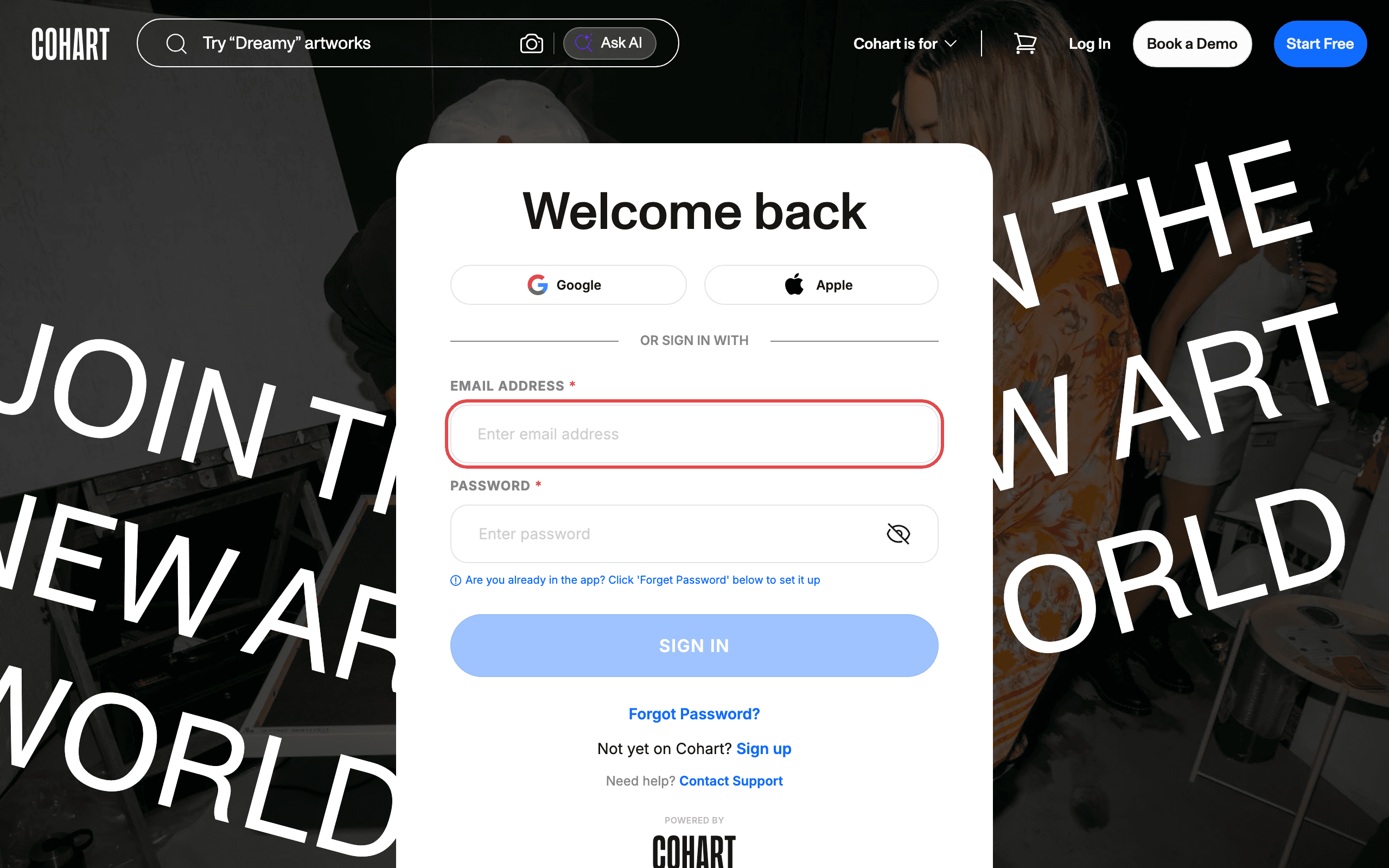
1. Sign in to Cohart
Sign in with your email address and password, or use Google or Apple.
2. Open your public profile
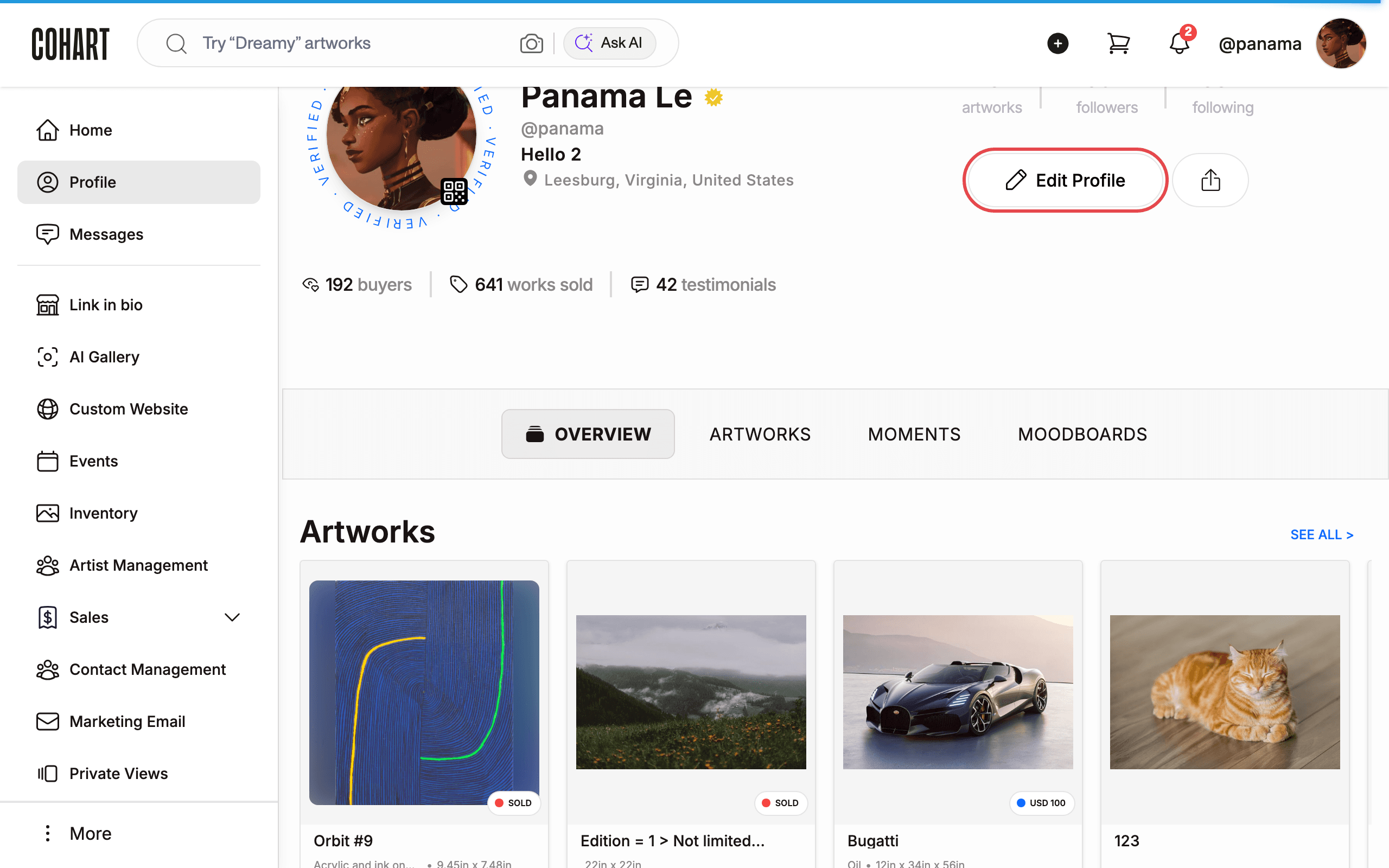
After sign-in you land on Inventory. In the sidebar, click Profile.
Visitors see the same page signed-out with Log In, Book a Demo, and Start Free in the header instead of the sidebar.
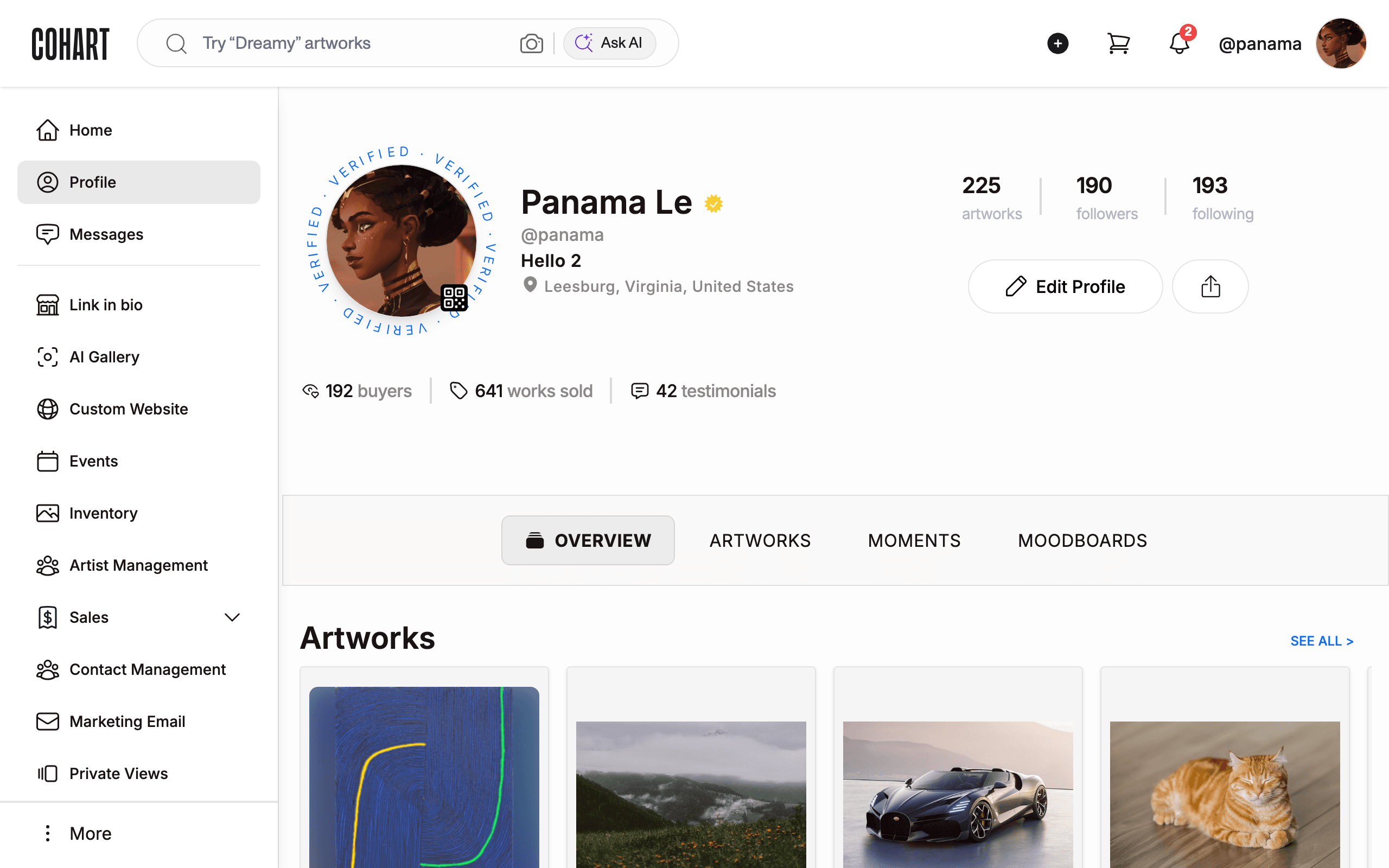
3. Read the profile header
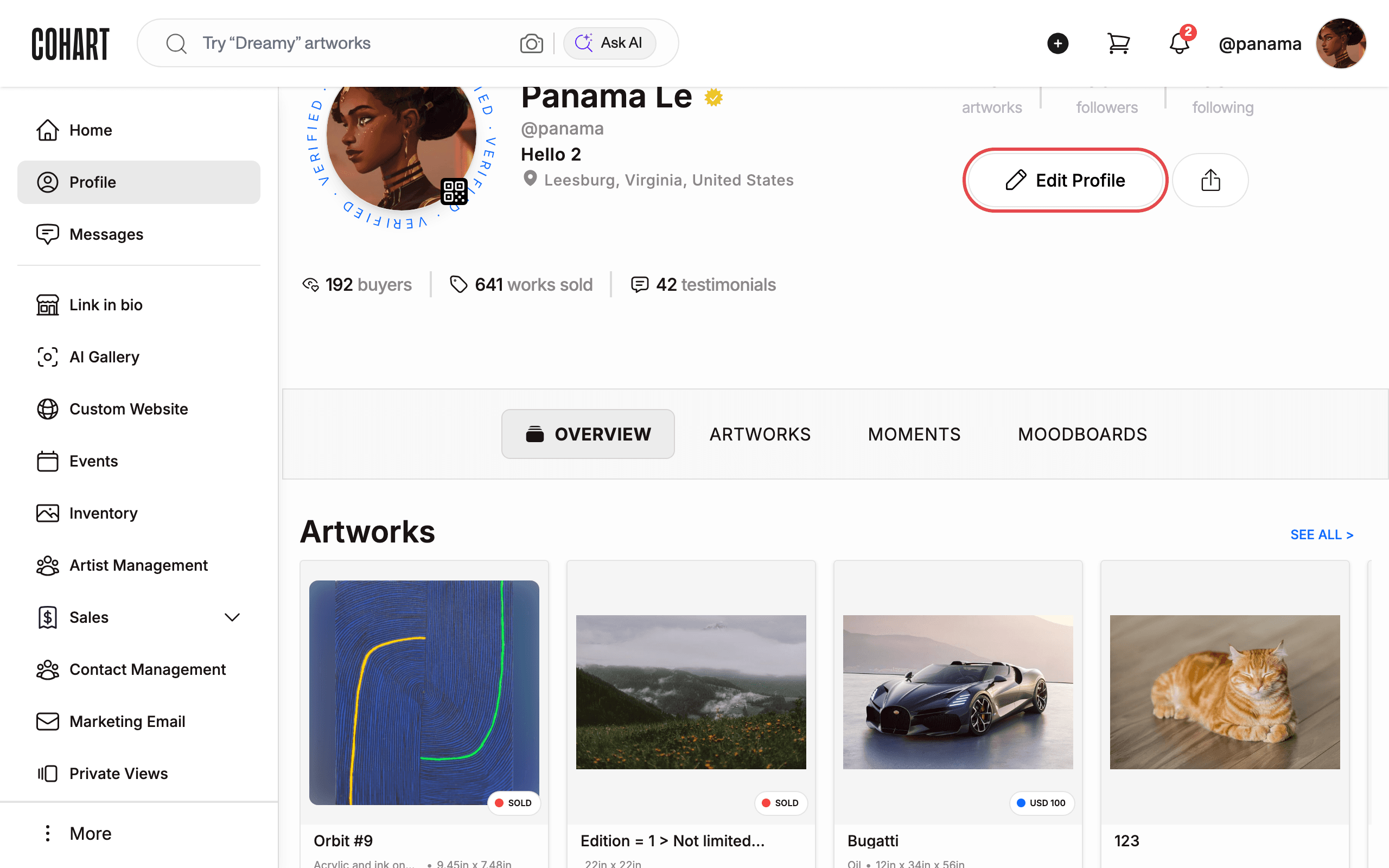
Read the header top to bottom: your display name, handle (for example @yourhandle), bio line, and location, then the stat rows: artworks, followers, and following, plus buyers, works sold, and testimonials.
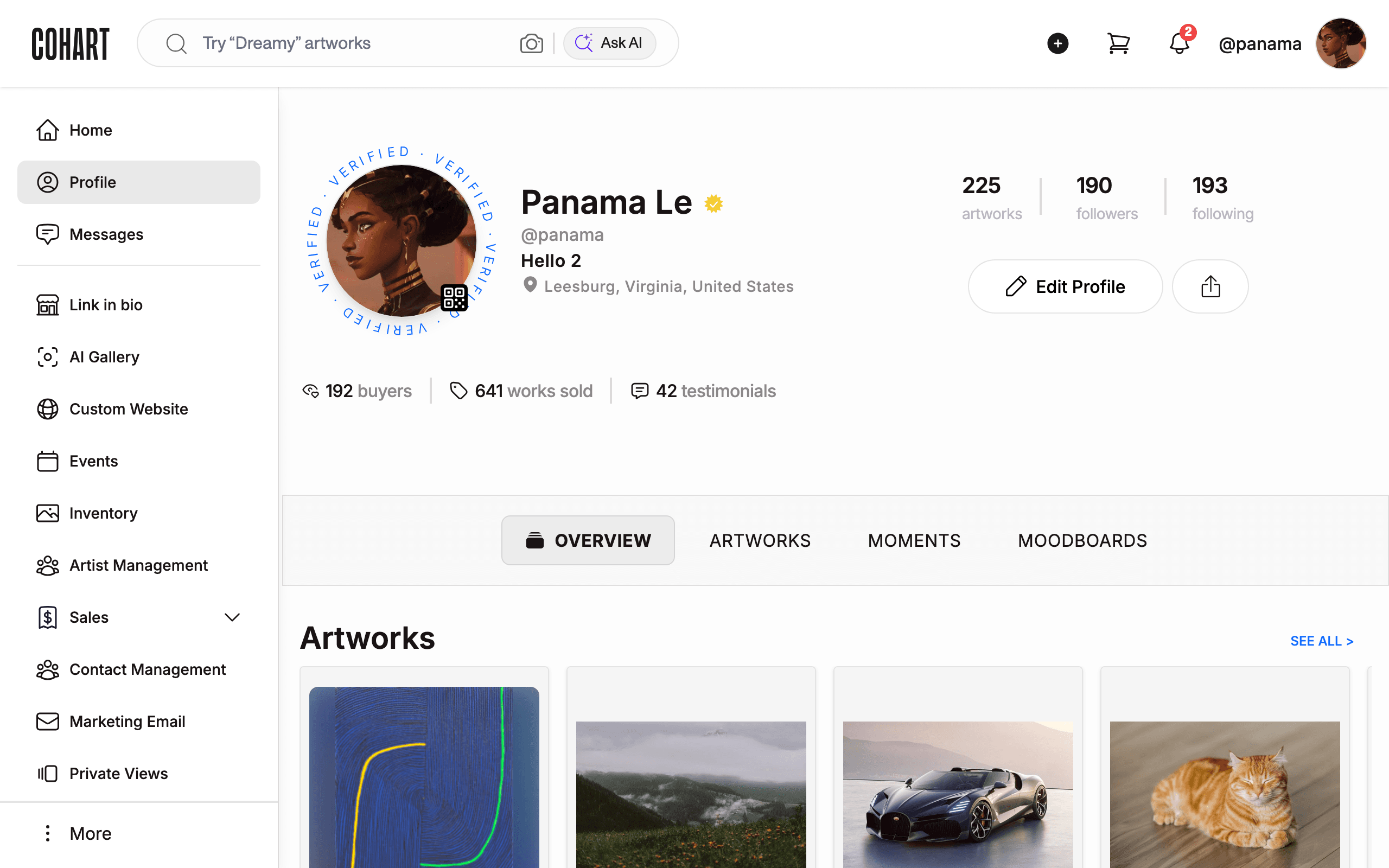
4. Use Edit Profile
Click Edit Profile to change your name, bio, location, photo, or links. Changes go live on the public page as soon as you save them. The bio syncs with the Link in bio Biography.
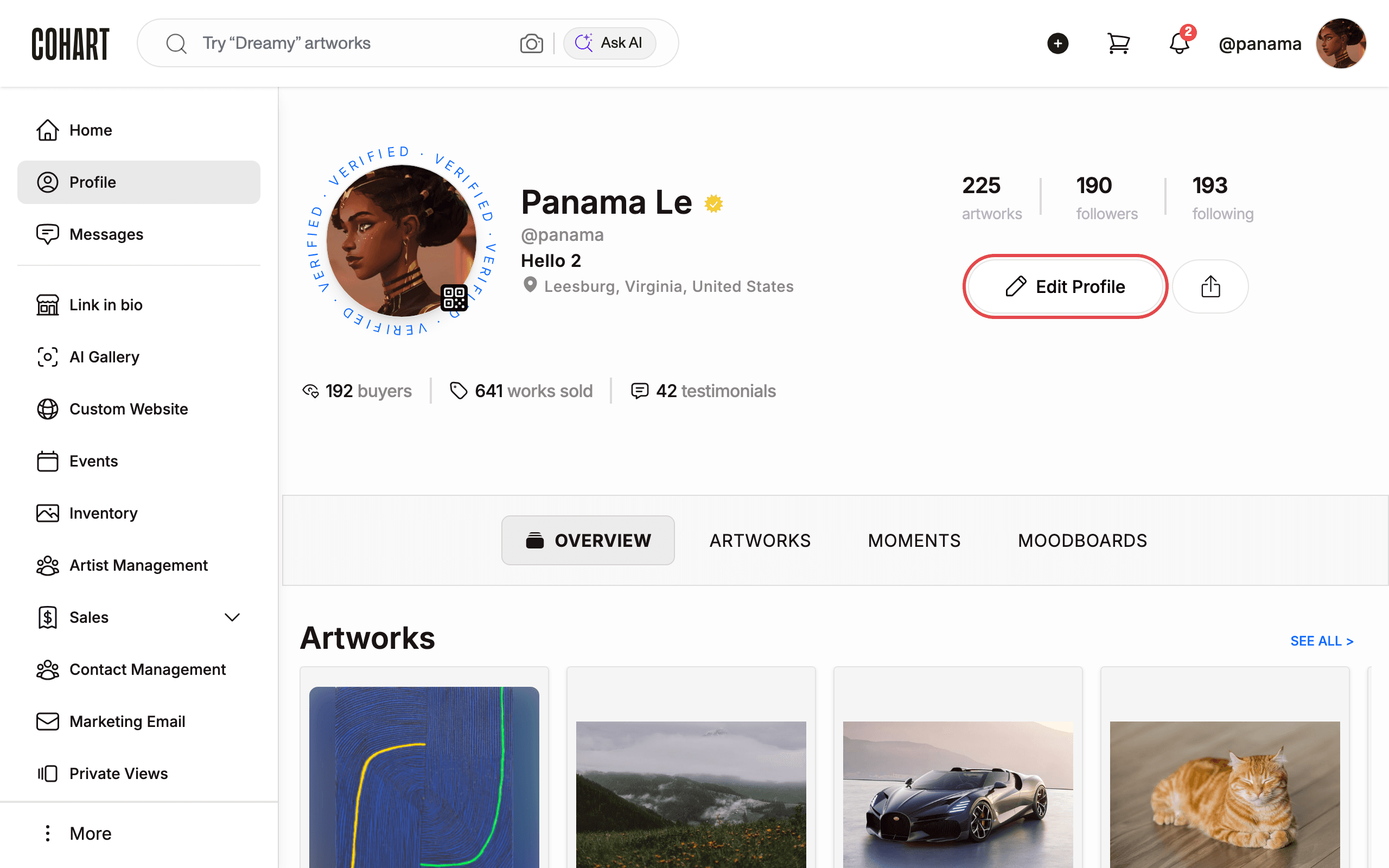
5. Open the OVERVIEW tab
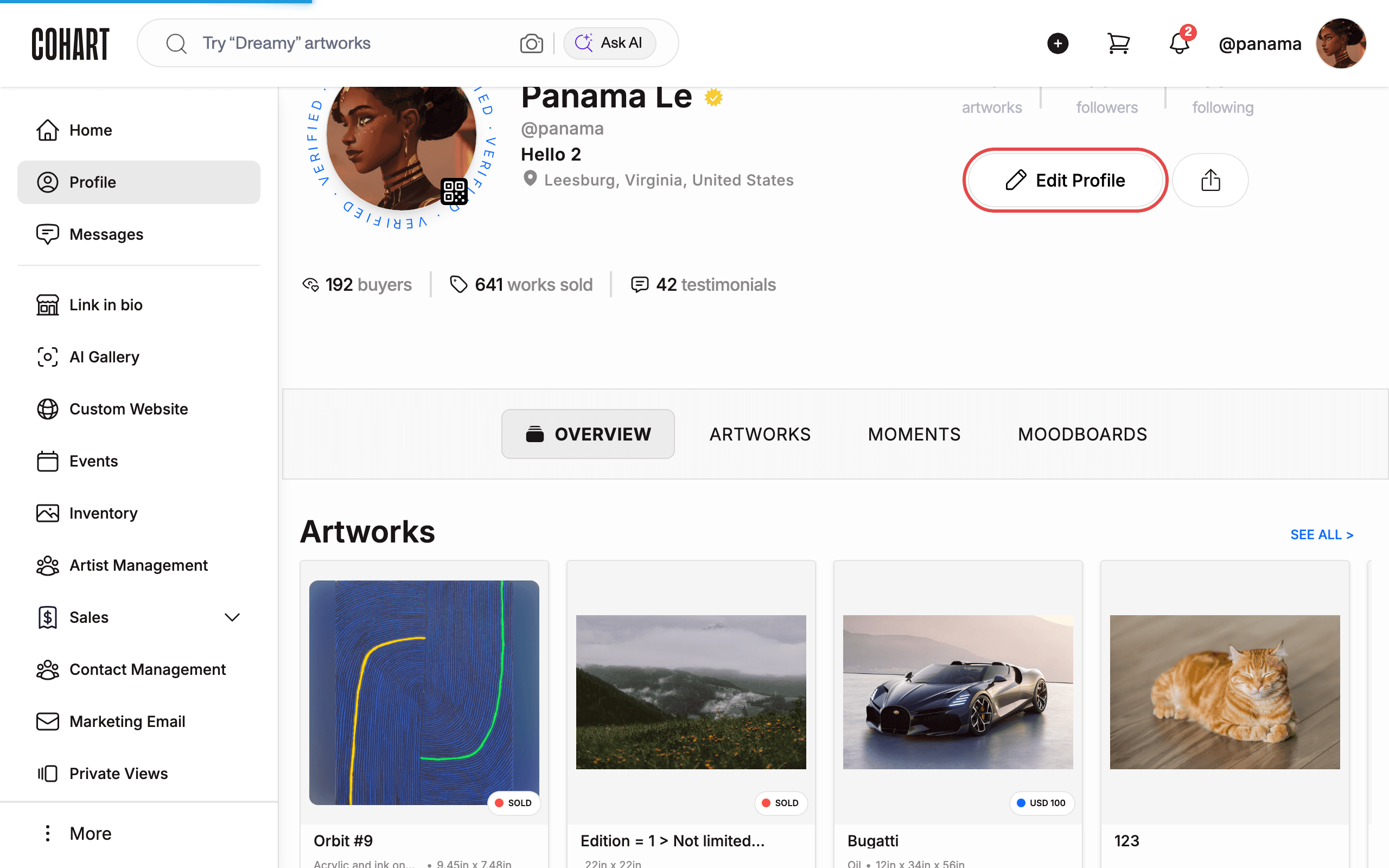
Click the OVERVIEW tab for the combined profile summary: bio, featured sections, and previews of artworks, moments, and moodboards.
6. Open the ARTWORKS tab
Click the ARTWORKS tab for the full works grid with SEE ALL > at the section head to open the complete list.
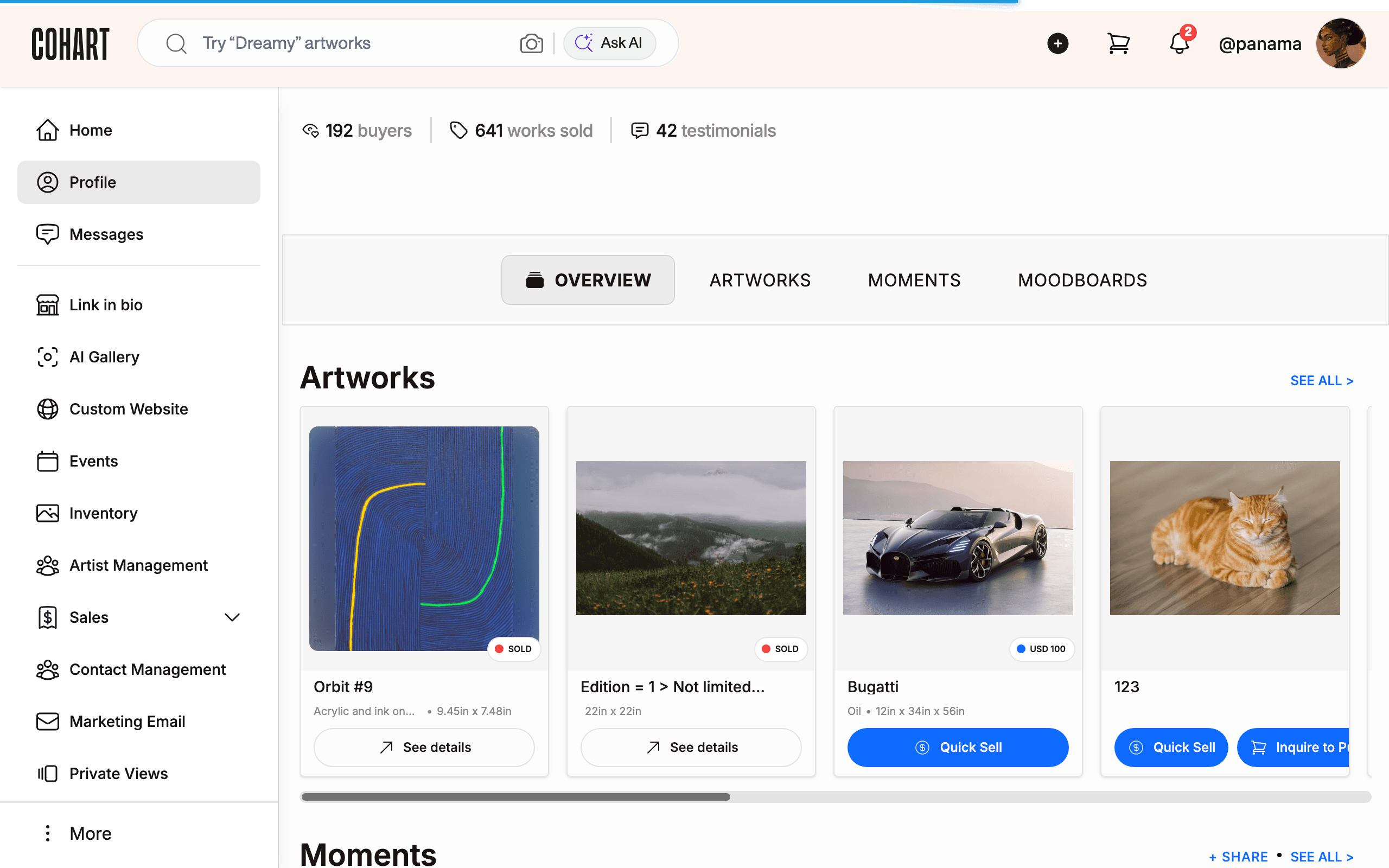
7. Read each artwork card
Read each artwork card: status badge (SOLD on sold works), title, medium and dimensions (for example Acrylic and ink on canvas • 9.45in x 7.48in), price (for example USD 100), and one action: See details on sold works, or Quick Sell and Inquire to Purchase on buyable works.
Edit artworks themselves in Inventory; the profile only displays them.
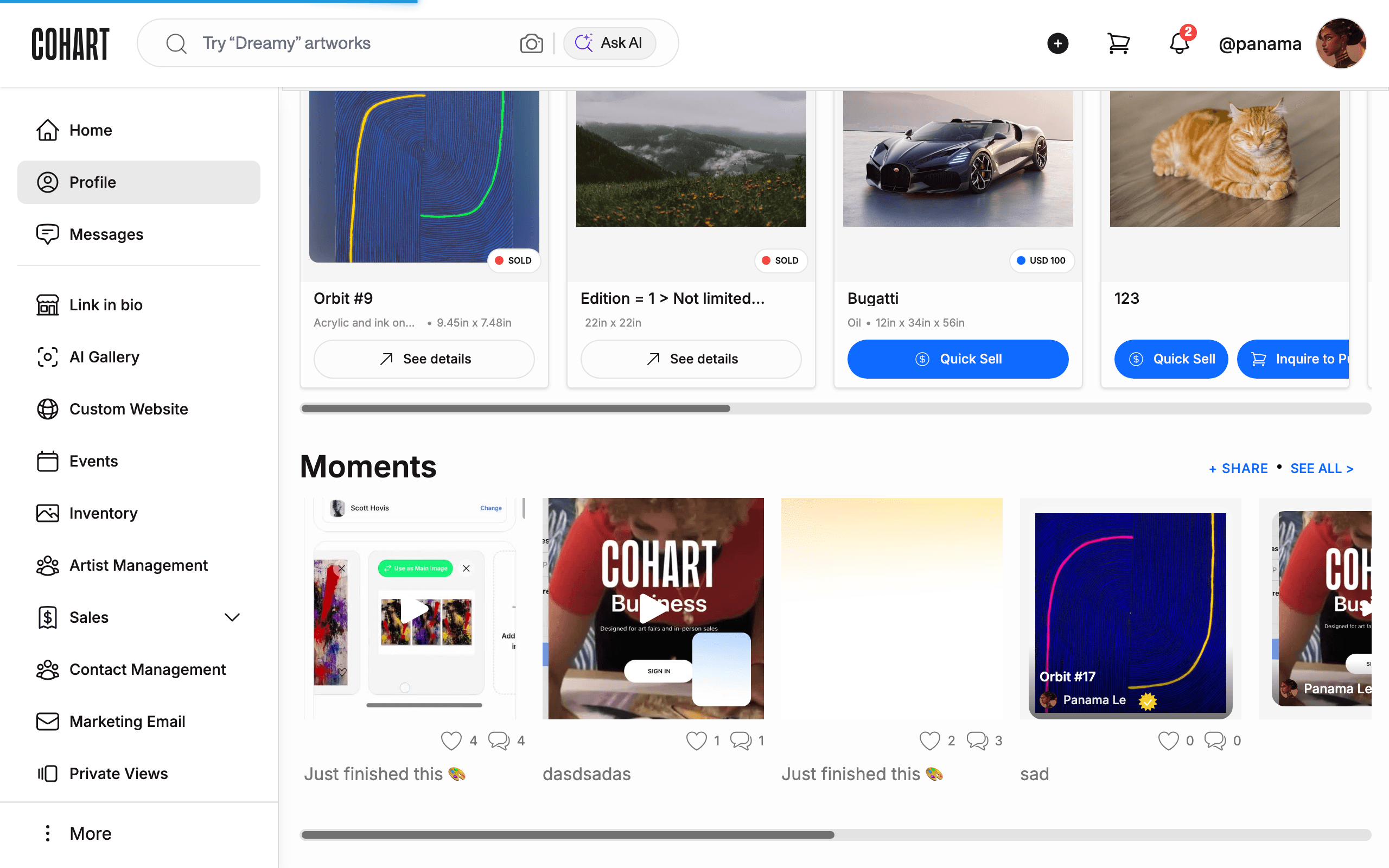
8. Open the MOMENTS tab
Click the MOMENTS tab for your short-form posts with + SHARE to publish a new one and SEE ALL > for the archive.
9. Open the MOODBOARDS tab
Click the MOODBOARDS tab for curated boards with + CREATE to start one and SEE ALL > for the archive.
Tips
- Quick Sell lists the work for instant checkout; Inquire to Purchase starts a chat with you. Sold works show SOLD with See details only.
- The profile bio and Link in bio Biography sync. Edit in one place, then reload the other to confirm.
- Your profile link includes your username. Replace it with any username to view another public profile.
Troubleshooting
- Counts look frozen → follower, buyer, and works-sold counts settle after activity → reload if a new follow does not appear immediately.
- Tab content loads slowly → each tab loads new content → wait for the content below the tabs to refresh before clicking the next tab.