How to Use Moodboards
Overview
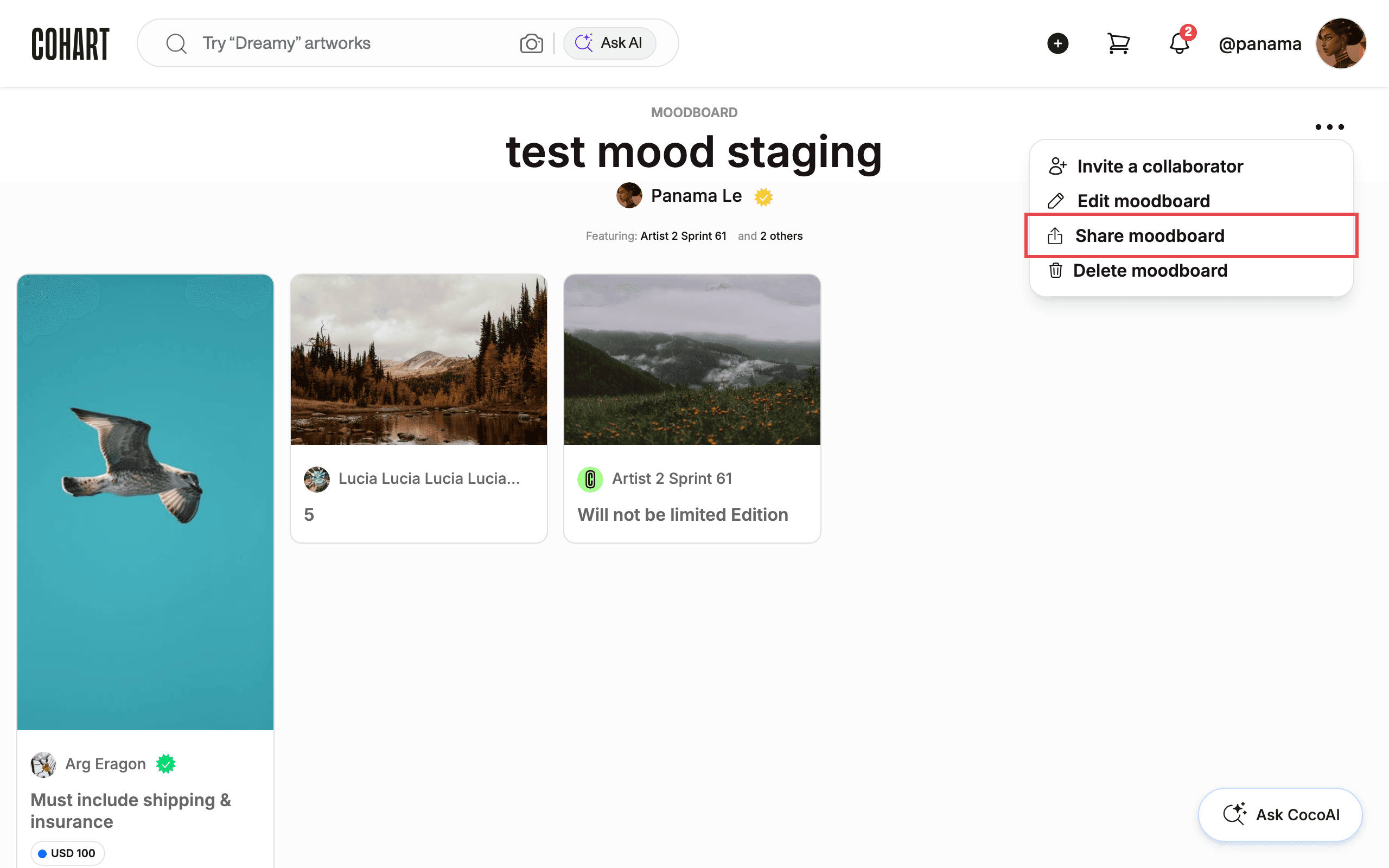
A moodboard is a collection of saved artworks and moments you keep together to plan a collection, share ideas with a client, or revisit inspiration later. It exists so saved works stay organized instead of piling up in one private list: every account starts with a Private Moodboard that collects everything you Save, and you build named boards on top of it for projects, clients, or themes. This guide is for any Cohart account holder — buyers planning purchases, sellers pitching to collectors, and collaborators gathering references. Boards you create appear as cards on the MOODBOARDS tab of your profile and open into a detail page showing the title, the owner, the featured artists, and the artwork cards; each board page has a ••• menu with Invite a collaborator, Edit moodboard, Share moodboard, and Delete moodboard. By the end you will have created a named board from your saved works, opened it, and know how to manage it afterward.
Before you start
- A Cohart account. If you are new, choose Sign up on the login screen.
- Some saved works. A new board can only include works you already saved. To save one, open any artwork, click Save, and it goes to your Private Moodboard automatically.
- Your Private Moodboard is your personal starting point. Only you can see it. Other boards you create can be shared.
- A short board name (required, up to 35 characters) and an optional description (up to 90 characters). You enter these on the create and edit forms.
- Know that deleting is permanent: managing a board happens entirely from its ••• menu, and Delete moodboard asks for confirmation because the action cannot be undone.
Steps
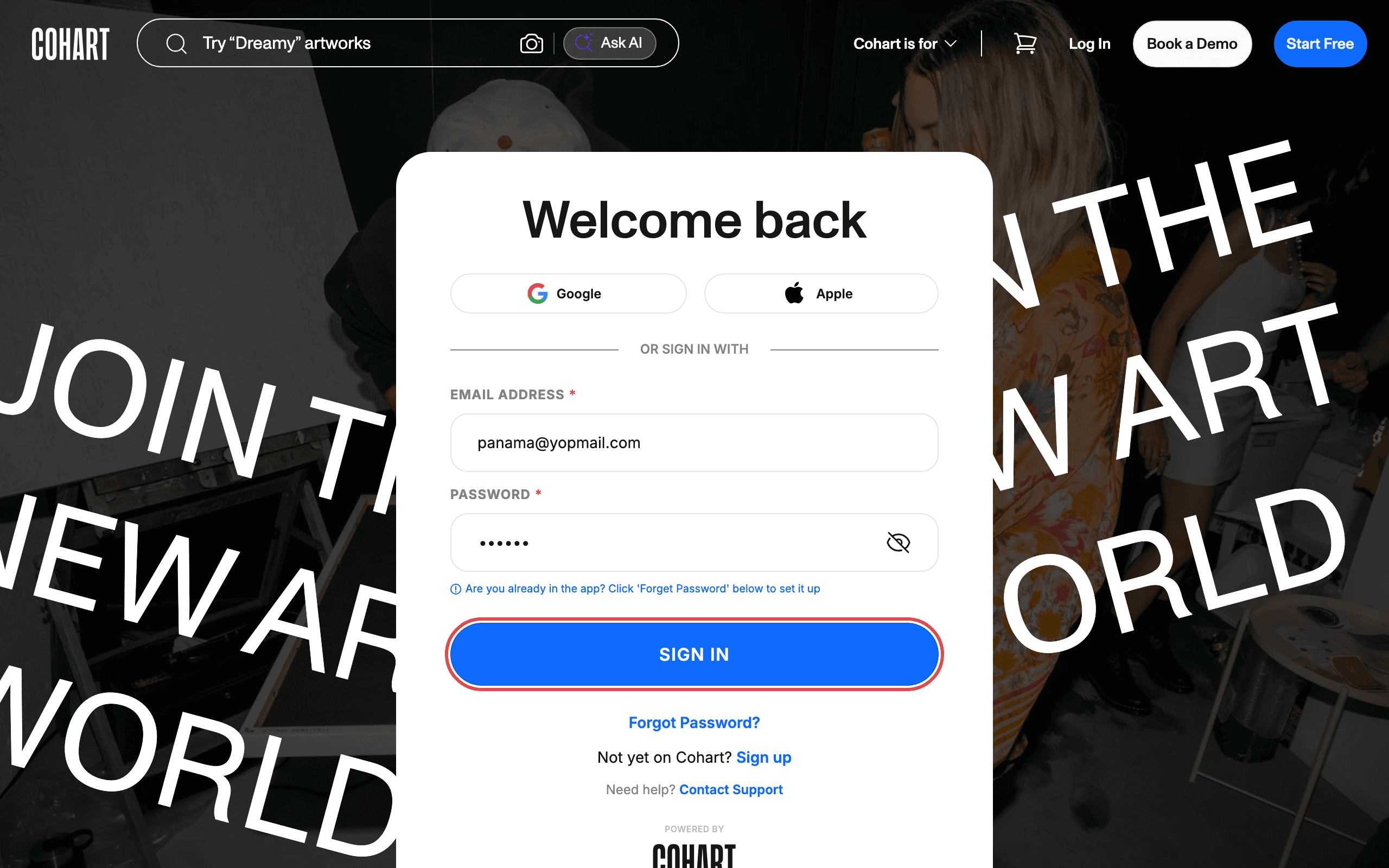
1. Sign in to Cohart
Sign in with your email address and password, or use Google or Apple.
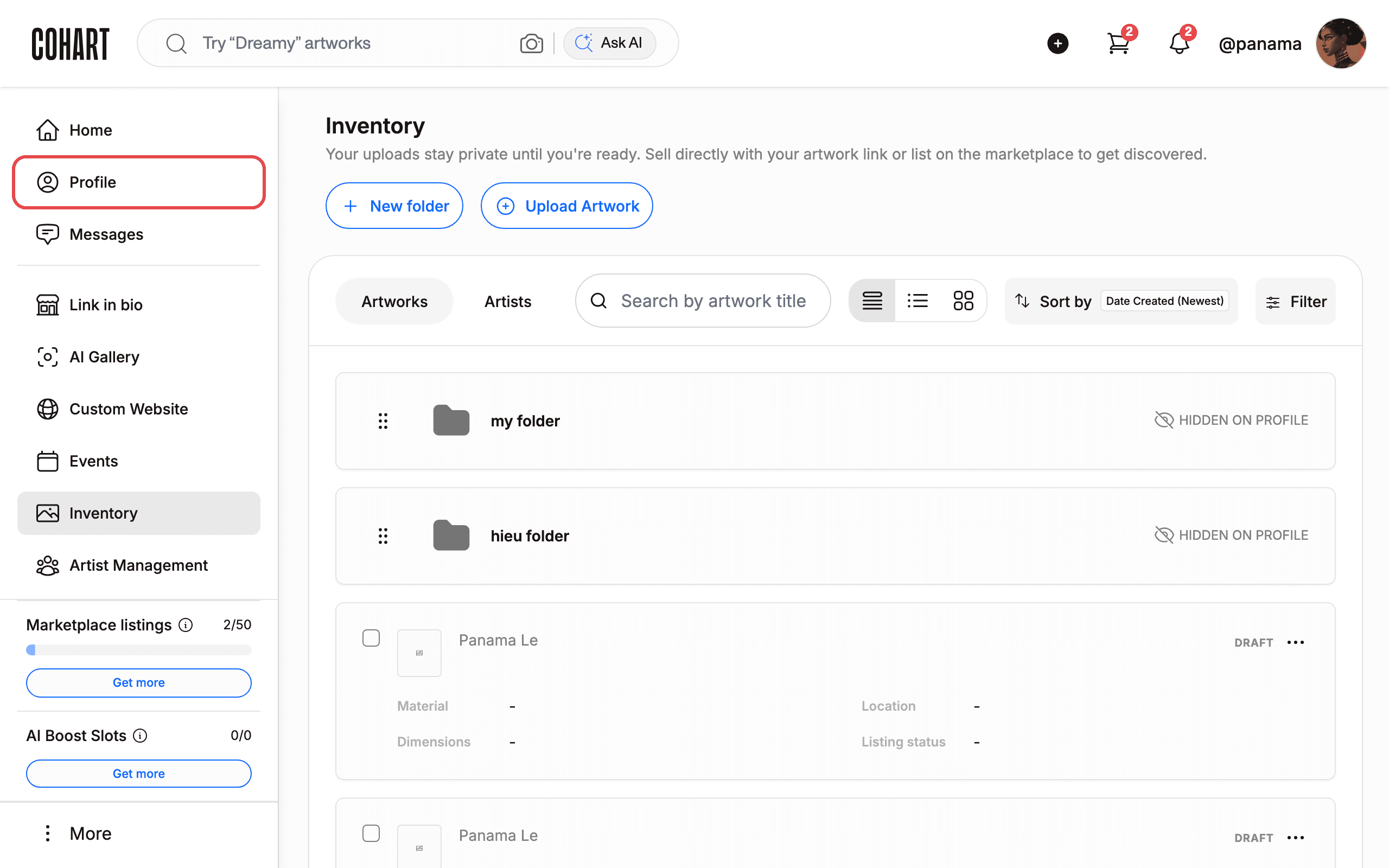
2. Open your Profile
After you sign in, click Profile in the left menu.
You will see your name, photo, and counts for artworks, followers, and following.
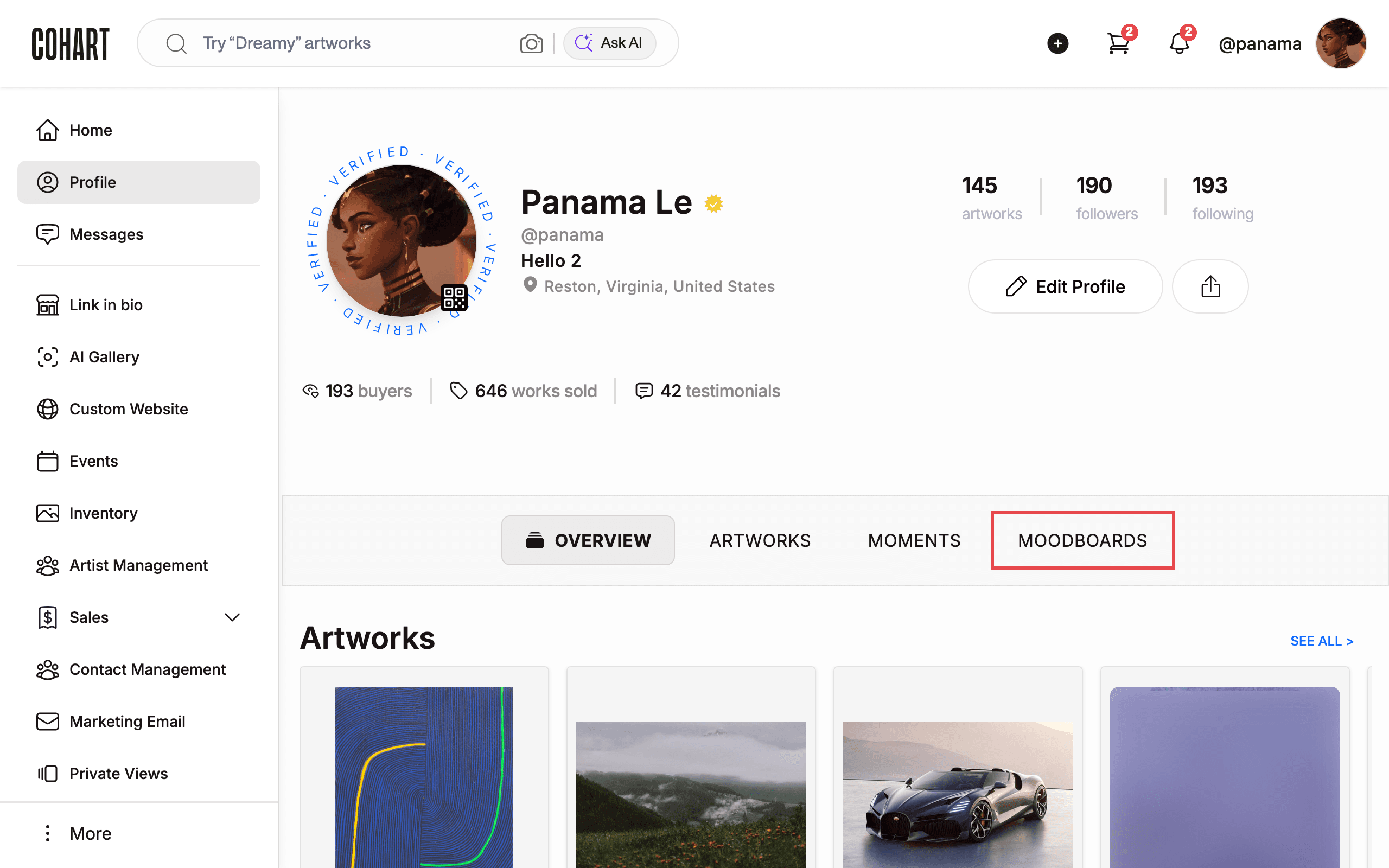
3. Open your boards
At the top of your profile, click MOODBOARDS.
You will see your boards as cards. Each card shows its title and who created it. From Discover, you can also open the main menu and go to GET INSPIRED to browse boards from other people. Your first card is always Private Moodboard — open it any time to see everything you saved with Save.
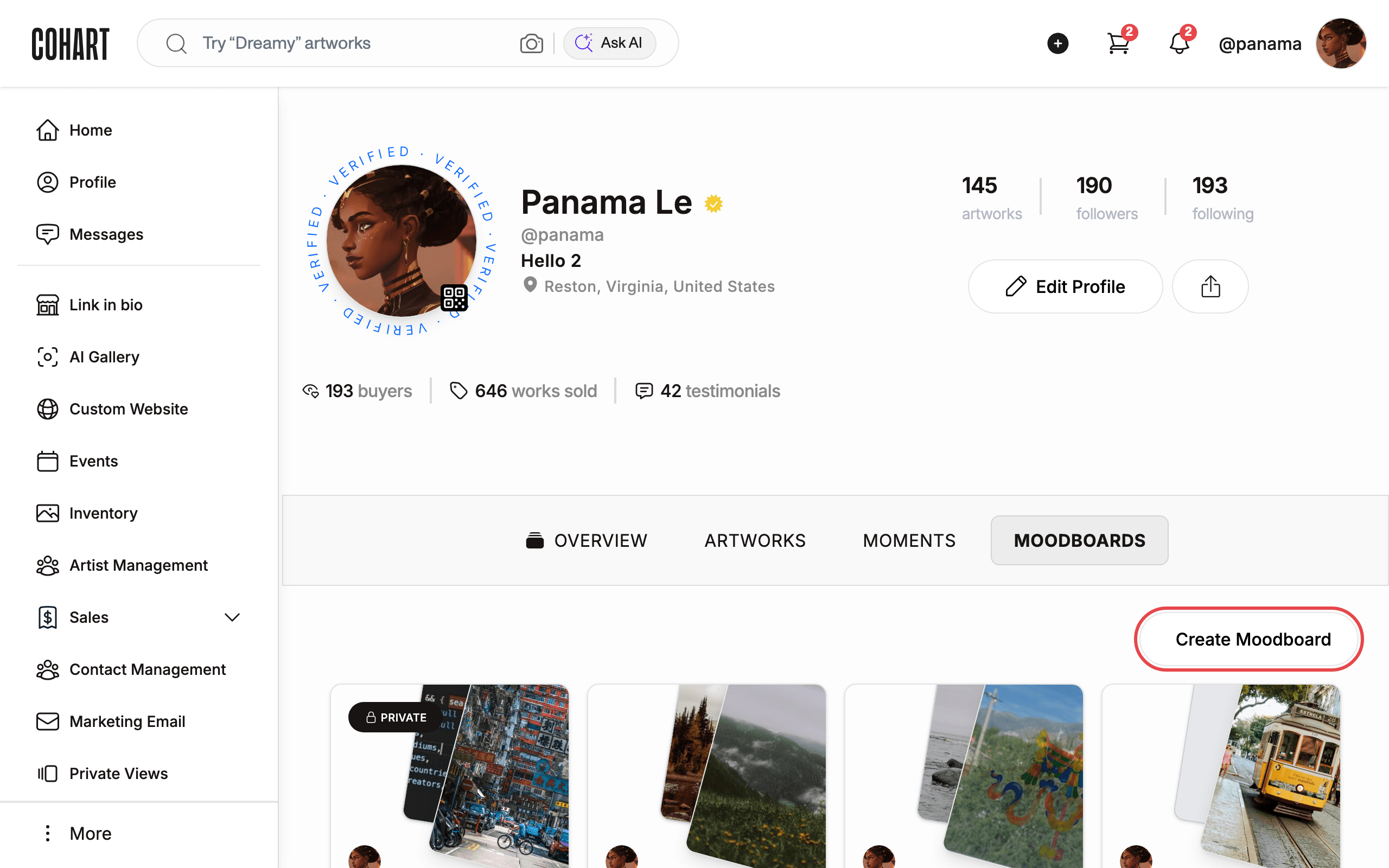
4. Start a new board
Review your list, then click Create Moodboard in the top-right corner.
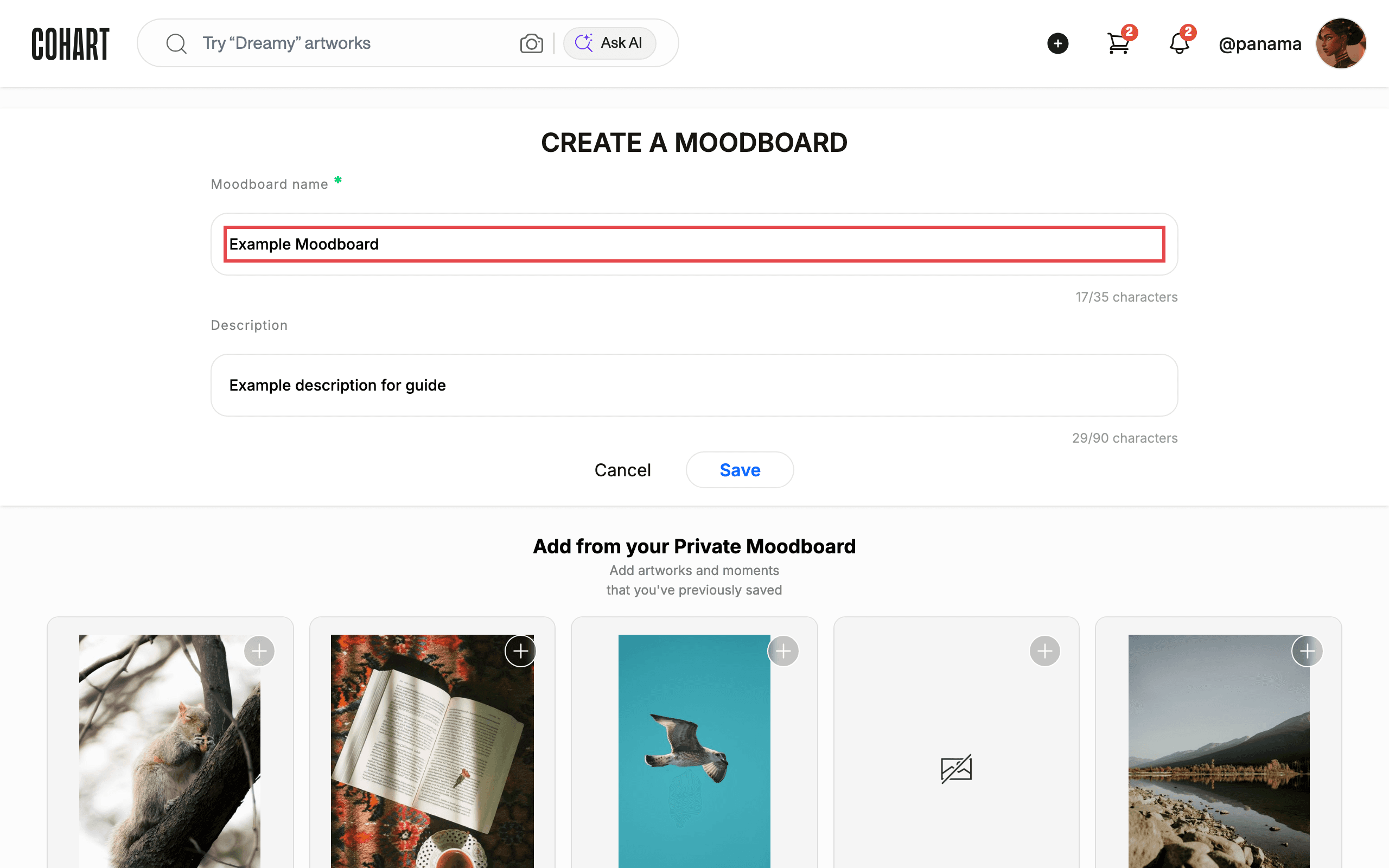
A blank form titled CREATE A MOODBOARD opens.
5. Give your board a name
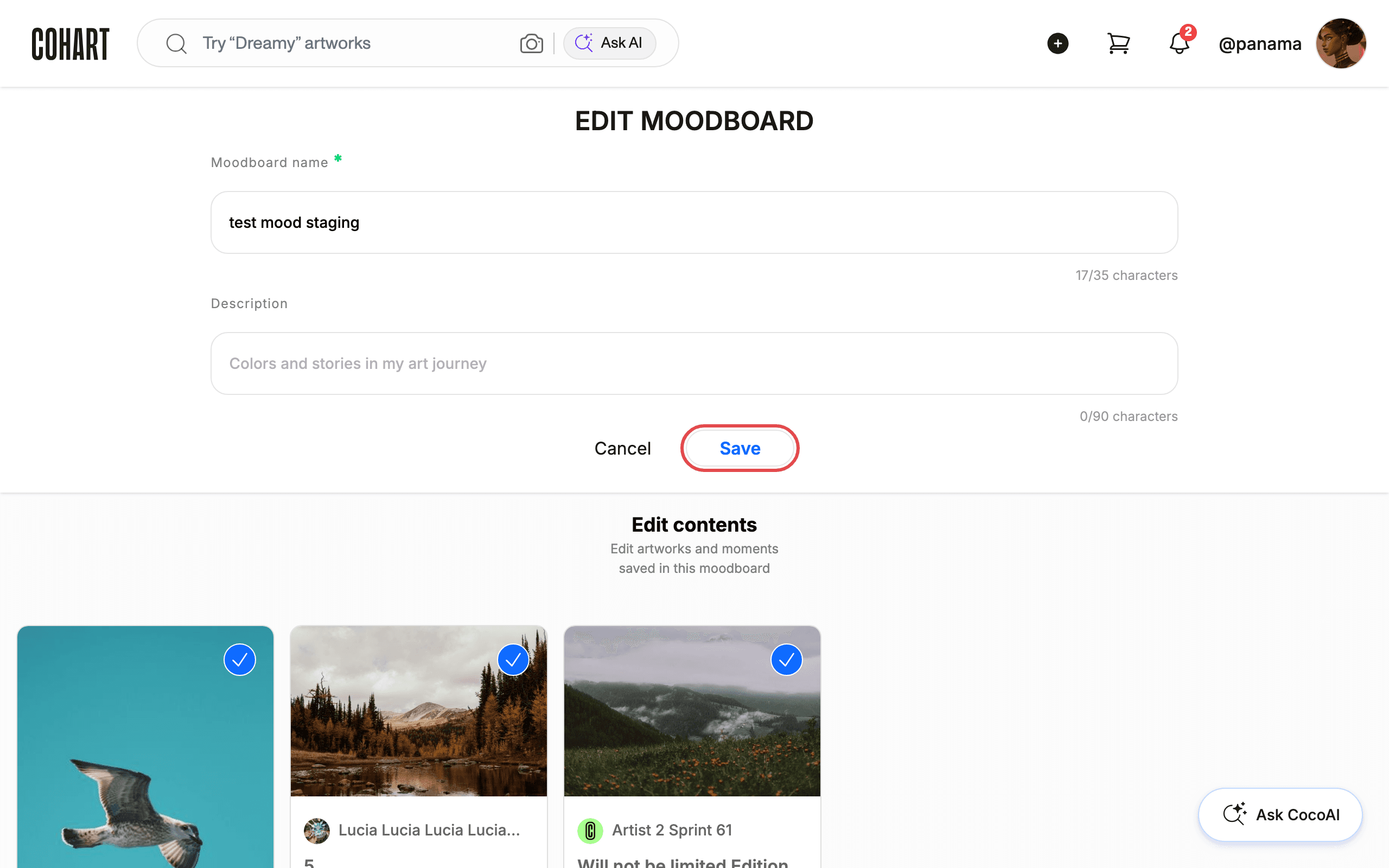
Type a short name in the Moodboard name box. This is required. You can use up to 35 letters.
Optionally, add a short description in the Description box. You can use up to 90 letters. The small counter under each box shows how much space is left.
6. Add works and save
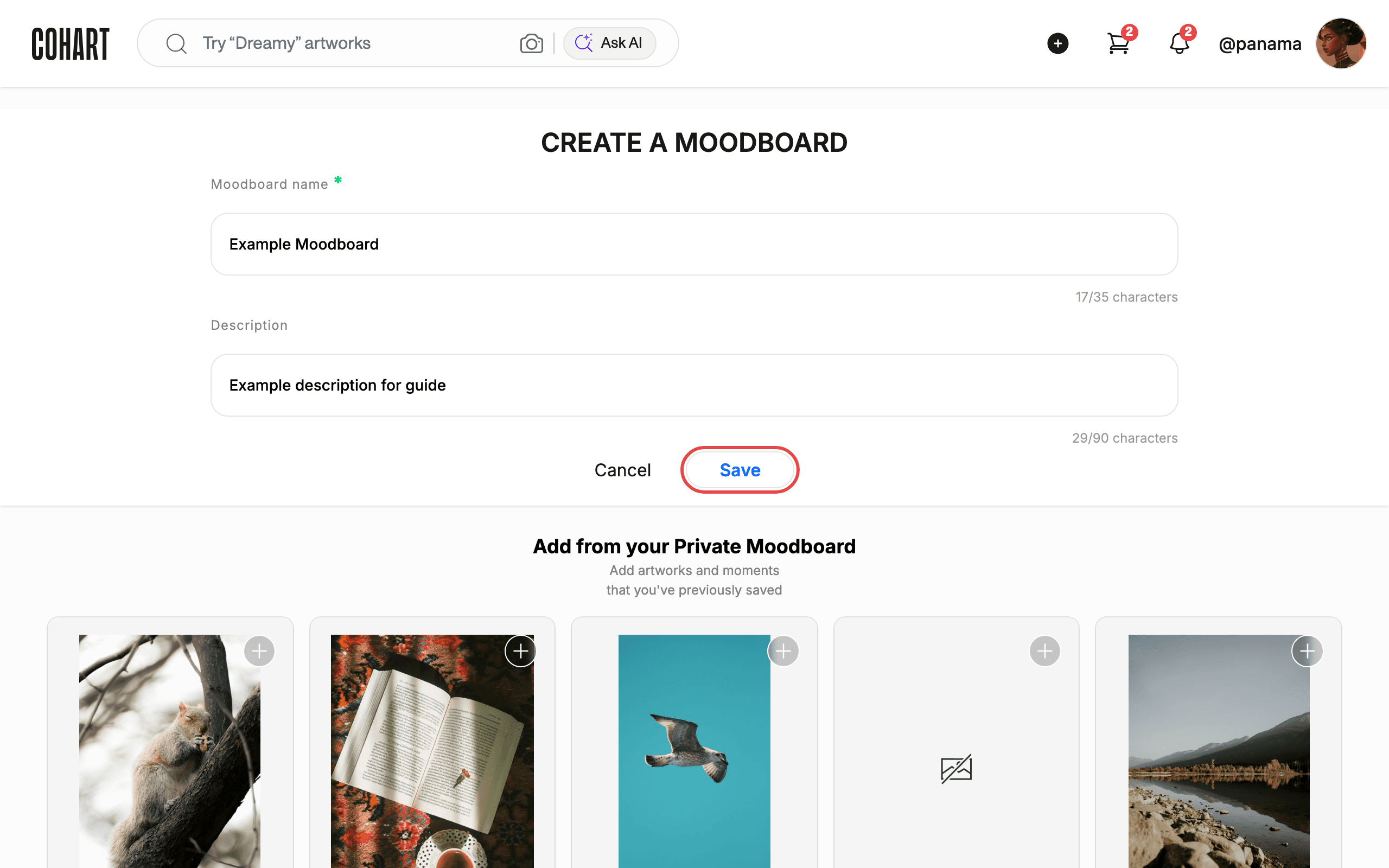
Scroll to Add from your Private Moodboard. This shows works you saved before. Click the + on each work you want in this board.
When you are happy, click Save at the top. Click Cancel if you want to leave without saving. If this list is empty, go save some artworks first, then come back. You cannot upload directly here.
7. Open a board to view it
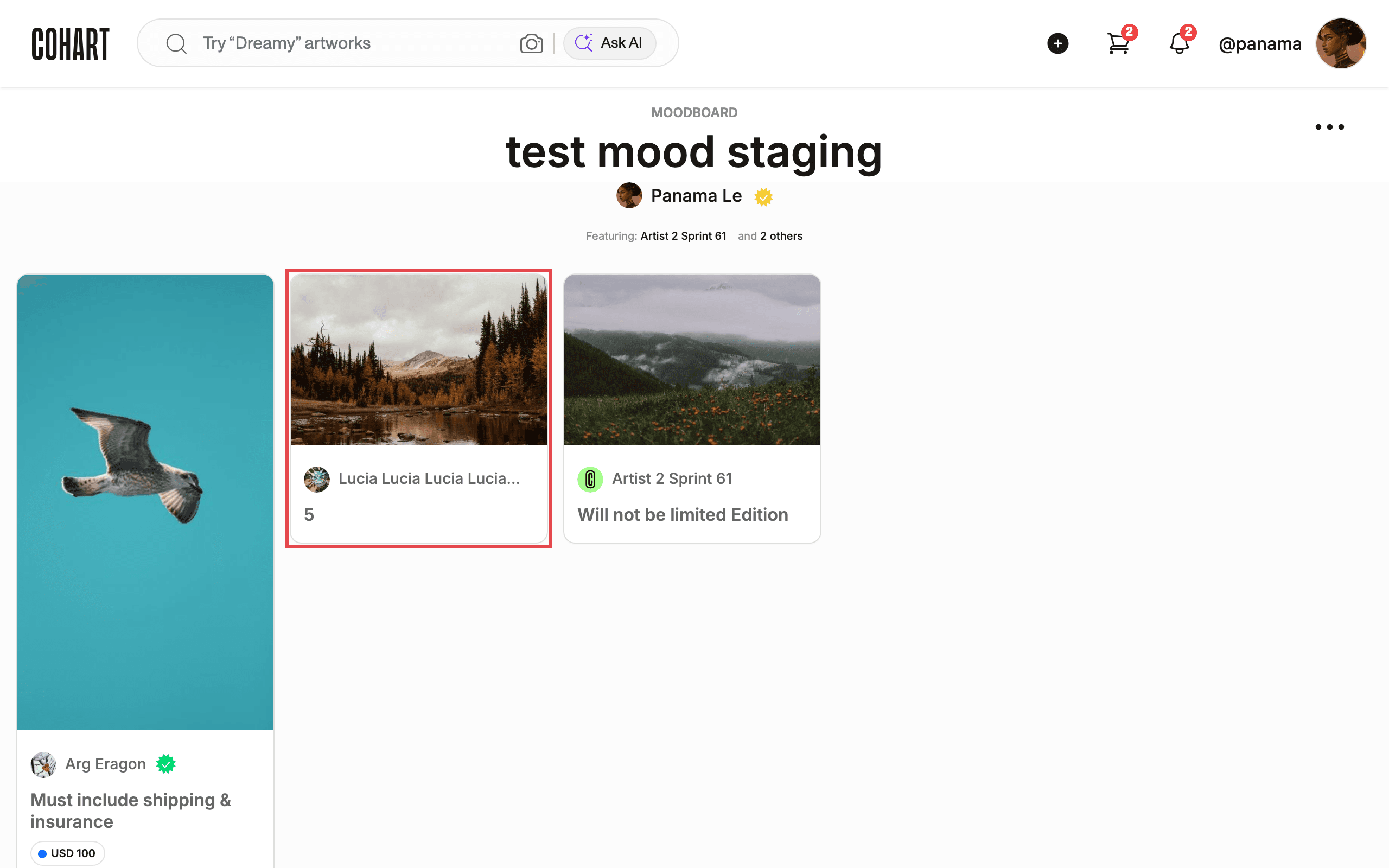
Back in your list, click any board card. You will see its title, who made it, and which artists are included.
Click any artwork to open its full details. To change the board, click the ••• menu in the top-right corner of the board page.
8. Invite a collaborator
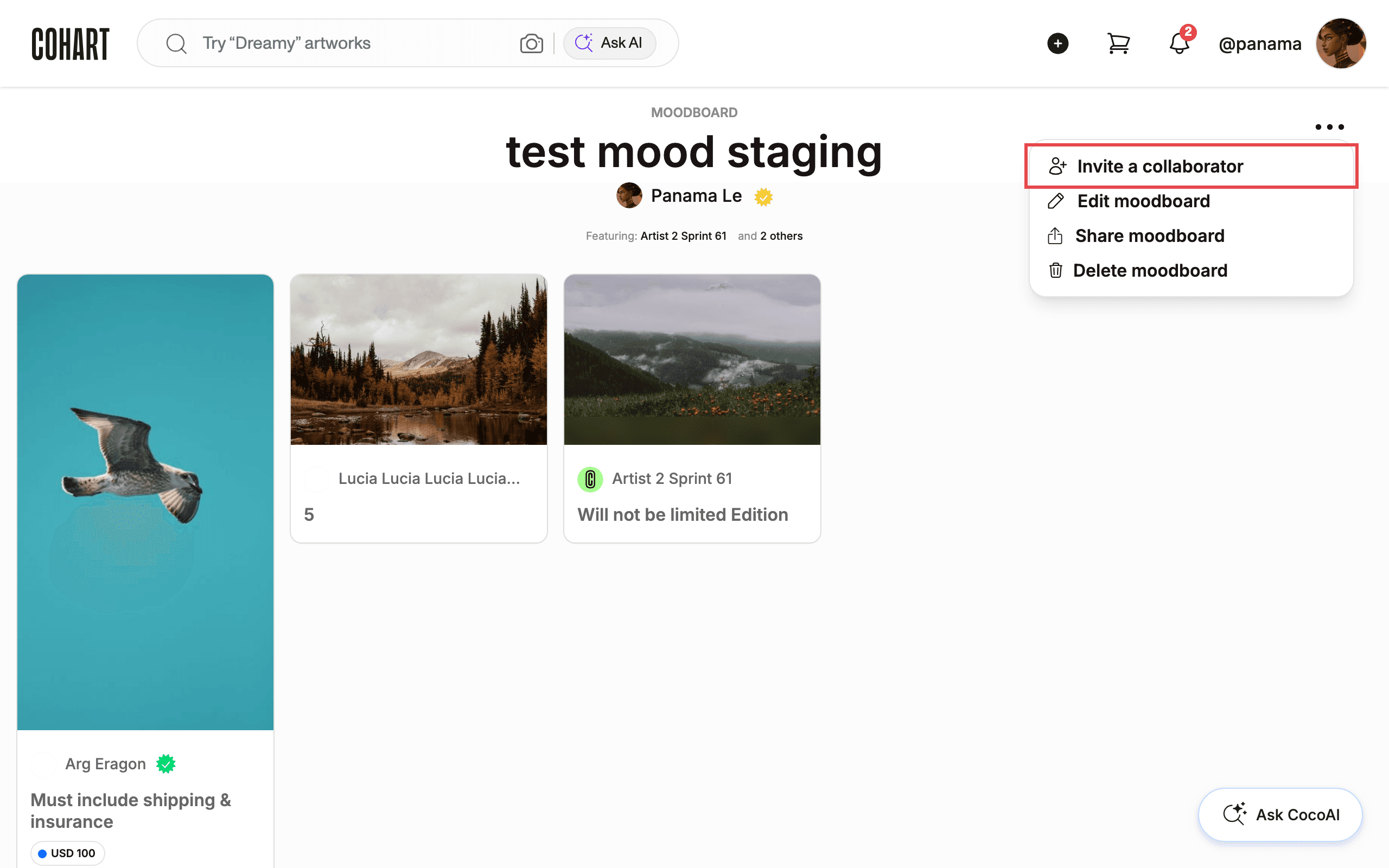
Open the ••• menu in the top-right corner of the board page. The menu lists Invite a collaborator, Edit moodboard, Share moodboard, and Delete moodboard. Click Invite a collaborator to let someone else add works to the board.
9. Edit a moodboard
Open the ••• menu and click Edit moodboard. The EDIT MOODBOARD view opens with your Moodboard name (up to 35 characters), Description (up to 90 characters), and Edit contents, where checked artworks stay in the board. Click Save to apply your changes, or Cancel to leave without saving.
10. Share a moodboard
Open the ••• menu in the top-right corner of the board page, then click Share moodboard to send the board to someone else.
11. Delete a moodboard
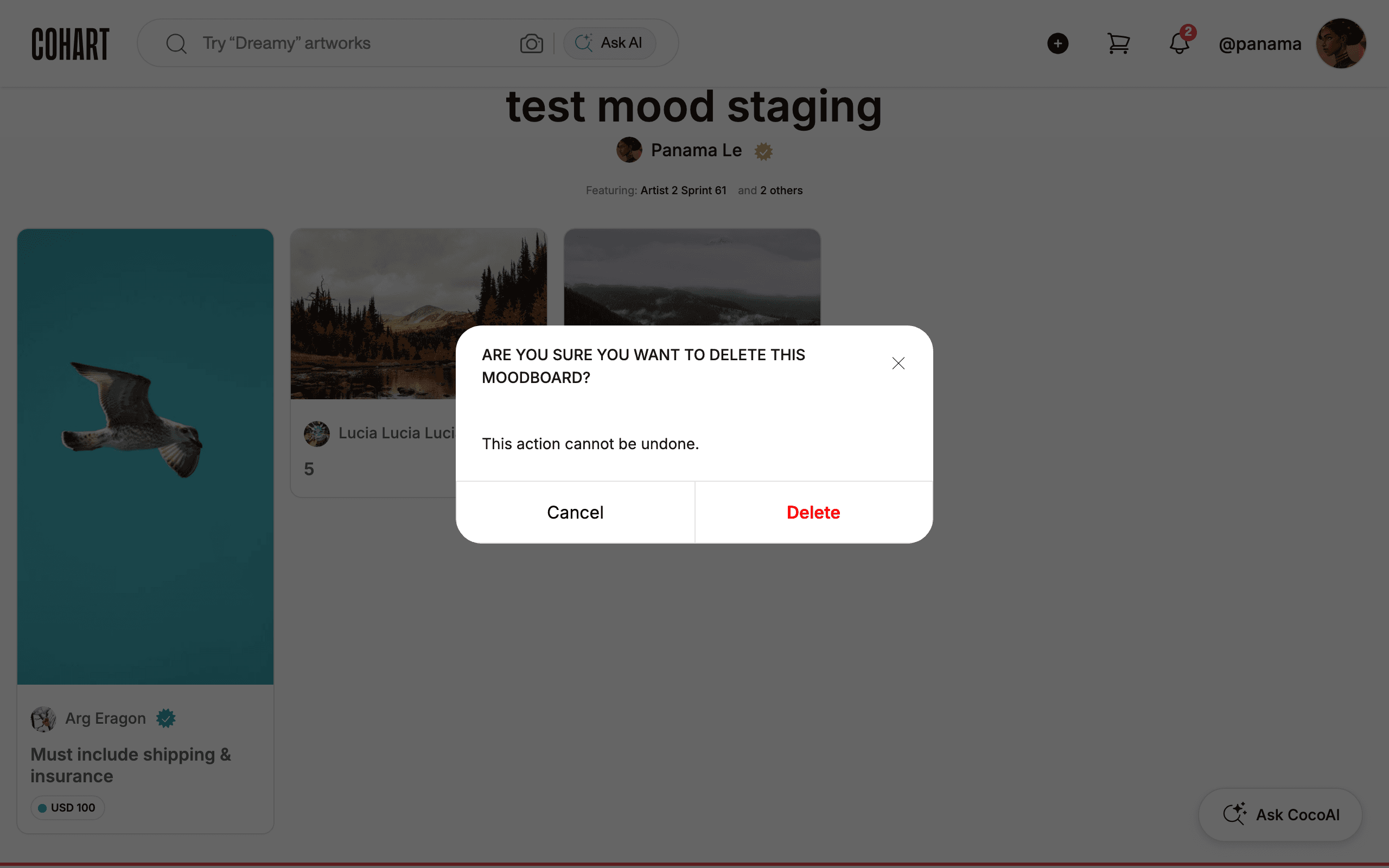
Open the ••• menu and click Delete moodboard. A dialog asks ARE YOU SURE YOU WANT TO DELETE THIS MOODBOARD? and warns This action cannot be undone. Click Cancel (or the X) to keep the board — never click Delete unless you mean to remove it permanently.
Tips
- Save first, then create. If you see no works to pick, that is normal. Open an artwork, click Save, then start a new board.
- The ••• menu is the single place for invite, edit, share, and delete. You do not need to leave the board page to manage it.
- Name is required. You need a name before the board can be saved. If you click Save without one, type a name and try again.
- Keep names short. Long titles get cut off on the card. Aim for under 25 letters.
- Private means private. Only the Private Moodboard has a PRIVATE label. New boards you make from it do not inherit that label automatically — check sharing before you send a link.
Troubleshooting
- Board list is empty → you have not saved any works yet → open an artwork, click Save, then start a new board.
- Clicking Invite a collaborator or Share moodboard shows no dialog → the action may not respond → reopen the board from Profile > MOODBOARDS and try again; if it persists, report it through Report Content & Feedback.
- Board will not open → temporary navigation issue → go back to Profile > MOODBOARDS and click again.
- Save does nothing → the name is missing → type a name in Moodboard name and try again.