How to Upload an Artwork
Overview
Uploading an artwork adds a single work to your Inventory with its images, details, price, and tags, building the catalog that powers everything you sell. It exists so every piece you sell is recorded once and properly — the catalog entry is what listings, invoices, sales records, and your public profile all draw from. It is for artists, and for galleries or advisors acting for managed artists, who want each piece recorded individually with full control over every field. Everything you enter lives in your Inventory first: uploads arrive private and stay that way until you list them, so nothing appears on your public profile, the Discover marketplace, or your link-in-bio page before you choose. The two-part form covers images and core details first, then artwork tags and optional video moments, saving automatically as you go with unfinished entries kept as DRAFT. When you finish, you will have one new artwork in your Inventory, ready to be listed, shared, or organized into folders.
Before you start
- A Cohart seller account (artist, gallery, or advisor). If you manage other artists, decide whose name goes in ARTIST NAME first — your own profile fills in automatically, with a Change option for managed artists.
- Your artwork files and facts ready: at least one image (GIF, PNG, JPG, JPEG, or HEIC, up to 20 MB each), plus title (required, up to 255 characters), description (up to 5,000 characters), year, dimensions and weight (pick
inorcm,lbsorkg), materials (for example “Oil on canvas”, up to 80 characters), and location via Select artwork location. - For works you will sell immediately: choosing For Sale makes YEAR, DIMENSIONS, WEIGHT, ARTWORK PRICE with currency, and QUANTITY AVAILABLE required, with optional Allow offers or Hide price from public view. The default Inquire to Purchase needs none of that.
- Optional extras: artwork tags such as VIBES (for example BOLD or MINIMALIST), VALUES (for example ENVIRONMENT), and MEDIUMS (for example PAINTING), plus a short video moment (MOV, MP4, or QT, up to 60 seconds and 100 MB).
- Expect a private result: the new work lands in Inventory unlisted until you list it, and leaving mid-way keeps an unfinished DRAFT you can reopen. For many works at once, choose Bulk upload from the Upload Artwork menu instead.
Steps
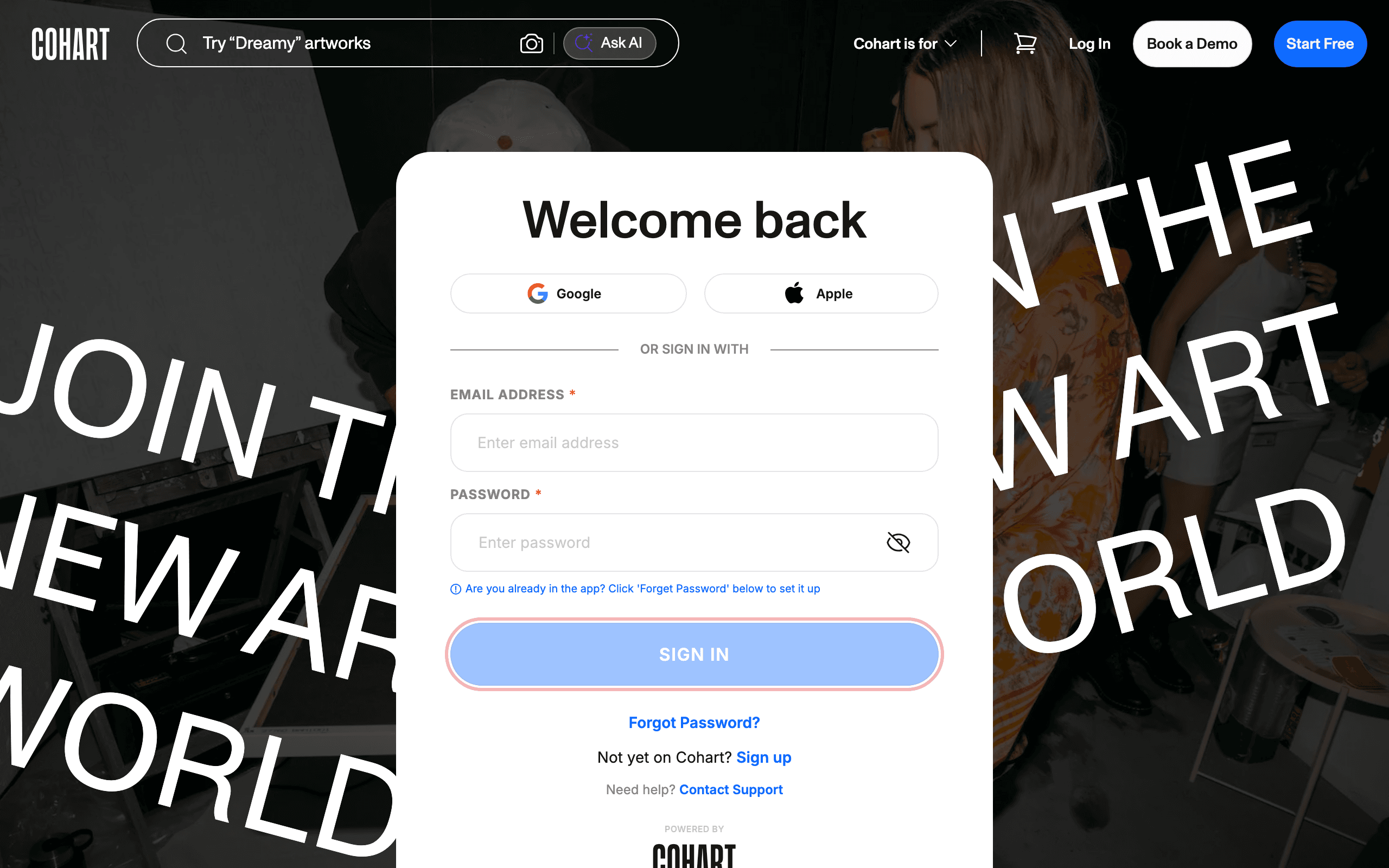
1. Sign in to Cohart
Sign in with your email address and password, or use Google or Apple.
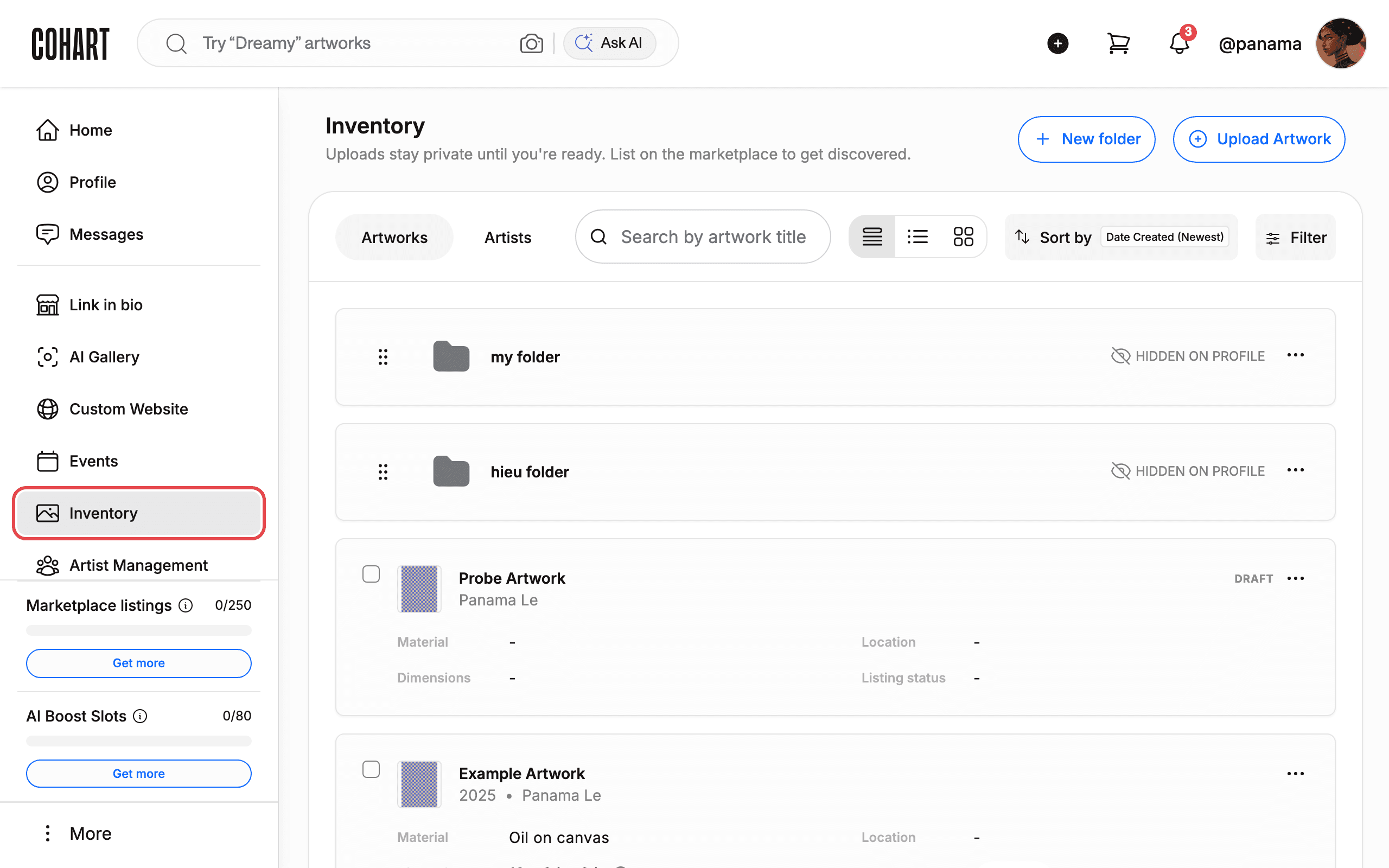
2. Open your Inventory page
After signing in you land on your Inventory page.
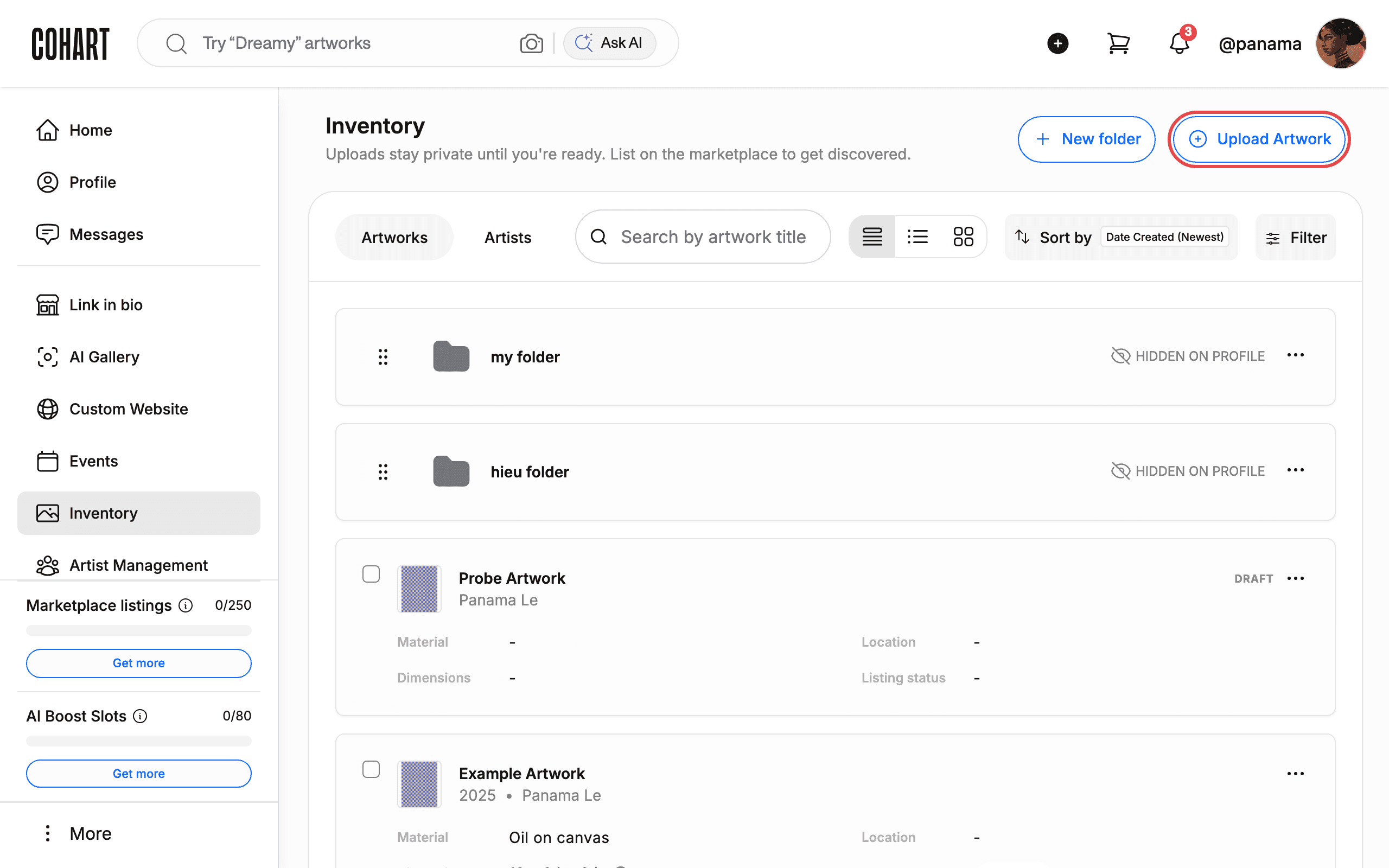
3. Click Upload Artwork
Click the Upload Artwork button at the top of the page.
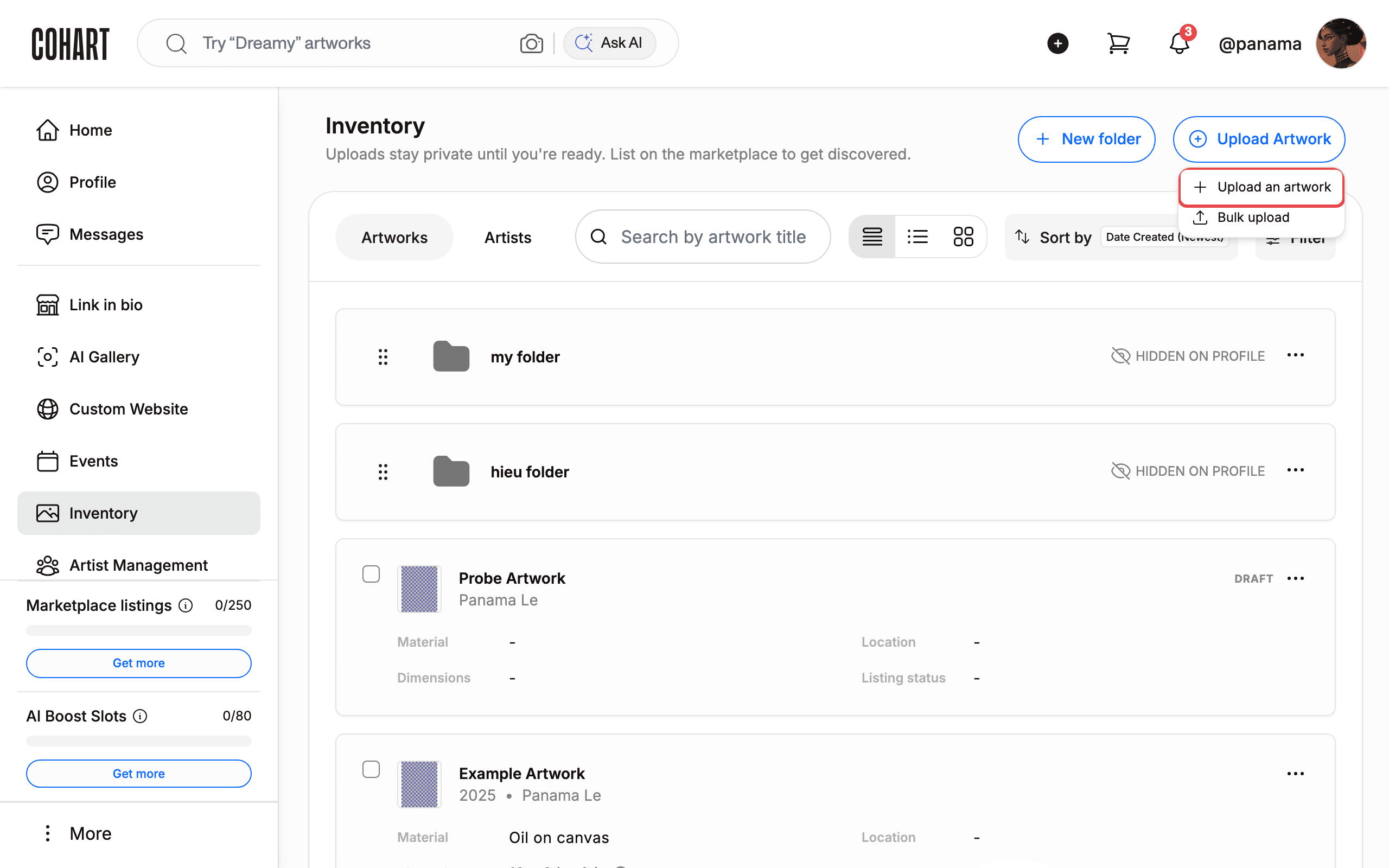
4. Choose Upload an artwork
In the menu that opens, choose Upload an artwork. To add many artworks at once, choose Bulk upload instead.
5. Confirm the artist name
Check the ARTIST NAME section. Your own profile is filled in automatically (“That’s you!”). If you manage other artists, click Change to select them.
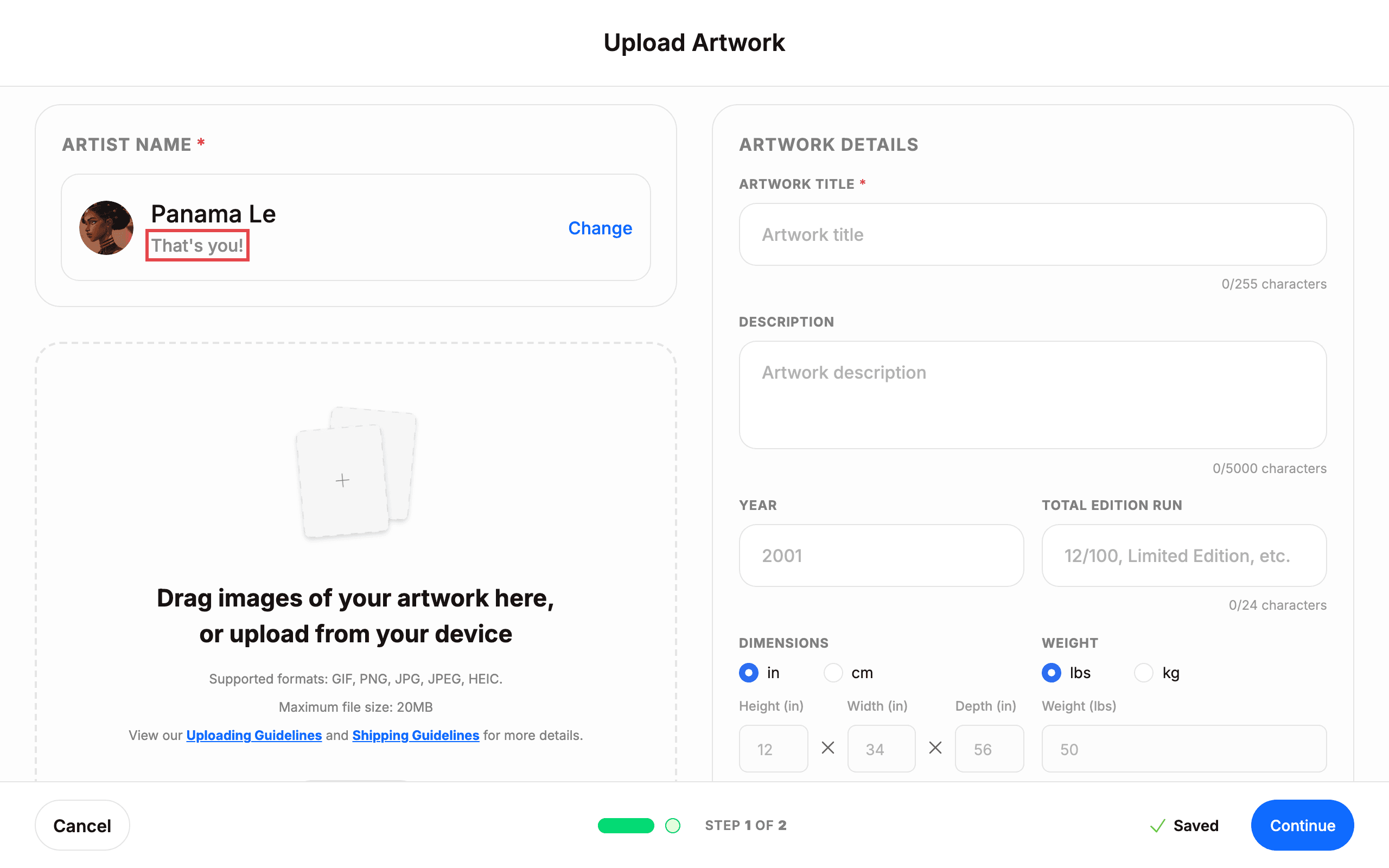
6. Add images of the artwork
Add images of the artwork: drag files onto the upload area or click it to pick files from your device.
- Supported formats: GIF, PNG, JPG, JPEG, HEIC.
- Maximum file size: 20 MB per image.
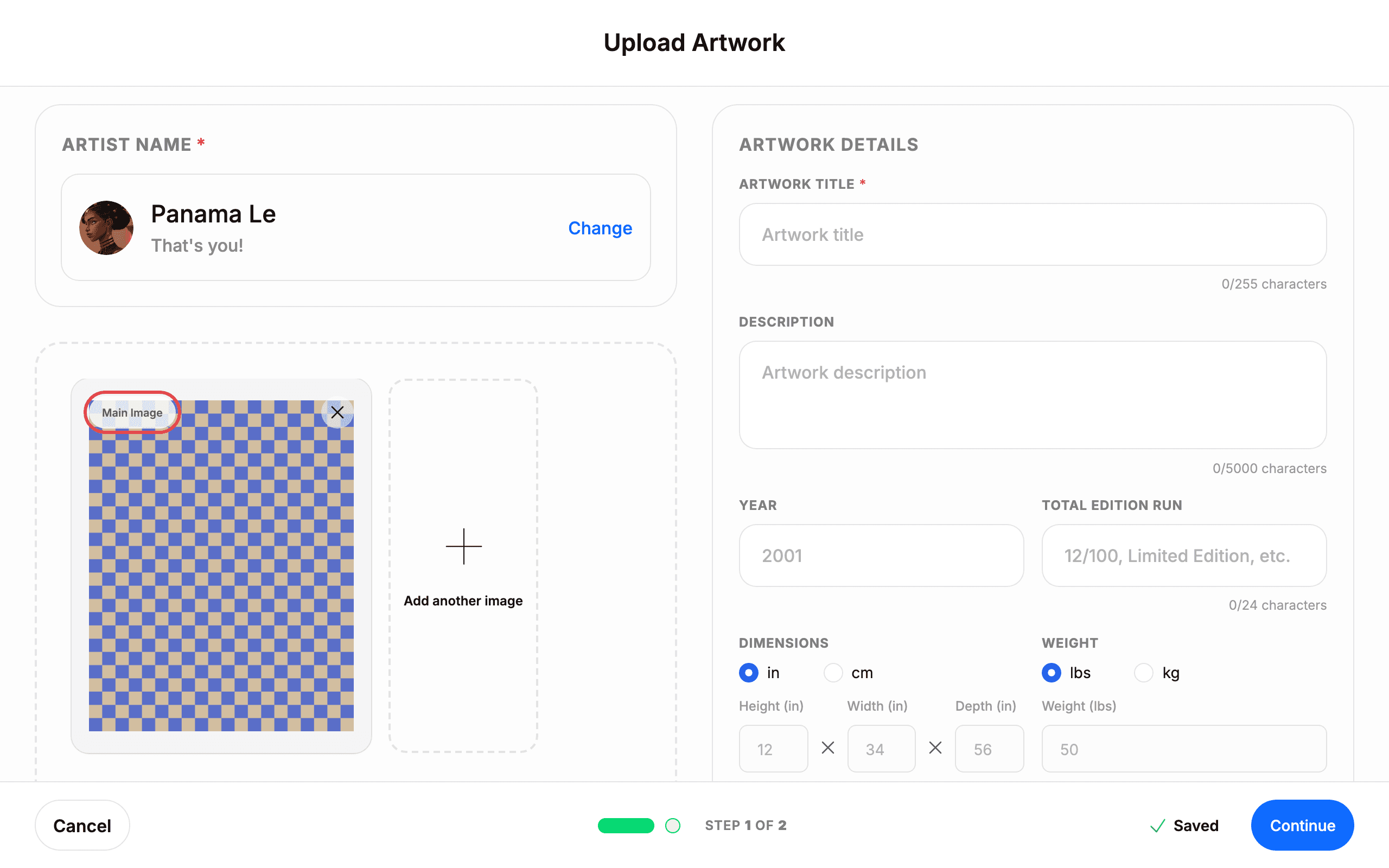
- The first image is marked Main Image. Use Add another image to add more, and the ✕ on a thumbnail to remove it.
- See Uploading Guidelines and Shipping Guidelines for details.
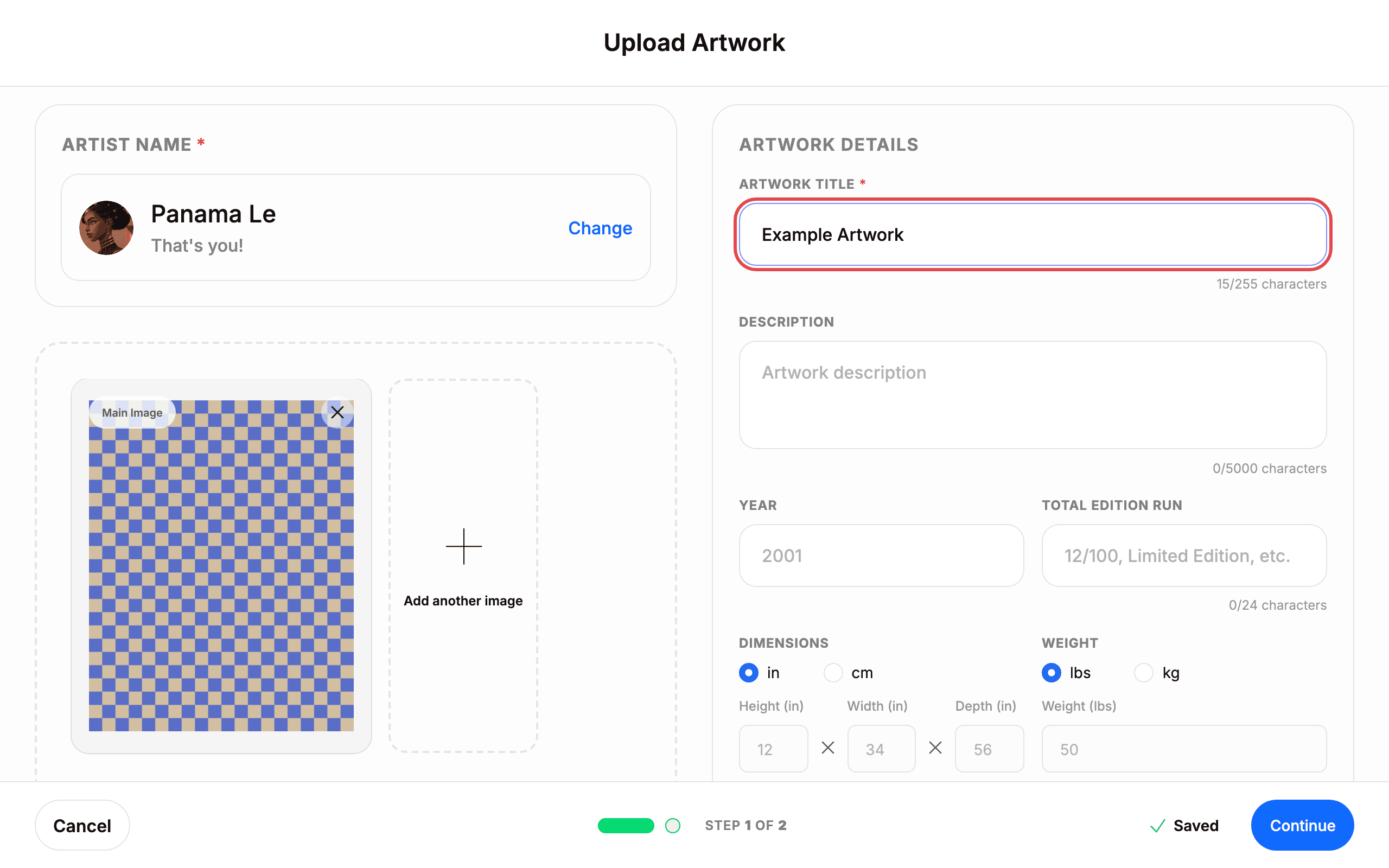
7. Fill in the artwork title
Fill in ARTWORK TITLE (required, up to 255 characters).
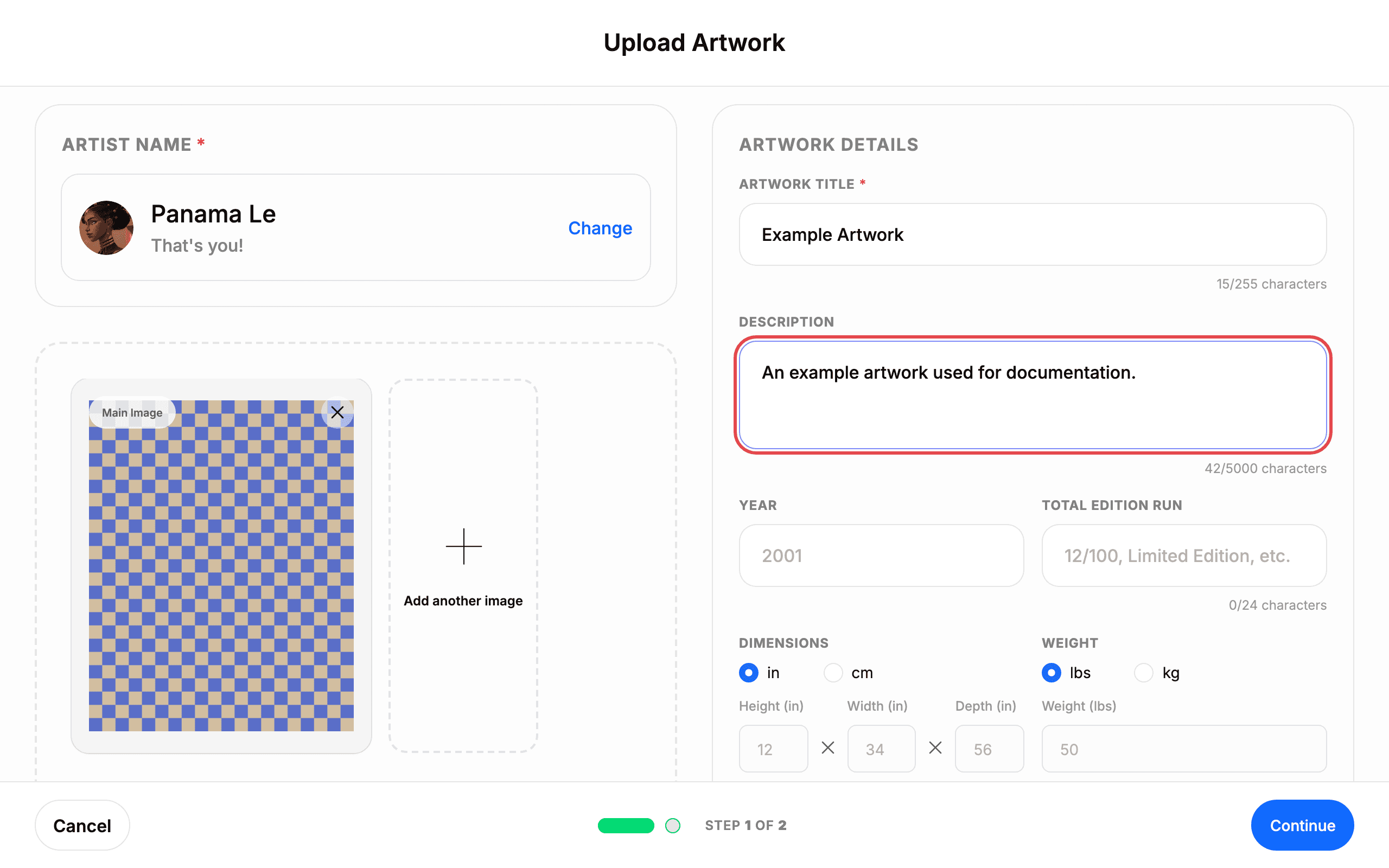
8. Fill in the description
Fill in DESCRIPTION (up to 5,000 characters).
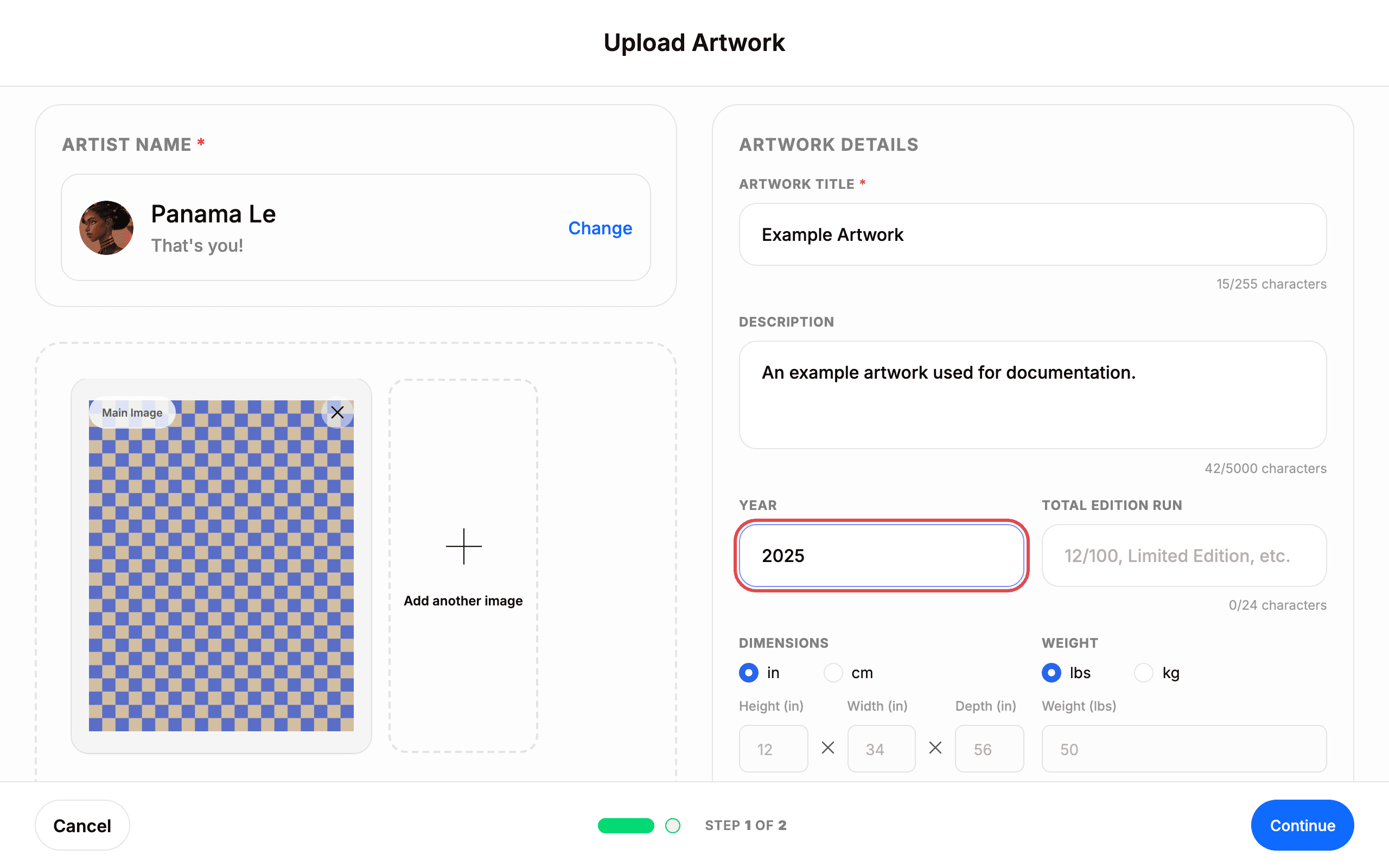
9. Enter the year and edition run
Enter the YEAR of creation. If the work is part of an edition, also fill in TOTAL EDITION RUN (up to 24 characters, for example “12/100”).
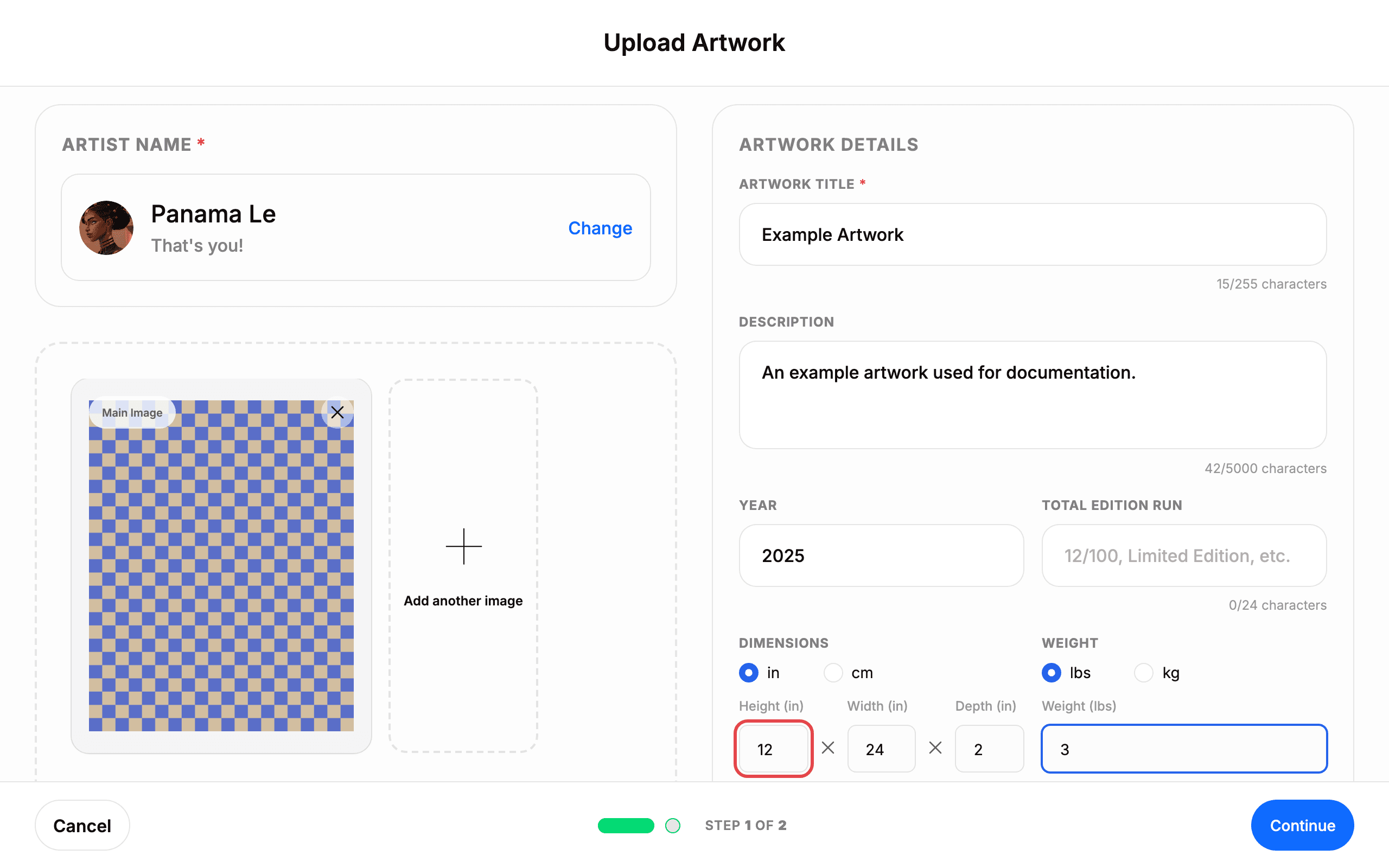
10. Enter dimensions and weight
Enter DIMENSIONS — pick in or cm, then fill Height, Width, and Depth. Enter WEIGHT and pick lbs or kg. Year, dimensions, and weight are required if you mark the artwork as For Sale.
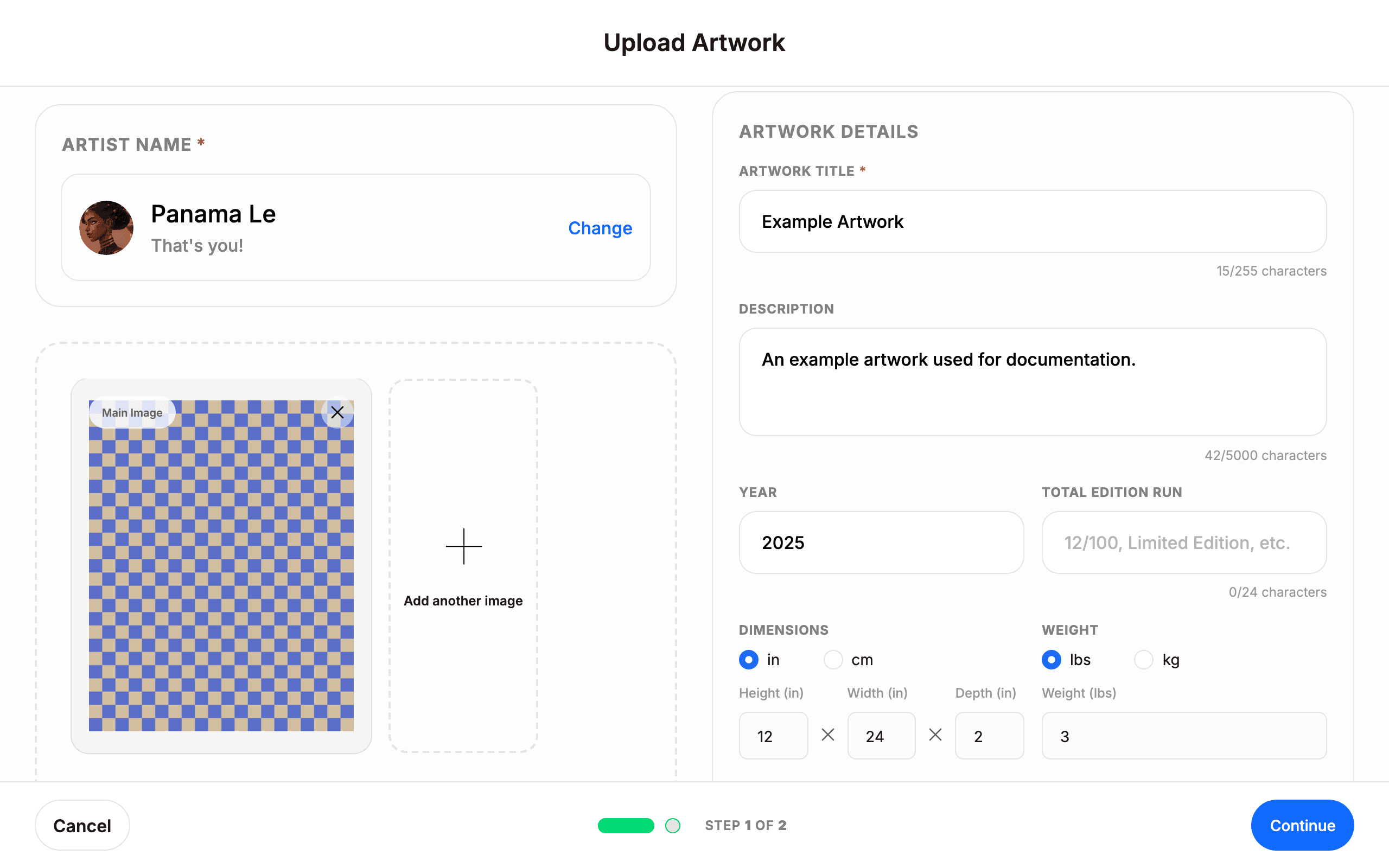
11. Add materials and artwork location
Fill in MATERIALS (up to 80 characters, for example “Oil on canvas”) and set the ARTWORK LOCATION via Select artwork location.
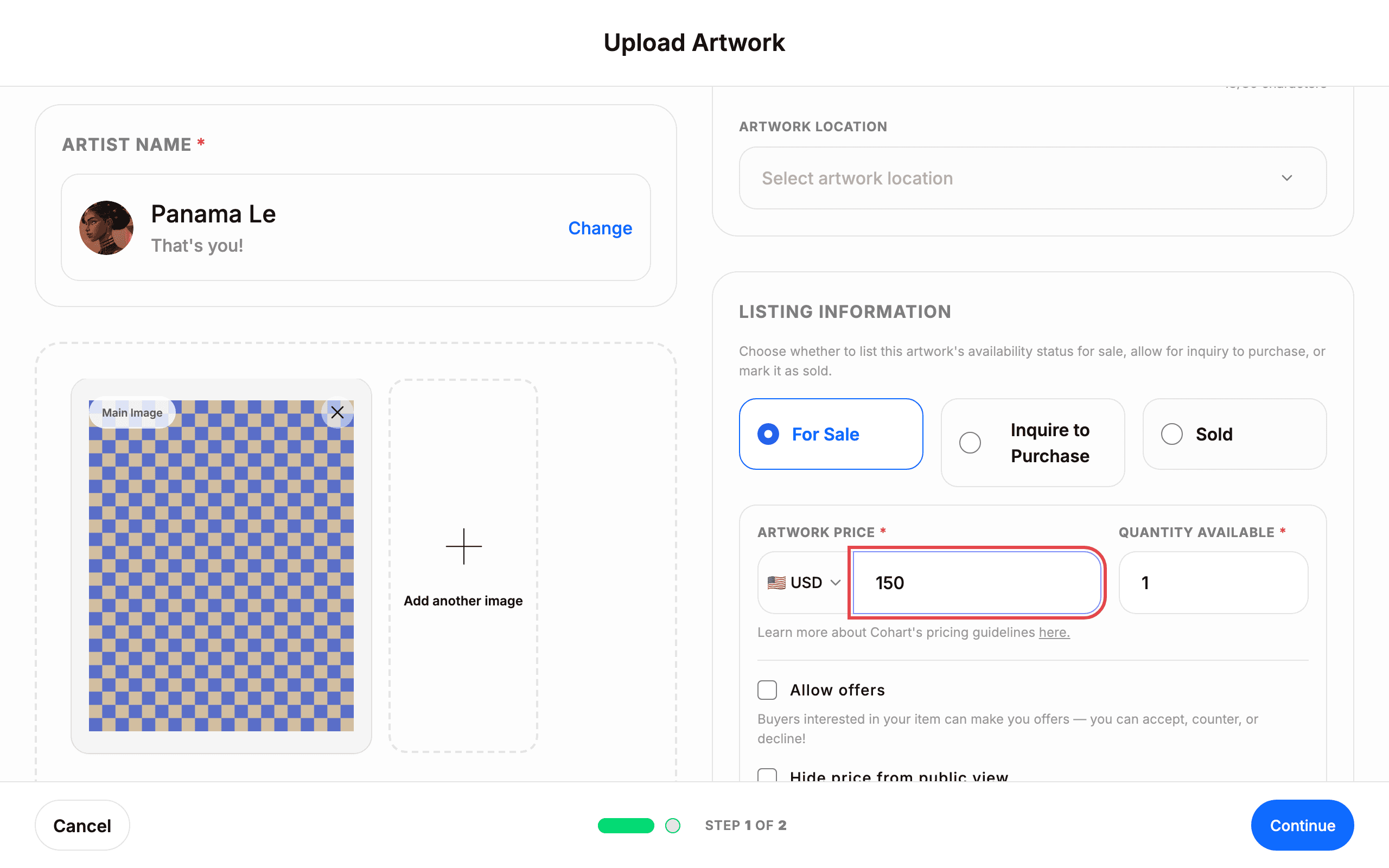
12. Set the listing information
Under LISTING INFORMATION, choose the availability status:
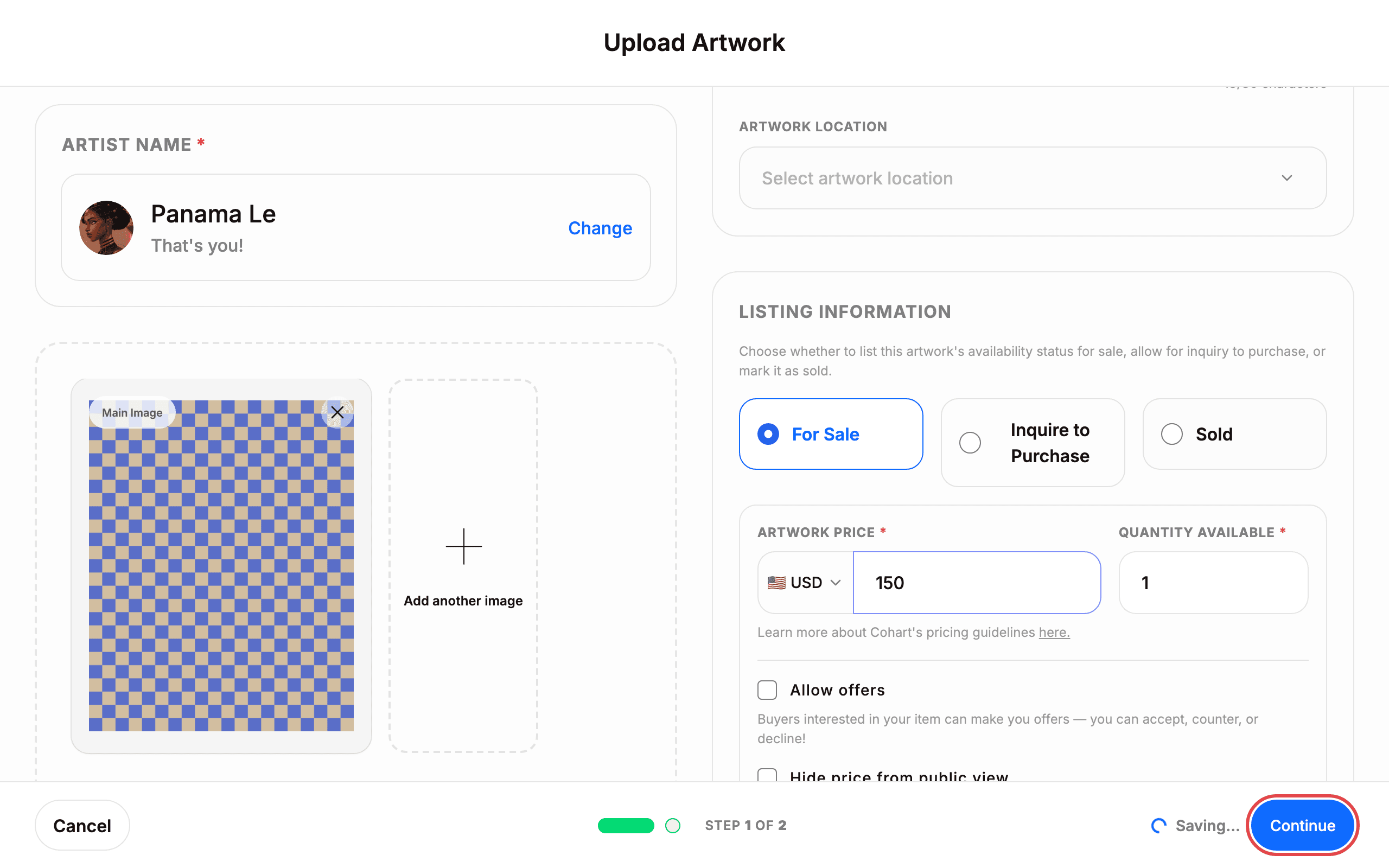
- For Sale — buyers can buy it directly. You must then fill in ARTWORK PRICE (pick the currency, for example USD) and QUANTITY AVAILABLE.
- Inquire to Purchase — selected by default. Buyers can ask about the artwork.
- Sold — the work is no longer available.
The price and quantity you set here appear on your public listing; check Hide price from public view if you prefer not to show the price. Optionally enable Allow offers.
13. Add tags and notes, then continue
Optionally add a CUSTOM TAG (Select artwork tags) and a CUSTOM DELIVERY NOTE for shipments. Then click Continue. Your entries are saved automatically — the footer shows ✓ Saved.
14. Select artwork tags
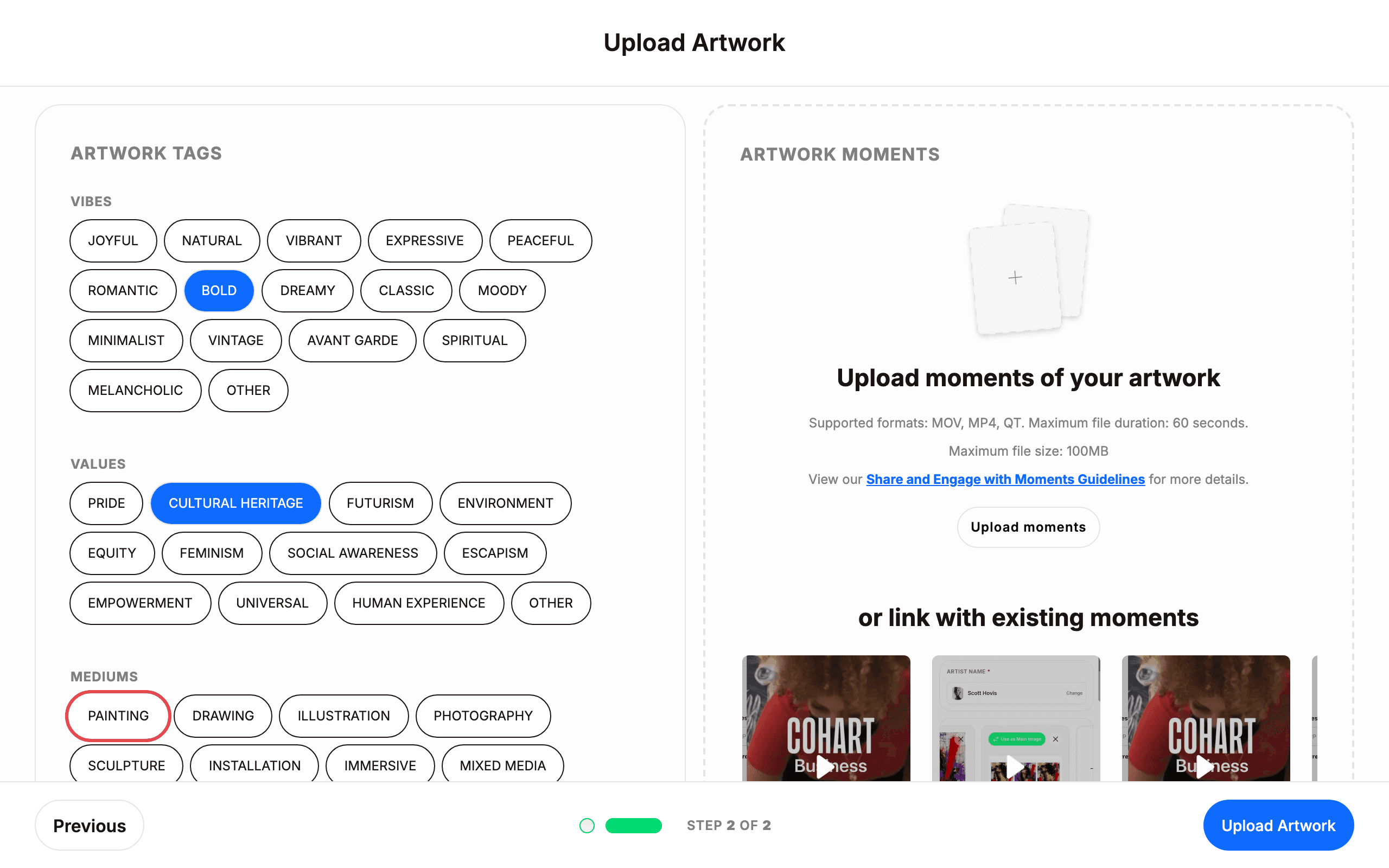
Select ARTWORK TAGS to help buyers find the work:
- VIBES — for example BOLD, MINIMALIST, PEACEFUL.
- VALUES — for example CULTURAL HERITAGE, ENVIRONMENT, FEMINISM.
- MEDIUMS — for example PAINTING, PHOTOGRAPHY, SCULPTURE. Click see more for the full list.
15. Optionally add artwork moments
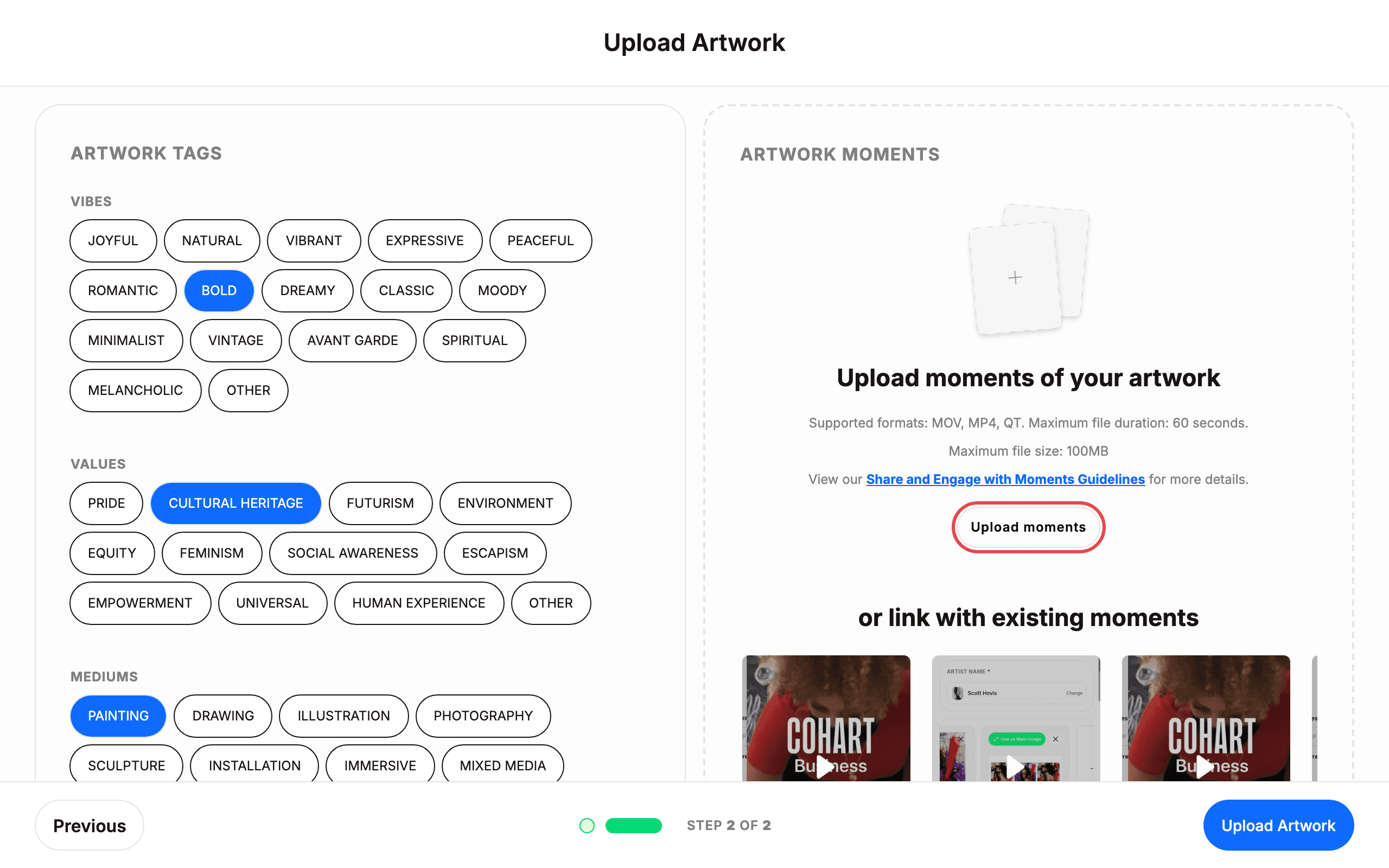
Optionally add video under ARTWORK MOMENTS: supported formats are MOV, MP4, QT; maximum duration 60 seconds; maximum size 100 MB. Click Upload moments, or link existing moments below.
16. Click Upload Artwork
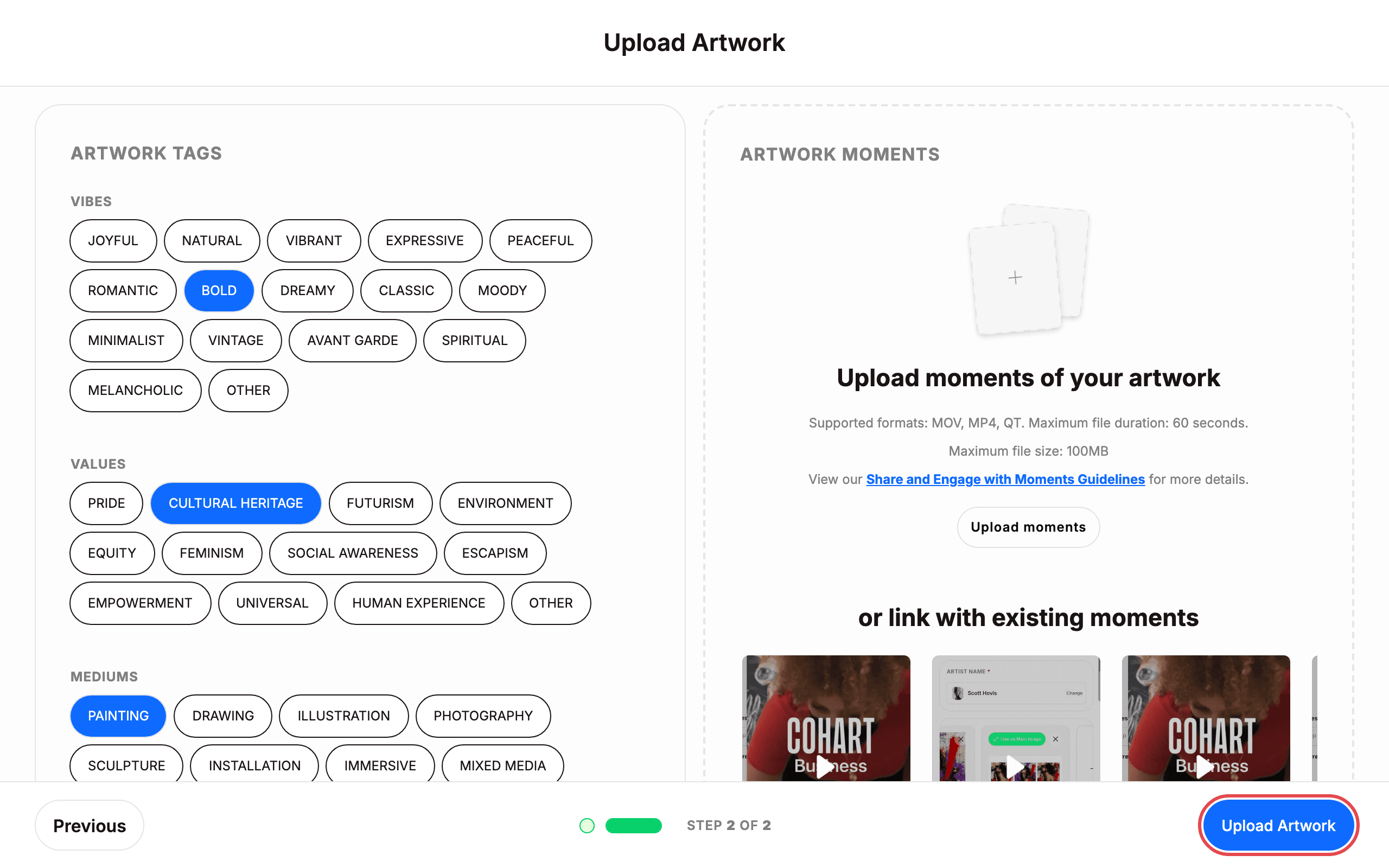
Click Upload Artwork. The upload is finished when you are returned to your Inventory page.
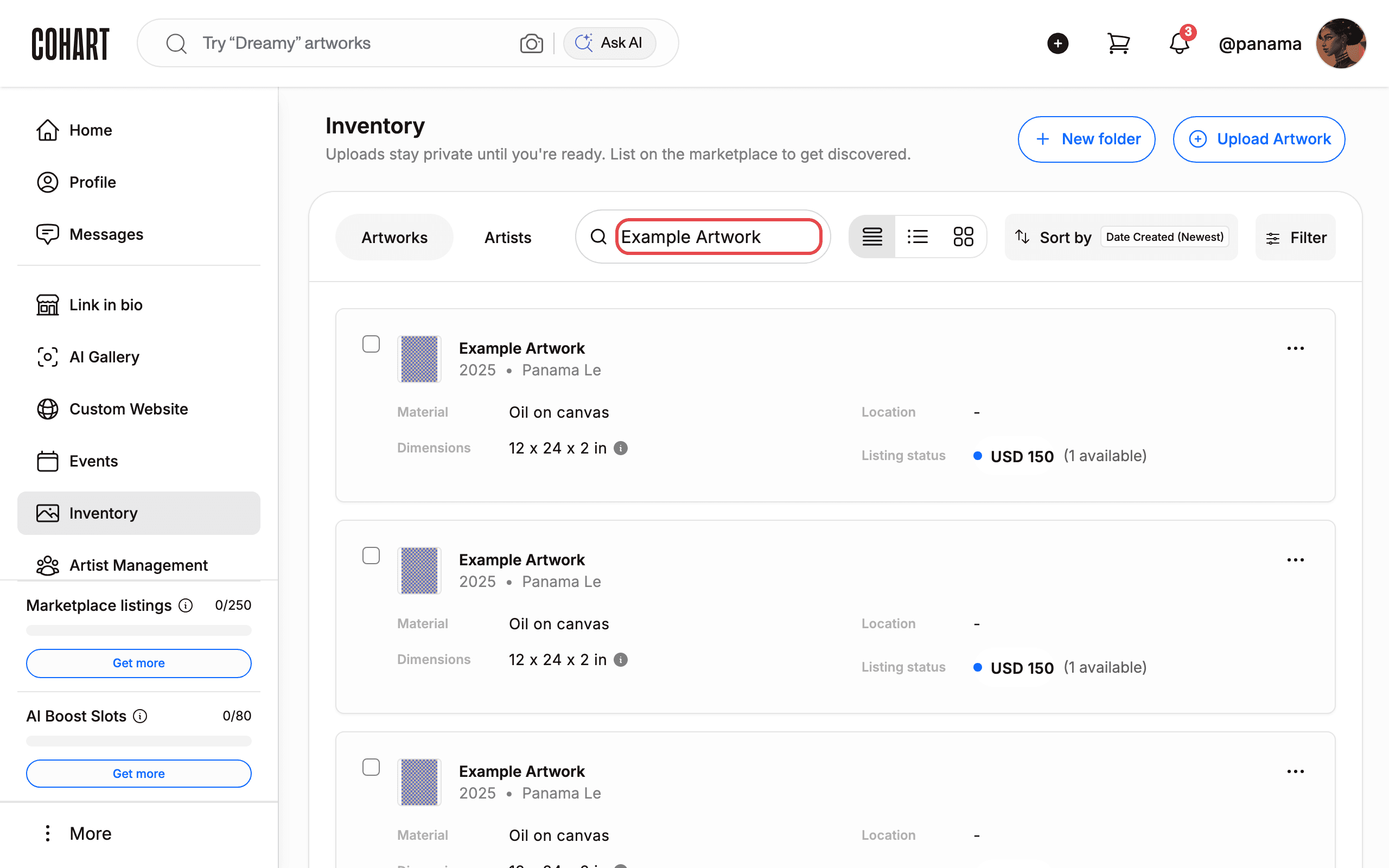
17. Verify the artwork in Inventory
Find the new artwork in your Inventory — use Search by artwork title to check it was added. It stays private until you list it on the marketplace.
Tips
- Your work is saved automatically: the form footer shows “Saving…” / “Saved”. If you leave mid-way, an unfinished copy remains in your Inventory marked DRAFT — open it any time to continue.
- The first image is marked Main Image. Use Add another image to add more, and the ✕ on a thumbnail to remove one.
- To add many artworks at once, use Bulk upload from the Upload Artwork menu instead of uploading one by one.
Troubleshooting
- “Height is required when artwork is for sale” → choosing For Sale makes YEAR, DIMENSIONS (height, width, depth), WEIGHT, ARTWORK PRICE, and QUANTITY AVAILABLE required → fill in the missing fields, then click Continue again.
- Image or video rejected on upload → images must be GIF, PNG, JPG, JPEG, or HEIC up to 20 MB, and moment videos must be MOV, MP4, or QT up to 60 seconds and 100 MB → re-save the file in a supported format and size, then try again.
- Cookie prompt covers the form buttons → the banner blocks clicks at the bottom of the form → accept or reject it first so you can reach the buttons.