How to Sign Up
Overview
Creating a free Cohart account gives you the identity behind tickets, RSVPs, purchases, and organizer tools. It exists so the platform can tie your activity — event attendance, orders, artwork, messages — to you and keep it retrievable across visits. It is for new users who do not have an account yet; if you already have one, sign in instead. Your details go into the Sign up form and, once verified, power your new account: your profile, your dashboard, and every ticket or RSVP you make. Email verification activates the account — until you click the confirmation link, you cannot log in. By the end of this guide you will hold a verified, active account and will be able to log in.
Before you start
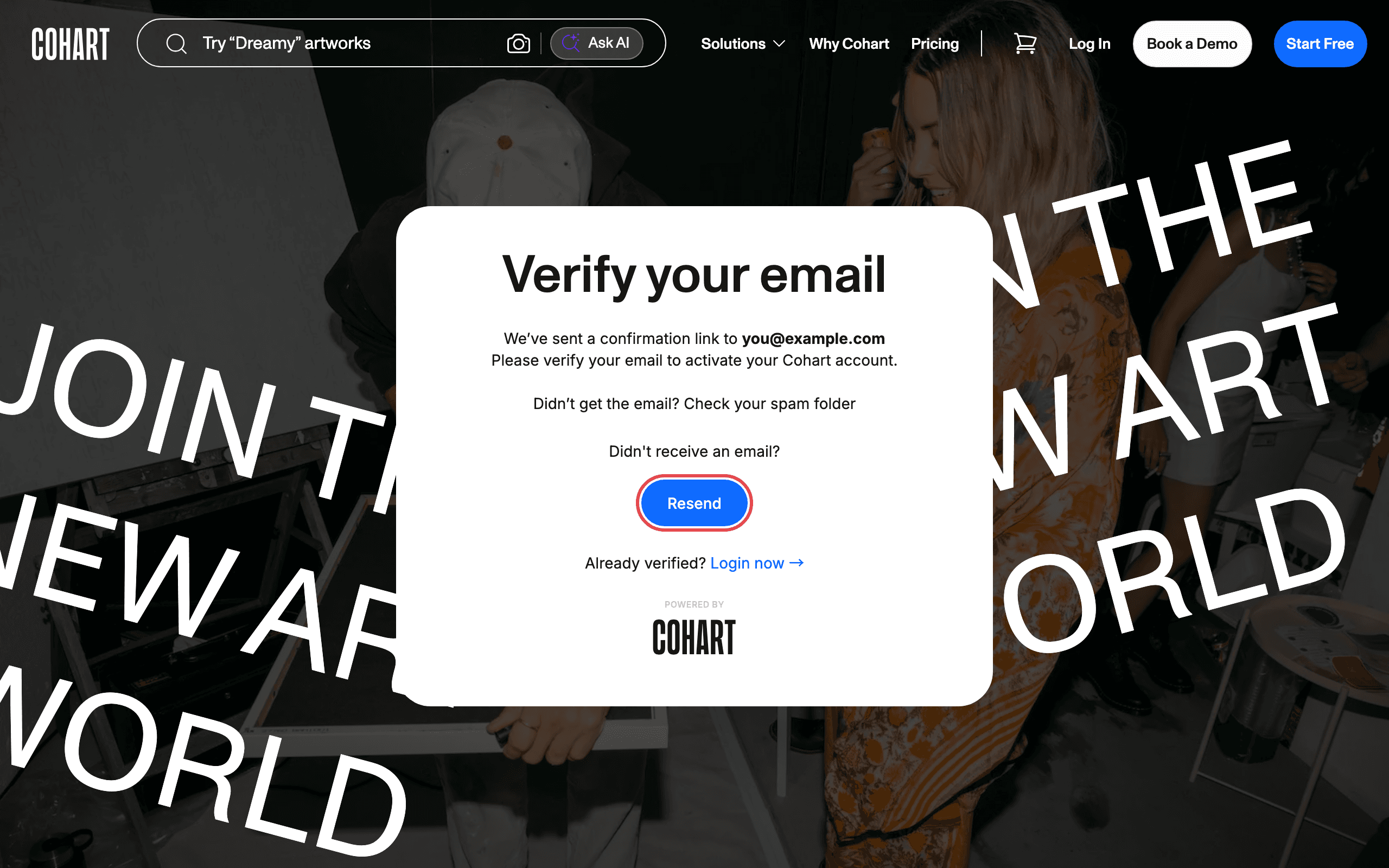
- An email inbox you can access — verification happens through a confirmation link sent to your address, so use an address you can open. If the email never arrives, check spam or click Resend on the Verify your email screen.
- Have ready: your FIRST NAME, EMAIL ADDRESS, and a PASSWORD of at least 6 characters. All three fields are required.
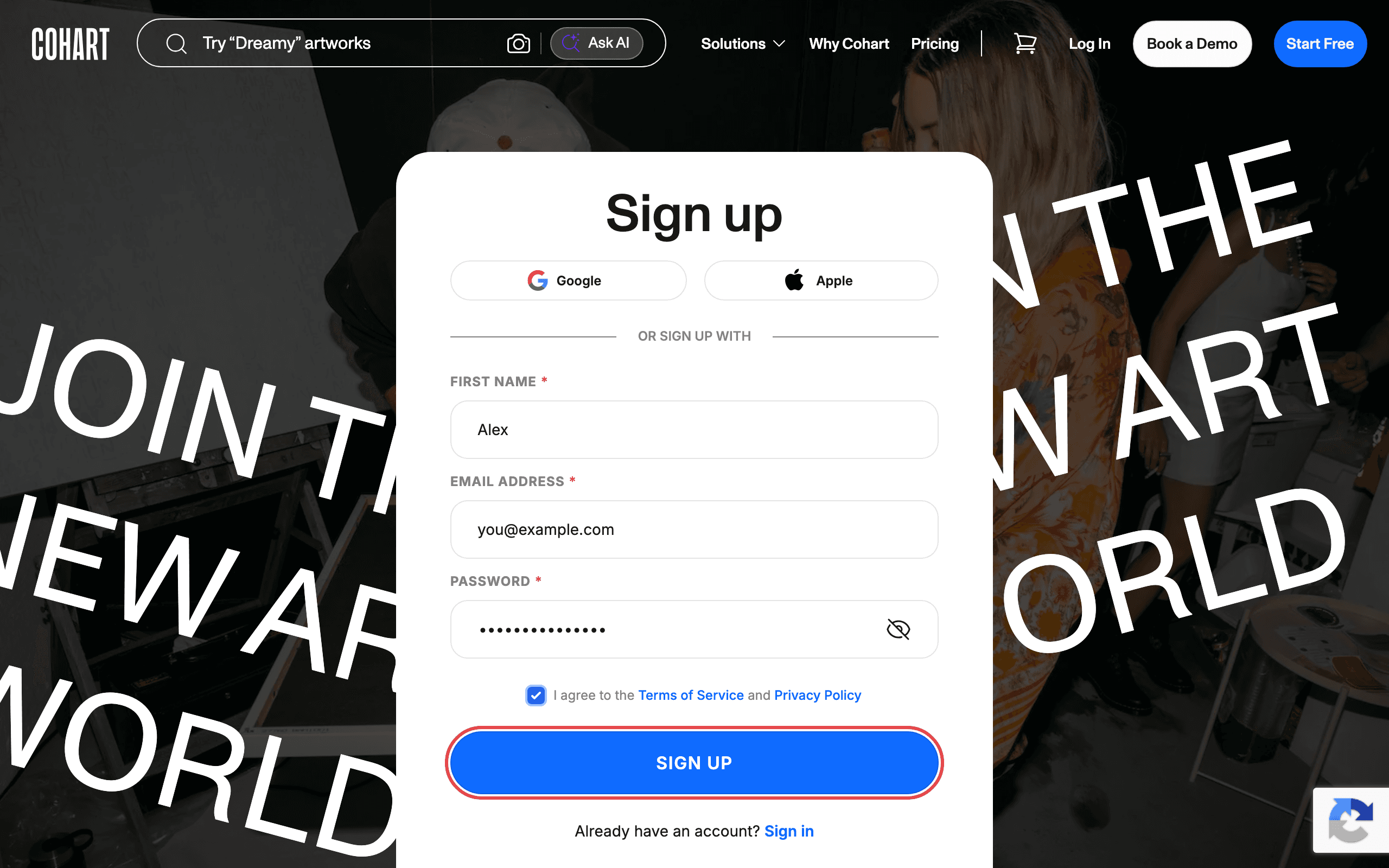
- You must check I agree to the Terms of Service and Privacy Policy — read both documents via their links first. Clicking SIGN UP with the box unchecked does nothing and shows no error.
- Alternatively, sign up in one click with Google or Apple instead of the email form under OR SIGN UP WITH; that needs the matching provider account.
- Allow Google’s reCAPTCHA check for the site (the badge in the bottom-right corner) — blocking it can break sign-up.
- Effect to expect: signing up creates the account but leaves it inactive until you verify your email; only then does Login now → get you in.
Steps
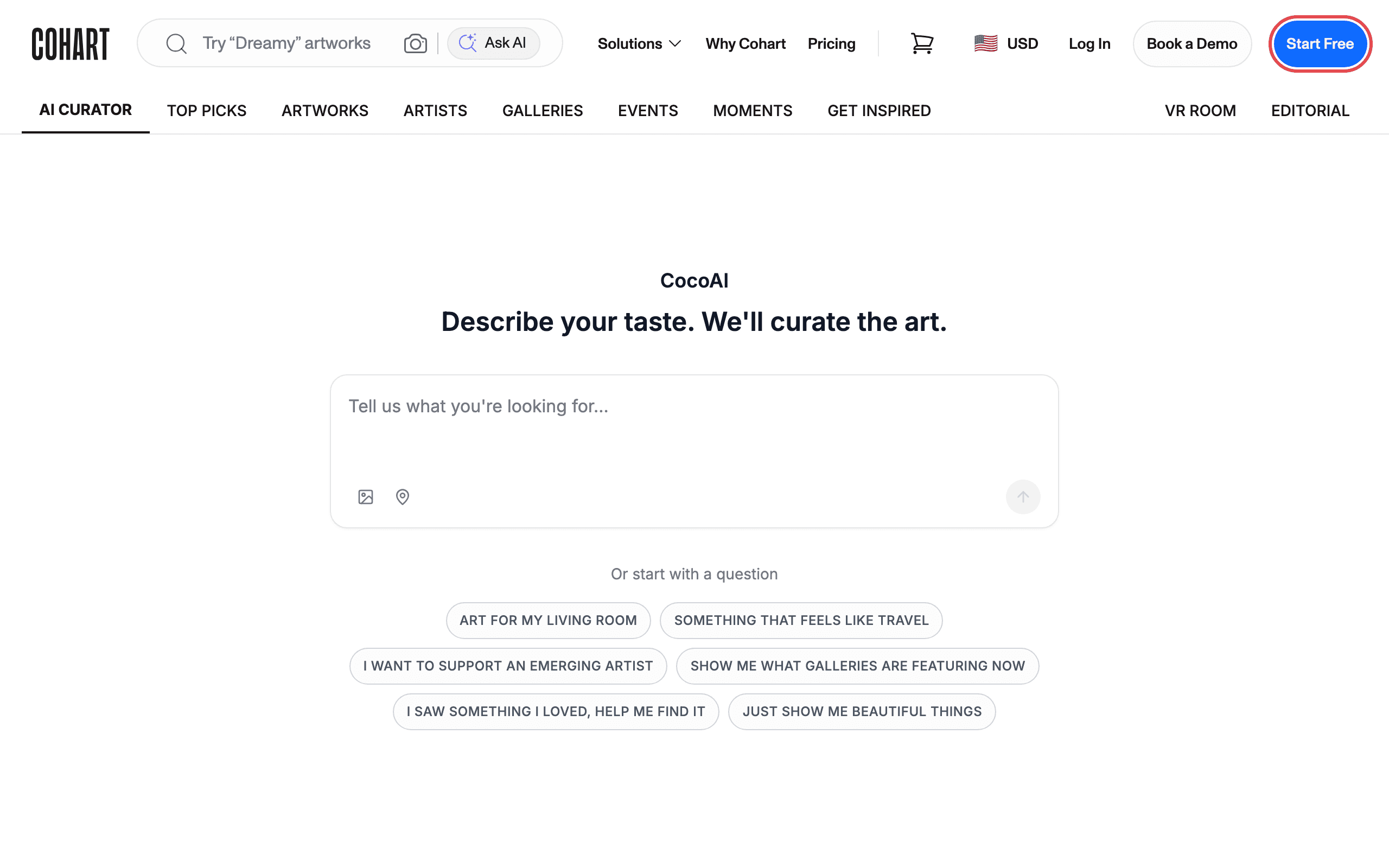
1. Open Cohart and click Start Free
Open the Cohart website. Click Start Free in the top-right corner of the header.
2. Choose how to sign up
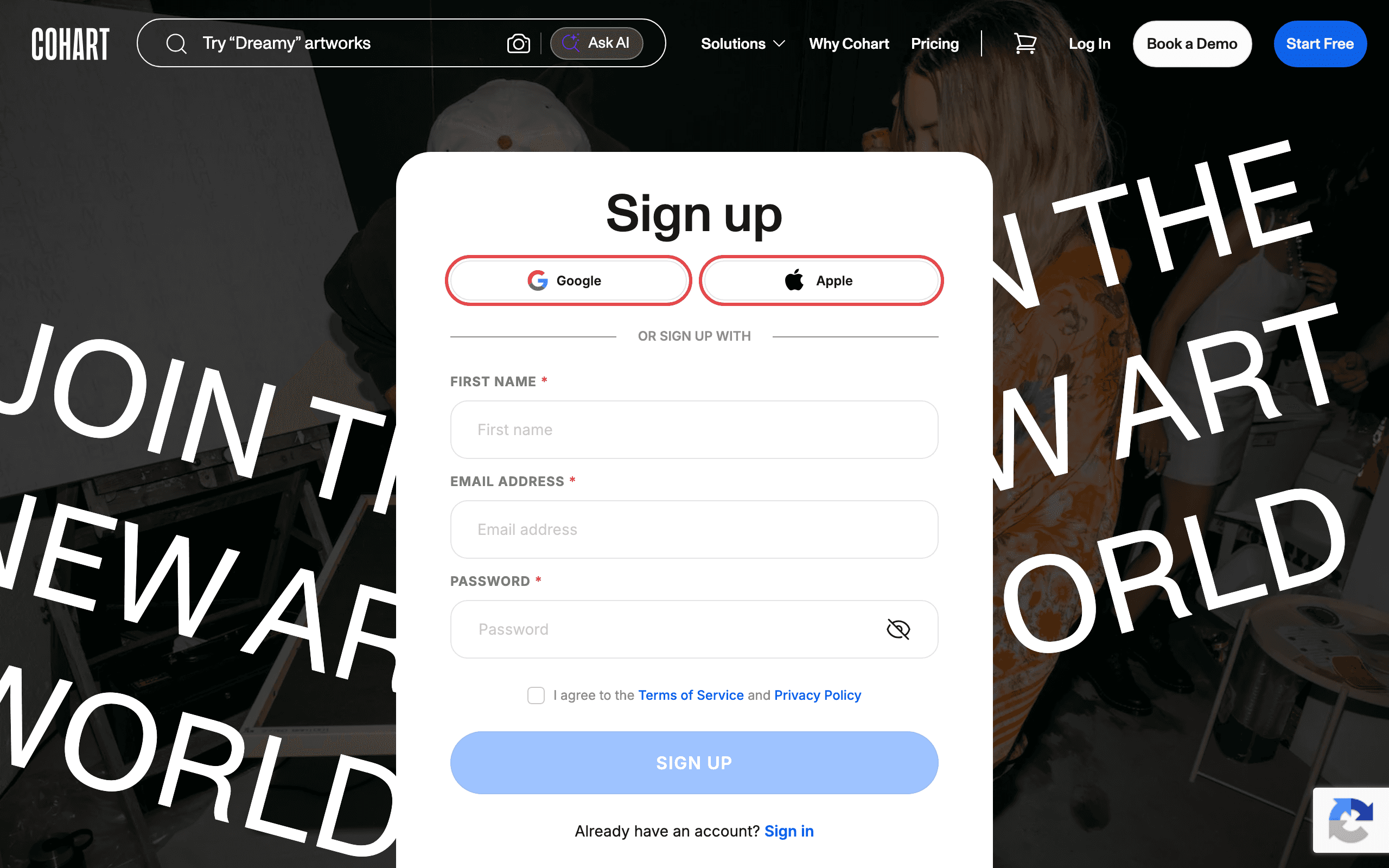
The Sign up page opens. You can sign up in one click with Google or Apple, or scroll to the form under OR SIGN UP WITH to use your email address. The steps below follow the email option.
If you already have an account, click Sign in at the bottom of the card instead.
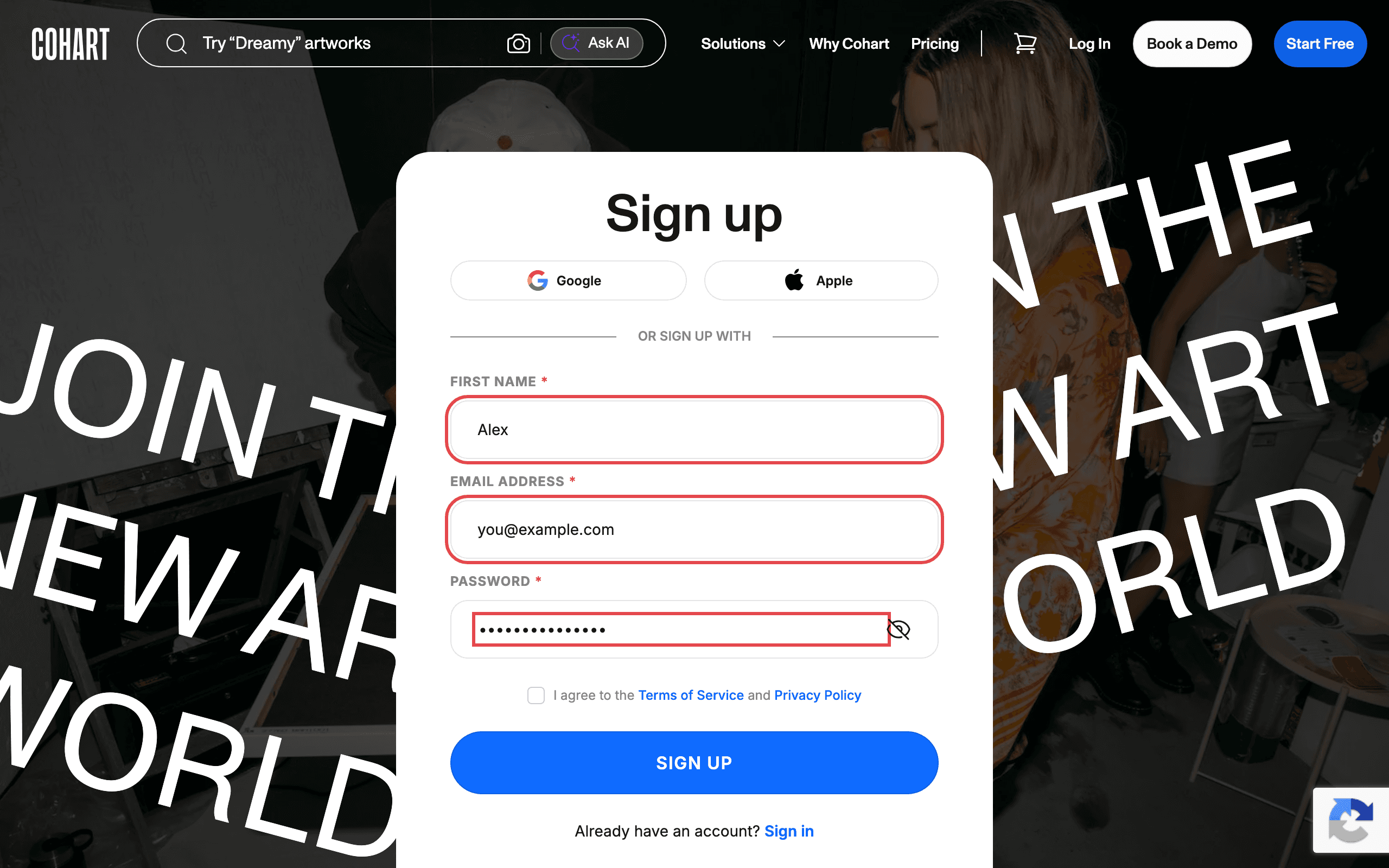
3. Fill in your details
Enter your FIRST NAME, EMAIL ADDRESS, and PASSWORD. All three fields are required. Your password must be at least 6 characters. Use the eye icon next to the password field to show what you typed.
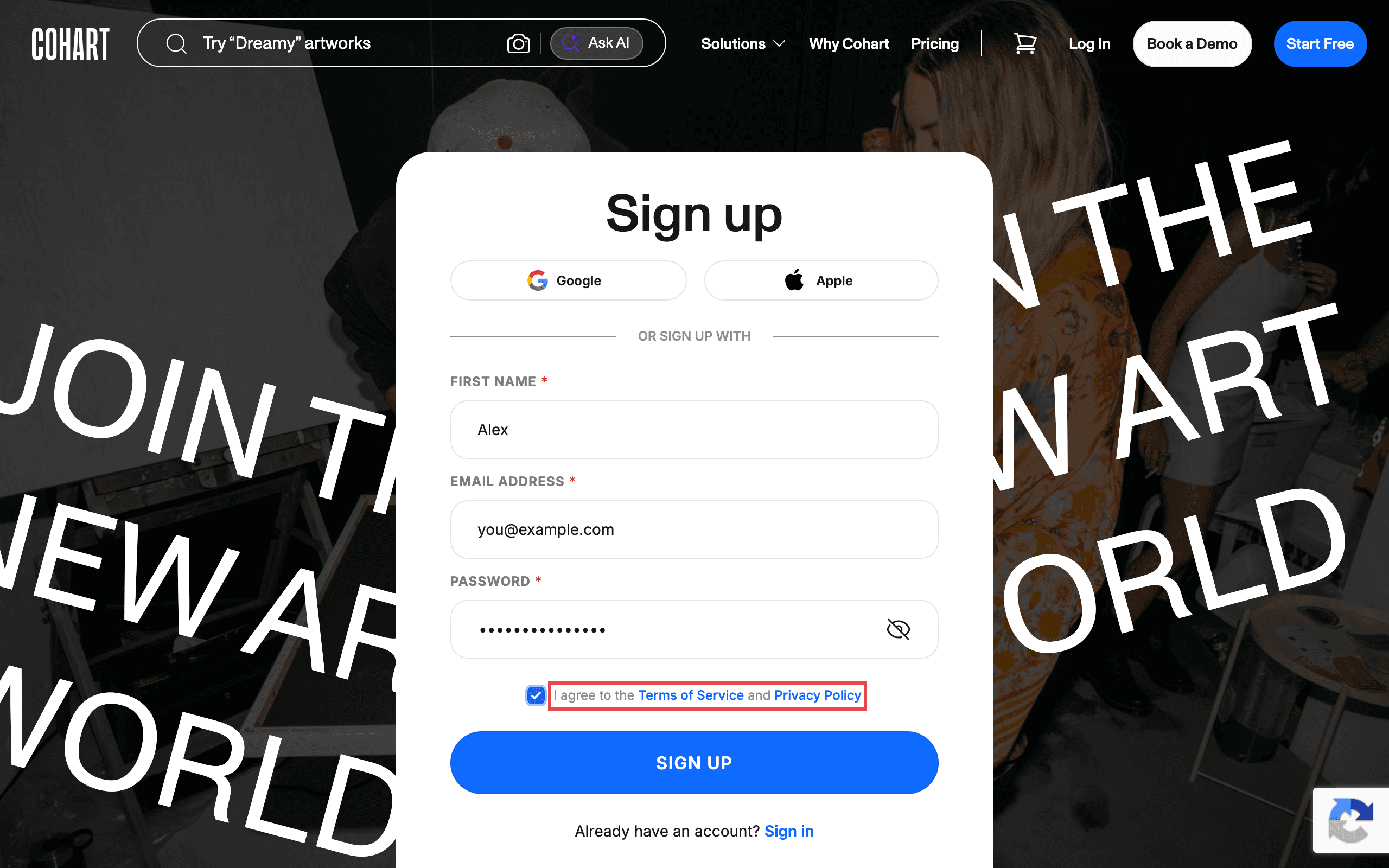
4. Agree to the terms
Check the box next to I agree to the Terms of Service and Privacy Policy. Click either link to read the documents first.
5. Click SIGN UP
Click the blue SIGN UP button.
6. Verify your email
Cohart shows a Verify your email screen: “We’ve sent a confirmation link to your email address. Please verify your email to activate your Cohart account.” Open the email and click the confirmation link. Once verified, click Login now → on this screen to log in.
Tips
- You can sign up in one click with Google or Apple instead of using the email form under OR SIGN UP WITH.
- Use the eye icon next to the password field to show what you typed before submitting.
- Click the Terms of Service and Privacy Policy links to read the documents before checking the agreement box.
Troubleshooting
- Message “Password is too short! Minimum 6 characters” appears under the password field after you click SIGN UP → your password has fewer than 6 characters → enter a password with at least 6 characters and try again.
- Message “Email address already in use” appears → an account already exists for that address → click Sign in below the form (or Log In in the header) instead.
- Nothing happens when you click SIGN UP → the I agree to the Terms of Service and Privacy Policy box is unchecked, and the page shows no error in that case → check the box, then click SIGN UP again.
- Verification email never arrives → it may be in spam → check your spam folder for the confirmation email, then click Resend if it is not there.
- You cannot log in right after signing up → the account is not active until email verification → open the confirmation email, click the link, then click Login now →.
- Sign-up is blocked or the page misbehaves → your browser or an extension is blocking Google’s reCAPTCHA check (the badge in the bottom-right corner) → allow the check for the site before signing up.