How to Manage and Share Private Views
Overview
Private Views are curated artwork collections you edit, preview, and share with collectors over time. They exist so you can keep one presentation current — details, artworks, and status — and invite the right people to it by email instead of rebuilding the selection each time. They are for sellers such as artists, galleries, and advisors who manage ongoing collector relationships. Your changes affect live collector-facing pages: the Active toggle and Publish view control whether a view is ACTIVE, and the Invite to Private View dialog emails the contacts, groups, or new addresses you select. Invited collectors see the view name, status, artworks, and prices, while views others send you appear under Shared with Me. By the end of this guide you will have opened Private Views, edited a view’s details and artworks, previewed it, invited collectors by email, and saved or published your changes.
Before you start
- A Cohart seller or advisor account with Private Views in the sidebar. After sign-in you land on Inventory, then you open Private Views from there.
- At least one private view to manage. To make your first one, follow How to Create a Private View, then return here to edit, preview, and invite.
- Invitees ready before you open the invite dialog: contact emails, groups, Cohart users, or new email addresses. The dialog merges overlapping contacts and groups so each invitee receives one email, and it shows an estimated recipient count to review before you click Send.
- Know what writes data before you click. Save and Publish view store your edits, duplicate and delete change your collection permanently, and Send emails real collectors, so review the recipient list before you send.
Steps
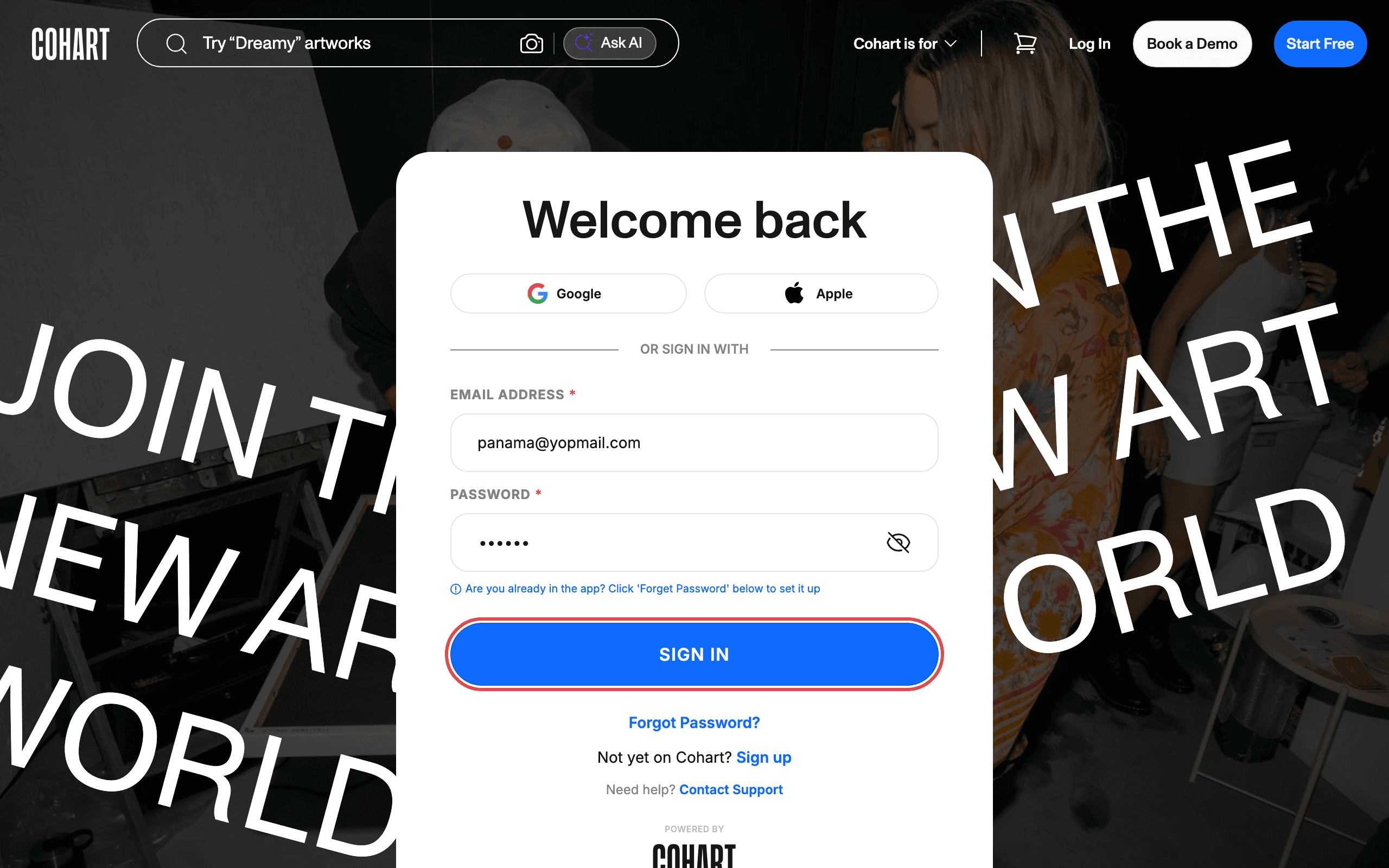
1. Sign in to Cohart
Sign in with your email address and password, or use Google or Apple.
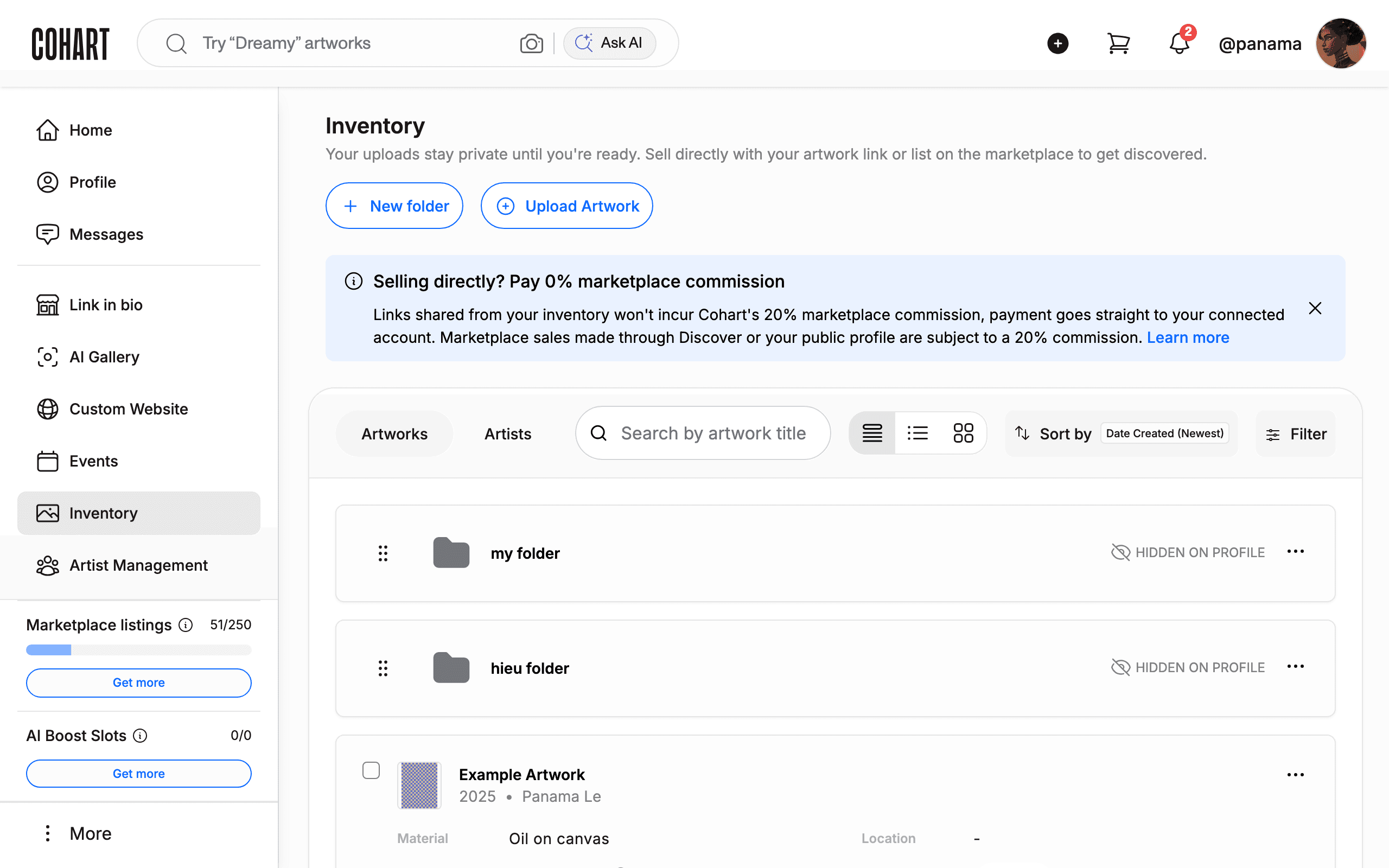
2. Open Private Views from the sidebar
After signing in, you land on Inventory. In the left sidebar, click Private Views.
The sidebar also offers Home, Profile, Messages, Link in bio, AI Gallery, Custom Website, Events, Artist Management, Contact Management, Marketing Email, Promotions, Refer & earn, Artwork Views, Manage Plan, and Financial Accounts.
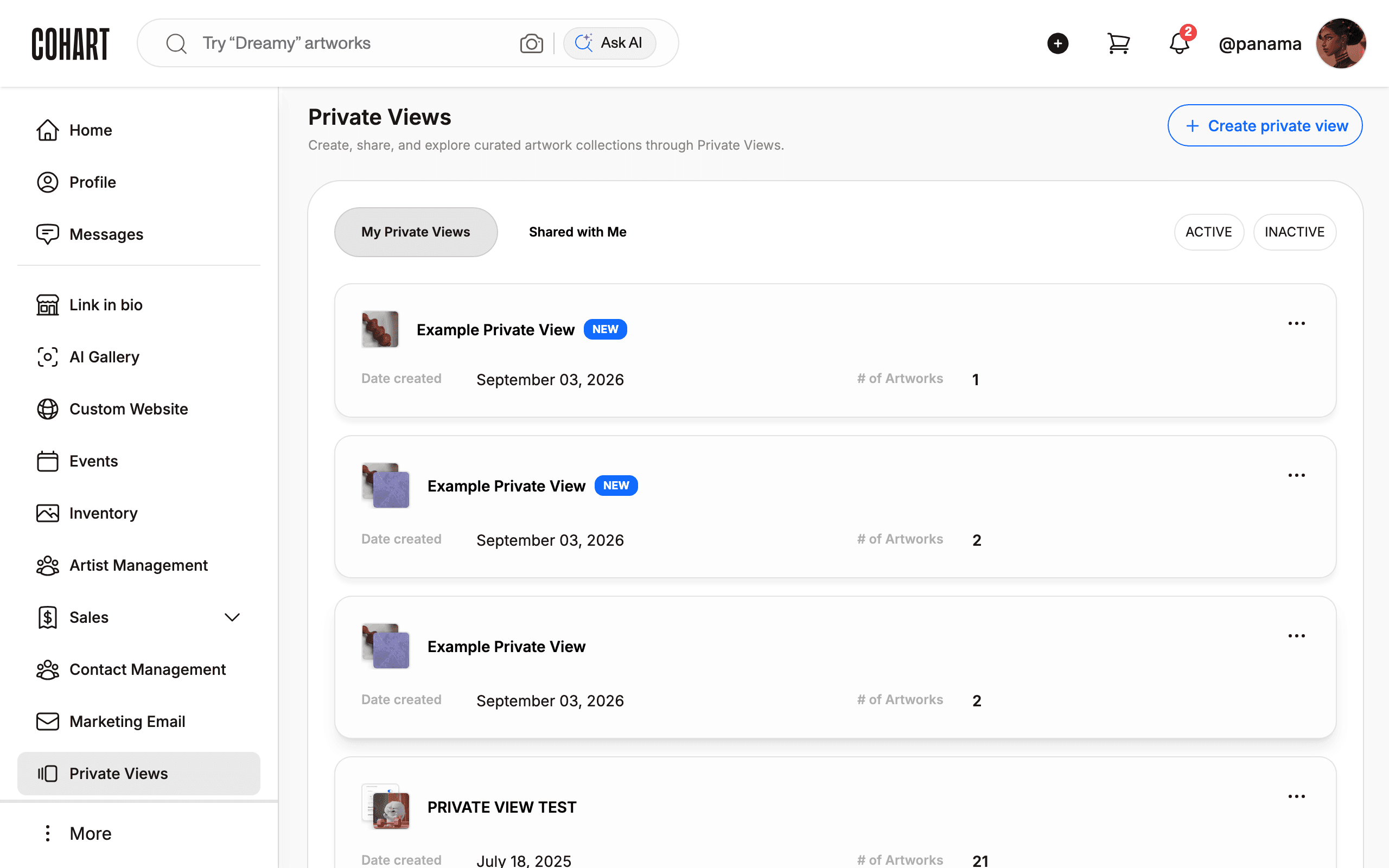
3. Review My Private Views
Read the Private Views page. Stay on My Private Views with ACTIVE selected. Each card shows Date created and # of Artworks. Find the view you want to manage.
The page says Create, share, and explore curated artwork collections through Private Views. To start a new view, click Create private view. Use ACTIVE and INACTIVE to filter by status. Click Shared with Me to see views others sent you. Use the page numbers at the bottom to browse more views.
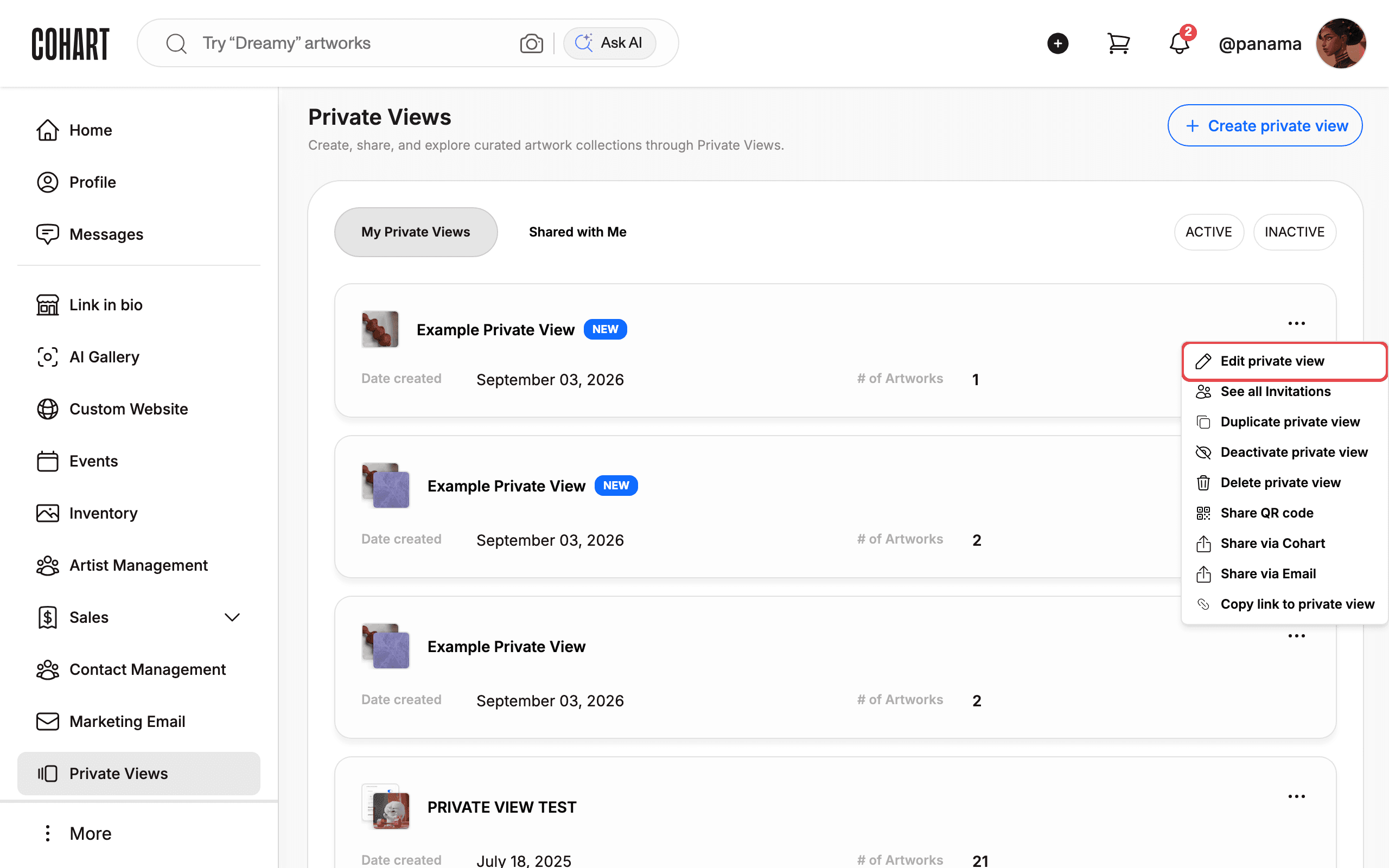
4. Open the manage menu and choose Edit private view
Click the three-dot menu on the view’s card. Click Edit private view.
The menu also offers See all Invitations, Duplicate private view, Deactivate private view, Delete private view, Share QR code, Share via Cohart, Share via Email, and Copy link to private view. Do not click Delete private view unless you want to permanently remove the view.
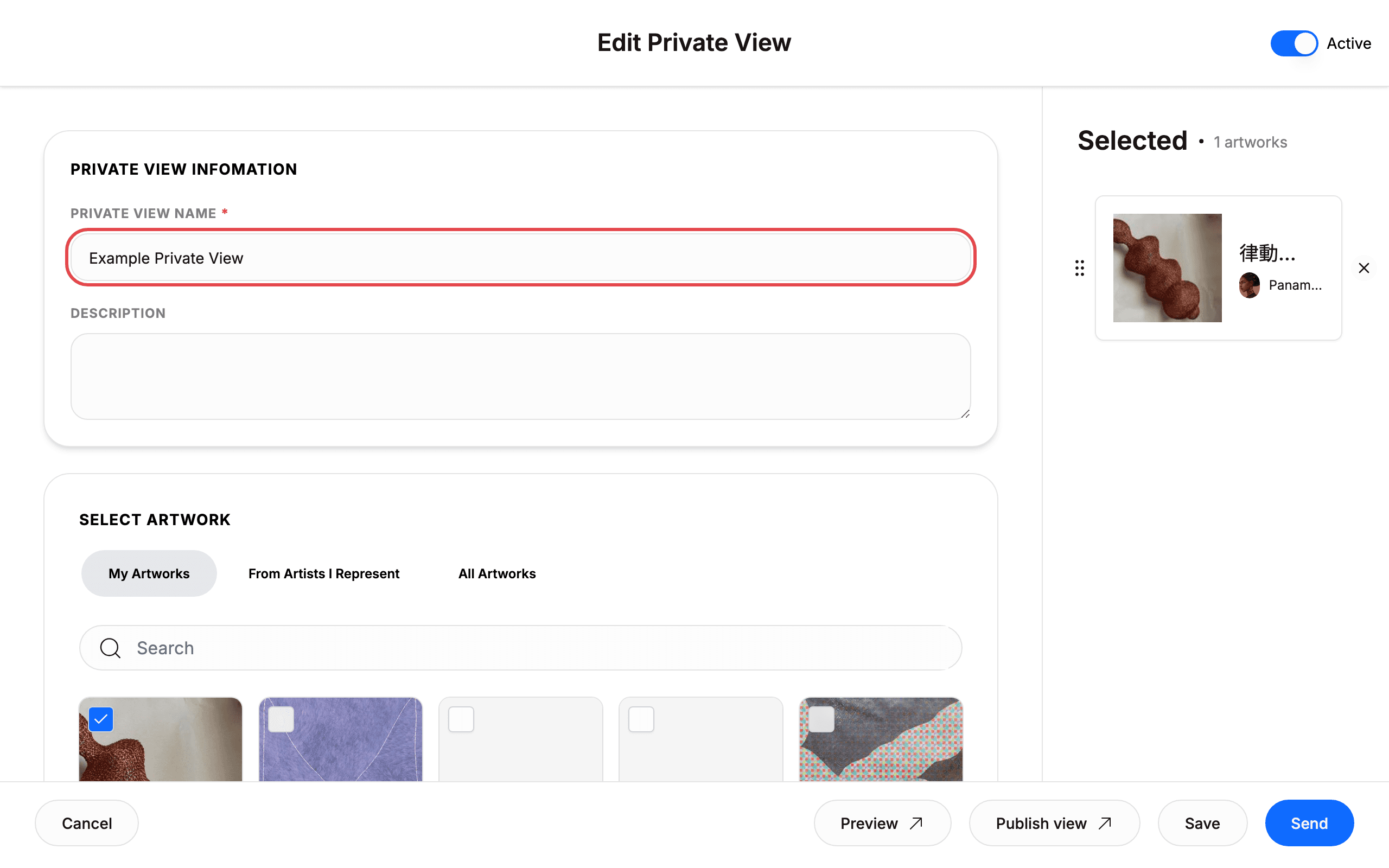
5. Edit the view name, description, and status
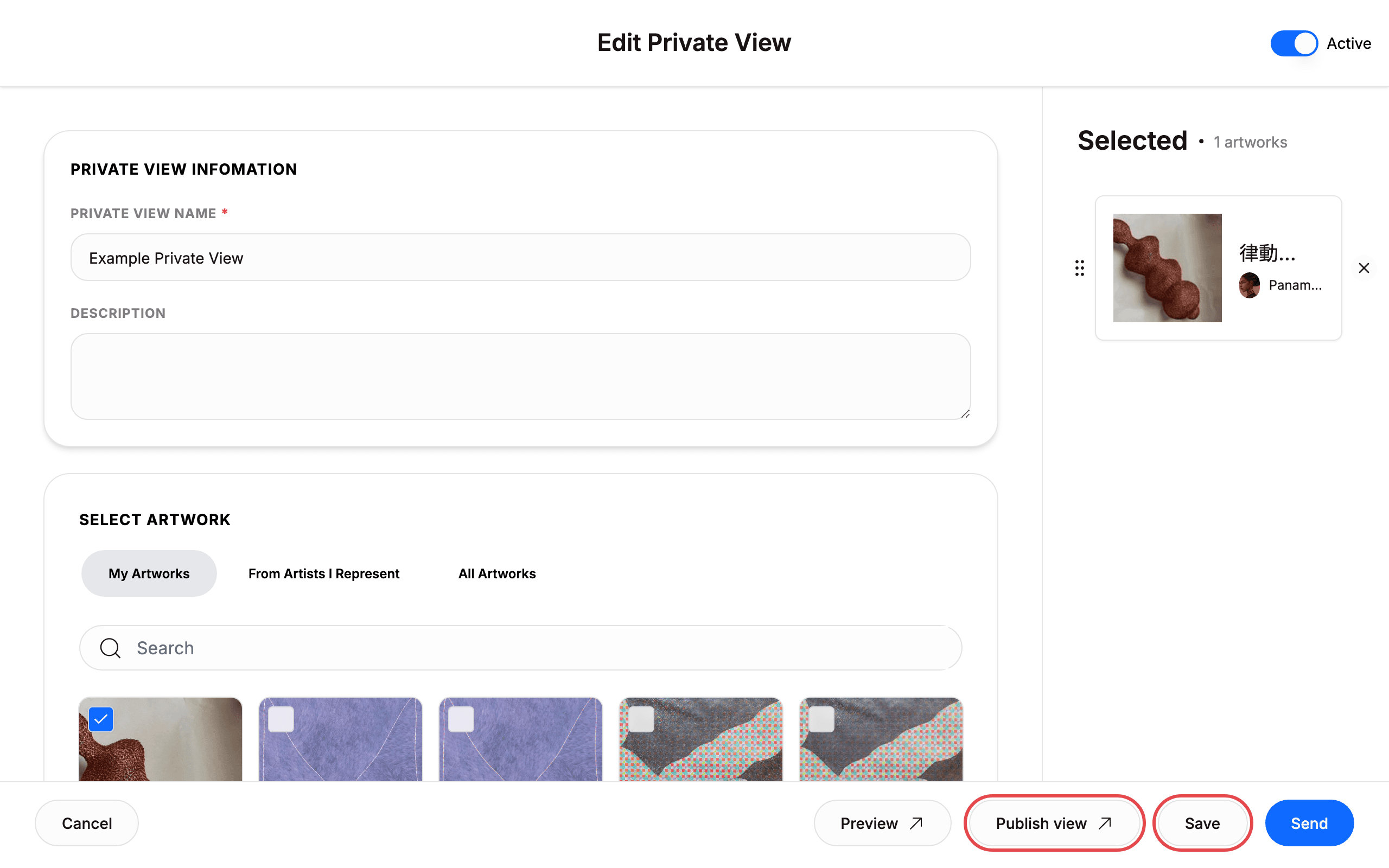
Read the Edit Private View heading. Edit the text in PRIVATE VIEW NAME*. Edit the text in DESCRIPTION. Use the Active toggle at the top to activate or deactivate the view.
The section heading reads PRIVATE VIEW INFOMATION on the page. Do not click Save or Publish view until you have reviewed all changes.
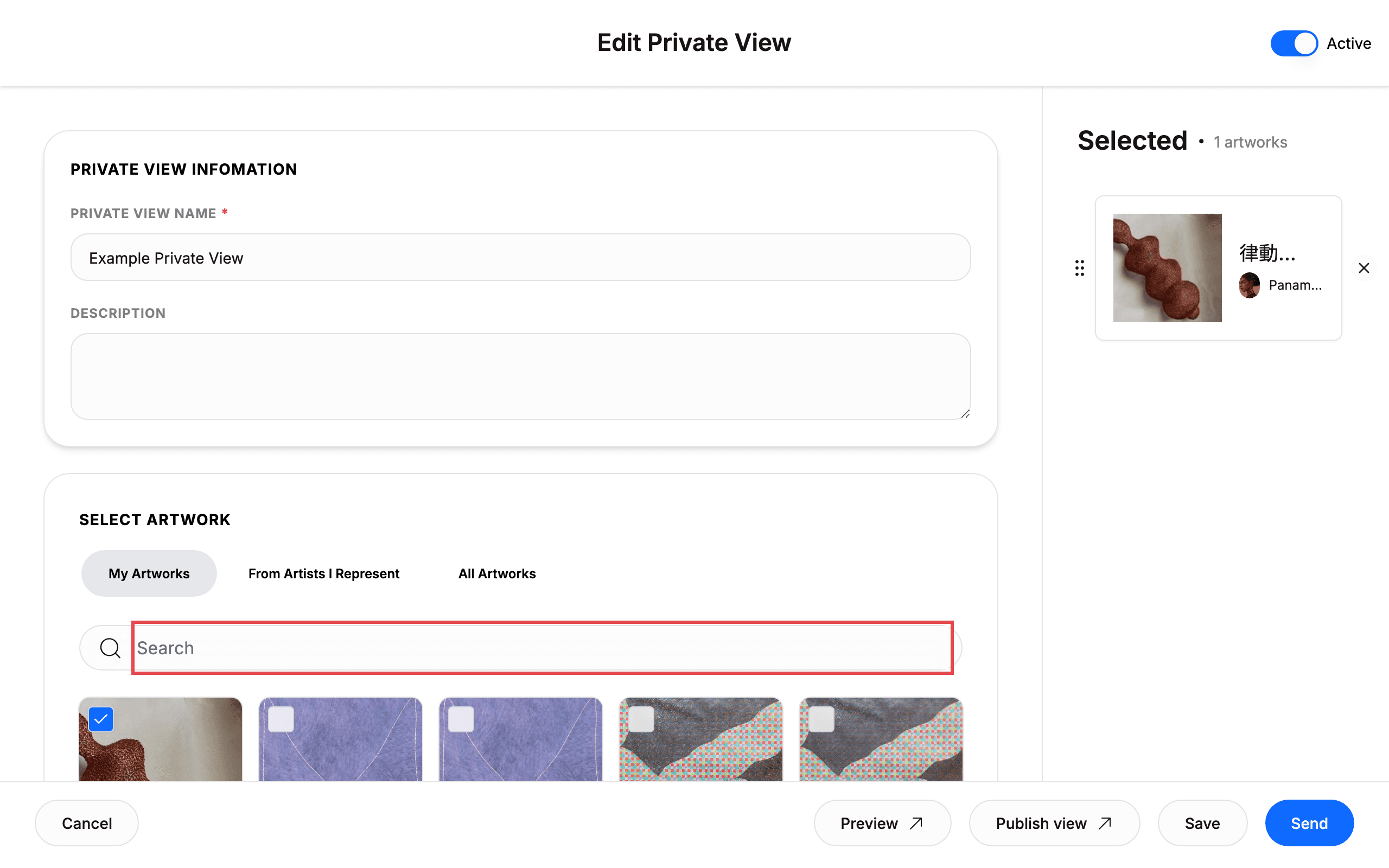
6. Choose artworks under SELECT ARTWORK
Scroll to SELECT ARTWORK. Click My Artworks, From Artists I Represent, or All Artworks to change the source list. Type in Search to find an artwork by title. Check the Selected panel to see how many artworks are in the view (for example 1 artwork).
Each artwork row links to its artwork page and profile. Sold works show SOLD.
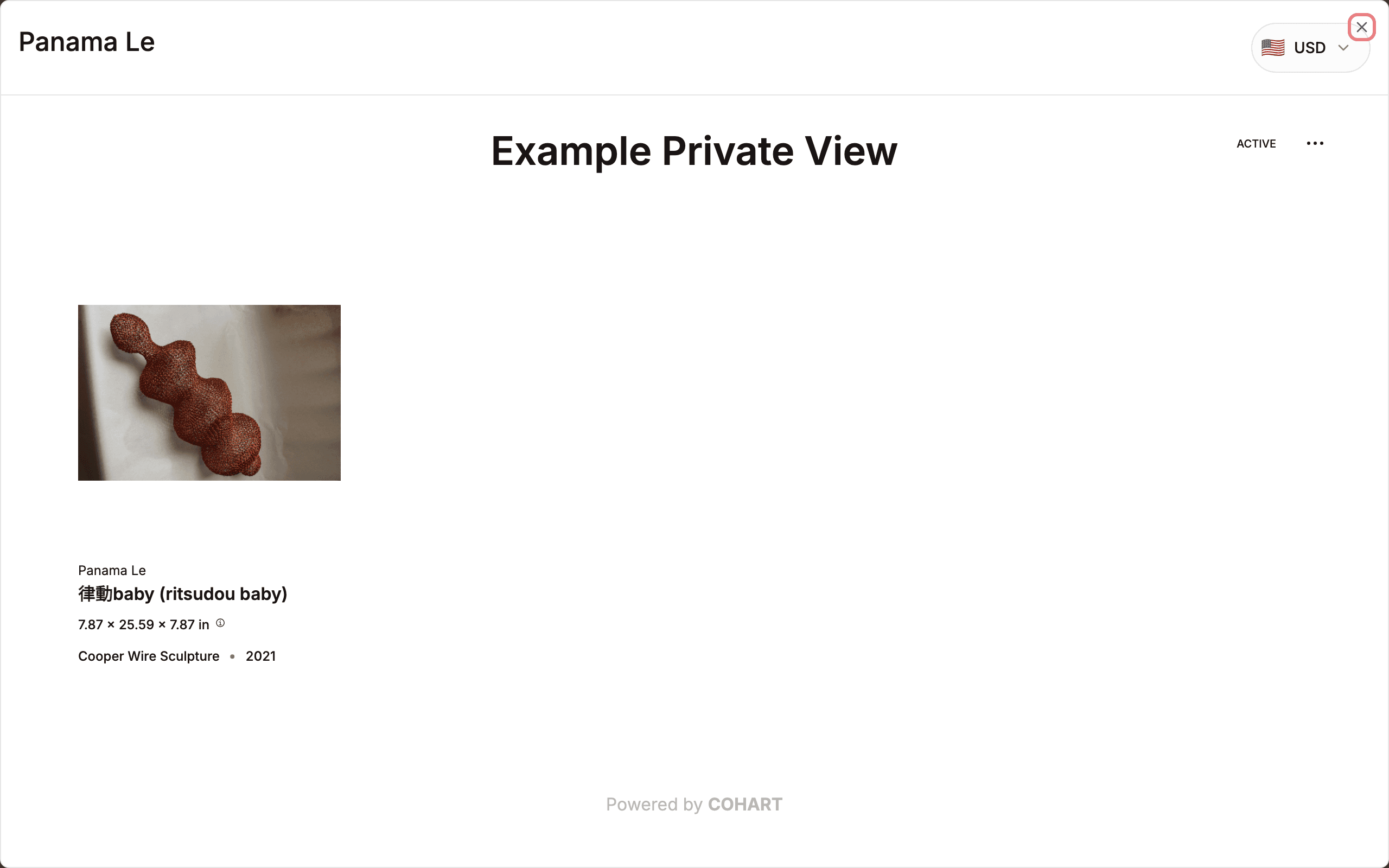
7. Preview the collector-facing view
Click Preview. Read the preview dialog showing the view name, ACTIVE status, and artworks. Click Close to return to editing.
The preview shows the currency selector (for example 🇺🇸 USD) and Powered by COHART at the bottom. The preview stays on the edit page.
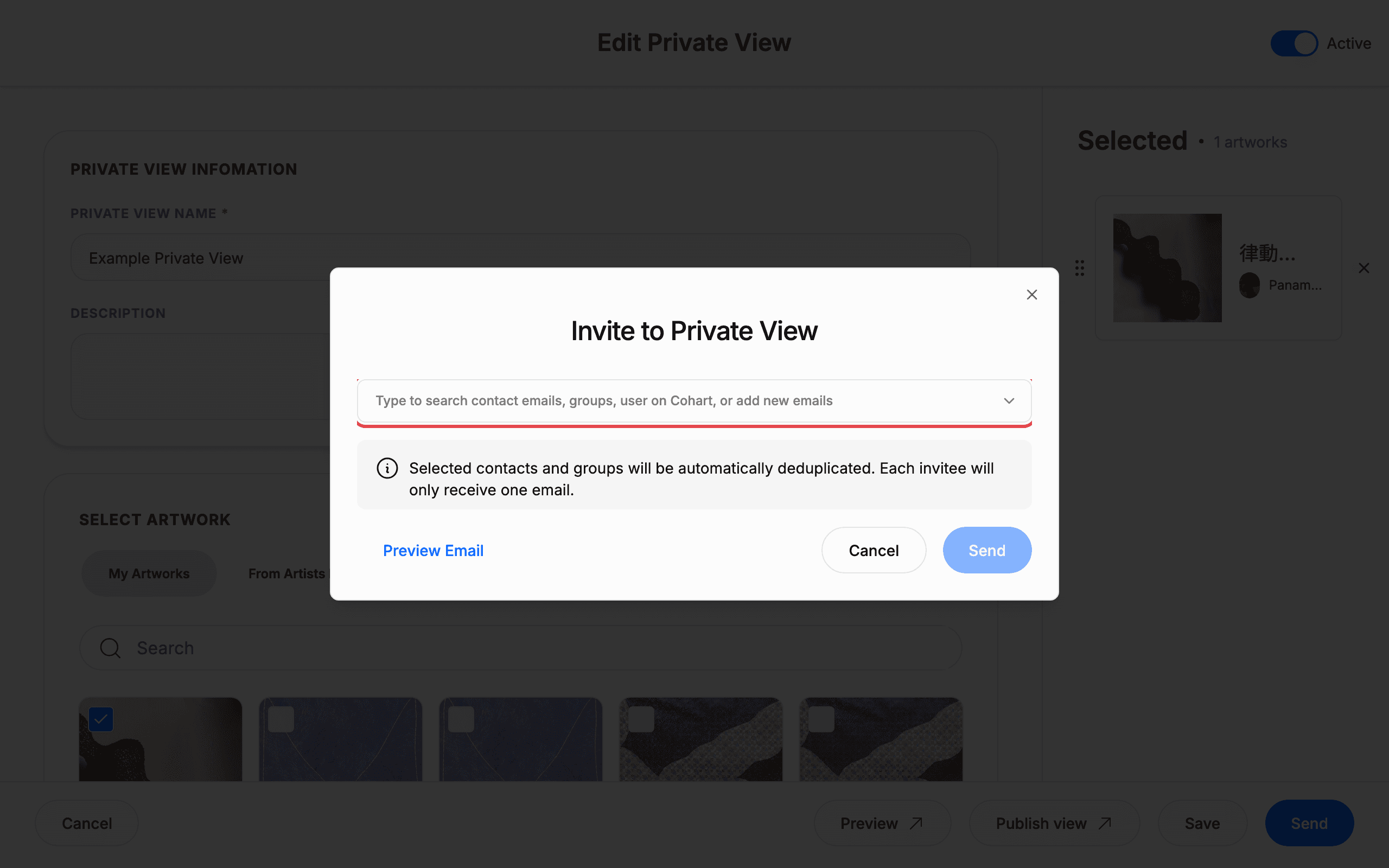
8. Open Invite to Private View
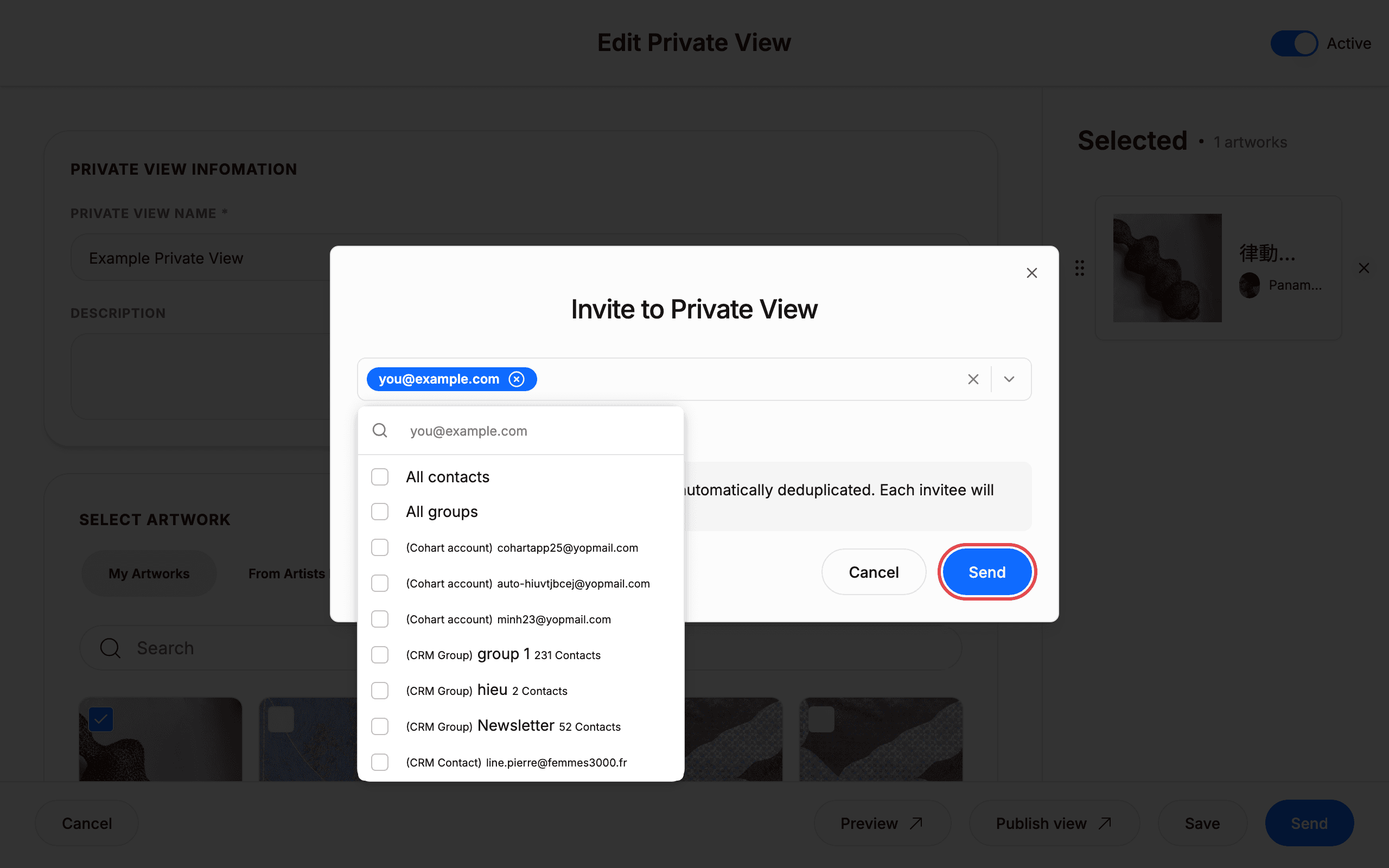
Click Send at the bottom of the edit page. Read the Invite to Private View dialog. Click Type to search contact emails, groups, user on Cohart, or add new emails.
The dialog notes: Selected contacts and groups will be automatically deduplicated. Each invitee will only receive one email. You can also click Preview Email to check the email, Cancel to close without inviting, or Close (X) at the top-right.
9. Add invitees and send
Type an email (for example you@example.com) in Search…. Click Add email you@example.com or pick a result under All contacts or All groups. Read Estimated total recipients: 1 invitee and click See Details to review. Click Send.
Matching results include (Cohart account) entries, (CRM Group) entries with contact counts, and (CRM Contact) entries. To remove a selection before sending, click Clear.
10. Save or publish your changes
Review the footer buttons on the edit page. Click Save to keep a draft. Click Publish view to make the view live. Click Preview to check again, or Cancel to discard your changes and leave the view as it was.
11. Check Shared with Me and status filters
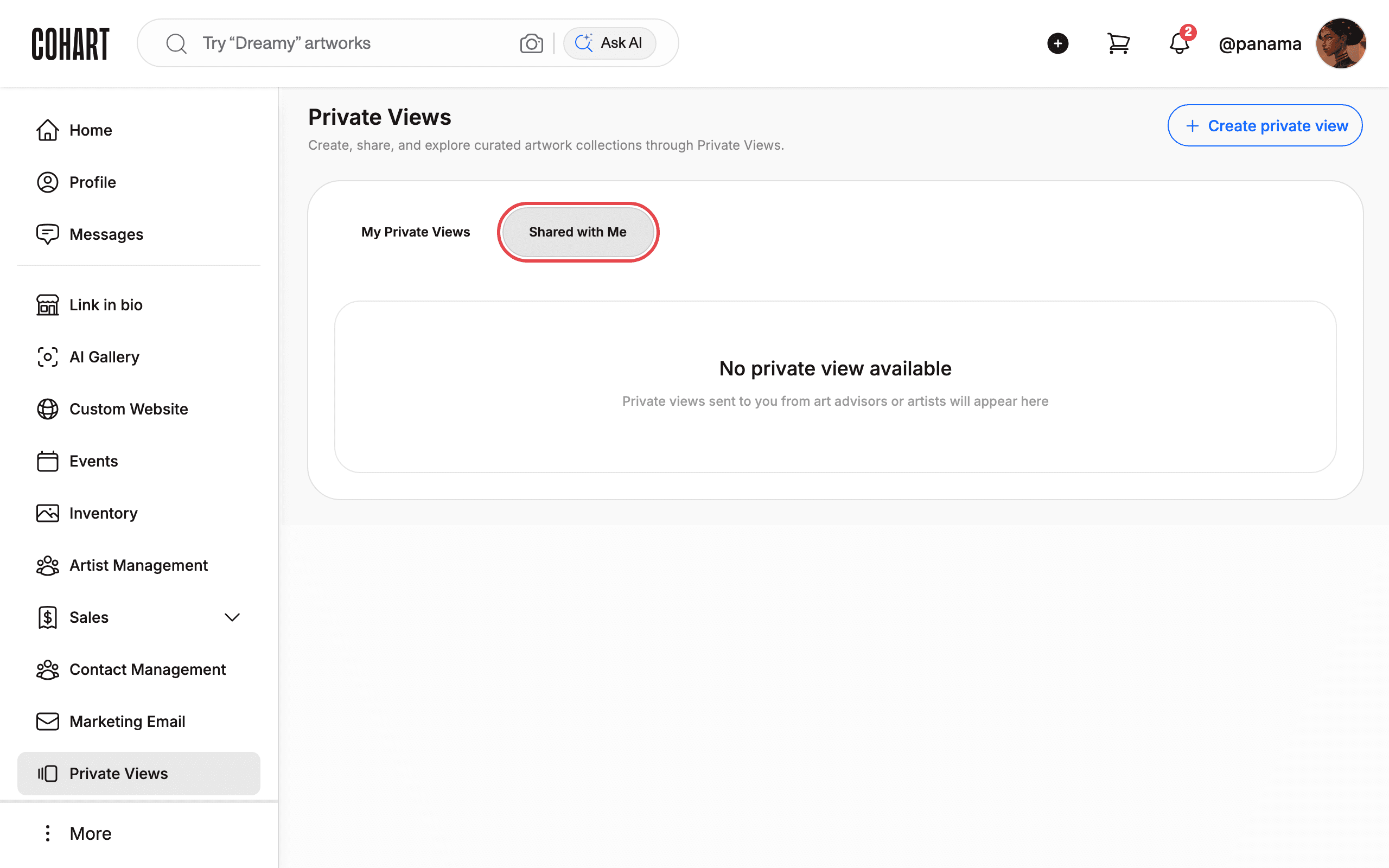
Go back to Private Views. Click Shared with Me. Read the empty state if you have no shared views.
If no one has shared with you, the page shows No private view available and Private views sent to you from art advisors or artists will appear here. On My Private Views, use ACTIVE and INACTIVE to filter by status.
Tips
- After signing in you land on Inventory. This is normal. Open Private Views in the sidebar whenever you need it.
- Clicking a card title (for example Example Private View) opens the public view. To manage, use the card three-dot menu and click Edit private view.
- The list defaults to ACTIVE. Click INACTIVE to find deactivated views. The card menu shows Deactivate private view on active views and Activate private view on inactive ones.
- On the edit page, Search filters the artwork picker. Inside the invite dialog, Search… finds contacts, groups, Cohart users, or new emails.
- Invites send real emails. The dialog emails recipients as soon as you click Send, so check the estimated recipient count first; use Cancel or Close to back out without sending.
- These actions write data immediately. Save and Publish view store your edits, while Delete private view and Duplicate private view change your collection — deleting is permanent.
Troubleshooting
- Send stays disabled in Invite to Private View → no invitee is selected → pick a contact, group, or Add email you@example.com and watch for Estimated total recipients: 1 invitee before sending.
- Preview Email shows nothing to preview → no invitee is selected → add at least one email, then preview.
- Shared with Me shows No private view available → no one has shared with you → this is the normal empty state; shared views from art advisors or artists will appear there.
- Duplicates in the invite list → overlapping contacts and groups → no action is needed; each invitee still receives only one email.