How to Report Content and Send Feedback
Overview
The Report Content & Feedback form is the built-in channel for flagging profiles, content, or bugs and for sending suggestions to the Cohart team. It exists so any user can raise a problem or an idea directly from the app, without leaving Cohart or hunting for an email address, and so the team receives everything it needs to follow up in one place. It is for any signed-in user — buyers, sellers, and admins alike — and opening it while signed out sends you back to login instead. You pick one reason under I would like to: (Report a profile or content, Report a bug, Suggest feedback, or Other), describe the issue in the message box, and send it with the green Send button. Your report goes to Cohart for review; it does not itself remove, block, or fix anything on the spot. By the end, your message is sent and the team has the details needed to follow up.
Before you start
- You must be signed in — visiting the report page while signed out redirects to login, so sign in first and then open More > Report Content & Feedback. No account yet? See How to Sign Up.
- The details of what you are reporting: which reason fits, plus the profile name or artwork title involved and what you expected to happen.
- Sending only submits your message for review — it does not remove or block the reported content itself, and no change appears on your account afterward. Select the matching reason and add specific details so the team can act on the right thing.
Steps
1. Sign in to Cohart
Sign in with your email address and password, or use Google or Apple.
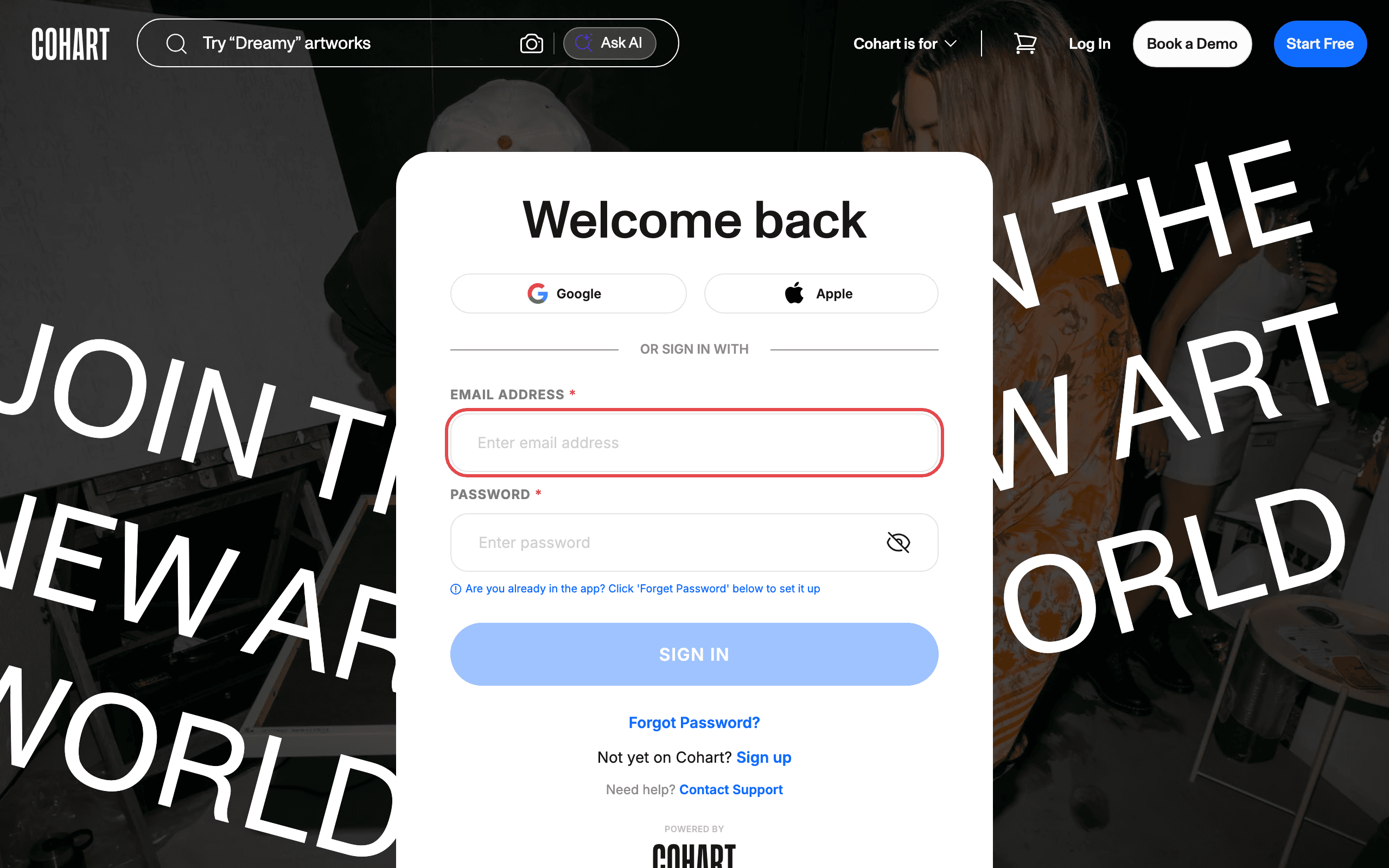
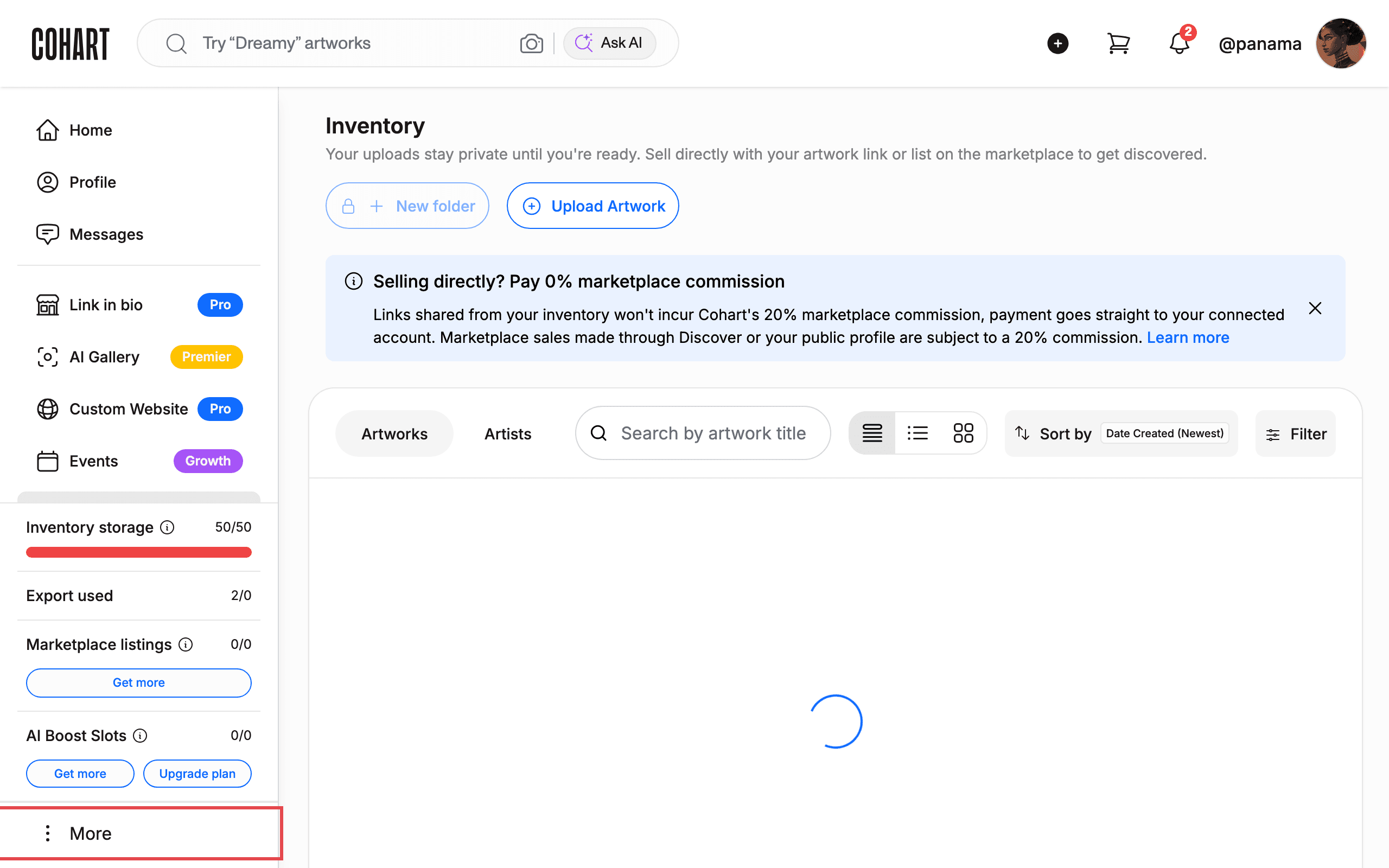
2. Open the More menu
After signing in, find More at the bottom of the left sidebar and click it.
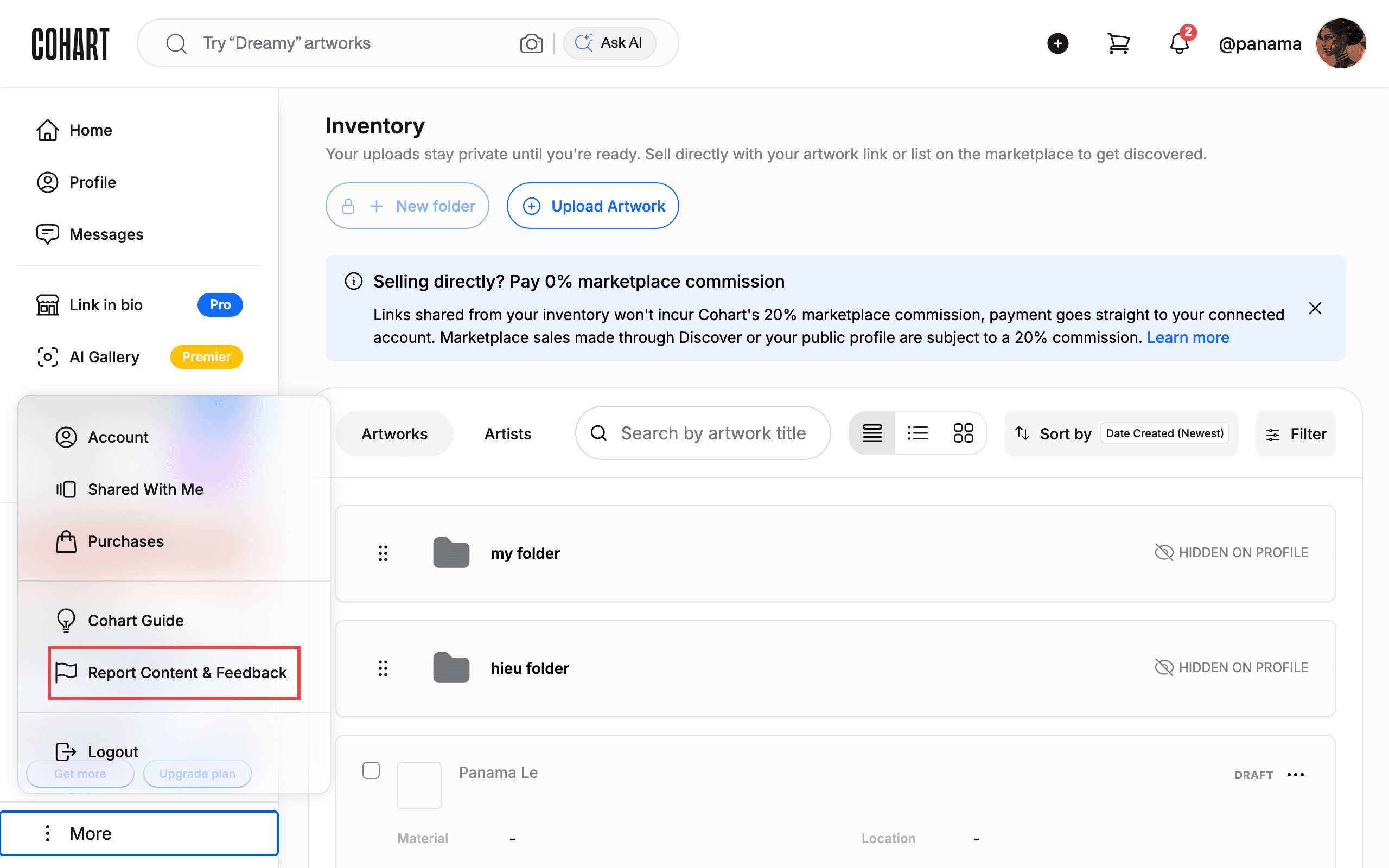
3. Click Report Content & Feedback
A menu opens above More. Click Report Content & Feedback.
The menu also offers Account, Shared With Me, Purchases, Cohart Guide, and Logout. This takes you to the Report Content & Feedback page.
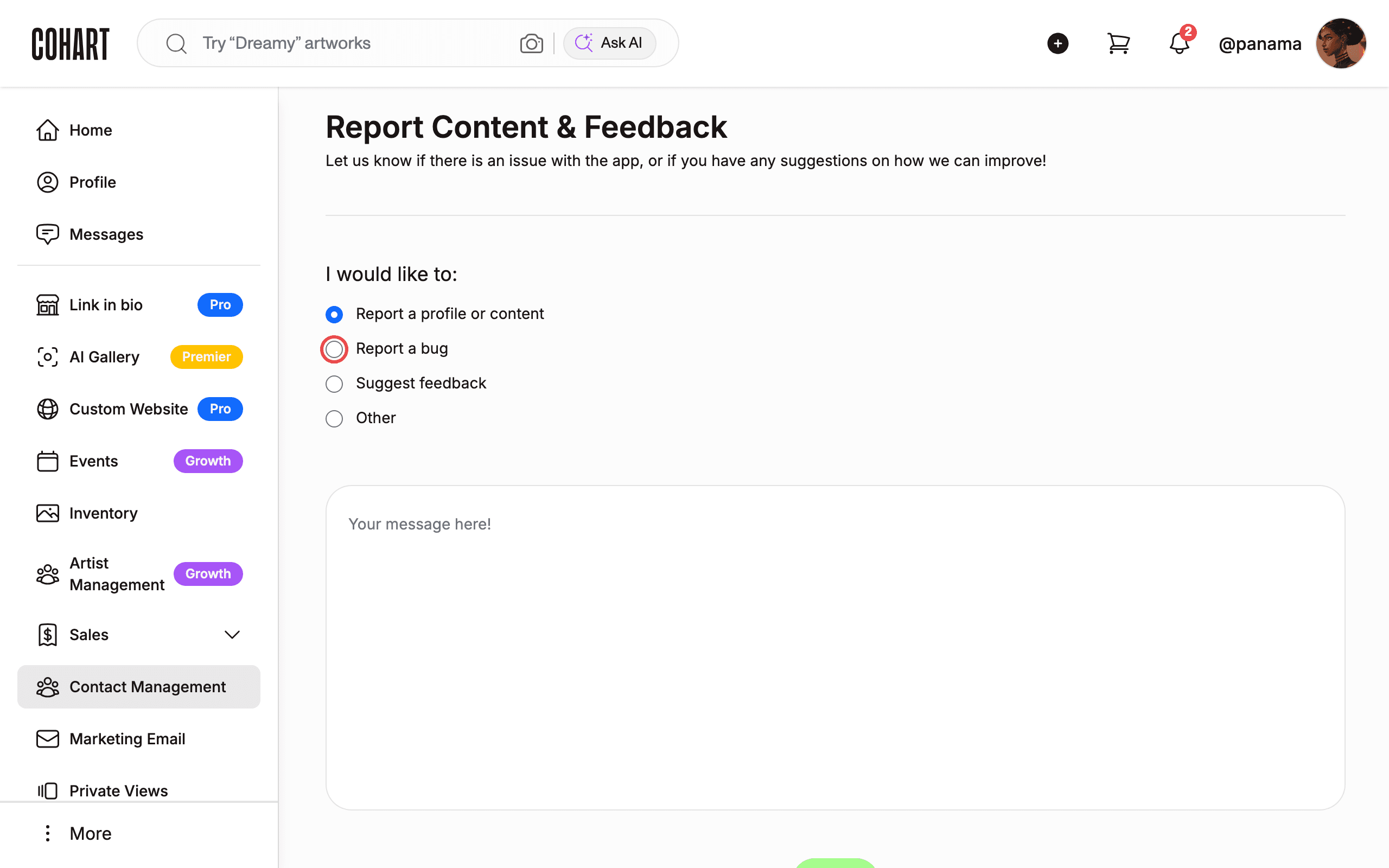
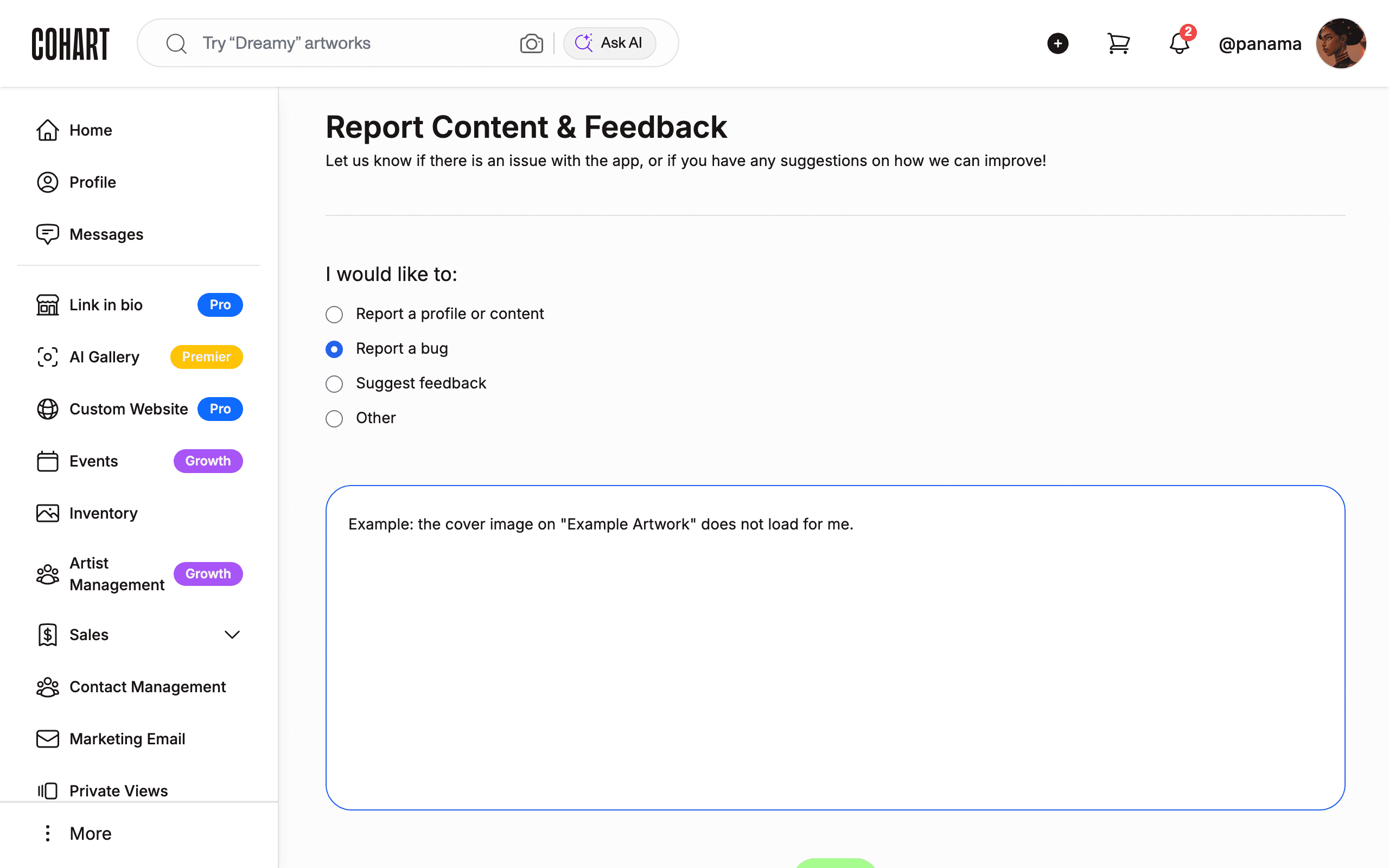
4. Choose a reason
Under I would like to:, select the option that matches your issue.
Your choices are Report a profile or content, Report a bug, Suggest feedback, and Other. Report a profile or content is selected by default.
5. Describe the issue
Click inside the Your message here! box and type a clear description of the problem or suggestion.
Include the profile name or artwork title involved, and what you expected to happen.
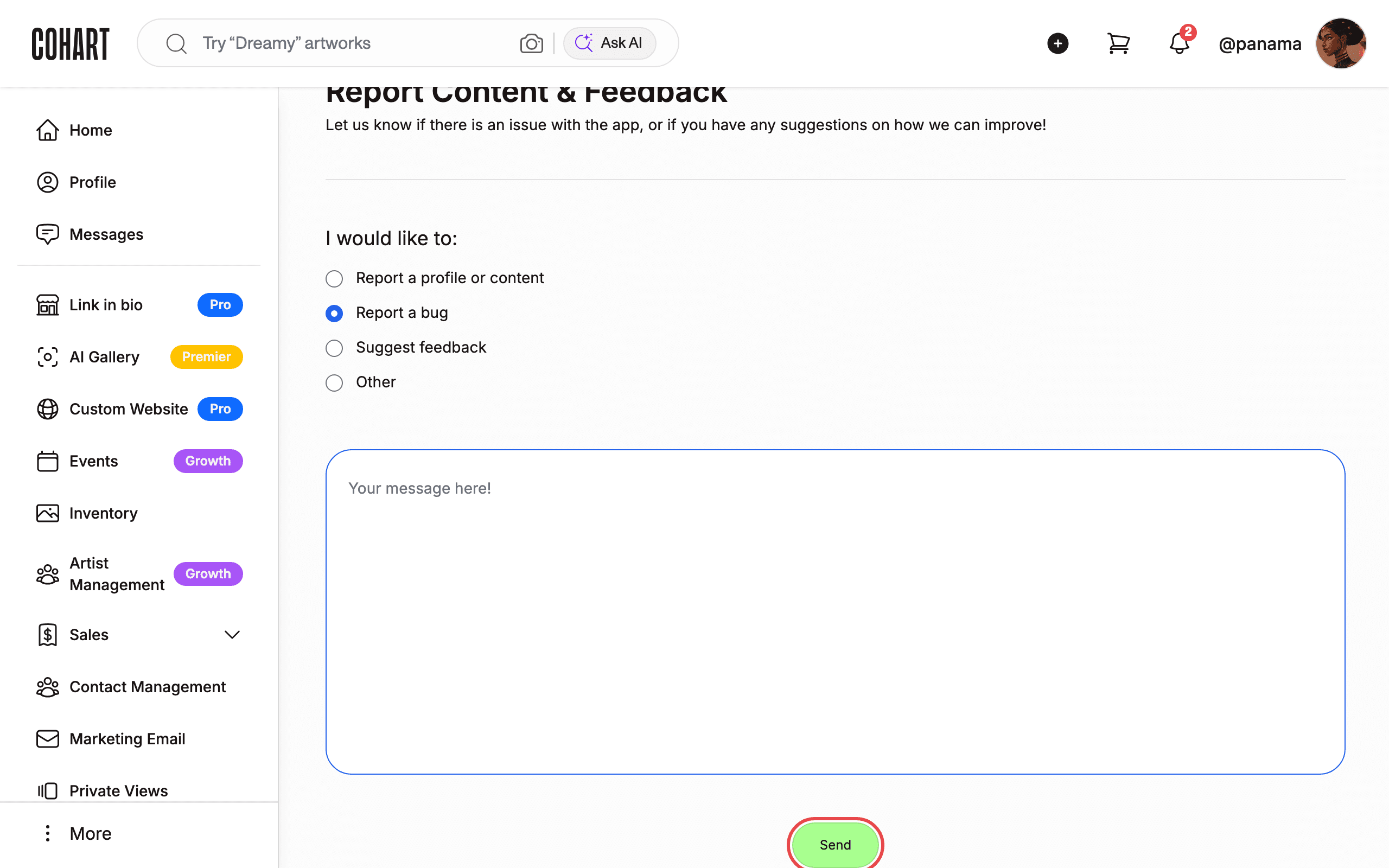
6. Click Send
When your message is ready, click the green Send button below the message box.
Tips
- Include the profile name or artwork title involved, and what you expected to happen.
- The Send button looks clickable even before you type a message, so double-check that your description is complete before clicking it.
Troubleshooting
- Visiting the report page while signed out sends you back to login → you must be signed in → sign in first, then open More > Report Content & Feedback.
- SIGN IN button stays greyed out → both fields are not filled or the page is still loading → enter both an email address and a password, then wait a few seconds for the page to finish loading.
- Cookie banner covers the bottom of the page → the banner blocks the view → click Reject all to dismiss it.
- Page appears blank or shows a loading spinner → the page is slow to load → wait and let it finish before continuing.