How to View Purchases and Certificates of Authenticity
Overview
Your Purchases page is the buyer’s record of everything you have bought on Cohart, with one card per invoice showing its number, items, total, purchase date, and status. It exists so you can find the proof and progress of any order without digging through email: each card shows where the order stands, and opening it reveals the artwork, payment, and delivery details behind it. It is for buyers — anyone who has completed an order — and it is read-only, so nothing here changes an order, payment, or delivery. You can search the list by order ID, artist name, or artwork title, and page through it when you have many orders. Opening an invoice’s menu and choosing View order details shows the full order: the artwork and price, a progress tracker from payment to completion, plus the order summary, delivery address, and payment method. Each purchased artwork also carries a Digital Certificate of Authenticity, which you open with the View certificate link and save to your mobile wallet from the Download Wallet Card page; Cohart may additionally announce a new certificate with a message inviting you to add it to your wallet. By the end of this guide you will have found the invoice you need, reviewed its order details, and opened the certificate for the artwork you bought.
Before you start
- You need a buyer account signed in: open Purchases from the More menu at the bottom of the dashboard sidebar. No account yet? See How to Sign Up. Cannot get in? See How to Log In to Cohart.
- You need at least one completed purchase: the page lists one card per invoice, so an account that has never bought anything shows no invoices.
- If you are looking for a specific order, have its order ID, the artist’s name, or the artwork title ready for the search box; use the page numbers at the bottom when you have many orders.
- Viewing purchases and certificates is read-only: opening invoices and certificates changes nothing on your orders.
Steps
1. Sign in to Cohart
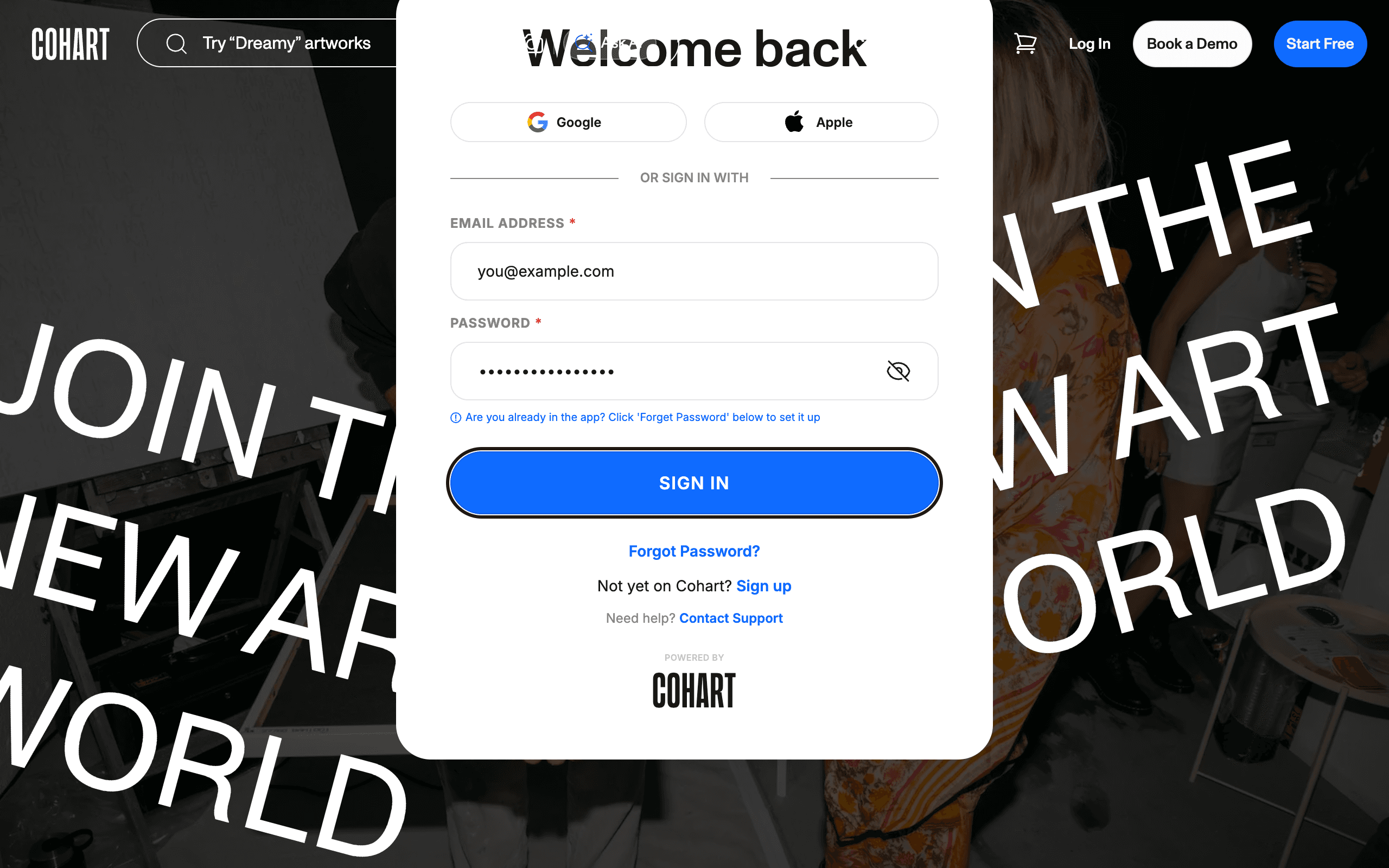
Sign in with your email address and password, or use Google or Apple.
2. Open More, then Purchases
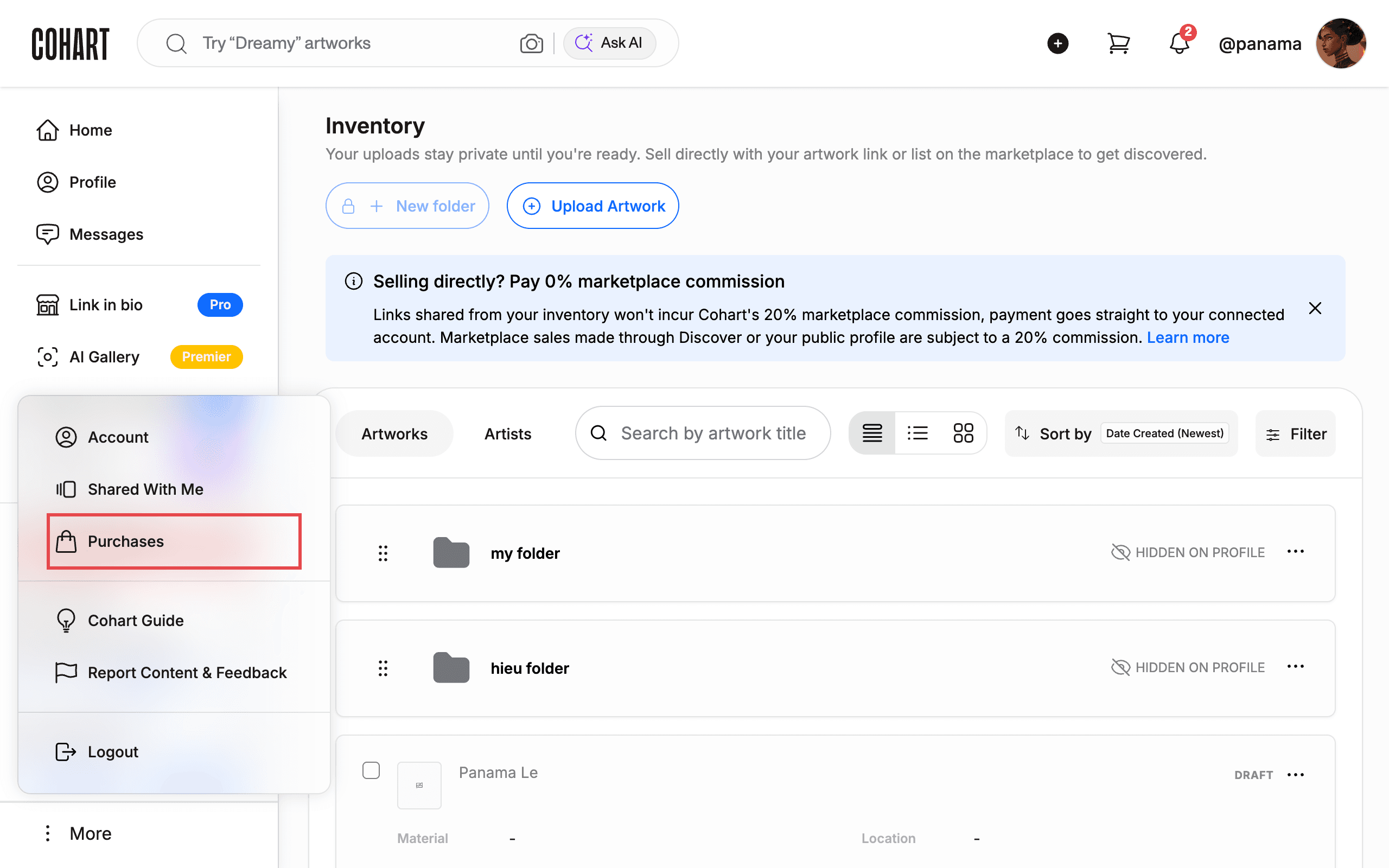
After you sign in, find the left sidebar. Click More at the bottom of the sidebar. Click Purchases in the menu that opens.
The More menu also contains Account, Shared With Me, Cohart Guide, Report Content & Feedback, and Logout.
3. Read your invoice list
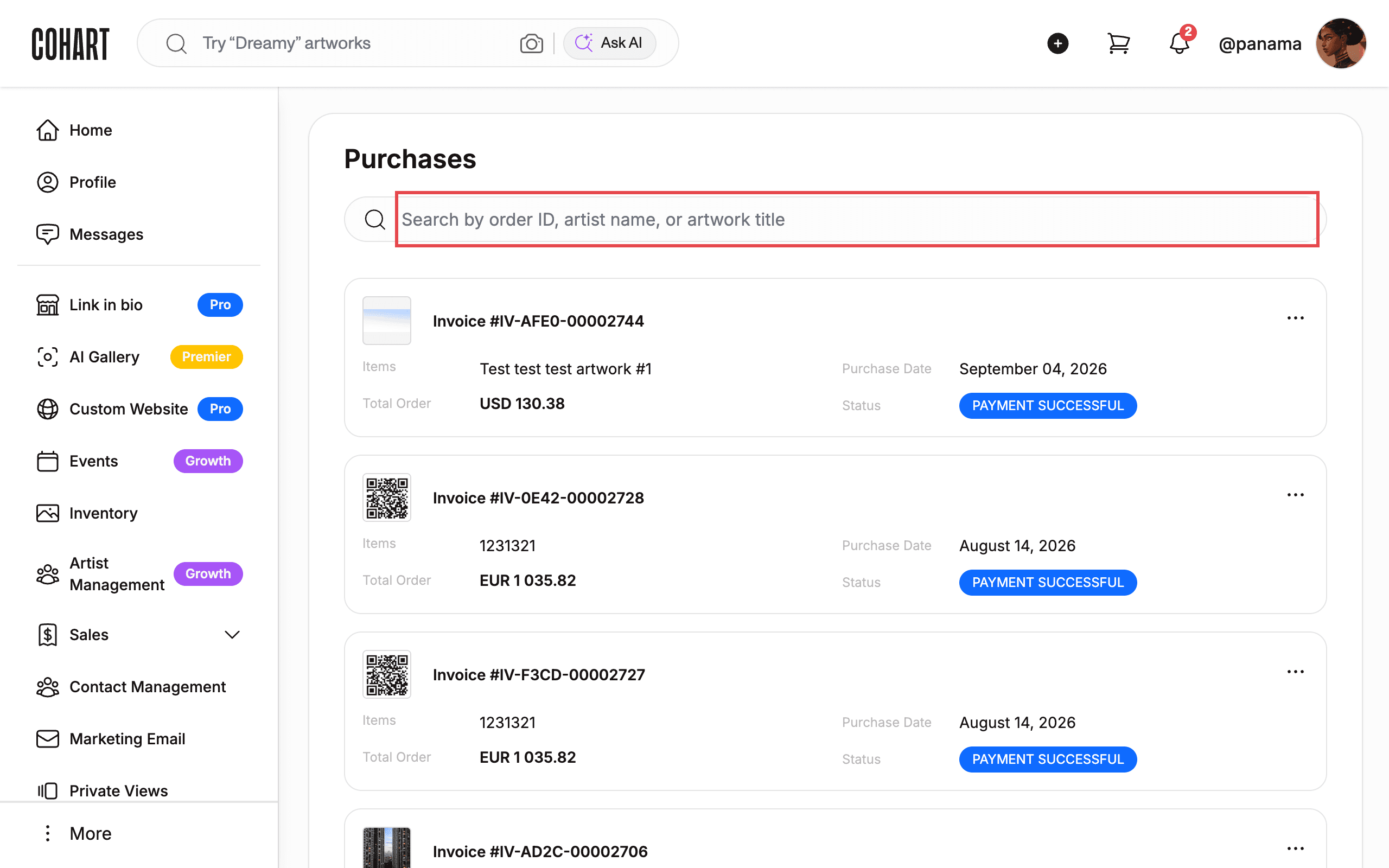
The Purchases page lists one card per invoice. Each card shows the invoice number (for example Invoice #IV-AFE0-00002744), Items, Total Order, Purchase Date, and Status.
Use the search box Search by order ID, artist name, or artwork title to find a specific order. If you have many orders, use the page numbers at the bottom of the list.
4. Open the invoice menu
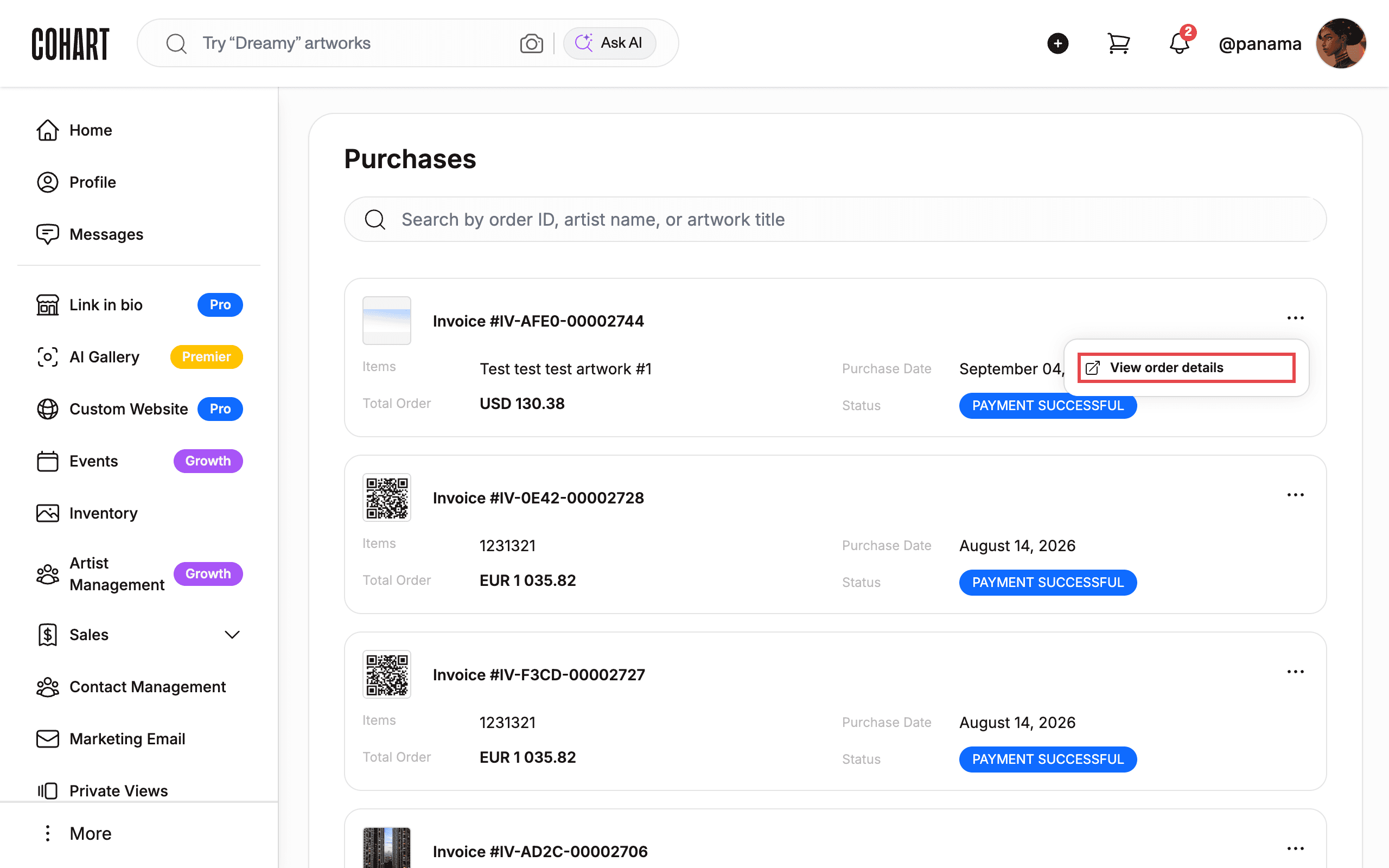
Find the invoice you want. Click the three-dot button in the top-right corner of its card. Click View order details.
5. Read the order and open the certificate
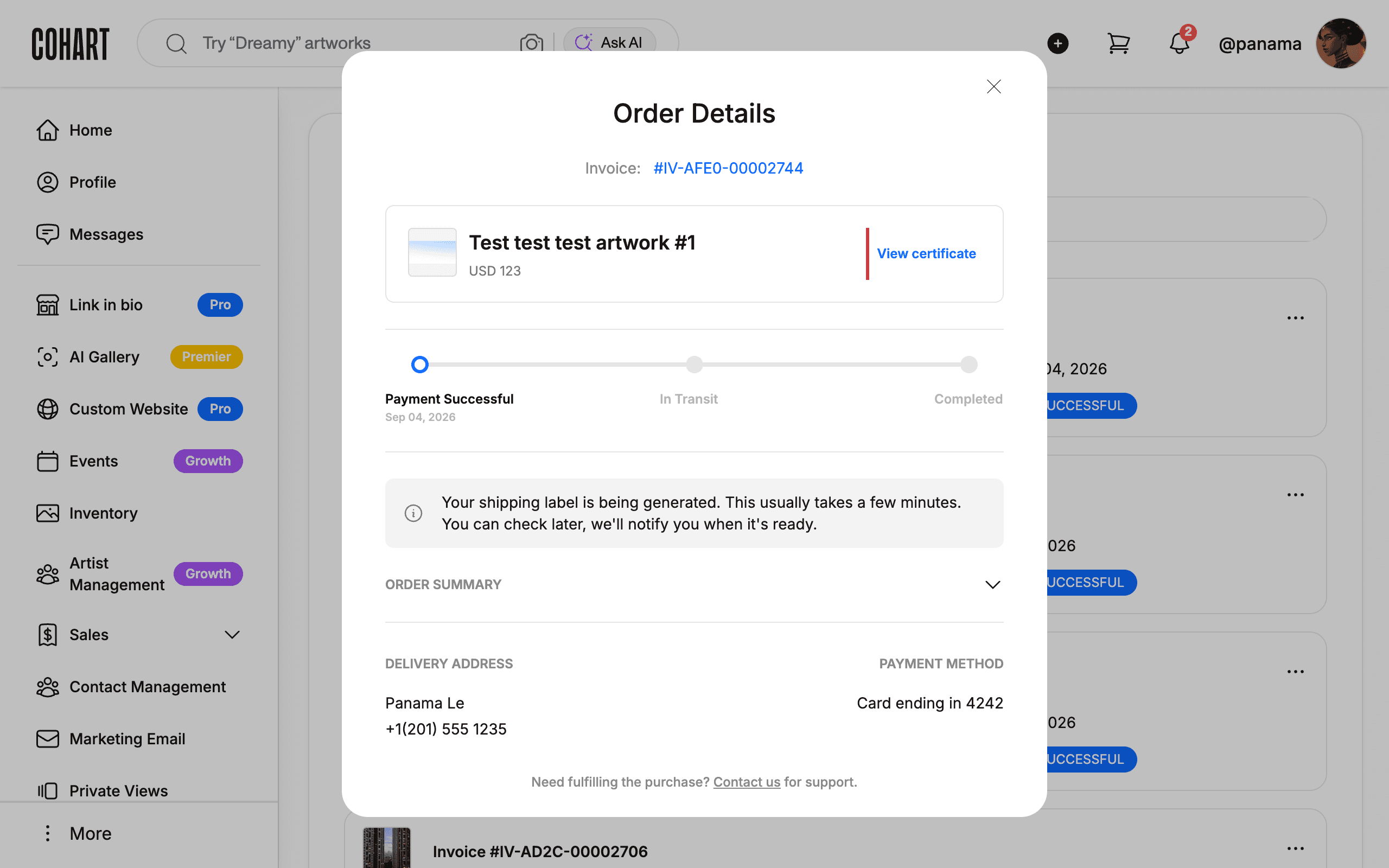
The Order Details window shows the invoice number, the artwork and its price, and a progress tracker (Payment Successful, In Transit, Completed). It also shows ORDER SUMMARY, DELIVERY ADDRESS, and PAYMENT METHOD.
Click View certificate next to the artwork. A Download Wallet Card page opens in a new tab. Follow it to save the Digital Certificate of Authenticity to your mobile wallet.
Tips
- Cohart may also announce the certificate with a message titled Your Digital Certificate of Authenticity is here!. It invites you to add the certificate to your mobile wallet. The message links to a help page if you click here in “Click here to learn more about using the digital certificate”.
- Your order status moves through stages as the order progresses (for example PAYMENT SUCCESSFUL, In Transit, then Completed).
- If you need help with an order, use the Contact us link at the bottom of the Order Details window.
Troubleshooting
- Order Details content is blank at first → the window loads with a short delay → wait for the content to appear before clicking anything.
- Shipping label is not ready → the label is still being generated and the window says it usually takes a few minutes → check back later; you will be notified when it is ready.
- Cookie banner covers the bottom of the page → the banner blocks the view → click Reject all to dismiss it.